
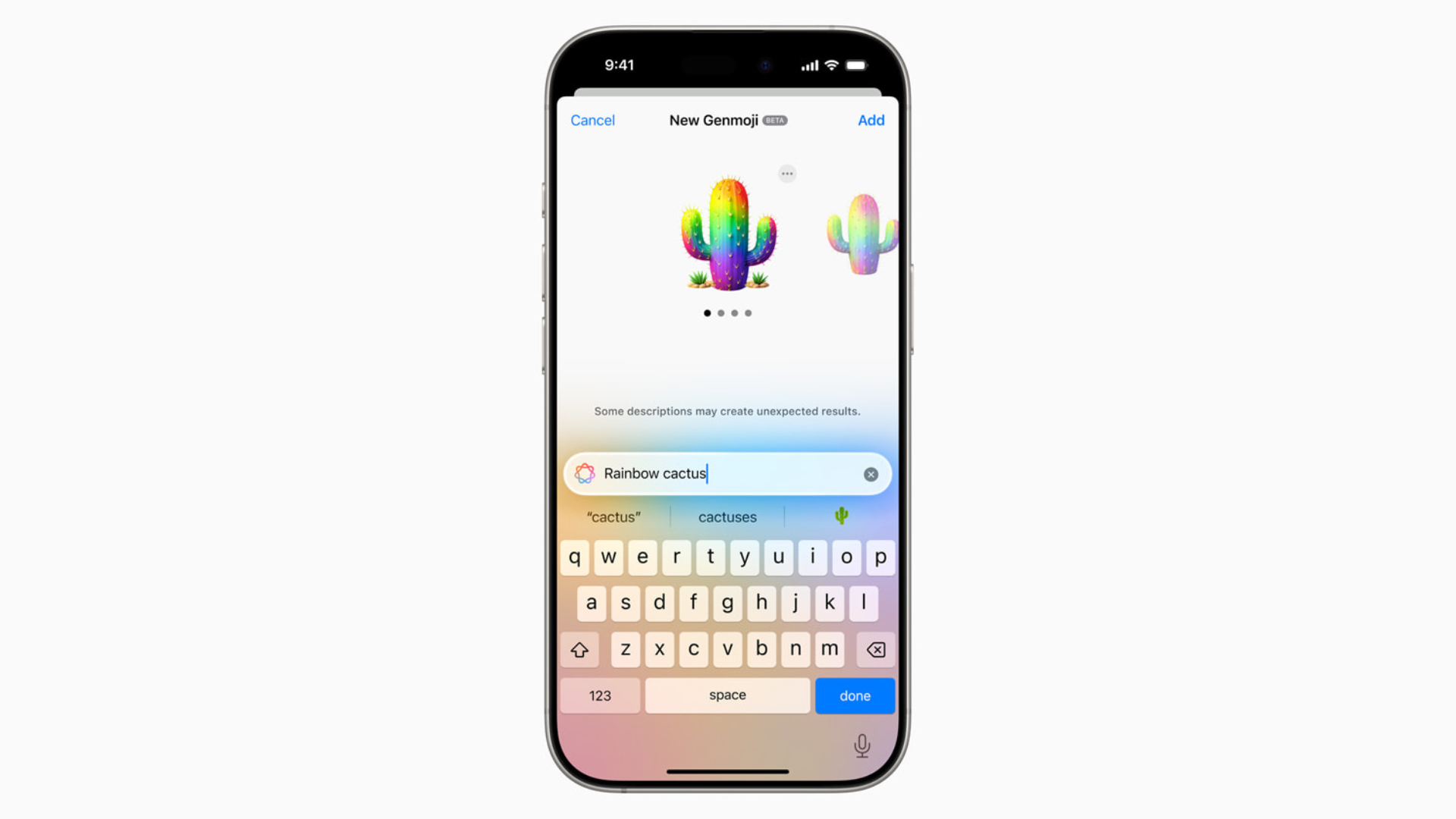
With Genmoji, instead of being limited to Apple’s emoji set, you can generate custom designs from text descriptions, existing emoji, or even people and pets from your photo library. You can use them in Messages, save them as stickers, or send them as Tapbacks. Here’s how it works in iOS 26.
Table of contents
What you need
- An iPhone running iOS 26 (check iOS 26 requirements)
- Apple Intelligence enabled — Genmoji is part of Apple’s new AI features and not available on every device, language, or region.
- The latest software update installed. If you’re stuck, see can’t update to iOS 26 fixes.
How to create a Genmoji
- Open the emoji keyboard
Tap a text field in Messages or another app, then tap the emoji button or the next keyboard key. - Tap Genmoji
In the top-right corner, tap Genmoji to open the creation panel. - Choose how to design it
- Concepts: Browse themes, expressions, costumes, accessories, or places.
- Existing emoji: Combine up to seven emojis into a new design.
- Description: Type what you want (for example, “a cat wearing sunglasses on a skateboard”).
- Person or pet: Tap Choose Person, then pick someone from Photos. (You’ll need to name them in the Photos app first.)
- Refine your design
- Tap the preview bubble to see variations.
- Use Customize Appearance to tweak hair, glasses, or other details.
- To reset, tap Reset Appearance.
- Save your Genmoji
When you’re happy, tap Done. Your Genmoji is saved with your stickers.

Edit or delete a Genmoji
To edit: Go back into Genmoji, tap Choose Person → Edit, and adjust the photo or attributes.
To delete: Open the emoji keyboard → swipe right to stickers → touch and hold a Genmoji → Delete.
Don’t miss the best of The Mac Observer
Set us as a preferred source and our Apple reporting ranks higher in your Google Search results and Discover feed — one tap, no account changes.
Where you can use Genmoji
- Send them like regular emoji in Messages
- Use them as stickers
- React to texts with a Tapback
- Create them in Image Playground for more variation
Genmoji is part of Apple’s push to make iOS more personal and creative. Like custom app icons in iOS 26 or Liquid Glass wallpapers, it gives you another way to make your iPhone feel like yours.
With Genmoji in iOS 26, you’re no longer stuck with the standard emoji set. You can generate custom icons that match your personality, your friends, or even your pets. It’s fun, easy, and surprisingly powerful, just make sure your device supports Apple Intelligence before you dive in.


Discussion