

Your Apple Watch is designed to keep you connected, but sometimes, those notifications can feel a little too constant. Whether you’re in a meeting, enjoying a workout, or winding down for bed, knowing how to silence your Apple Watch helps you stay focused without completely disconnecting from the world.
In this guide, I’ll take you through all the ways to mute your Apple Watch, from using Silent Mode to enabling Focus, and share quick fixes if your watch won’t stay quiet.
Table of Contents
Understanding Apple Watch Sound Settings

Before we dive into the how-to steps, it’s important to understand the differences between your Apple Watch’s sound control options. Apple gives you several ways to manage alerts:
Don’t miss the best of The Mac Observer
Set us as a preferred source and our Apple reporting ranks higher in your Google Search results and Discover feed — one tap, no account changes.
- Silent Mode: Turns off sound notifications but keeps haptic feedback active.
- Do Not Disturb (Focus): Mutes notifications across all devices connected to your Apple ID.
- Theater Mode: Keeps the screen dark and silent, perfect for movie nights or meetings.
Each of these serves a different purpose, and knowing when to use them makes all the difference.
How to Silence Apple Watch from the Control Center
This is the fastest and most convenient way to mute your Apple Watch:
- Swipe up from the bottom of the watch face to open Control Center.
- Tap the Bell icon. When the icon turns red with a line through it, Silent Mode is enabled.
- You’ll still feel gentle vibrations for alerts, no sounds, just subtle taps.
Silent Mode doesn’t affect alarms or timers set directly on the watch. If you want those muted too, you’ll need to manually lower the volume or use the Do Not Disturb feature.
How to Silence Apple Watch Using Settings

If you prefer using the Settings app, here’s how:
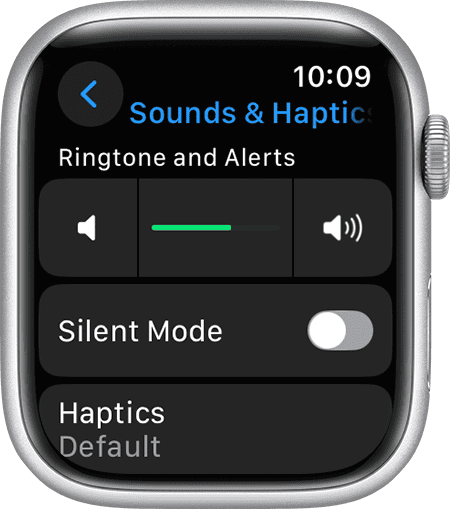
- Open the Settings app on your Apple Watch.
- Tap Sounds & Haptics.
- Toggle on Silent Mode.
- Drag the Volume slider to the left to reduce alert sounds.
You can also adjust the Haptic Strength here to control the intensity of your watch’s vibration. If you ever need to do the opposite, here’s how to increase volume on your Apple Watch.
Use Focus or Do Not Disturb
Apple’s Focus feature (formerly known as Do Not Disturb) allows you to silence notifications intelligently, making it perfect for work, sleep, or fitness time.
To enable it:
- Swipe up for Control Center.
- Tap the Crescent moon icon (Do Not Disturb) or Focus icon.
- Choose from presets like Sleep, Work, or Personal.
You can also customize Focus modes on your iPhone to sync automatically with your watch. That means if you enable “Work” Focus on your iPhone, your Apple Watch follows suit.
If you often get overwhelmed with pings and pop-ups, you’ll find this guide on turning off Apple Watch notifications helpful.
How to Mute Calls and Alerts Instantly
Apple added a clever feature called Cover to Mute, and it’s one of my favorites. If your Apple Watch rings or vibrates at the wrong time, you can:
- Simply place your palm over the display for three seconds, until you feel a gentle tap.
- The sound will stop instantly.
You can enable this feature in Settings → Sounds & Haptics → Cover to Mute.
This is particularly useful when you’re in a quiet environment and don’t want to fumble through menus.
Troubleshooting: Apple Watch Won’t Stay Silent
If your Apple Watch refuses to stay quiet, here are a few things to check:
- Sync Settings: Ensure that Focus modes are synced between your iPhone and Apple Watch.
- Restart Your Watch: A simple restart can fix temporary glitches.
- Check Third-Party Apps: Some apps might override your silent preferences.
- Update watchOS: Bugs in older versions can sometimes interfere with mute settings.
If Siri still responds out loud even in Silent Mode, you can fix that easily by tweaking Siri’s voice feedback. Here’s how to silence Siri on your Apple Watch.
Best Scenarios for Using Each Sound Mode
| Mode | Best For | What It Does |
| Silent Mode | Meetings, classes | Disables sounds, keeps vibrations |
| Focus Mode | Work, sleep | Mutes all notifications across devices |
| Theater Mode | Movies, night-time | Turns off sound and raises brightness only when tapped |
| Cover to Mute | Quick interruptions | Silences alerts instantly |
This simple table can help you decide which setting works best for your daily routine.
Related Questions
Not always. Silent Mode mutes notification sounds but allows alarms and timers set on the watch to still vibrate. For complete silence, combine Silent Mode with Theater Mode or Do Not Disturb.
Silent Mode only mutes sounds; you’ll still get vibrations and notifications. Do Not Disturb (or Focus) goes further by pausing notifications entirely until you turn it off.
Yes. Your Apple Watch will still use haptic feedback to alert you. You can adjust or even turn off haptics in Settings → Sounds & Haptics.
Absolutely. Open the Watch app on your iPhone → tap Sounds & Haptics → toggle Silent Mode on. The changes sync instantly to your watch.
That can happen if an app overrides the mute settings or if Siri’s voice feedback is still active. Try restarting your watch, checking app permissions, or following this guide on how to silence Siri on your Apple Watch.




Discussion