

Whether you’re troubleshooting, conserving battery, or simply powering down for the night, knowing how to turn off your iPhone 17 is essential. Apple’s latest models, including the iPhone 17, iPhone 17 Pro, and iPhone Air, feature updated shutdown methods that differ from older devices. This guide walks you through every reliable way to power off your iPhone 17, including options for when your screen is unresponsive.
Table of contents
Powering Off iPhone 17: All Methods Explained
Using Hardware Buttons
This is the fastest way to shut down your iPhone 17.
- Press and hold the Side button (on the right edge) and either Volume Up or Volume Down.
- Wait for the power-off slider to appear.
- Swipe right on the slider to turn off your device.


This method also gives access to Emergency SOS and Find My network settings. To turn your iPhone back on, press and hold the Side button until the Apple logo appears.
Don’t miss the best of The Mac Observer
Set us as a preferred source and our Apple reporting ranks higher in your Google Search results and Discover feed — one tap, no account changes.
Via Control Center (iOS 18+)
Apple introduced a new shortcut in iOS 18 for quicker access.
- Swipe down from the top-right corner to open Control Center.
- Tap and hold the Power icon in the top-right corner.
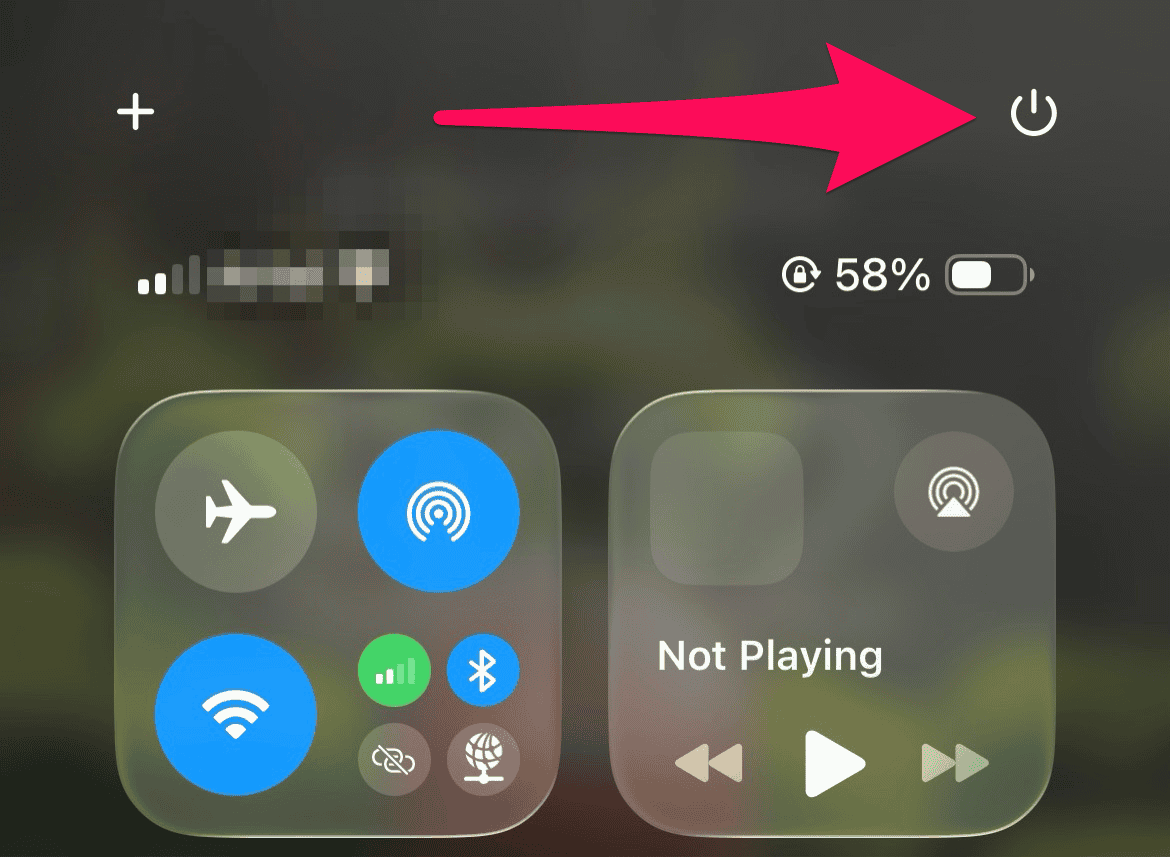
- Drag the slider to shut down.

This method works across all iPhone 17 models, including the iPhone Air variant.
Through Settings (No Buttons Needed)
Ideal if your Side button is broken or inaccessible.
- Go to Settings > General.
- Scroll down and tap Shut Down.
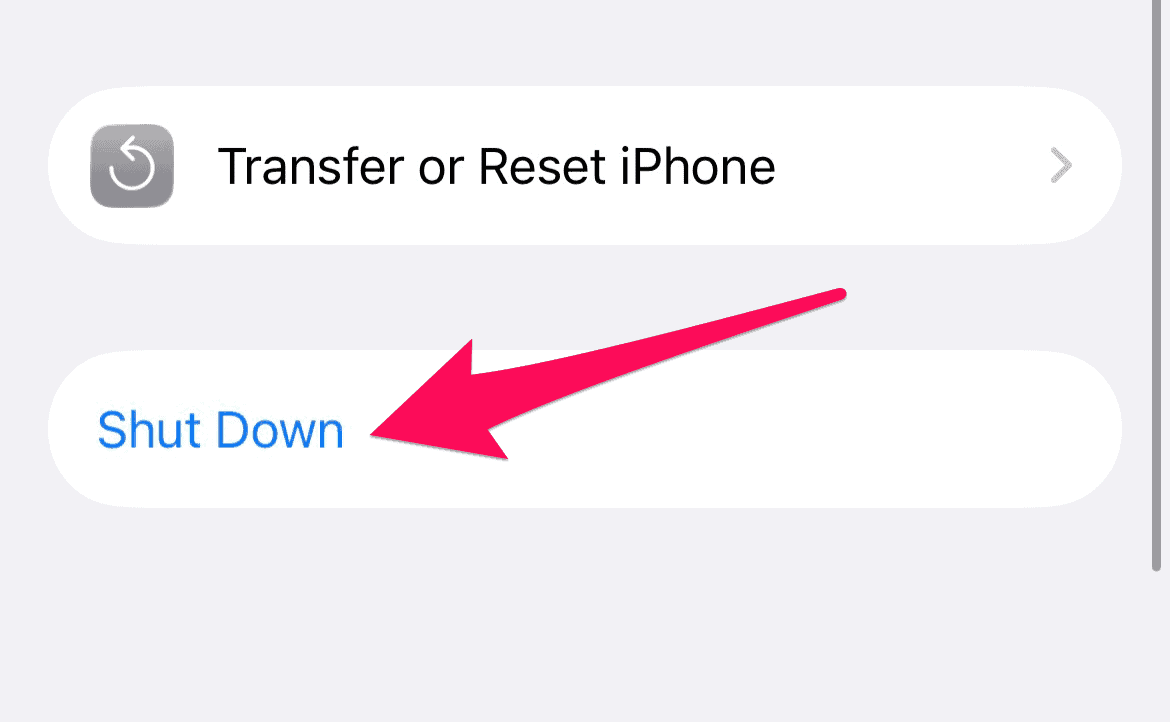
- Swipe the slider to power off.

This method is especially useful for accessibility or one-handed use.
Using Siri (No Touch Required)
If your screen is frozen or damaged, Siri can help.
- Activate Siri by saying “Hey Siri” or long-pressing the Side button.
- Say “Turn off my iPhone.”
- Confirm if prompted.


Siri will initiate the shutdown without needing to swipe.
FAQ
Yes, use Siri or the physical buttons to bypass screen interaction.
Try a force restart: quickly press Volume Up, then Volume Down, then hold the Side button until the Apple logo appears.
No. iPhones remain findable after shutdown unless you manually disable the Find My network.
No, all iPhone 17 models share the same shutdown options.
Final Thoughts: Mastering Your iPhone 17
Turning off your iPhone 17 is simple once you know the updated methods. Whether you’re using buttons, Siri, or software controls, each approach ensures flexibility across different scenarios. For personalization, explore the official iPhone 17 wallpapers to match your device’s aesthetic. And if you’re still deciding whether to upgrade to iPhone 17 or not, understanding these features might help tip the scales.


Discussion