

Apple’s iOS 26 update has brought new features and design tweaks, but it also introduced an annoying bug for many users: missing photos in iMessage. After updating, some iPhone owners noticed that the Photos tab under a contact’s Info screen is either gone, incomplete, or only shows recent images. While the photos are usually still inside the conversation, the convenient gallery view that collected them under Info > Photos has disappeared.
I will explain why this happens and walk you through the most reliable fixes.
Table of contents
Why Photos Disappeared from iMessage After the iOS 26 Update
When you install iOS 26, the Messages app rebuilds its internal index of attachments. This includes photos, videos, and links. Until that process finishes, the Photos tab may not show your full history.
Don’t miss the best of The Mac Observer
Set us as a preferred source and our Apple reporting ranks higher in your Google Search results and Discover feed — one tap, no account changes.
Here’s what’s really going on:
- Indexing delay: iMessage reindexes attachments after updates, restores, or new iPhone setups. The Photos tab can stay empty until this finishes.
- Data still on device: Your photos and videos are usually still stored locally or in iCloud, just not linked in the tab.
- Inconsistent behavior: Some users see the Photos tab instantly; others need to wait.
- History of similar bugs: A nearly identical issue appeared in iOS 18 and resolved after indexing was completed.
Fixes for Missing Photos in iMessage
1. Stay Connected and Let iPhone Rebuild
Leave your iPhone on Wi-Fi and charging overnight. This gives the Messages app time to finish indexing and syncing. Avoid interrupting the process.
2. Check Message Storage
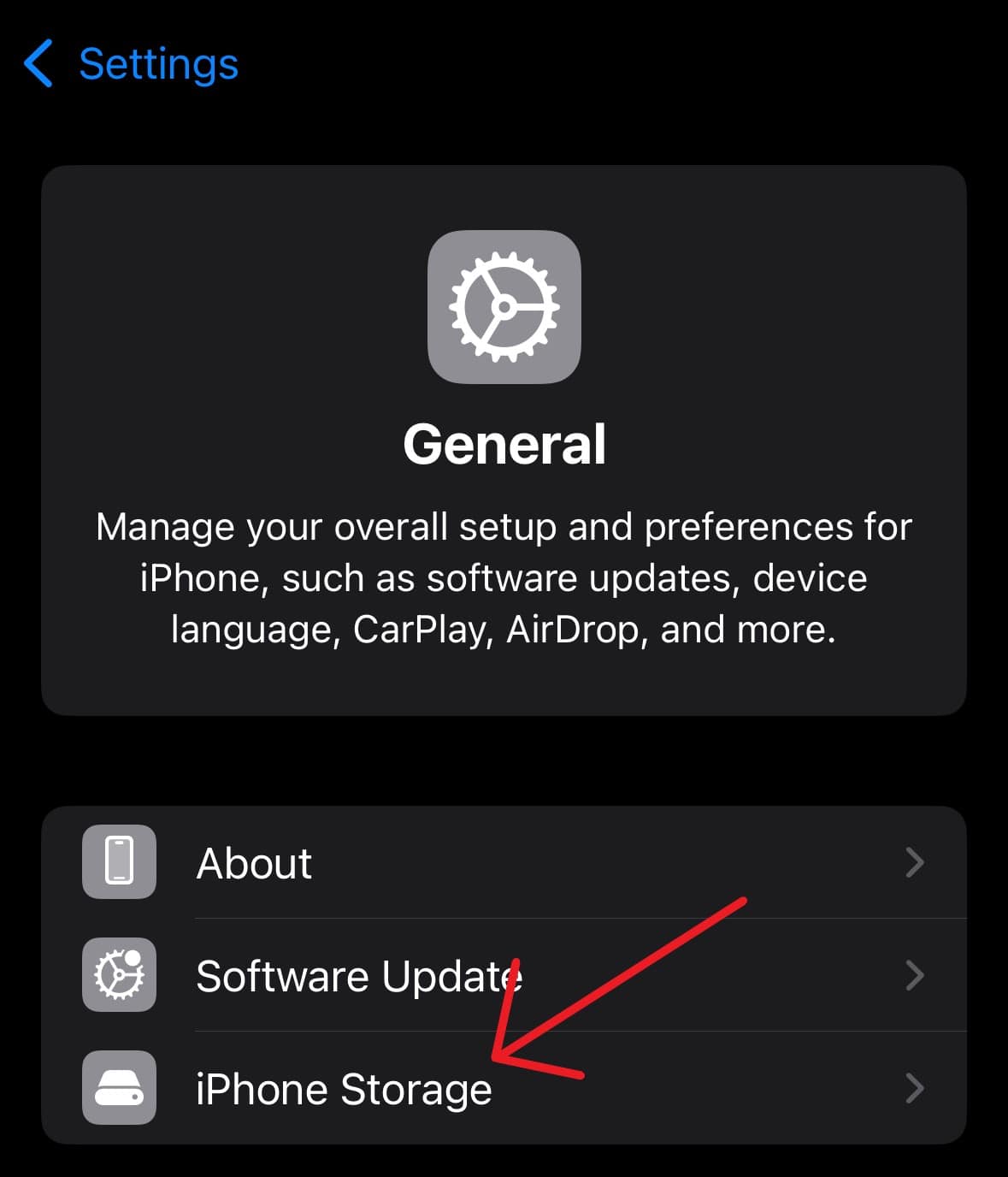
- Go to Settings > General.
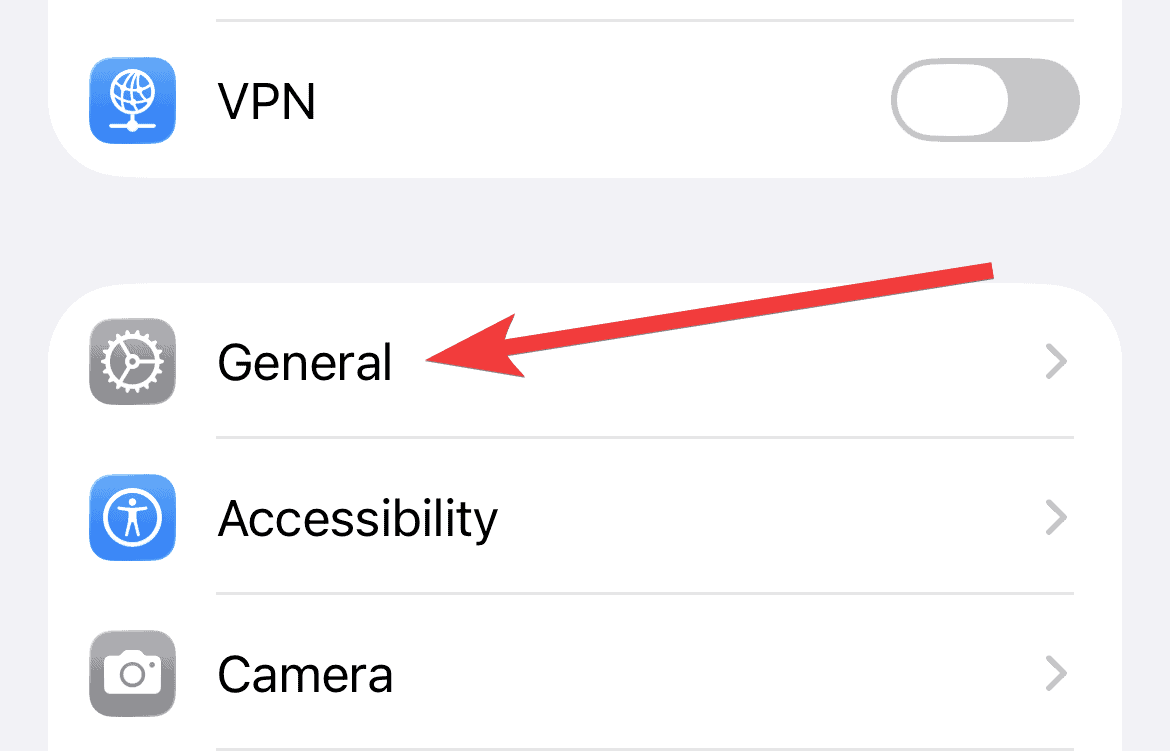
- Tap iPhone Storage > Messages. If attachments still appear here, your photos are safe, they just haven’t re-linked to the Photos tab yet.


3. Keep Messages Forever
- Navigate to Settings > Apps.
- Tap Messages > Keep Messages, and select Forever.
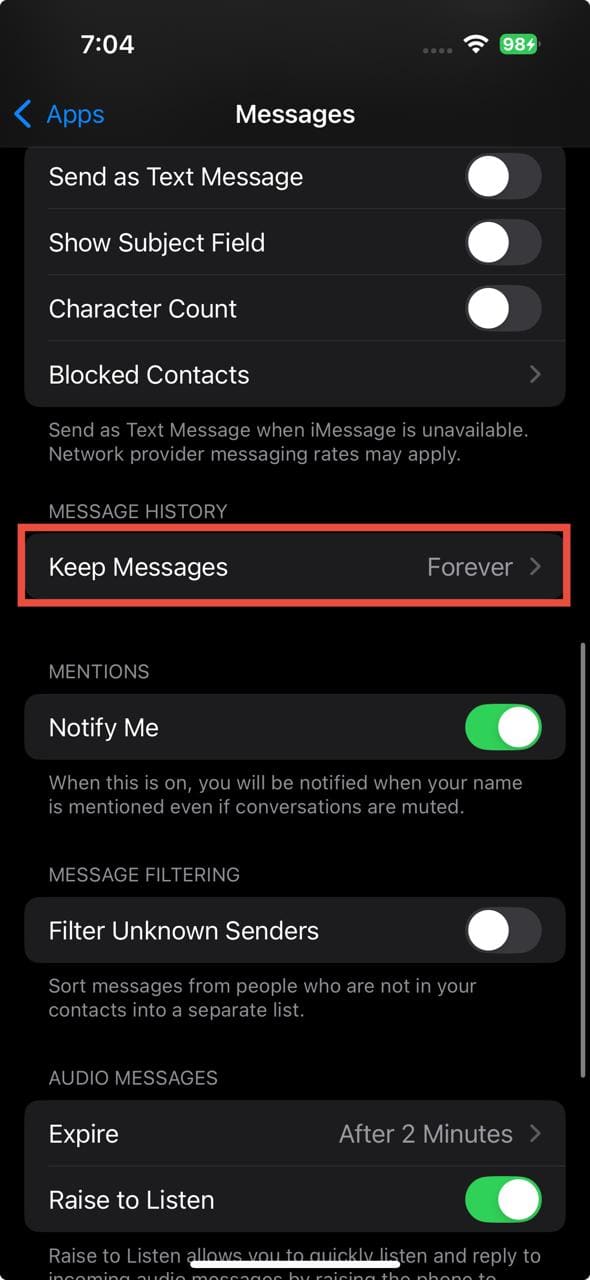

This ensures your message history and attachments aren’t automatically deleted during indexing.
4. Download Attachments from Info
- If you open a conversation and see a “Download … Attachments” option under Info (for example, Download 102 attachments from iCloud), tap it.
- Keep the phone connected to Wi-Fi and charging while the downloads complete. The option may appear after a restart or a short wait.
5. Reset the Search Index
Rebuilding the search index can restore missing tabs:
- Go to Settings > Siri & Search (or Search on some versions).
- Find Messages.
- Turn off all toggles like Show App in Search and Show Content in Search.
- Wait 10 seconds, then turn them back on.
- Reopen Messages and give it 24–48 hours.
This triggers iOS to re-index your Messages data.
6. Force iCloud Messages Sync
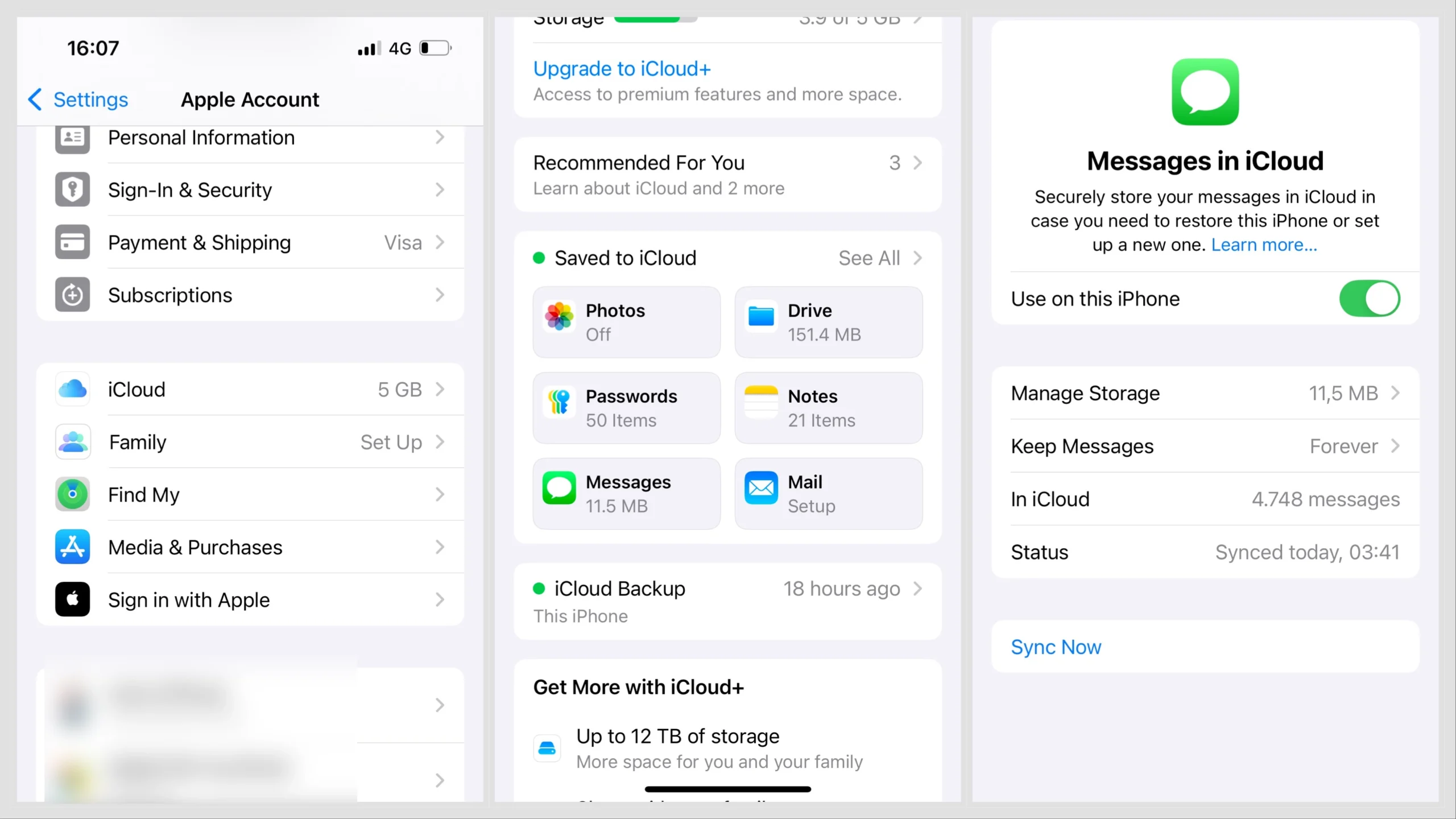
- Go to Settings > [your name] > iCloud > Messages.
- Toggle Messages on (if it’s off).
- Tap Sync Now. Keep your iPhone plugged in and online. For large libraries, syncing may take a day or two.
7. Restart After Sync
Many users report success after syncing and restarting:
- Tap Sync Now in iCloud Messages.
- Use Download Attachments in any thread if available.
- Perform a full restart, then leave the phone on Wi-Fi overnight.
By morning, the Photos tab often reappears.
8. Force-Load by Scrolling
Search for an older photo, tap it to jump into the conversation, and scroll slowly through older messages. As you move through the thread, missing images may load and repopulate the Photos tab.
9. Use Search as a Workaround
If the Photos tab is still missing, try this. In the Messages search bar, type the contact’s name followed by “photos” (e.g., Eren photos). This will surface all shared images—even if the Photos tab hasn’t rebuilt yet.
The missing Photos tab in iMessage after iOS 26 isn’t permanent, it’s a temporary indexing issue. Most users see it return after leaving their iPhone connected to Wi-Fi and power for a while or after forcing an iCloud sync.
If the problem persists beyond a few days, contact Apple Support or check for a minor iOS update. Apple often patches these bugs in quick follow-up releases.
FAQ
No. They’re usually still stored locally or in iCloud. The index just needs to rebuild.
It can take anywhere from a few hours to a couple of days, depending on your storage size and internet connection.
Not recommended. This is a syncing/indexing issue, not a system corruption problem.




I was trying to find out why my video thumbnail in a text message had been replaced with a light grey box with a filename and video icon. Restarting the office and other possible solutions I had read about haven’t helped. In my search for an answer about that mystery, I came across the question and your answer about a Photos-tab-missing-in-message-contact’s-Info problem. I noticed that I can see my problematic thumbnail in the Photos-tab spot for that contact. Yet I don’t see the thumbnail in the a text messages itself. Adds more info to possibly solving my thumbnail mystery. Or not.
So my old photos are there . The problem is I’m not receiving new photos since the upgrade was made. It’s like something has been turned off but I can’t find the problem. Any ideas?
Apple will hopefully address this bug in future releases. Until then, some people have found that the issue goes away after they leave their iPhone plugged in and connected to Wi-Fi for a while, or after they sync Messages with iCloud and restart. Others have also fixed it by toggling search or indexing settings, or by updating to a newer iOS build, but Apple hasn’t fully resolved the problem in all cases yet.