

An Apple ID is the essential key to your digital life across all of Apple’s services, connecting you to iCloud, the App Store, Apple Music, and more. Forgetting your password or having your account temporarily disabled can potentially lock you out of your data and device ecosystem. Fortunately, Apple has straightforward processes in place designed to help you regain access quickly and securely. I will walk you through the necessary steps to recover your Apple ID before you’re forced to create a new Apple ID.
Table of contents
Regaining Access to Your Essential Apple Account
1. Using a Trusted iPhone, iPad, or Mac
Apple may disable an account for important security reasons, often after too many failed login attempts or if there is suspicious activity detected. When you see an alert like “This Apple ID has been locked for security reasons” or an inactive Apple ID message, you must unlock it before proceeding with any password changes.
If you have a trusted Apple device already signed in with your Apple ID and secured with a passcode or password, you can easily reset the password directly on the device.
Don’t miss the best of The Mac Observer
Set us as a preferred source and our Apple reporting ranks higher in your Google Search results and Discover feed — one tap, no account changes.
On iPhone or iPad:
- Go to Settings.
- Tap your Name at the top.
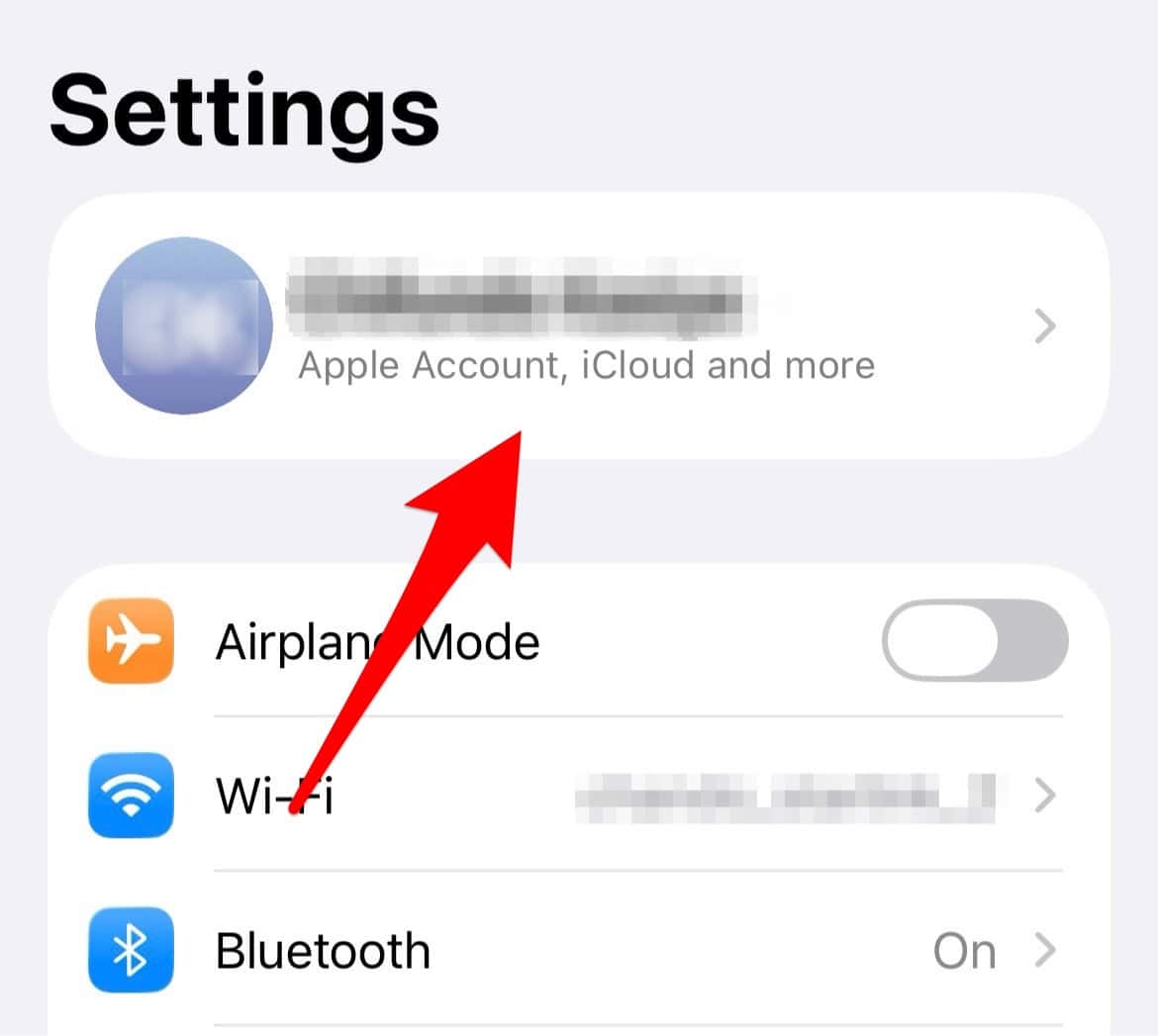
- Tap Sign-In & Security.
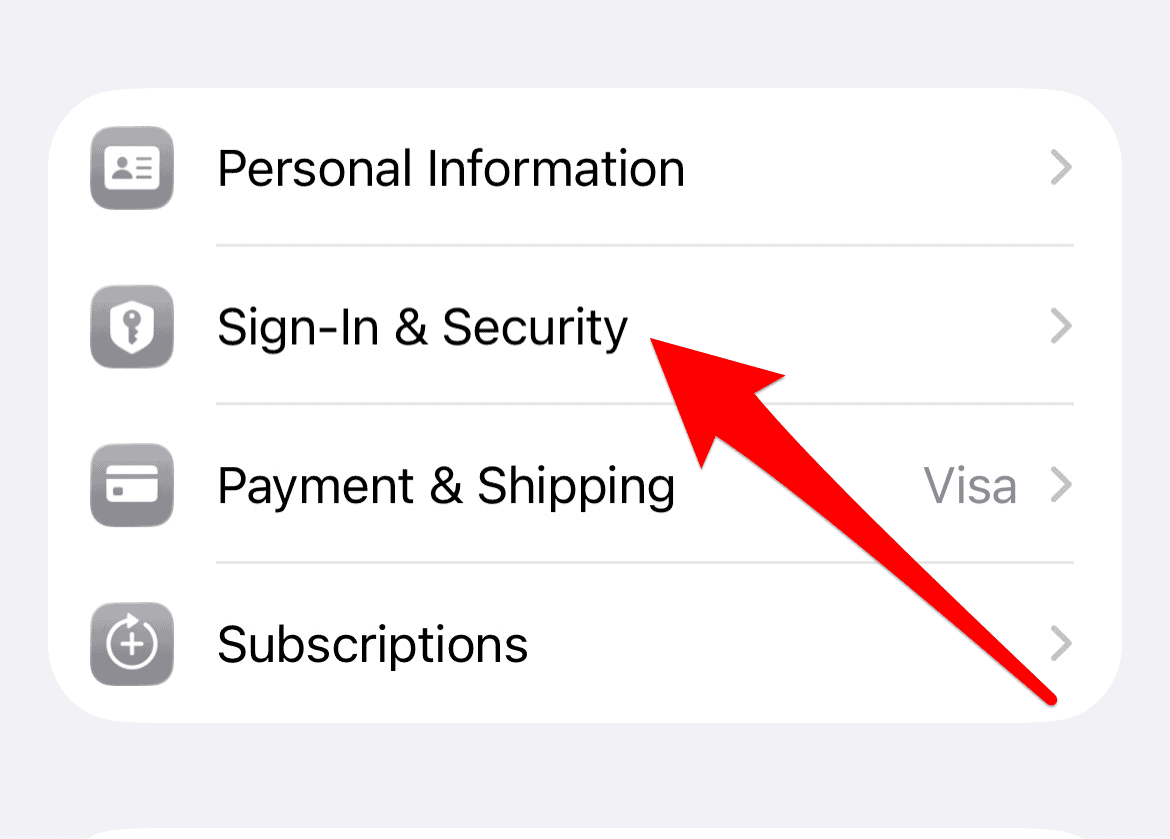
- Tap Change Password.
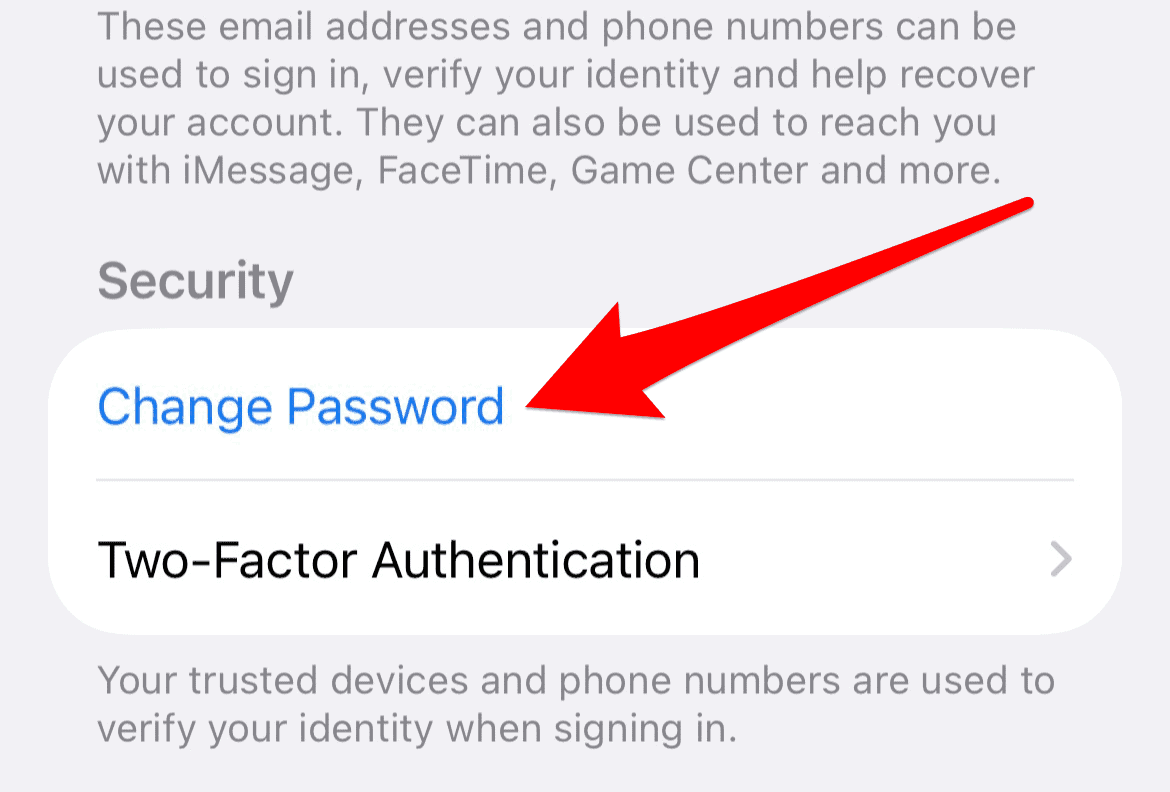
- Enter your device passcode when prompted.
- Enter a new password and confirm it, then tap Change.


On Mac (macOS Ventura or later):
- Choose the Apple menu and select System Settings.
- Click your Name at the top.
- Click Sign-In & Security.
- Click Change Password.
- Enter the password used to unlock your Mac.
2. How to Reset a Forgotten Apple ID Password
If you don’t have a device you have already signed into but remember the email address associated with your Apple ID, the reset process is the quickest way to get back into your account. You can easily use a trusted device, or even a friend’s device, to initiate the recovery and change your password.
- Go to the Apple iForgot page (iforgot.apple.com) and click Rest Password.
- Enter your Apple ID (your email address) and click Continue.
- Confirm with your phone number or any other available method.
- Follow the on-screen instructions to create a new, strong password.
After successfully resetting your credentials, you will need to understand how to sign into your Apple account step by step on all your devices to restore service.
Proactive Tips for Smooth Account Recovery
While the standard account recovery process can take time due to necessary security checks, there are steps you can take before you are locked out that will drastically speed up or simplify the process.
- Set Up a Recovery Contact: A recovery contact is a trusted person (like a family member) who can generate a six-digit code to help you regain access to your account quickly. This bypasses the multi-day waiting period.
- Keep Trusted Devices Secure: Ensure your trusted iPhone, iPad, or Mac has a strong passcode or password set up. Having at least one trusted device means you can usually reset your password instantly through the device’s Settings, avoiding the full recovery process entirely.
- Do Not Use the Account During Recovery: If you are forced to initiate the formal Account Recovery waiting period, do not try to sign in to any of your devices or change any account information. Doing so will cancel your request and force you to start the waiting period over again.
- Add a Recovery Key (Advanced): For the highest security, you can generate a 28-character Recovery Key. If you lose access to your trusted devices, you can use this key to regain access immediately. Note that setting this up disables Apple’s standard account recovery, making you entirely responsible for protecting that key.
- Check iForgot for Status: After starting recovery, visit $iforgot.apple.com$ and enter your Apple ID to check the real-time status and see how long the wait will be.
FAQ
The process can take a few hours up to several days. Apple uses this time to verify your identity and ensure the account is being recovered by the rightful owner. You will receive an alert once your account is ready for access.
Yes. If you no longer have access to the trusted phone number, you will need to provide a new one when you begin the account recovery process. Apple will use this new number to contact you with status updates.
You can still start the account recovery process through the iForgot website using a friend’s or family member’s device. You will simply need to follow the steps on the site, and the device owner’s information will not be shared.
Securing Your Digital Access with Apple ID Recovery
Regaining access to your Apple ID is straightforward. Whether instantly resetting your password on a trusted device or following the secure Account Recovery process via iForgot, Apple provides reliable solutions for security lockouts. Be proactive by setting up a Recovery Contact to ensure future access is always quick. For an alternative method, you can also learn how to find your Apple ID password without resetting it.


My case is a little different. My wife changed her Apple a few years ago. I just came across her old Iphone 5 and wish to wipe it and recycle it next month at our community recycle event. The phone won’t recognize her new id password which would allow me to reset it to factory settings. Her email address is front and center on the old phone and and her old password is associated with that phone only.
Please help me get my IPad working. It is my only Apple device but it has taken me on circles and back into unavailability. I.got it cleared and filled in what I could but kept rejecting passwords. I am sorry I am not a techie.
It sounds like your iPad is stuck in a loop with password verification, which can happen during Migration Assistant if it’s trying to transfer data from another device. The easiest way to resolve it is to first make sure you’re using the Apple ID and password associated with the iPad. If it still won’t accept it, try putting the iPad in recovery mode and restoring it via Finder (on Mac) or iTunes (on Windows). This will erase the device but should let you set it up fresh.