

I’ve been using AirPods Pro 3 for a while now, and I still remember the confusion I felt on day one. The volume control wasn’t obvious at first. There were no visible buttons, and I found myself reaching for my phone every time I wanted to adjust the sound.
In this article, I’ll explain how to control volume using the built-in touch gestures, Siri voice commands, and your connected devices. If you’re new to the AirPods lineup, you can also check out how to use AirPods Pro 3 for a full overview of basic features and controls.
Table of contents
Here’s How to Control Volume with AirPods Pro 3
1. Adjust Volume Using Touch Controls
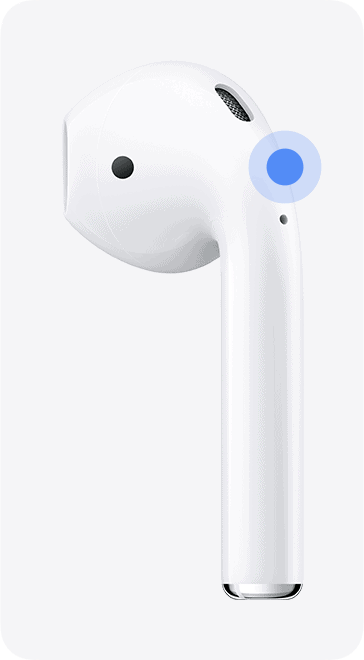
Apple has made it simple to control volume directly from the AirPods Pro 3 stems. Each earbud has a touch-sensitive strip that lets you swipe to increase or decrease volume.
Don’t miss the best of The Mac Observer
Set us as a preferred source and our Apple reporting ranks higher in your Google Search results and Discover feed — one tap, no account changes.
Here’s how it works:
- Swipe up on the stem of either AirPod to increase the volume.
- Swipe down to decrease the volume.

- You’ll hear a subtle click sound as confirmation after each swipe.

The new capacitive sensors are highly responsive, so you can make quick volume adjustments without disrupting your music or calls.
2. Use Siri to Control Volume
You can also ask Siri to adjust the volume. Just say something like:
- “Hey Siri, turn the volume up.”
- “Hey Siri, lower the volume.”
- “Hey Siri, set volume to 60 percent.”

Siri volume control works even when your iPhone is in your pocket or bag. This method is handy when your hands are busy, like during workouts or commuting.
If you use Adaptive Audio, Siri automatically adjusts volume based on your environment. You can learn more about how Adaptive Audio works on AirPods Pro 3. Switching to Transparency Mode can also help when you want to stay aware of your surroundings. Learn how to switch modes in this guide on AirPods Pro 3 Transparency Mode.
3. Adjust Volume from iPhone or Apple Watch
If touch or voice controls aren’t convenient, you can always adjust volume manually:
- On iPhone or iPad, use the volume buttons on the side of the device.
- On Apple Watch, open Now Playing and use the Digital Crown to adjust the level.


Your AirPods Pro 3 volume automatically syncs across all connected Apple devices, so changing it on one affects the others instantly.
4. Using a Mac or MacBook
- Use Control Center: Alternatively, click the Control Center icon (two sliders) in the menu bar and use the volume slider there.
- Use Keyboard Keys: Press the Volume Up or Volume Down keys on your Mac’s keyboard.


Tips for Better Listening
Here are a few quick tips to make volume control more effective:
- Calibrate volume by lowering it fully, then adjusting it from your device.
- Keep volume under 70% for hearing safety during long listening sessions.
- Use Adaptive Audio for balanced sound across different environments.
- If calls sound too quiet, try these AirPods Pro 3 call settings to improve clarity.
- Clean your AirPods regularly to avoid muffled audio or unresponsive sensors.
Final Thoughts
Controlling volume on AirPods Pro 3 isn’t hard once you know your options. I use stem gestures most of the time because they’re quick and convenient. When my hands are busy, I switch to Siri. And when I need precise control, I pull out my iPhone.
If you’re still exploring what your AirPods Pro 3 can do, check out our comparison with the Sony WF-1000XM5 to see how they stack up. That said, with new smart audio features and precise volume control, these Apple earbuds are built for everyday use.
FAQs
You can control volume by swiping up or down on the stem of either AirPod. Each swipe changes the sound level incrementally without needing to touch your iPhone.
Yes. Just say, “Hey Siri, turn the volume up” or “Hey Siri, lower the volume.” You can also ask Siri to set the volume to a specific percentage.
Make sure your AirPods are updated to the latest firmware and that touch controls are enabled under Settings → Bluetooth → AirPods Pro 3 → Press & Hold / Swipe Gestures.
Yes. Open the Now Playing app on your Apple Watch and rotate the Digital Crown to adjust the volume.
They do through Adaptive Audio, which adjusts volume based on your surroundings.




Discussion