

By default, your iPhone lock screen shows a digital clock; clean, simple, but maybe not your style. If you prefer the classic look of an analog clock, there’s a workaround. You can’t replace the main digital clock, but you can add an analog clock widget right beside it. Here’s how to do it.
Table of contents
Add an Analog Clock Widget to the Lock Screen
- Go to the Lock Screen. Unlock your iPhone and swipe down from the top-left corner to bring up your Lock Screen.
- Enter customization mode. Long-press anywhere on the Lock Screen until you see the Customize button appear at the bottom. Tap it.
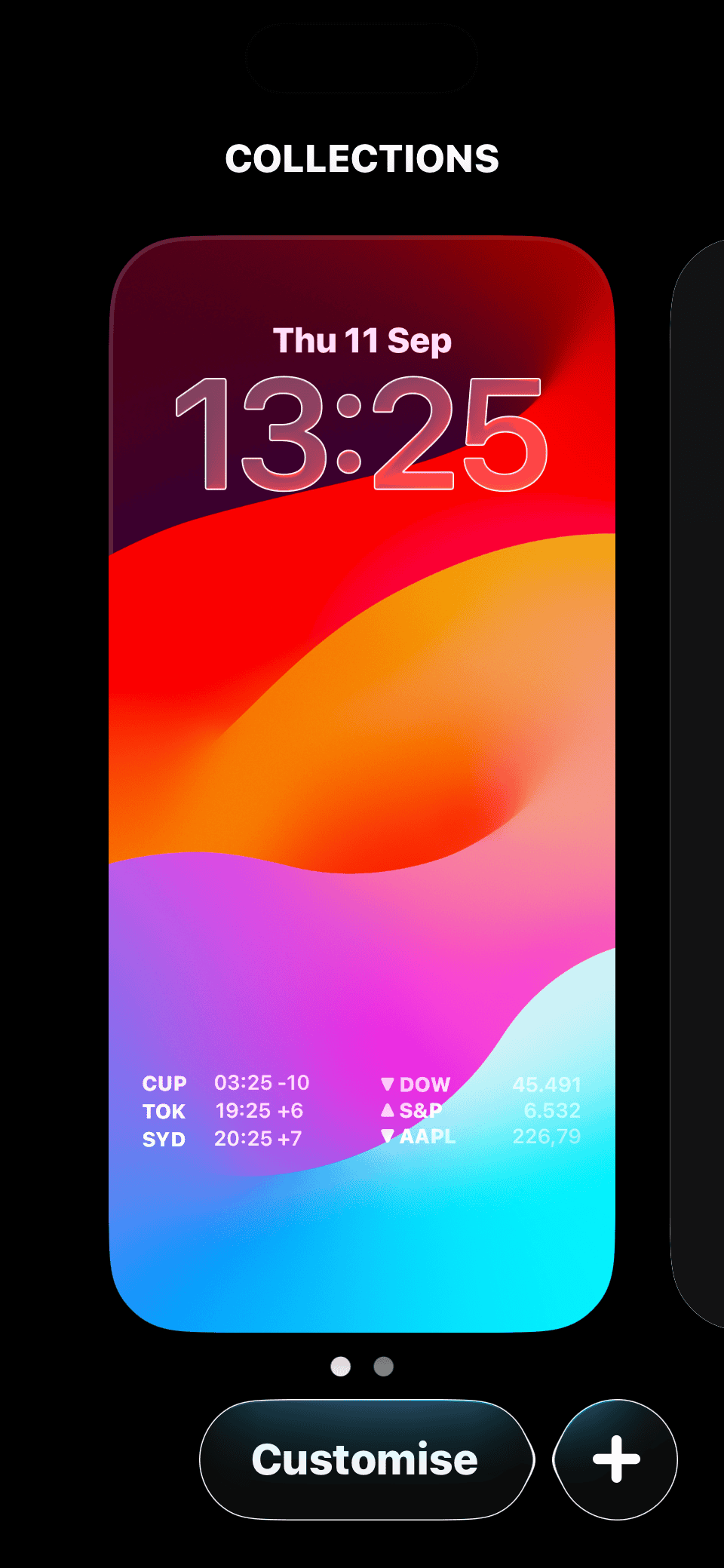
- Add a widget. Tap the empty space below the clock. If you already have widgets there, tap one to replace it.
- Find the Clock widget. Scroll through the list and tap Clock. Swipe left until you see the Analog Clock option.
- Add and save. Select the analog clock style you like and tap Done in the top-right corner.

You’ll now see a small analog clock on your Lock Screen next to the digital one. It updates in real time and shows the current local time.
Fixing the Wrong Time on the Analog Clock
If the analog clock shows the wrong time zone, here’s how to fix it:
Don’t miss the best of The Mac Observer
Set us as a preferred source and our Apple reporting ranks higher in your Google Search results and Discover feed — one tap, no account changes.
- Long-press your Lock Screen again and tap Customize.
- Double-tap the analog clock widget.
- Select your current city or preferred time zone.
- Tap Done to save your settings.
Change the Look of Your Lock Screen Clock
While you can’t make the main clock analog, you can still personalize it. Apple lets you change the digital clock’s font and color:
- Long-press your Lock Screen and tap Customize.
- Tap directly on the digital clock to open font and color options.
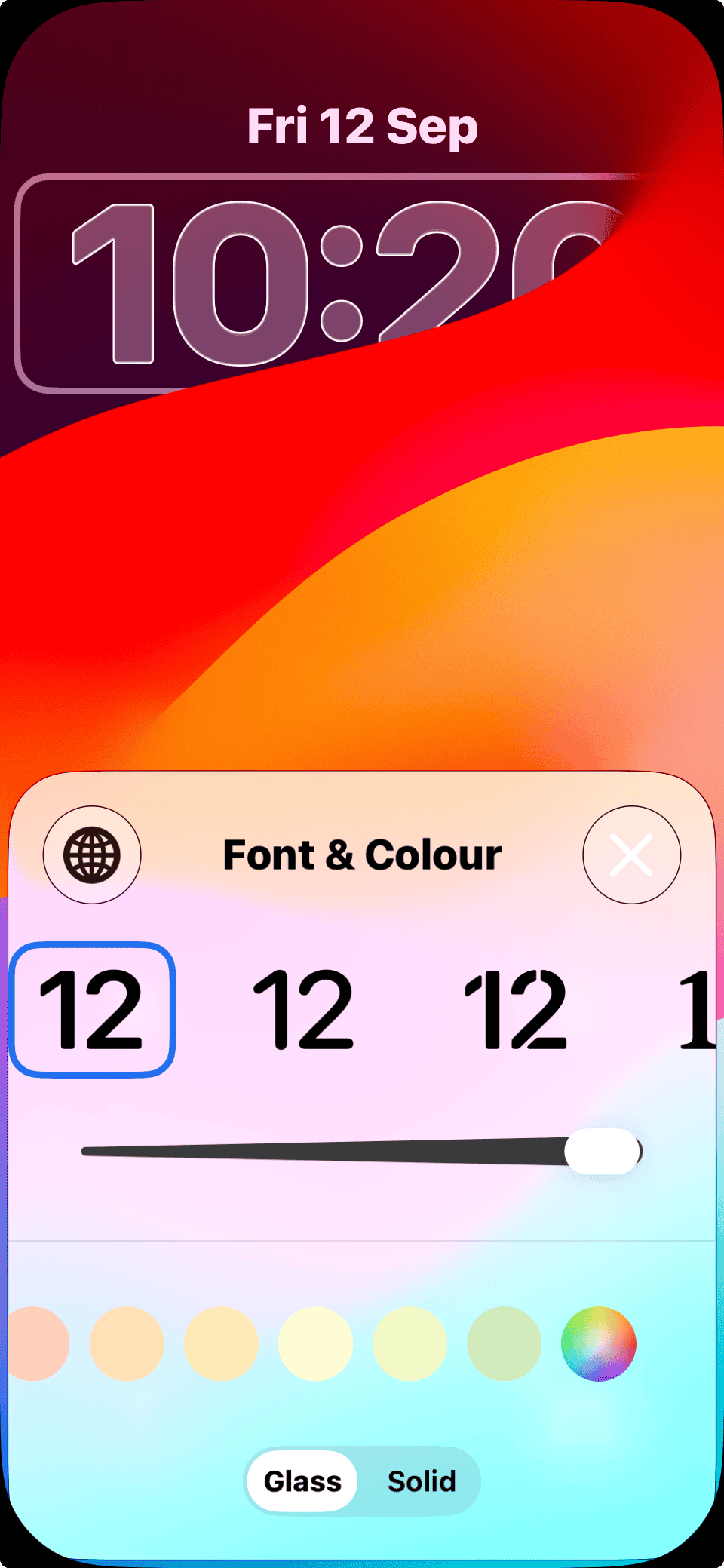
- Pick a font style and use the color slider to match your theme.
- Tap Done to save the look.

This little tweak goes a long way in giving your Lock Screen a custom feel.
Bonus: Use StandBy Mode as a Full-Screen Clock
If you want a larger clock display while your iPhone is charging, use StandBy Mode. It turns your iPhone into a bedside display that can show clocks, photos, or widgets.
Here’s how:
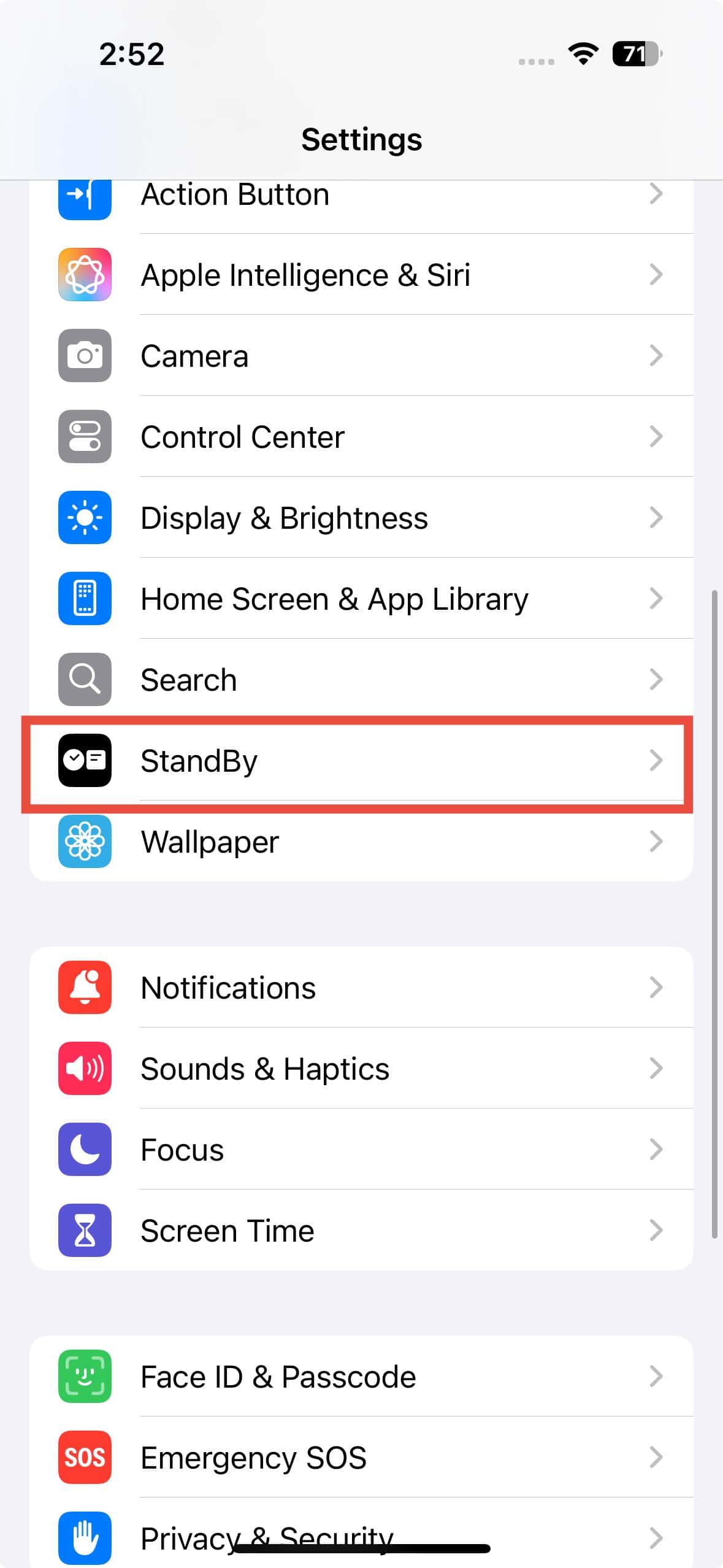
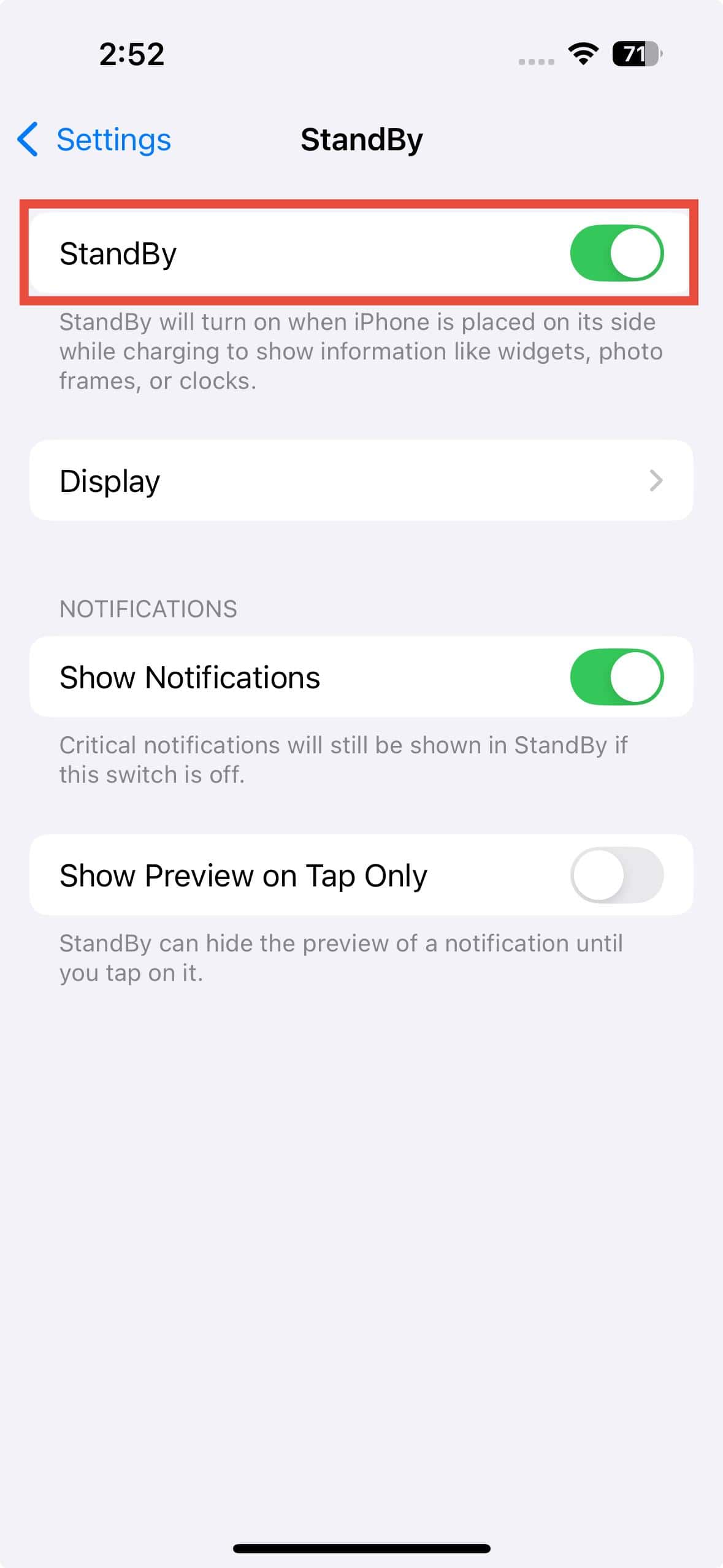
- Open Settings → StandBy and turn it on.
- Connect your iPhone to a charger and place it on its side.
- Press the side button.
- Swipe left or right to switch between clock styles, photos, or widgets.


If you have an iPhone with an Always-On display, StandBy Mode will stay visible all night. You can also enable Night Mode for a soft red tint that’s easy on the eyes.
You can’t replace Apple’s digital clock, but adding an analog clock widget, and using StandBy Mode when charging, gives you the same timeless look. It’s clean, easy, and adds a touch of old-school style to your modern iPhone.


Discussion