

The release of a major operating system update often introduces unforeseen compatibility issues, and the launch of iOS 26 appears to be no exception for many mobile gamers. Reports are surfacing across forums that the official Xbox application is experiencing a range of glitches, from failing to load game streams to being completely unusable. This frustrating situation interrupts remote play and cloud gaming sessions, forcing players to seek immediate workarounds to restore access to their console and content.
Table of contents
Restoring Xbox Connectivity on iOS 26
Compatibility conflicts between Microsoft’s ecosystem and the latest Apple mobile OS can often be resolved through simple troubleshooting. These steps address common issues like network authentication failures, corrupted local files, and background process conflicts that prevent the Xbox app from functioning correctly after the iOS 26 upgrade. Microsoft is working on expanding to mobile gaming through an Xbox mobile store, making a functional app essential.
Fully Close and Relaunch the App
Sometimes an application fails to properly initialize updated system components, leading to crashes or non-responsiveness. Performing a hard close clears the app’s current session and forces it to start fresh, often resolving minor software conflicts introduced by the new operating system.
Don’t miss the best of The Mac Observer
Set us as a preferred source and our Apple reporting ranks higher in your Google Search results and Discover feed — one tap, no account changes.
- Swipe up from the bottom of your screen and pause slightly in the middle to view running apps.
- Locate the Xbox app in the card view.
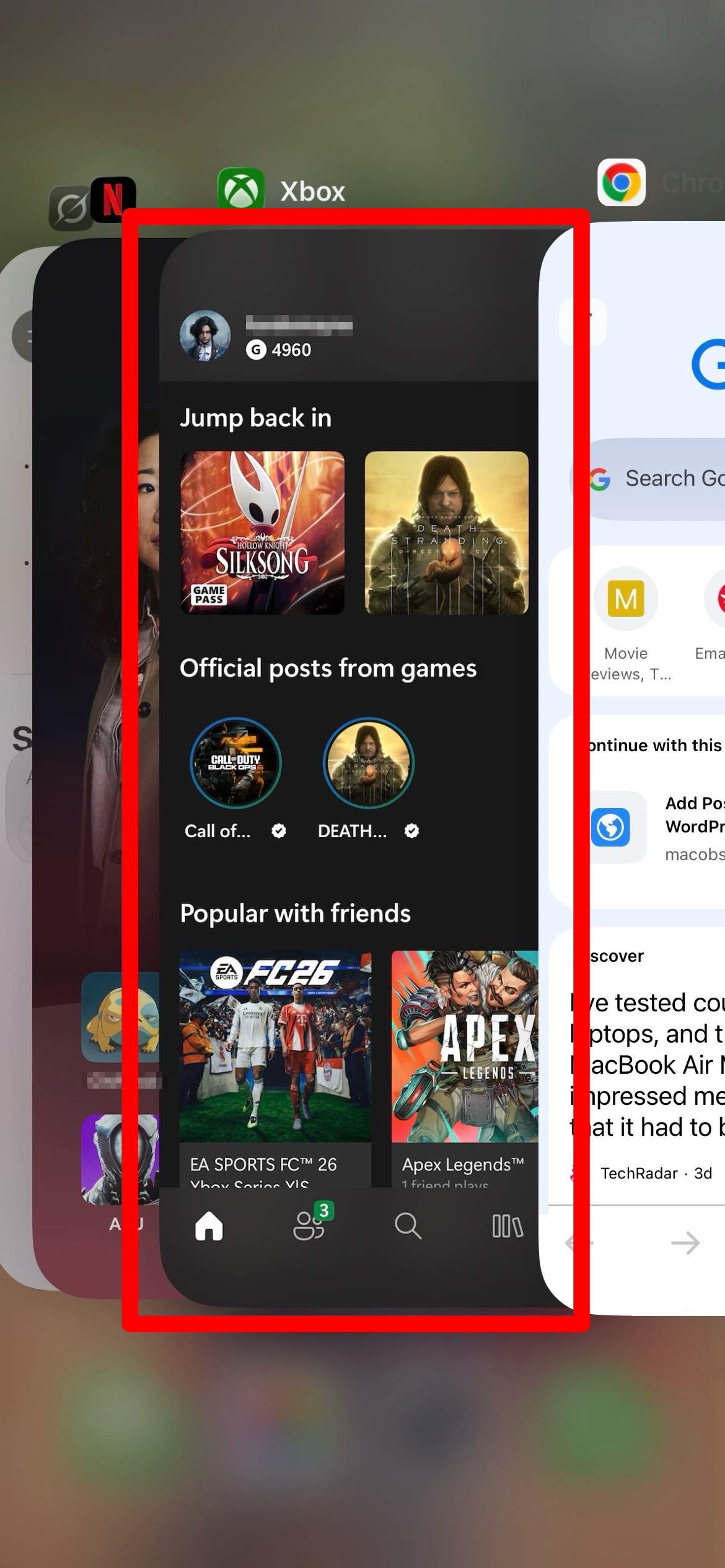
- Swipe the Xbox app card up and off the screen to close it.
- Wait 10 seconds, then tap the app icon on your home screen to relaunch.
Update the Xbox App
A primary cause of instability following a major OS launch is an outdated app version that is not yet optimized for the new software architecture. Always check for an official update from Microsoft that specifically addresses iOS 26 compatibility to ensure stability and proper functionality.
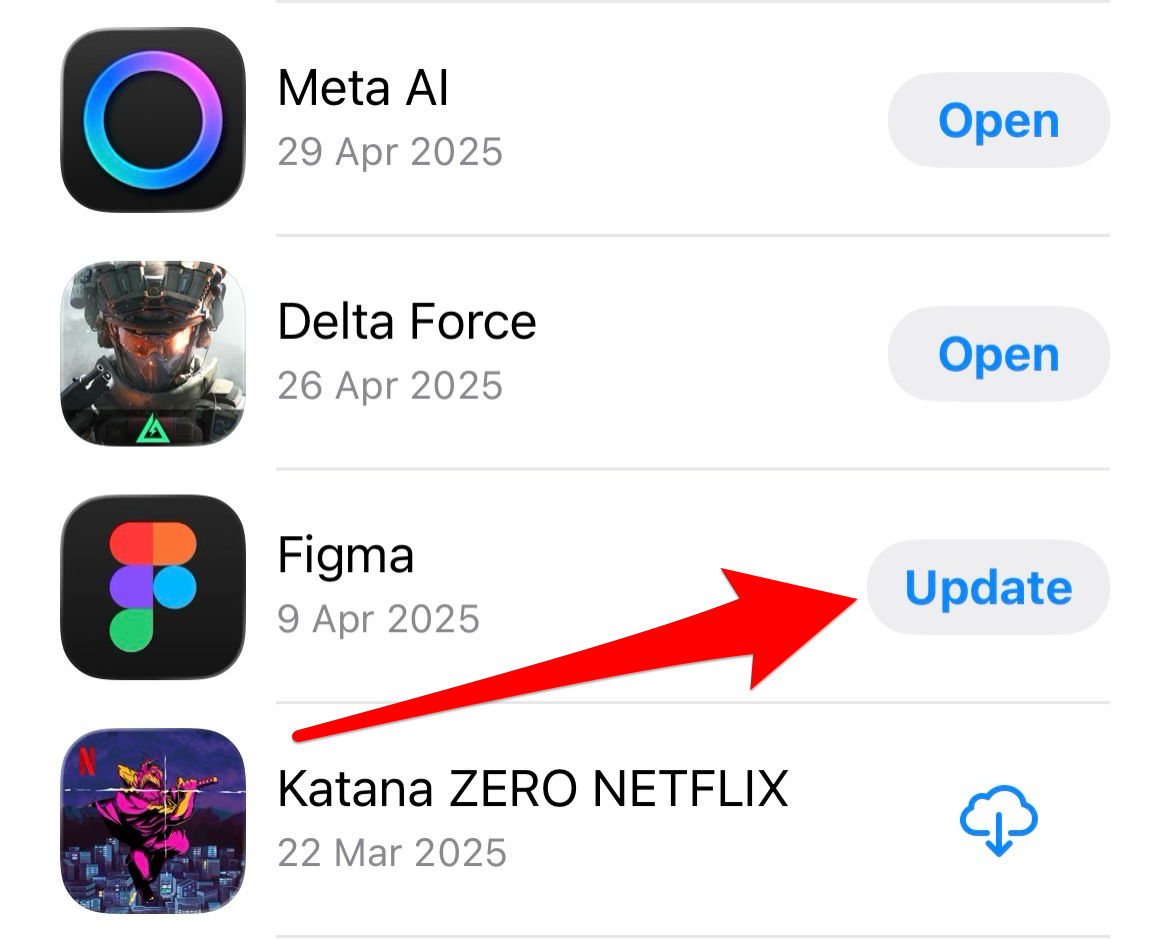
- Open the App Store on your iPhone or iPad.
- Tap your profile icon in the upper right corner.
- Scroll down to see pending updates.
- Locate the Xbox app and tap Update if an update is available.
Reset Network Settings
Network connectivity issues are common after an OS update, as the system may change how it handles Wi-Fi and cellular data protocols. Resetting these settings forces the device to re-establish clean connections, which is crucial for streaming-intensive apps like Xbox Cloud Gaming and Remote Play.
- Navigate to Settings > General > Transfer or Reset iPhone.

- Tap Reset and select Reset Network Settings.
- Enter your passcode. Note: This will erase all saved Wi-Fi passwords and cellular settings.

Delete and Reinstall the Application
When an app’s local data becomes corrupted during the OS transition, a clean installation is often the only way to resolve persistent performance problems. This step ensures that all app files are downloaded fresh and are correctly integrated into the new iOS 26 environment.
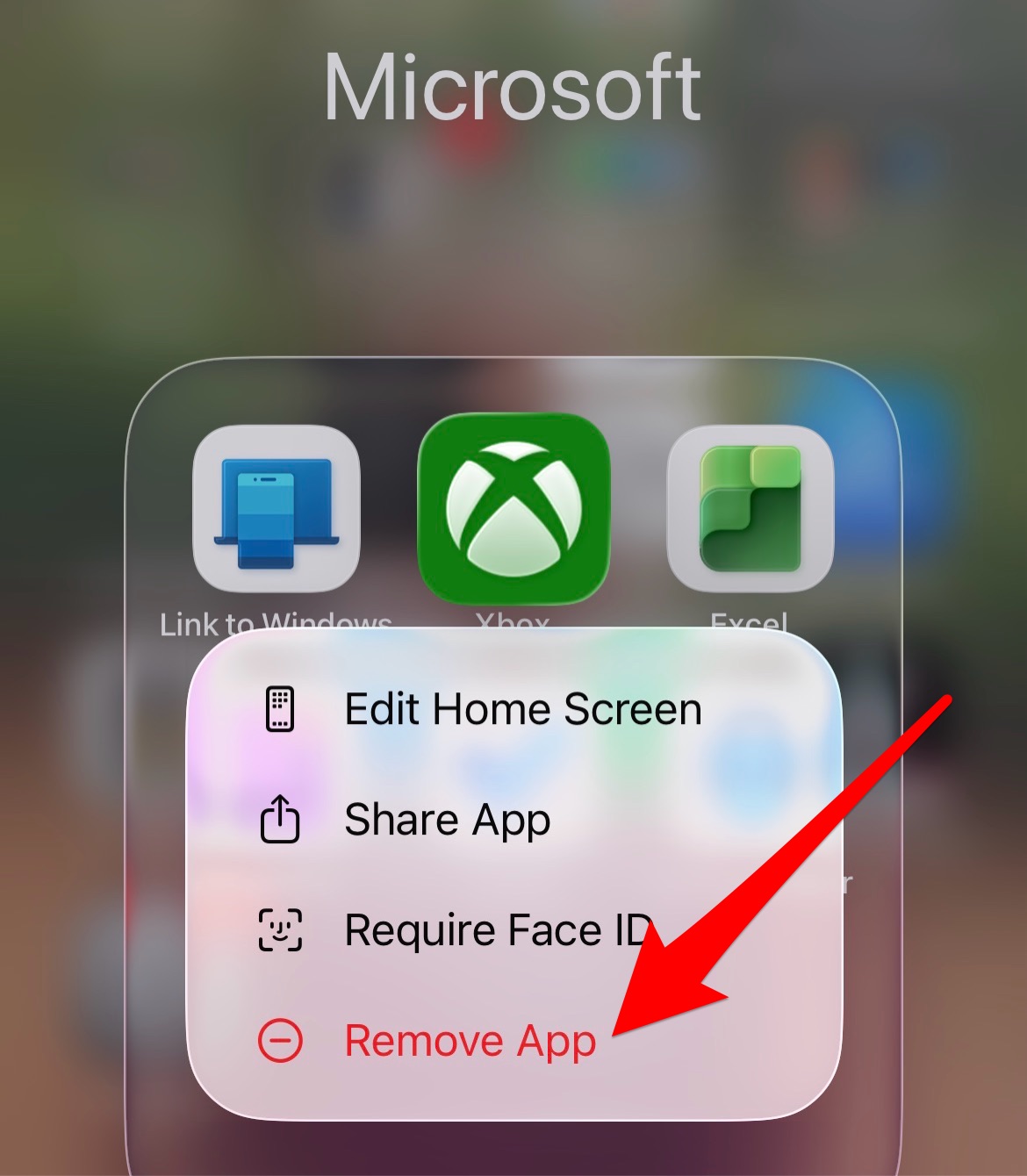
- Tap and hold the Xbox app icon on your home screen.
- Tap Remove App and then confirm Delete App.
- Open the App Store and re-download the Xbox app.
- Sign back into your Microsoft account. For general system troubleshooting, you can reference the list of all reported iOS 26 bugs and issues with fixes.
Check for an iOS 26 Point Release
Apple often releases rapid minor updates, known as point releases (e.g., iOS 26.0.1), shortly after a major launch to fix critical bugs and address reported third-party compatibility issues. Ensuring your device is on the absolute latest version of iOS 26 can be the simplest fix.
- Go to Settings > General > Software Update.
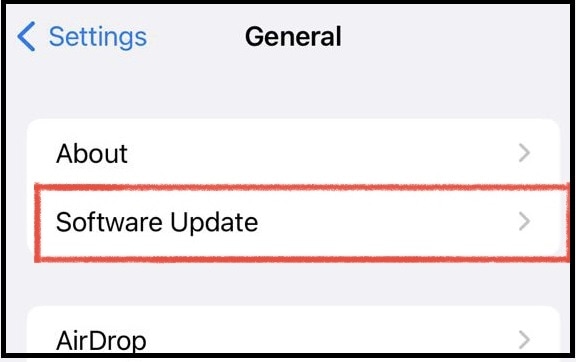
- Check if a new point release update is available.
- If one is displayed, download and install it immediately. For a deeper look at the operating system’s gaming performance, check out this comprehensive iOS 26 review.

FAQ
No, while reports are widespread, the issue is not universal. It often depends on the specific device model, your network setup, and whether you performed an over-the-air update or a fresh install.
No. The Xbox app handles connection and streaming. Your game saves and progress are stored on the Xbox console or in the cloud via your Microsoft account, not locally on the iOS app.
If the issue persists, the problem may be on Microsoft’s server end or require a formal patch. Report the bug through the Xbox support website and monitor the App Store for a critical update.
Maintaining Mobile Gaming Access on Apple Devices
Experiencing interruptions to services like the Xbox app after a major OS overhaul like iOS 26 can be a significant setback for digital entertainment. While these temporary glitches are frustrating, the majority of issues are resolvable through systematic troubleshooting. By implementing these five steps, users can typically restore a seamless connection for remote play and cloud gaming. This process is essential for maintaining a positive user experience, even as the company considers hardware options like a low-cost streaming Xbox dongle that may rival Apple TV.


Discussion