
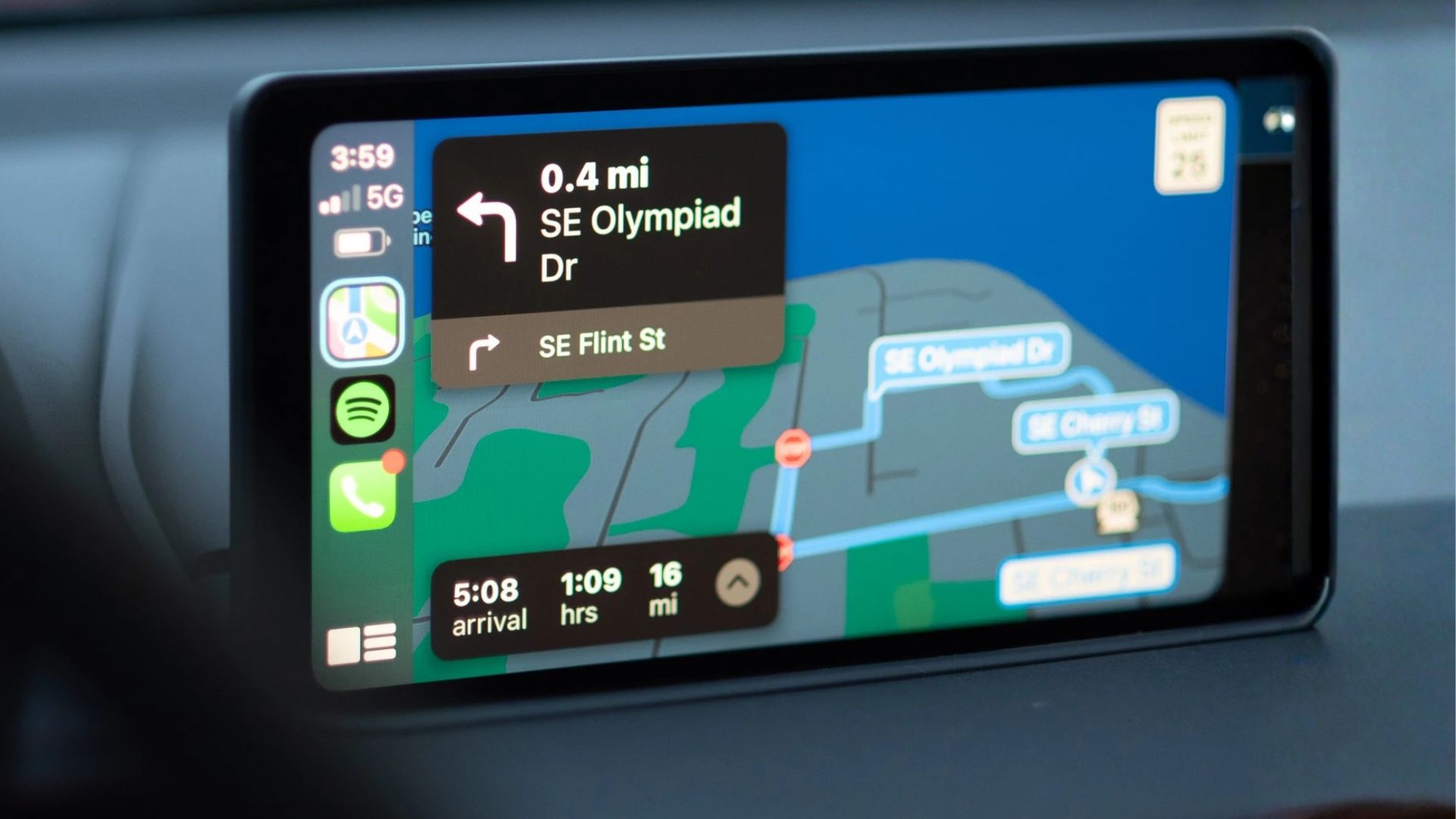
Apple CarPlay is meant to make driving easier, not to distract you with a blurry, pixelated mess on your dashboard. If your CarPlay screen looks fuzzy, grainy, or low-resolution, it’s usually not your car’s display giving up. It’s a communication issue between your iPhone and the vehicle’s infotainment system. Let’s walk through what causes this and how to fix it.
Why Your CarPlay Screen Looks Pixelated
Pixelation often happens when the CarPlay connection loses data or compresses video output. That can happen for a few reasons:
- A faulty or low-quality Lightning or USB-C cable
- Outdated iOS or firmware on your car’s head unit
- Wireless CarPlay interference or weak Bluetooth/Wi-Fi signal
- Display settings or scaling issues on your car’s system
Once you understand the cause, fixing it is usually straightforward.
Don’t miss the best of The Mac Observer
Set us as a preferred source and our Apple reporting ranks higher in your Google Search results and Discover feed — one tap, no account changes.
Fix 1: Check Your Cable or Connection
Start with the easiest culprit—the cable. If you’re using wired CarPlay, swap out the cable for a certified Apple one. Even small imperfections or frayed edges can cause compression artifacts and pixelation. If your car supports wireless CarPlay, try switching to a wired connection to see if the issue disappears. That’ll tell you whether the problem is signal-related.
Fix 2: Restart Your iPhone and Car System
Sometimes, both your phone and the infotainment system need a quick reset. Restart your iPhone, then power down your car completely. Once everything’s back on, reconnect to CarPlay and check if the image clears up.
Fix 3: Update iOS and Car Firmware
Outdated software is a common cause of display glitches. On your iPhone, go to Settings > General > Software Update and install any available updates. Then check if your car manufacturer offers firmware updates for its infotainment system—many do, especially for newer vehicles with over-the-air update capability.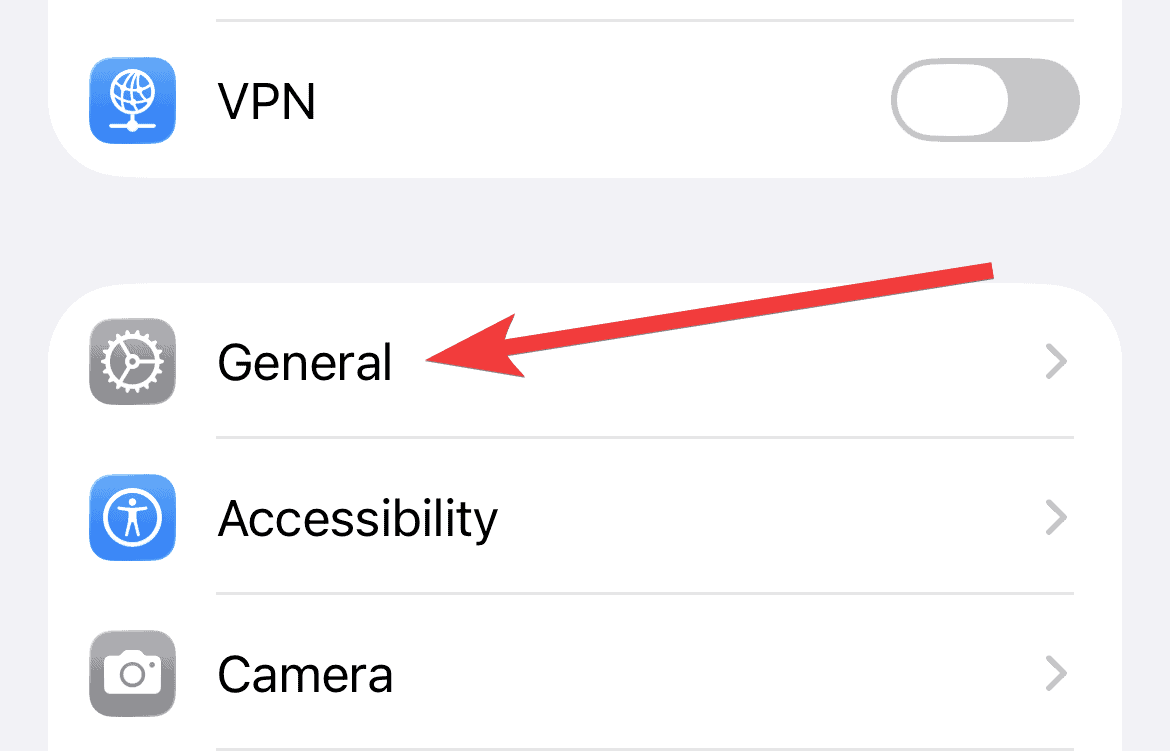
Fix 4: Adjust Display Settings
If your CarPlay screen still looks off, check your car’s display settings. Some systems allow you to tweak resolution, brightness, or aspect ratio. Resetting these to default often clears display scaling issues that make icons or text appear pixelated.
Fix 5: Reset CarPlay Settings
You can reset CarPlay’s configuration on your iPhone by going to Settings > General > CarPlay, selecting your vehicle, and tapping Forget This Car. Then reconnect as if for the first time. This can clear corrupted data or connection profiles.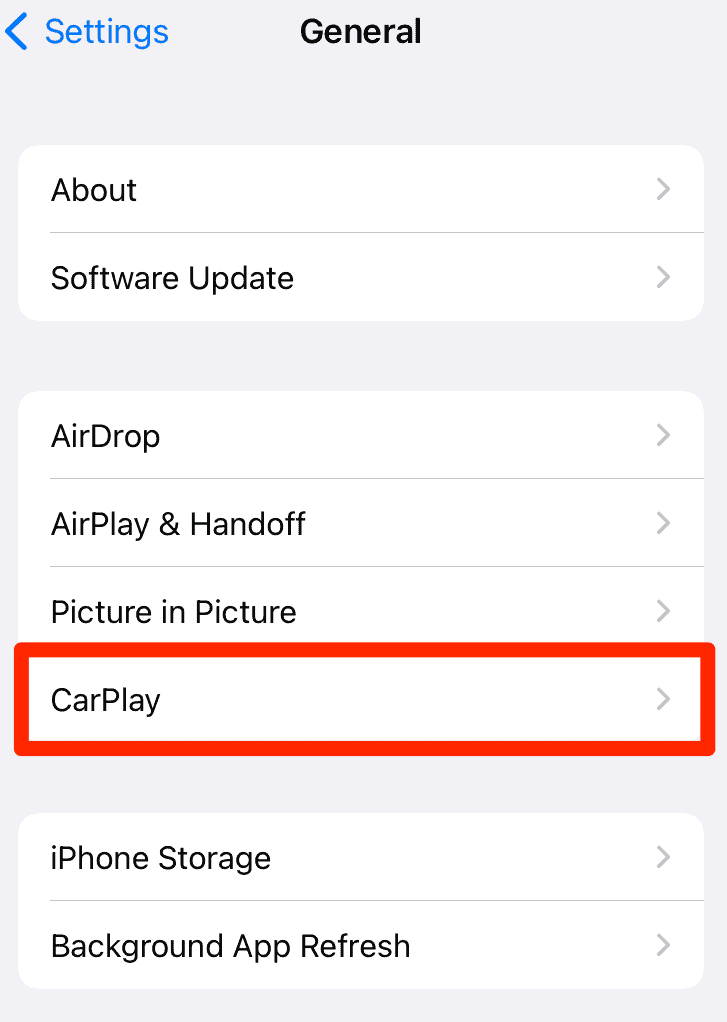
When to Contact Support
If none of these fixes work, it may be a hardware or compatibility issue. Try connecting another iPhone to your car—if the display still looks pixelated, your car’s system is likely the problem. In that case, reach out to your dealer or Apple Support for diagnostics.




Honda Goldwing 2018-2024 CarPlay pixelates the whole screen with iPhone 17 only. iPhone 16 iOS 26.4 no problem. It seems that video compression or something on iPhone 17 is different than iPhone 16 and older making CarPlay unusable.
Apple says Honda infotainment system is the problem. Can I adjust my iPhone 17 to be the same as older iPhones?