

Attaching files in Apple Mail is simple once you know where to look. On both iPhone and Mac, Apple Mail supports file types like PDFs, photos, documents, and even videos. Users can attach files directly from the Files app, Photos library, or Finder. To make things easier for you, today we’re going to teach you how to attach different types of files to Apple Mail on an iPhone and a Mac.
Table of contents
Here’s How to Attach Files in Apple Mail
Apple Mail offers several ways to attach files. The method you choose depends on where the file is stored, such as in Photos, Files, or Finder. Use one of the options listed below to make things easier.
1. Attach Files in Apple Mail on iPhone
- Open the Mail app.
- Tap the Compose button to start a new email.
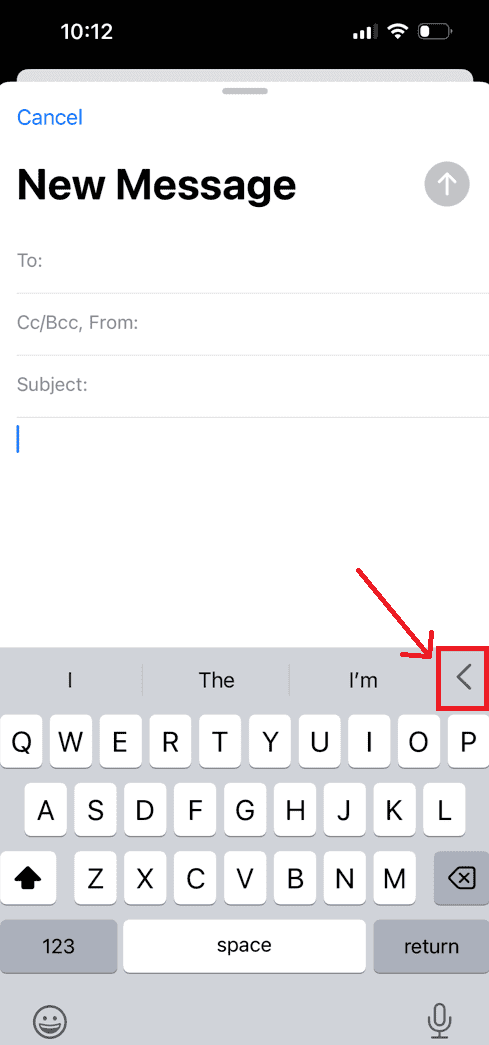
- Tap anywhere inside the email body to bring up the editing options.
- Select the arrow icon on the right of the menu until you see Add Attachment.
- Choose Add Attachment to open the Files app.
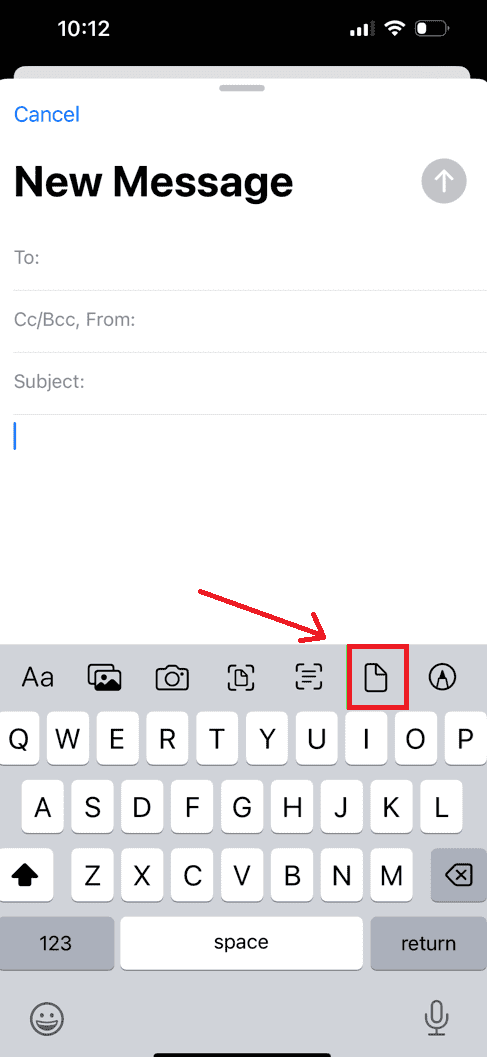
- Navigate to the document or file you want to attach and tap it.
- The file will appear in your email body, ready to send.


Alternative method using drag and drop on iPad with multitasking:
Don’t miss the best of The Mac Observer
Set us as a preferred source and our Apple reporting ranks higher in your Google Search results and Discover feed — one tap, no account changes.
- Open Files or Photos in Split View.
- Drag the file into the email body in the Mail app.
This feature works best for users who manage documents and photos across apps.
2. Attach Files in Apple Mail on Mac
- Open Mail and select New Message.
- In the toolbar, click the Attachment icon (paperclip) or go to File > Attach Files.

- Locate the document or image in Finder and click Choose File.
- The attachment will appear in the email body below the subject line.

Alternative method:
- Simply drag and drop files or folders from Finder directly into the message window.
- You can also use Command + Shift + A to open the file picker quickly.
This method is useful when sending multiple files at once or organizing attachments before sending.
3. Attach Photos or Videos in Apple Mail
On iPhone:
- Tap inside the message area.
- From the toolbar that appears, choose Insert Photo or Video.
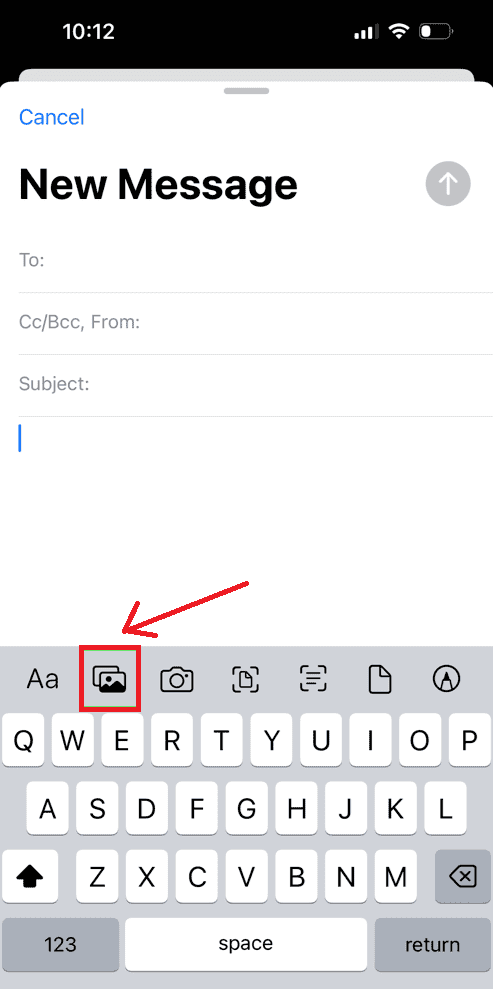
- Select photos or videos from the library.
- Tap Add to insert them into your message.

On Mac:
- In the Mail compose window, click the Photo Browser icon in the toolbar.
- Select the image or video from the Photos app.
- Double-click it to add it to your email.
Photos and videos are automatically resized to optimize email delivery. You can choose image quality by clicking the Image Size dropdown before sending.
4. Attach Files from iCloud Drive or Files App
On iPhone:
- In your email draft, tap inside the body.
- Select Add Attachment.
- Choose Browse to open the Files app.
- Navigate to iCloud Drive or another folder.
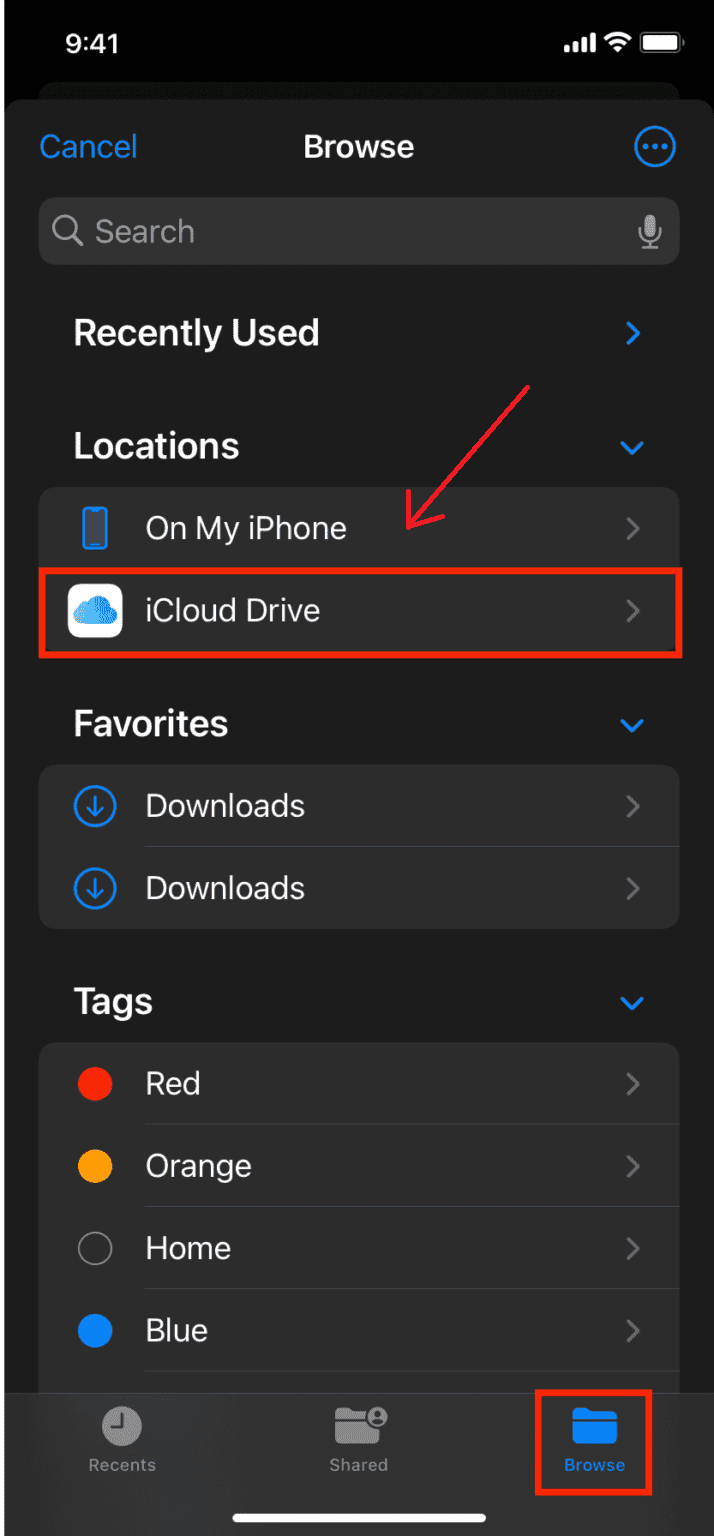
- Tap the file you want to attach.

On Mac:
- Click the Attachment icon in the message toolbar.
- Choose iCloud Drive from the sidebar.
- Double-click the file to attach it.
If a file is too large, Mail automatically uploads it to Mail Drop, allowing recipients to download it from a secure iCloud link.
Tips for Sending Attachments in Apple Mail
- Keep file names short and simple for better compatibility.
- Use Mail Drop for large attachments (up to 5 GB).
- Compress multiple files into a ZIP before attaching.
- Avoid sending executable files (.exe, .dmg) since some email servers block them.
- Always double-check attachment size before sending over cellular networks.
- Make sure your iCloud settings allow Mail Drop if using it frequently.
For troubleshooting related to Mail app performance, see Apple Mail not updating properly or fix email issues after macOS updates.
Attach Files in Apple Mail like a Pro
Sending attachments in Apple Mail is efficient once you know where to look. On iPhone or Mac, files can be added directly from the Files app, Photos, or Finder in just a few taps or clicks.
Whether it’s a quick photo, a work document, or a large file through Mail Drop, Apple Mail handles it all smoothly. Mastering these options makes everyday emailing faster and more organized.
FAQs
Check if the Mail app has access to Files or Photos in Settings. Also, make sure your file size is within the limit.
On Mac, yes. Compress the folder into a ZIP file first, then attach it. On iPhone, you can attach individual files only.
Mail Drop uploads large attachments to iCloud and sends a download link to recipients. It works for files up to 5 GB and expires after 30 days.
Yes. For images, Apple Mail gives options for small, medium, large, or actual size before sending.


Discussion