
The release of iOS 26 brought a significant annoyance for enterprise and professional users: the failure of the Global Address List (GAL) search functionality. This key feature, which allows users to look up coworkers’ contact details directly through the Phone app, suddenly stopped working for many after updating their iPhone. The issue appears specific to the new operating system’s handling of Exchange accounts. Fortunately, users have shared several effective workarounds and troubleshooting steps to restore this essential connection.
Table of contents
Resolving Exchange Contact Search Issues After Update
1. Use the Dedicated Contacts Application
A widely shared and effective workaround for this iOS 26 bug is to bypass the Phone app’s search function entirely. The failure seems isolated to the combined search view within the dialer. The dedicated Contacts app maintains full search capability against the GAL, allowing users to find all company directory entries there. This provides a functional alternative while awaiting a permanent dialer fix. For more context on potential Contacts app issues in iOS 26, check related reports.
- Locate and open the Contacts app on your iPhone’s Home Screen or App Library.
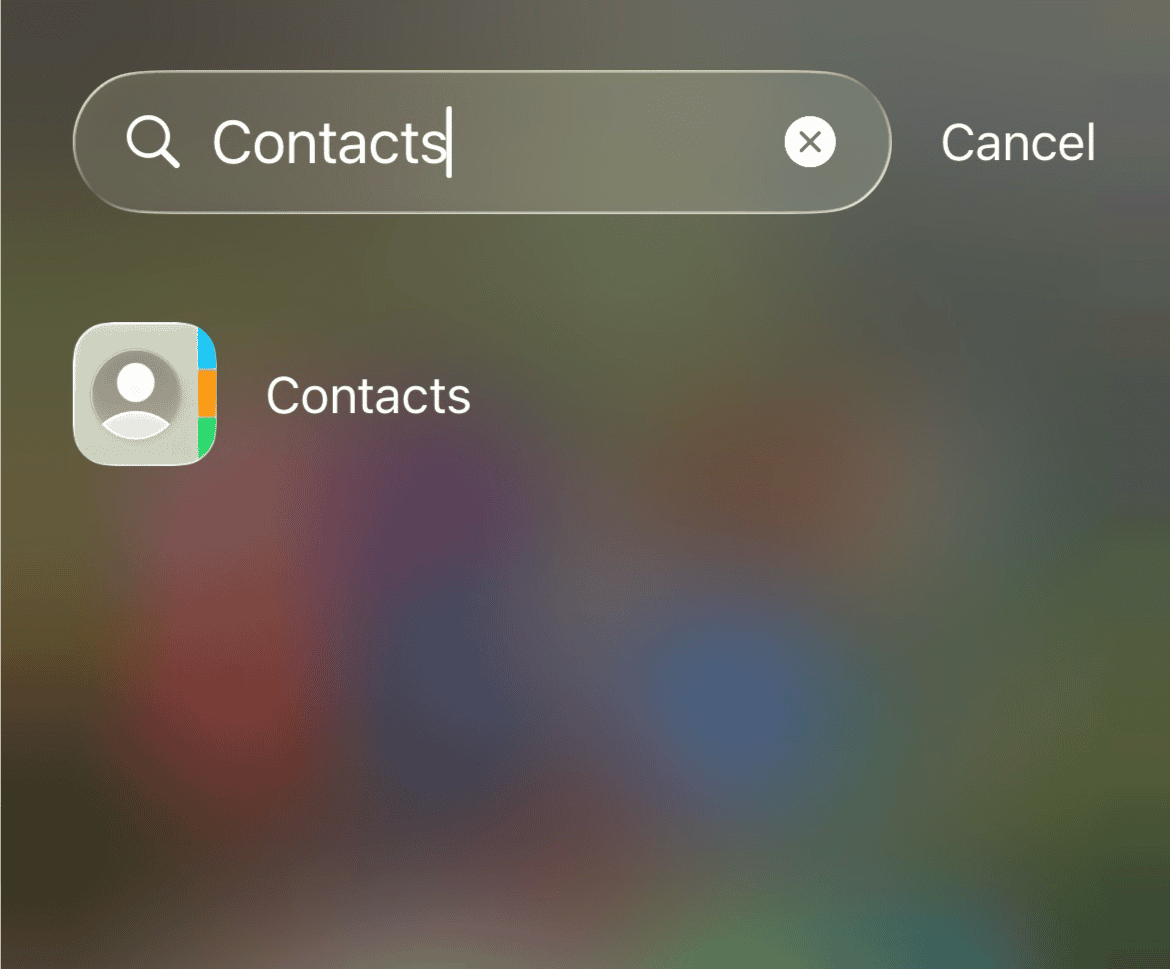
- Use the Search bar at the bottom of the Contacts app screen.
- Type the name or details of the coworker you wish to find. The search should correctly query the Global Address List stored in your Exchange account.
- Once the contact is found, you can tap on it to view details or initiate a call/email.
2. Switch the Phone App to Classic View
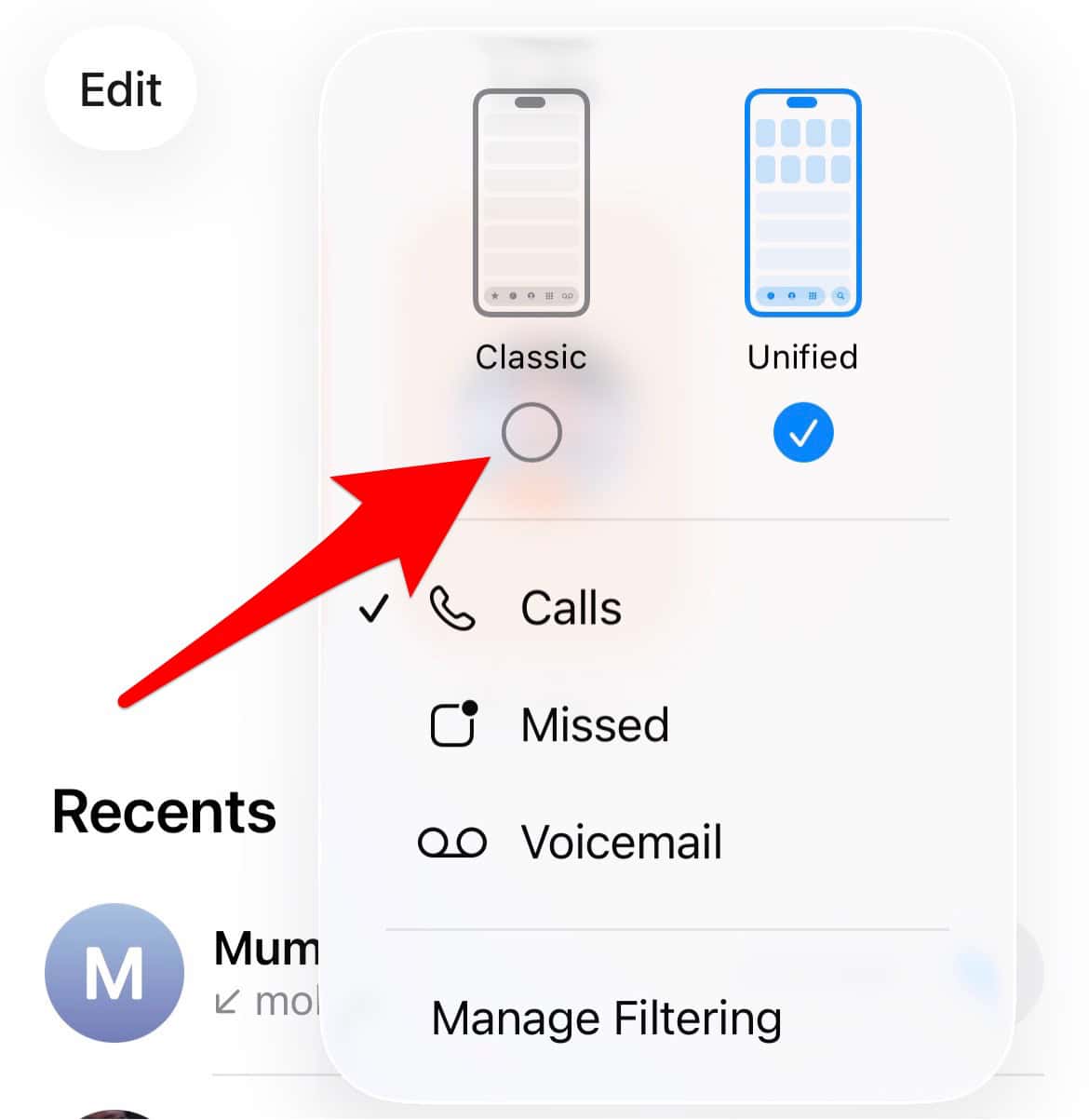
For iPhone users who prefer to remain within the Phone app interface, a specific configuration change may temporarily restore GAL access. The problem is often tied to the “Unified View” introduced in the update. If your device offers the option, reverting the Phone app’s display to the previous “Classic View” can make the search bar visible and allow the GAL to return results. This solution may not be available on all configurations but is worth checking before moving to more involved fixes.
Don’t miss the best of The Mac Observer
Set us as a preferred source and our Apple reporting ranks higher in your Google Search results and Discover feed — one tap, no account changes.
- Launch the Phone app on your iPhone.
- Tap the Calls tab at the bottom left (if you are in the new Unified view).
- Look for the three-lines icon (menu icon) in the top right corner and tap it.
- From the options that appear, select Classic instead of Unified.
3. Verify the Latest iOS Maintenance Update
The Global Address List functionality often relies on minor software patches to address bugs related to Microsoft Exchange and directory services. Apple typically releases rapid maintenance updates following a major operating system release to fix critical issues like this. Before performing manual troubleshooting, ensure your device is running the most recent version, such as iOS 26.1 or later, as Apple may have already distributed a patch that resolves the GAL search failure.
- Go to Settings on your iPhone.
- Tap General, then select Software Update.
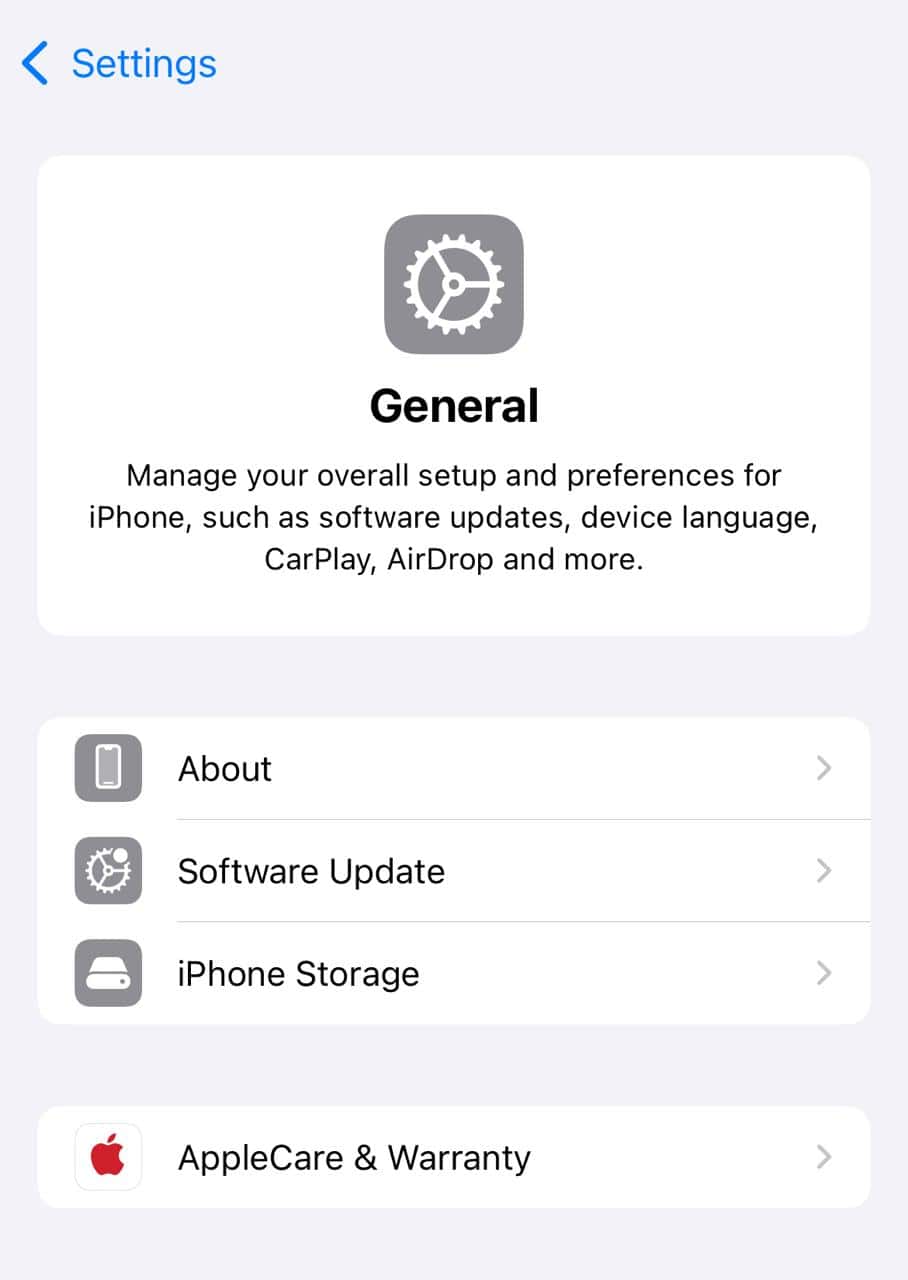
- If an update is available (e.g., iOS 26.1), tap Download and Install.
- Allow your iPhone to complete the update process, which may take several minutes and require a restart.
4. Remove and Re-add Your Exchange Account
A common, albeit inconvenient, troubleshooting step for connectivity problems is to reset the account connection. By removing your Exchange account completely and then setting it up again, you force a fresh sync of the Mail, Calendar, and Contacts services, including the GAL connection. While this did not solve the iOS 26 issue for all users, it rules out a corrupted account profile. If your contacts disappeared after an update following this step, ensure your data is backed up.
- Go to Settings on your iPhone.
- Scroll down and tap Apps.
- Tap Mail, Contacts, or Calendar, then select Accounts.
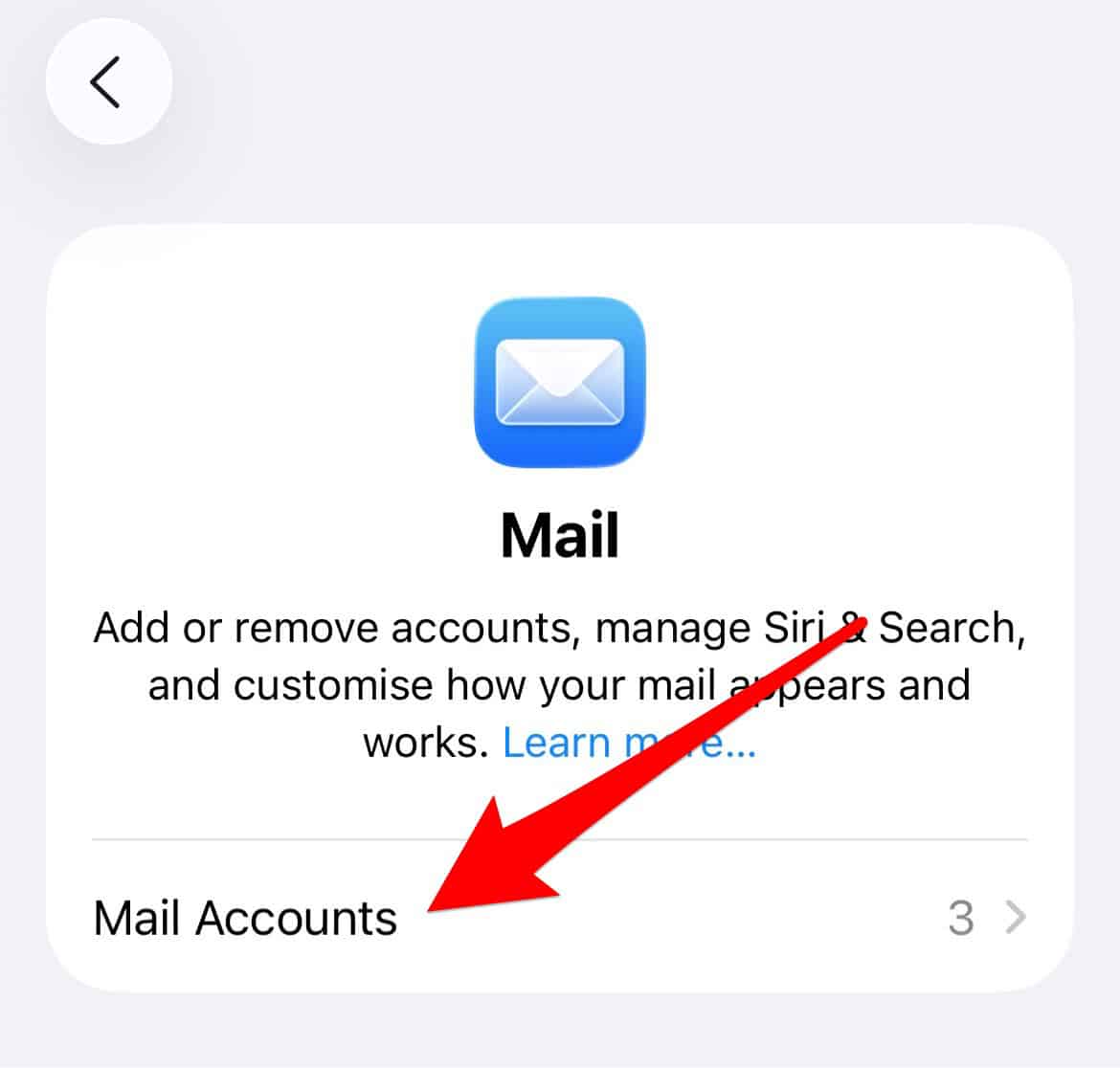
- Select your Exchange account, and then tap Delete Account.
- Return to Accounts and tap Add Account, select Microsoft Exchange, and follow the prompts to re-enter your credentials and re-sync your data.
5. Check Your Account Contact Settings
Confirming that the Contacts sync feature is properly enabled for your Exchange account is a crucial check. The contacts service might be toggled off or require a re-authentication to refresh the connection to the directory server. This is relevant if you are experiencing repeated prompts to re enter your password for contacts.
- Navigate to the Settings app on your iPhone.
- Scroll down and tap Apps.
- Tap on Contacts, then select Accounts.
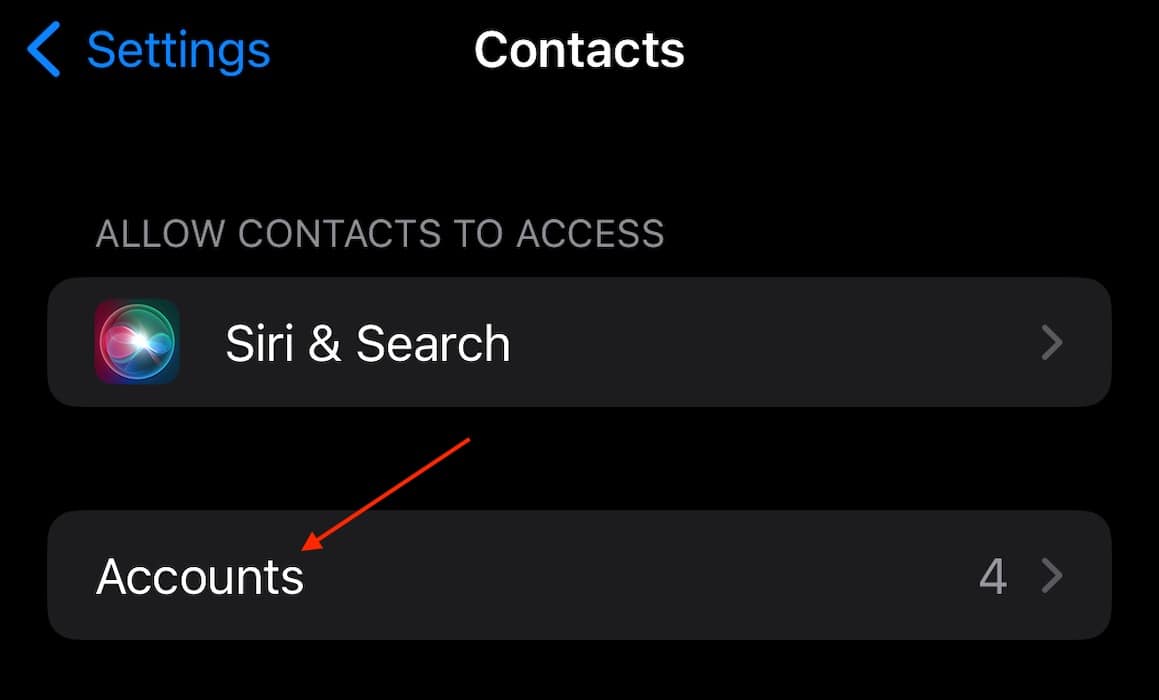
- Select your Exchange account from the list.
- Ensure the Contacts toggle switch is set to the On position.
FAQ
The issue appears to be a bug introduced in the initial release of iOS 26, specifically affecting how the Phone application handles search queries against an Exchange Global Address List in the new Unified View.
No, the contacts are stored on the Exchange server. They will reappear when you re-add the account to your iPhone.
The most permanent resolution will come from a subsequent official iOS update from Apple that addresses the root cause of the bug.
Restoring Directory Access on Your iPhone
The inability to quickly search the corporate directory is a major workflow disruption, but effective user-driven workarounds exist while waiting for an official patch. Focusing on the dedicated Contacts app or making small adjustments to the Phone app’s view can restore this critical functionality for enterprise users. If these initial steps fail, consult a comprehensive guide on how to fix iPhone contacts that disappeared for deeper troubleshooting.




Discussion