
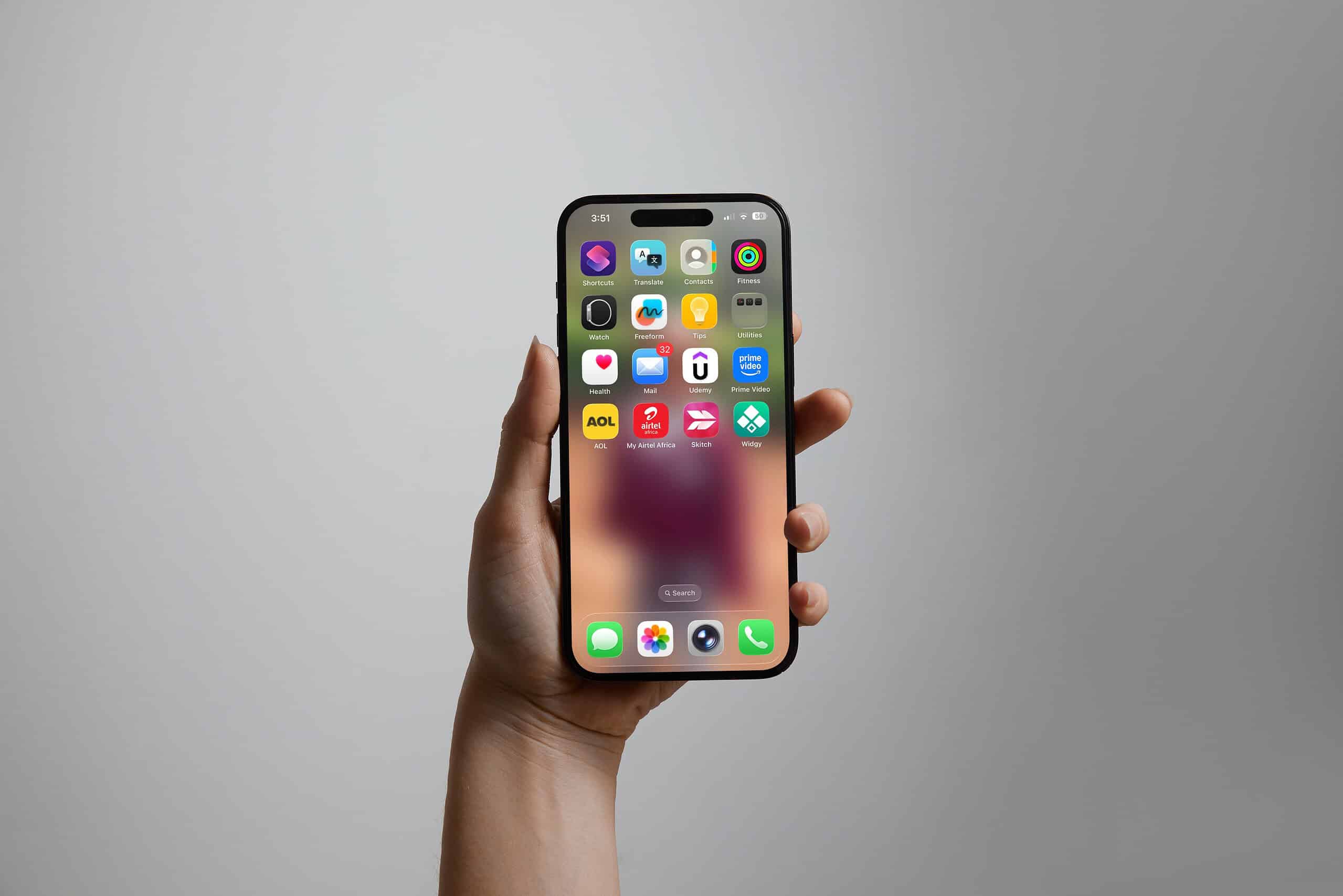
The launch of the iOS 26 operating system update introduced new features and security enhancements to iPhones. However, many users reported applications suddenly missing from their Home Screens. This is usually a visibility problem, triggered by a stricter enforcement of Content & Privacy Restrictions within Screen Time. For a general guide on how to resolve missing applications after an update, see this article on apps missing after iOS 18 update.
Table of contents
Immediate Fixes for Missing Applications After a Major iOS Update
When a major software installation like iOS 26 occurs, certain system settings, especially those relating to parental controls and age limits, can be subtly altered or more rigorously applied. This change can inadvertently hide previously accessible applications. The key to retrieving these missing applications involves a few simple troubleshooting steps focused on device settings and Home Screen organization.
1. Adjust App Age Ratings in Screen Time
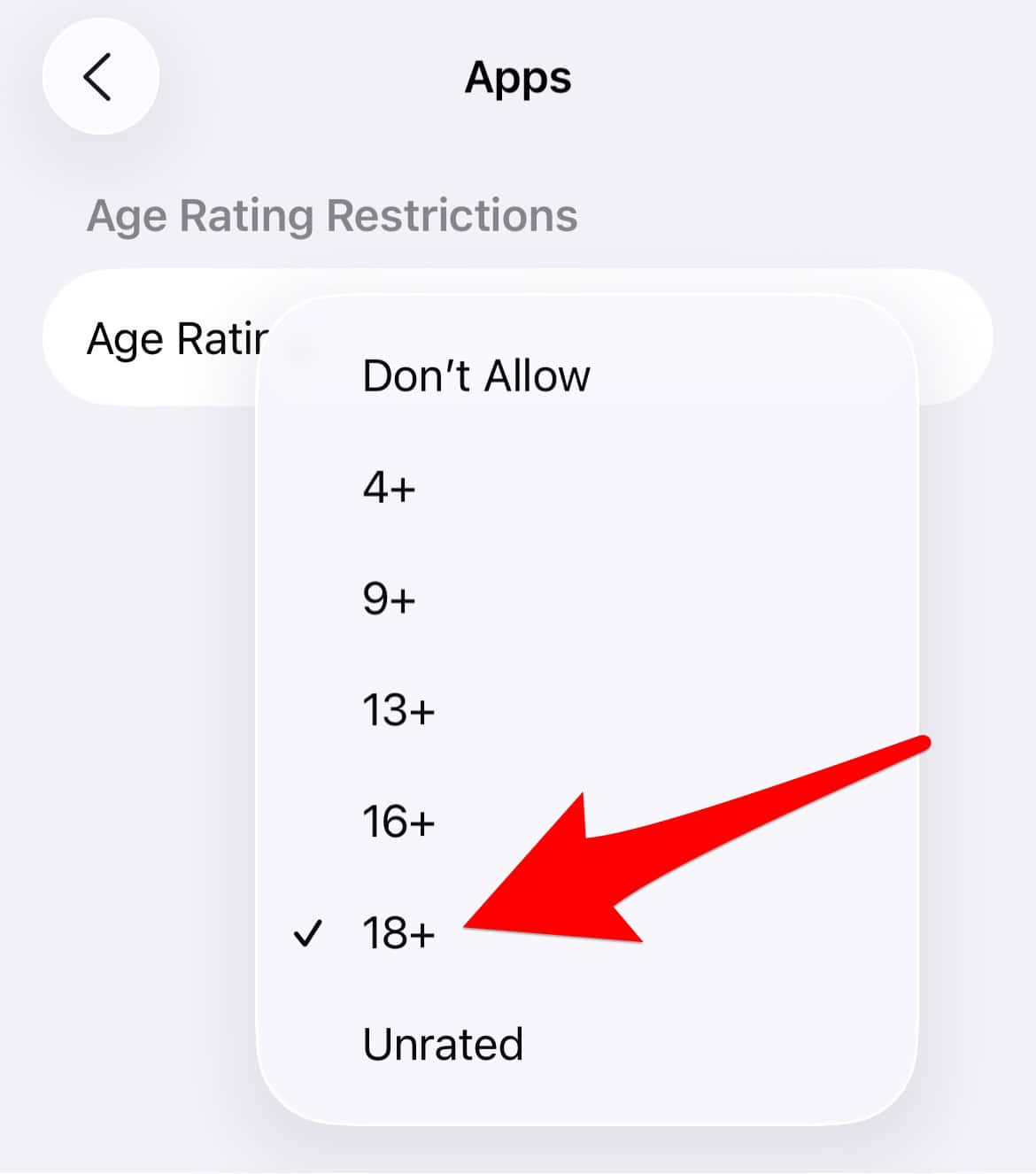
The iOS 26 update appears to enforce existing age restrictions with greater scrutiny, which may cause apps with age ratings that exceed the current device limit to vanish. If you are experiencing apps missing after iOS 26 this is a primary solution to check.
Don’t miss the best of The Mac Observer
Set us as a preferred source and our Apple reporting ranks higher in your Google Search results and Discover feed — one tap, no account changes.
To ensure your preferred applications are visible, you must navigate to the restrictions menu and increase the acceptable age rating for applications:
- Go to Settings, then select Screen Time.
- Tap on Content & Privacy Restrictions.
- Enter your Screen Time passcode when prompted.
- Select App Store, Media, Web & Games >Apps.
- Choose a higher age rating like 18+.
2. Reset All Settings to Clear Restriction Glitches
When the software update introduces conflicts or glitches that affect restrictions, a simple system settings reset can often resolve the issue without deleting any personal files. This step is a common solution for resolving stubborn post-update oddities related to permission enforcement.
Although this action will reset preferences like your Wi-Fi passwords and notification settings, it will not erase your photos, apps, or contacts:
- Navigate to Settings, then tap General.
- Scroll down and select Transfer or Reset iPhone.

- Tap Reset, and then choose Reset All Settings.
- Enter your device passcode to confirm and start the reset process.
3. Restore Hidden Home Screen Pages
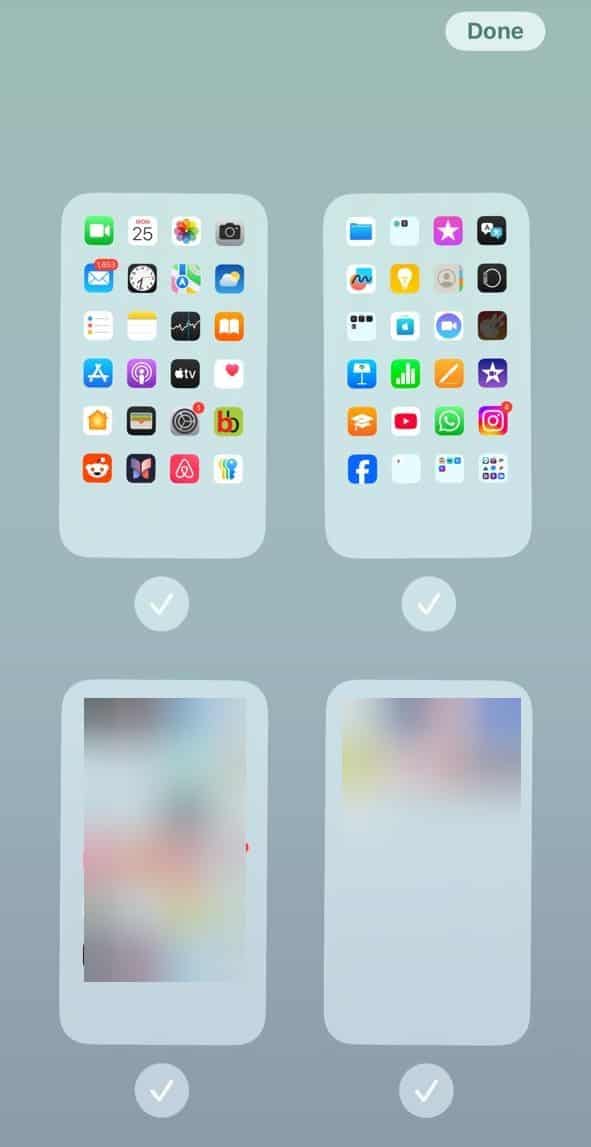
A common, simple cause for widespread app disappearance is the accidental hiding of an entire Home Screen page. The iOS system allows users to declutter their Home Screen by toggling pages off, and sometimes an update can inadvertently trigger this setting.
You can quickly check if a page was hidden by performing a simple gesture and viewing the page management screen:
- Touch and hold a blank space on your Home Screen until your app icons start to jiggle.
- Tap the series of small dots near the bottom of the screen, which represent the total number of Home Screen pages.
- If a page is unticked, tap the empty circle underneath it to make it visible again.
4. Locate Apps in the App Library and Re-Add Them
The applications are usually still installed on the device even if their icons are gone from the Home Screen. The App Library, which automatically categorizes all applications, remains the final repository for installed software. This is the surest way to find missing or hidden apps on your iPhone or iPad.
After confirming the app is present in the App Library, you can restore its icon back to a visible page:
- Swipe left past your last Home Screen page to access the App Library.
- Use the search bar at the top or browse the folders to locate the desired app.
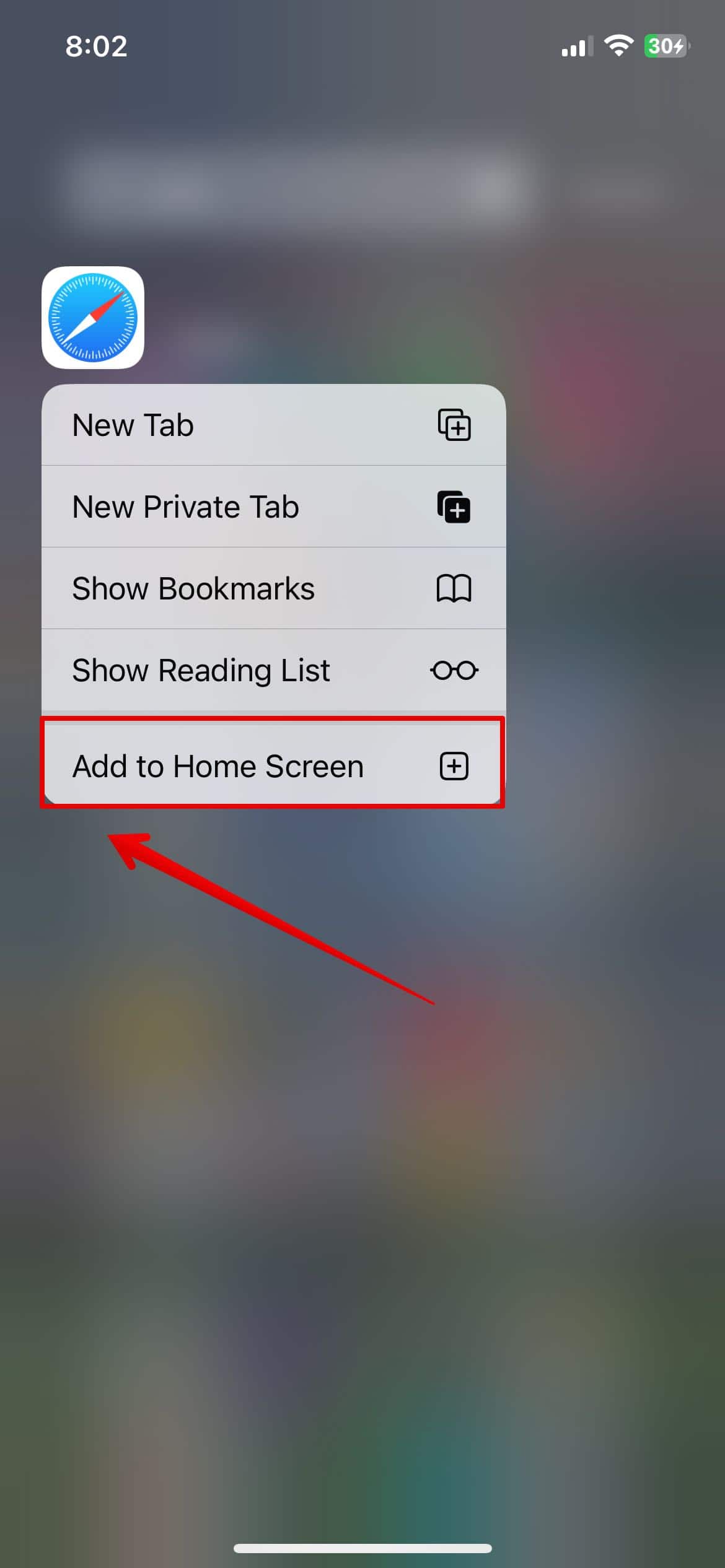
- Once found, touch and hold the app icon and select Add to Home Screen from the pop-up menu.
5. Reset the Home Screen Layout
If applications are still missing or incorrectly organized after trying the previous solutions, a complete reset of the Home Screen layout can force the device to reorganize and restore missing icons to their default positions. This solution is particularly useful if you need to restore icons to Home Screen on iPhone after an update has scrambled their locations.
This process will remove all custom folders you have created and arrange your applications alphabetically:
- Go to Settings, and select General.
- Tap Transfer or Reset iPhone.
- Choose Reset, then select Reset Home Screen Layout.
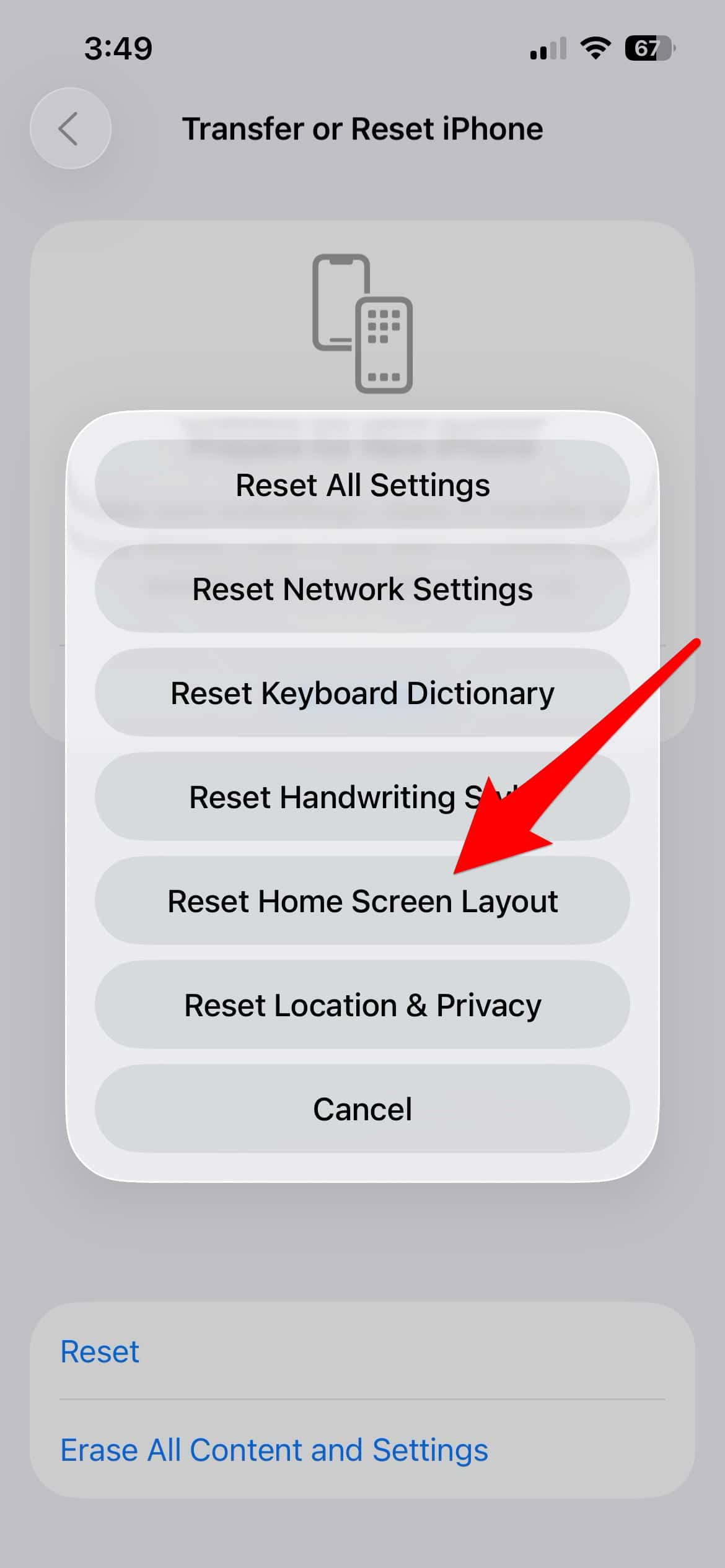
- Confirm the action to reset the layout.
FAQ
The main reason is often a stricter application of the Content & Privacy Restrictions within Screen Time, which causes apps that violate the set age limit to be hidden from view.
No, they are generally still installed but are only visible within the App Library or via the device’s search function.
No, the Reset All Settings function only affects device preferences like Wi-Fi passwords and display settings, leaving your applications and media intact.
Yes, if a Focus mode is active, it may be configured to only display a limited set of applications, making others temporarily vanish.
Effective Troubleshooting for iOS App Visibility
Successfully recovering missing applications after the iOS 26 update requires a systematic approach to troubleshooting, beginning with a review of system restrictions. By performing these simple, data-safe checks and resets, users can quickly restore full functionality to their device. This recurrence highlights the importance of understanding why the App Store disappears when allowed in Screen Time and how content restrictions interact with system updates to maintain full control over your device experience.




Discussion