

One of the most personal touches you can add to your Apple Watch isn’t a band or a case—it’s a face that actually reflects you. With the Memoji app on Apple Watch, you can create your own animated character, customize every detail, and even turn it into your watch face. It’s fun, expressive, and just a little bit addictive once you start playing around with it.
Let’s break down how to make your own Memoji and get the most out of it on your Apple Watch.
Creating Your Own Memoji

Start by opening the Memoji app on your Apple Watch. If it’s your first time, you’ll see a simple Get Started prompt. Tap it, and you’ll be guided through the creation process.
Don’t miss the best of The Mac Observer
Set us as a preferred source and our Apple reporting ranks higher in your Google Search results and Discover feed — one tap, no account changes.
From there, it’s all about customization. You can adjust your Memoji’s skin tone, hairstyle, eyes, mouth, head shape, and even add accessories like glasses or headwear. Each option can be fine-tuned using the Digital Crown—turn it to scroll through the available styles.
Once you’re happy with the look, tap the checkmark to save it. Your new Memoji will now appear in your collection, ready to use as a sticker, a watch face, or a playful message reaction.
If you already have Memoji created on your iPhone, they’ll automatically sync to your Apple Watch, so you can edit or use them directly from your wrist.
Editing, Duplicating, or Deleting a Memoji
Maybe you want to give your Memoji a beard, change its hair color, or make a version that looks like you before coffee. You can edit any Memoji easily:
- Open the Memoji app and select one from your collection.
- Tap Edit, and you’ll get the same customization menu as before.
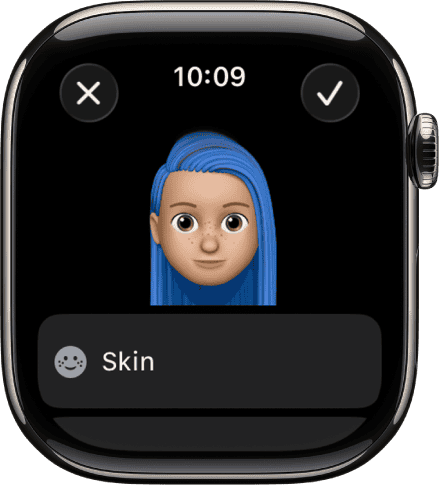
- Use the Digital Crown to tweak features or colors, then tap Done when you’re finished.

You can also duplicate an existing Memoji if you want to create variations—like a happy version, a sleepy version, or one with sunglasses. Just scroll down and tap Duplicate. To delete one, scroll to the bottom again and select Delete, then confirm.
Keep in mind, deleting a Memoji from your Apple Watch also removes it from your iPhone and iPad if they’re signed in to the same Apple ID.
Setting a Memoji as Your Watch Face

Now comes the fun part—making your animated Memoji the face of your watch.
Here’s how:
- Open the Memoji app and pick the one you want.
- Scroll down and tap Create Watch Face.
- Press the Digital Crown to return to the main screen, and you’ll see your new animated Memoji smiling back at you.
Every time you raise your wrist or tap the screen, the character comes to life with little expressions and movements. It’s a small thing, but it gives your Apple Watch a bit of personality that static watch faces can’t match.
You can also set up a Memoji watch face from your iPhone using the Watch app under Face Gallery > Memoji. There, you can fine-tune colors, choose complications, and sync it straight to your watch.
Using Memoji Stickers in Messages
Memoji isn’t just about watch faces. You can send Memoji stickers in the Messages app on your Apple Watch too.
- Open Messages and go to a conversation.
- Tap the + icon next to the text box, then choose Stickers.
- Pick your favorite Memoji and tap the expression you want to send.
These stickers mirror your Memoji’s look and automatically sync with your iPhone and iPad, so your character stays consistent across all your Apple devices.
Why You’ll Actually Use It
Memoji on Apple Watch isn’t just a novelty—it’s a genuinely fun and expressive feature. You can make characters that look like you, your friends, or your favorite celebrity. They react, they smile, and they make checking the time feel a bit more personal.
And because everything syncs through iCloud, any Memoji you create or edit on your watch shows up instantly on your other devices. No extra setup required.
So, if your Apple Watch has been feeling a little too serious lately, give Memoji a try. It’s playful, customizable, and surprisingly good at capturing who you are—one animated smirk at a time.


Discussion