

Apple Mail users on Mac, iPhone, or iPad often see deleted emails reappear. This is frustrating. The cause is rarely a major application flaw. Instead, synchronization errors or corrupted files are often to blame. Mail needs constant communication with your server. Interruptions can stop the deletion command from working. Use these troubleshooting steps to quickly regain mailbox control.
Table of contents
Resolving Synchronization and Configuration Issues
The inability to delete mail usually stems from a mismatch. This occurs between the local Mail app and the server’s status. Addressing the underlying account integrity is reliable. This stops emails from continuously returning to your inbox.
1. Rebuild Corrupted Mailbox Indices (Mac)

An operating system update or software crash can corrupt local index files. Apple Mail uses these files to track your messages. Therefore, rebuilding the mailbox is essential. This action forces the app to re-download header data from the server. This successfully resolves data indexing errors. It also fixes deletion problems. This is crucial after system upgrades. Sometimes an email not working after a macOS update causes data conflicts.
Don’t miss the best of The Mac Observer
Set us as a preferred source and our Apple reporting ranks higher in your Google Search results and Discover feed — one tap, no account changes.
- Open the Mail application on your Mac.
- Select the problematic mailbox (e.g., Inbox or Sent).
- Go to the Mailbox menu in the menu bar.
- Choose the Rebuild option.
2. Delete and Re-add the Account (Mac and iOS)
This step thoroughly refreshes your account credentials. It also refreshes server configurations. Deleting and re-adding forces the device to download fresh settings. The mail provider sends an uncorrupted set of data. Ultimately, this eliminates conflicts that prevent successful deletion. For specific mobile troubleshooting, you can find steps to fix a Mail app that is not working, freezing, or crashing on iPhone.
- Navigate to Settings > Apps (iOS/iPadOS) or System Settings (macOS).
- Locate the section for Mail Accounts or Internet Accounts.
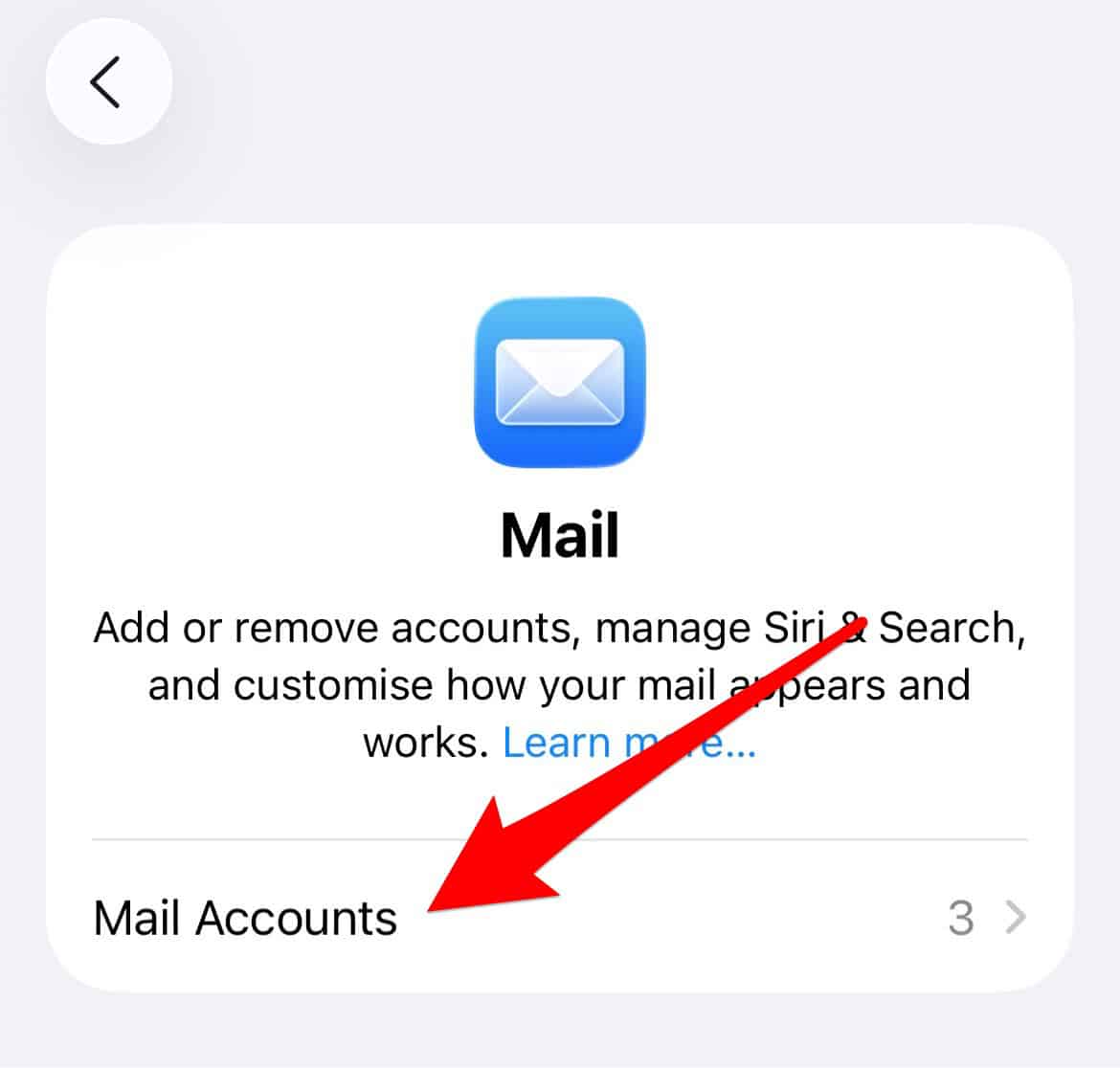
- Select the problematic email account.
- Choose the option to Delete Account or Remove Account.
- Restart your device.
- Return to the same settings panel.
- Use Add Account to sign in again.

3. Force Quit and Relaunch the App (Mac and iOS)
A simple restart often clears temporary memory glitches. It can also resolve a frozen synchronization state. Force quitting terminates all background processes. Therefore, the Mail application gets a fresh start. It can then properly execute deletion commands.
- On Mac, press Command + Option + Esc.
- Select Mail, and click Force Quit.
- On iPhone or iPad, swipe up from the screen bottom.
- Open the App Switcher.
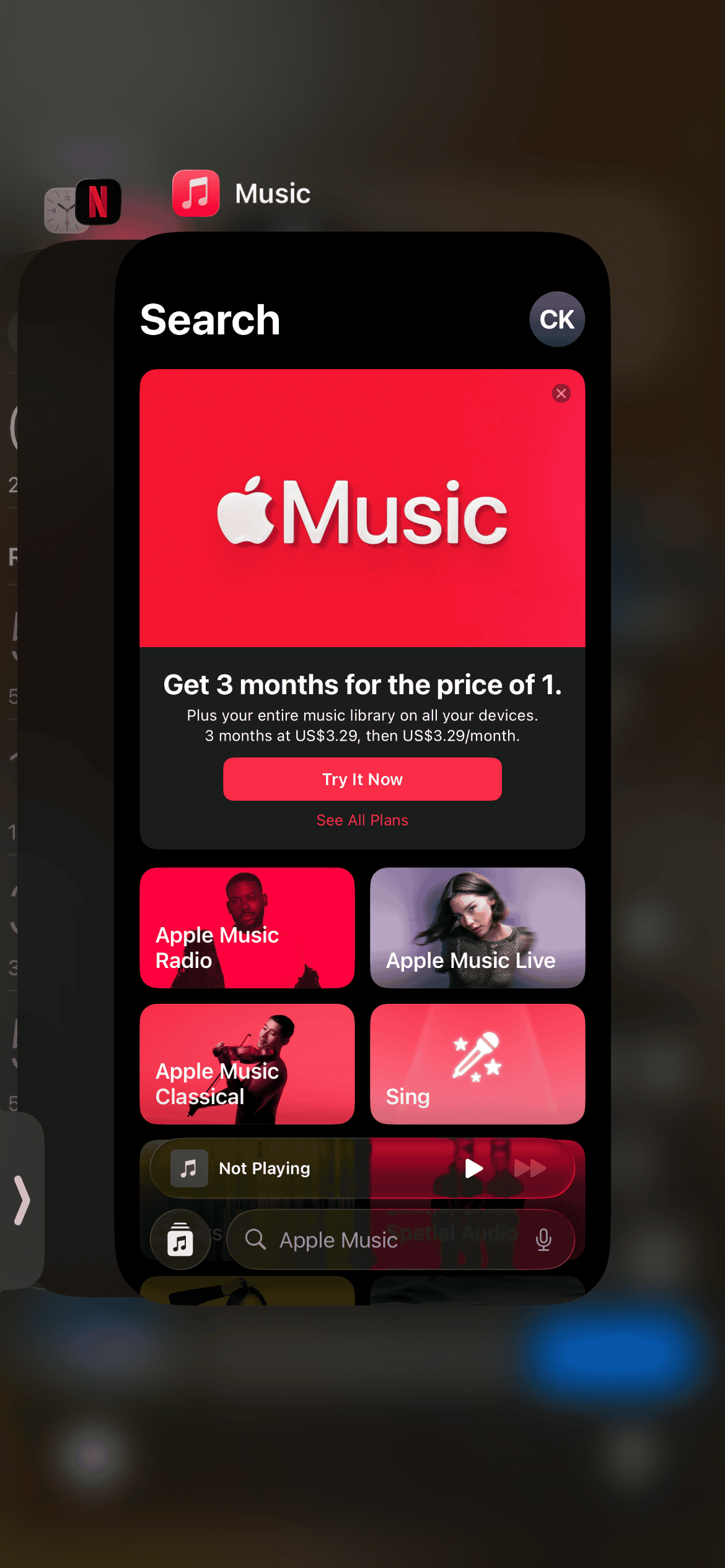
- Swipe up on the Mail app card to close it.
- Wait a few moments, then relaunch the application.

4. Check Your Network and Sync Settings (iOS)
Your device needs a stable connection. If it cannot maintain one, sync commands will fail. Deletion will also fail. First, ensure a reliable network connection. Also, verify that the Mail toggle remains enabled. This is a fundamental first step for mobile troubleshooting.
- Toggle Airplane Mode on and then off.
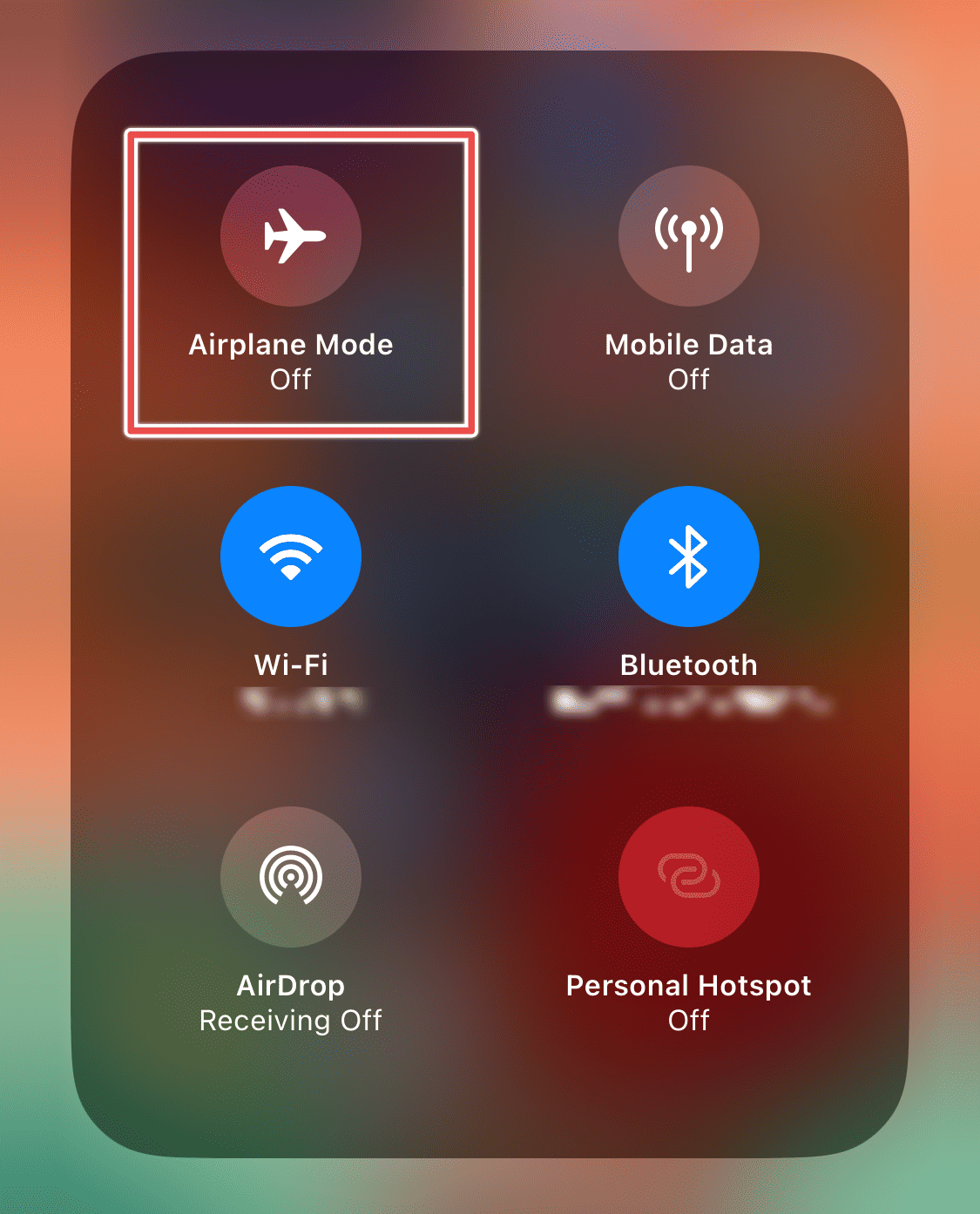
- This resets your network connection.
- Go to Settings > Apps > Mail > Accounts.
- Tap on the affected account.
- Ensure the Mail toggle is enabled for data synchronization.

5. Empty the Trash/Bin Mailbox Manually (All Devices)
Deleting an email moves it to the Trash or Bin folder. It is not permanently removed yet. If your settings never automatically empty this folder, you must do it manually. This action truly finalizes the deletion process. Ultimately, you reclaim storage space. For more information on deletion, learn how to delete emails efficiently in Apple Mail.
- Locate the Trash or Bin mailbox in Mailboxes (iOS/iPadOS) or the Mail sidebar (Mac).
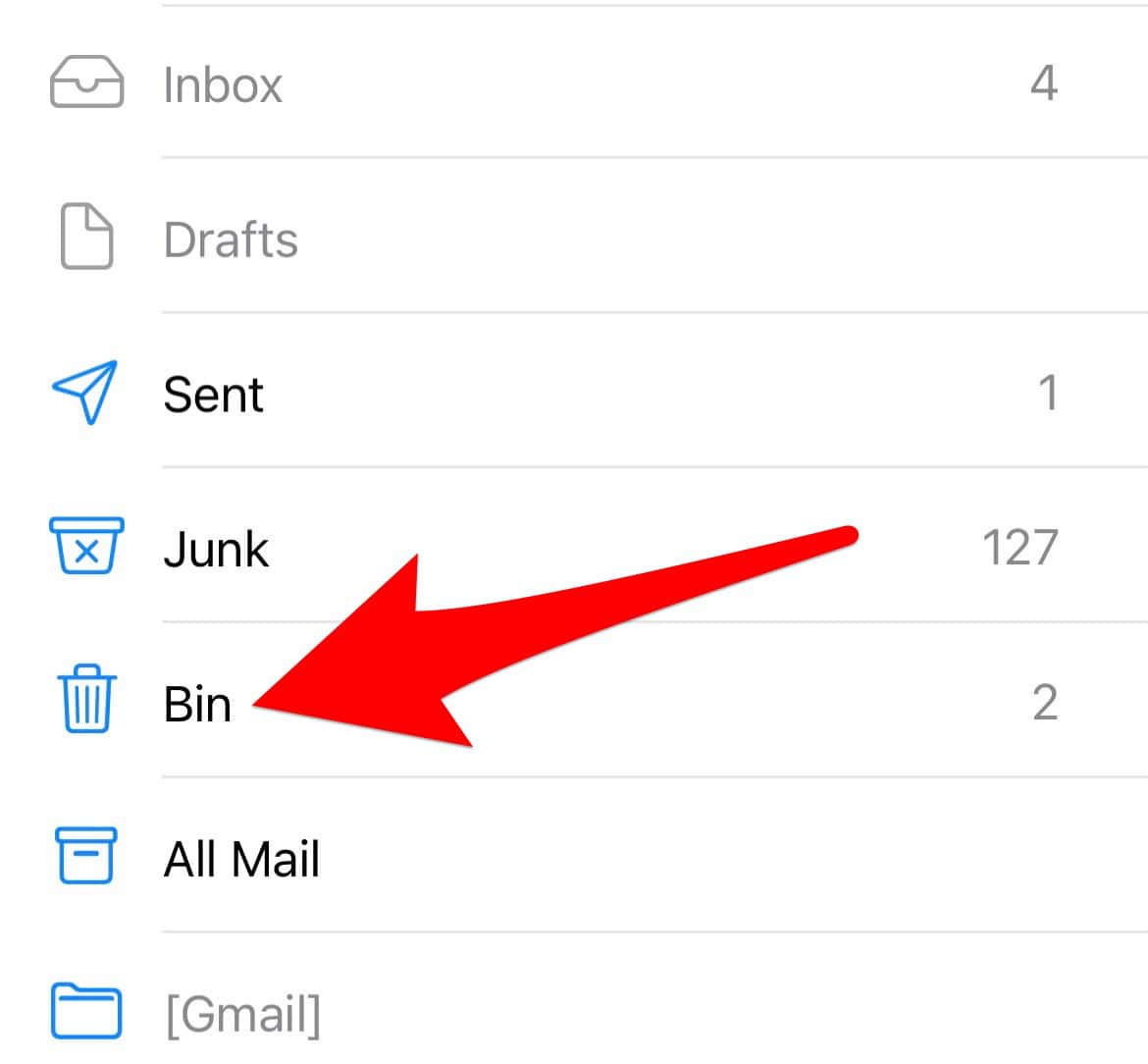
- On Mac, right-click (Control-click) the Trash mailbox.
- Choose Erase Deleted Items… or Empty Trash.
- On iOS, view the contents of the Trash.
- Tap Edit or Select, and then tap Delete All or the Trash icon.

FAQ
This is almost always a synchronization issue. Your account likely uses IMAP, the modern standard. The deletion command must execute on the server. If the Mail app glitches, the server still sees the message. It then pushes the message back to your device. Rebuilding mailboxes resolves this conflict. Re-adding the account works too.
No. Modern IMAP accounts store all emails on your provider’s server. Deleting the account only removes local data. It also removes configuration files. When you re-add the account, the device syncs all emails back from the server.
Maintaining a Deletion Routine for Mail Stability
Managing your inbox effectively is crucial. It maintains an efficient workflow. It also minimizes digital stress. When Apple Mail cannot delete messages, it compromises this efficiency. Therefore, you must check for software corruption. Refresh account credentials. Verify all device sync settings. This lets you isolate and resolve the issue. If you see concerning notifications, you should read more about alarming email warnings These may indicate security problems. Ultimately, these repair steps ensure your email application remains a reliable tool.


Discussion