

If ChatGPT in Apple Intelligence shows the wrong age, the feature may be reading outdated account data or restricted settings. You can fix this by updating your Apple ID birthday, adjusting Family Sharing permissions, and reviewing Screen Time controls across iPhone, iPad, and Mac.
Table of Contents
- Apple Intelligence Age Settings and ChatGPT Solutions
- Confirm your Apple ID birthday for Accurate ChatGPT Age Checks
- Review Family Sharing Permissions That Affect Apple Intelligence
- Adjust Screen Time Restrictions That May Limit ChatGPT Features
- Update Screen Time Settings on macOS for Apple Intelligence Features
- Re-Enable Apple Intelligence to Refresh ChatGPT Age Data
- Tips
- FAQ
- Summary
Apple Intelligence Age Settings and ChatGPT Solutions
Confirm your Apple ID birthday for Accurate ChatGPT Age Checks
Apple Intelligence uses your Apple ID birthday to determine access. If the stored date is wrong, age-based features may be limited.
Time needed: 5 minutes
- Open Settings > Your Name > Name, Phone Numbers, Email > Birthday.
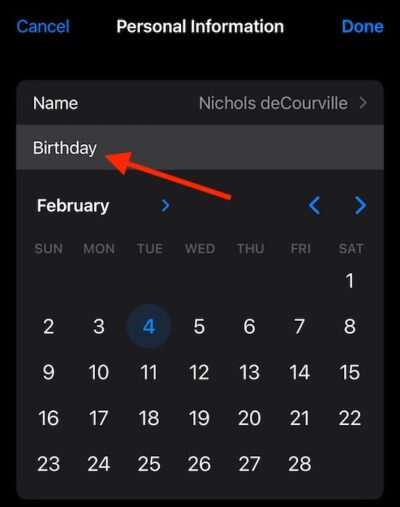
- Confirm the birthday shows your real age.
- If it is incorrect, update it and allow the change to sync through iCloud.
- Test ChatGPT again inside Apple Intelligence to confirm age-based access works normally.
Review Family Sharing Permissions That Affect Apple Intelligence
Family Sharing roles influence age-based settings. Only the Family Organizer or guardian roles can raise permissions for younger profiles.
Don’t miss the best of The Mac Observer
Set us as a preferred source and our Apple reporting ranks higher in your Google Search results and Discover feed — one tap, no account changes.
- Open Settings > Your Name > Family on your iPhone, iPad, or Mac.

- Select your profile to view your assigned role.
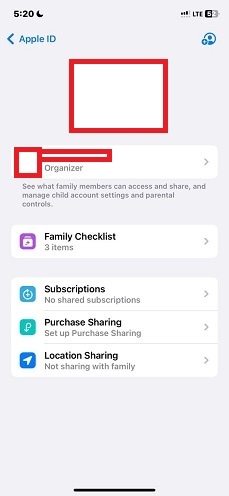
- If the profile is set as a child or restricted account, ask the Organizer to update your permissions.
- After the Organizer changes the role, open Apple Intelligence again and test ChatGPT.
Adjust Screen Time Restrictions That May Limit ChatGPT Features
Screen Time can block conversational tools, especially when the system interprets the account as under the minimum age.
- Open Settings > Screen Time > Content & Privacy Restrictions on iPhone or iPad.
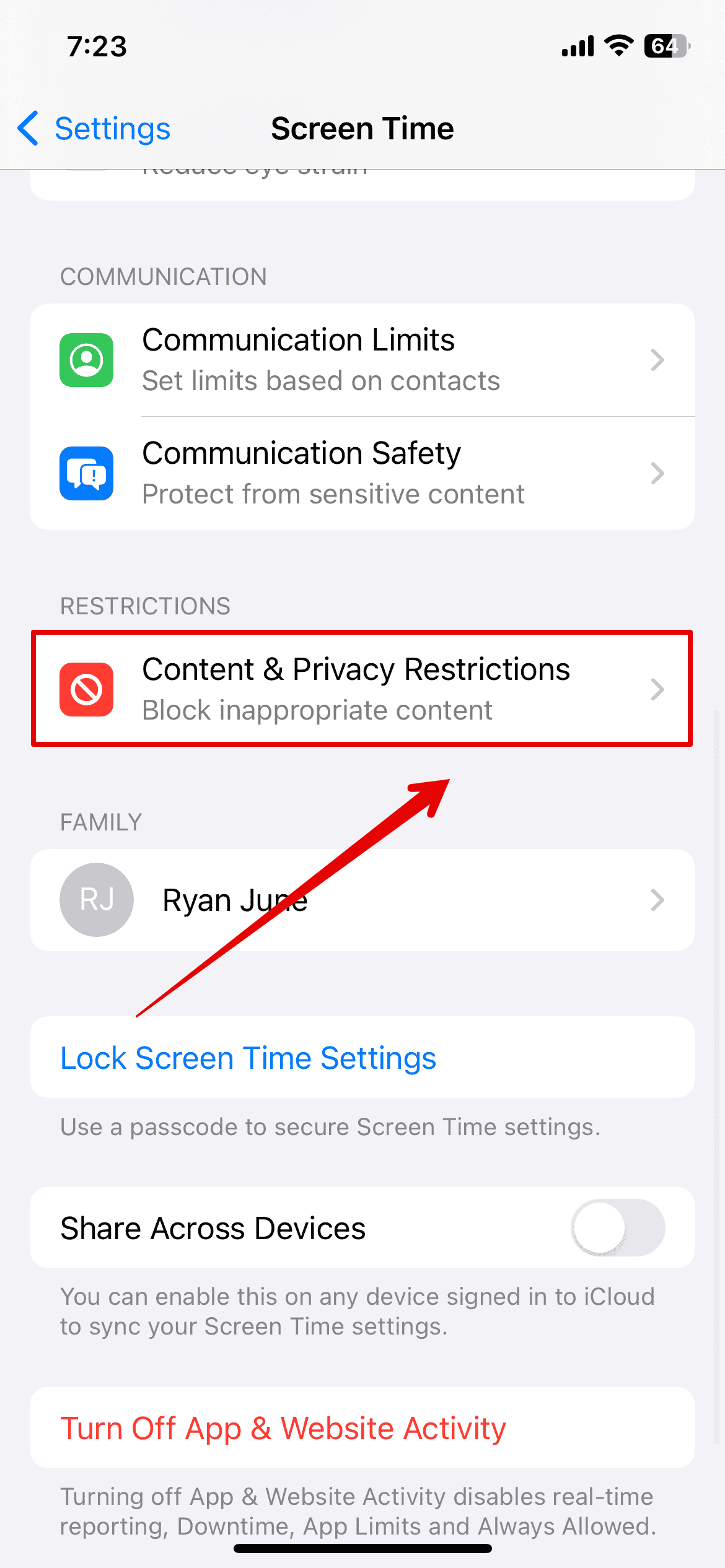
- Turn Content & Privacy Restrictions off to test if limits affect Apple Intelligence.
- If you want restrictions active, adjust Content Restrictions to allow AI-related features.
- Try ChatGPT again within Apple Intelligence to see whether the age warning disappears.
Update Screen Time Settings on macOS for Apple Intelligence Features
In macOS, Screen Time works like iOS and can restrict Apple Intelligence if the system thinks the user is under the required age.
- Open System Settings > Screen Time on your Mac.
- Select your profile in the sidebar to view controls.
- Turn Content & Privacy Restrictions off, then test ChatGPT through Apple Intelligence.
- If you are in a Family Sharing group, ask the Organizer to update your permissions.
Re-Enable Apple Intelligence to Refresh ChatGPT Age Data
Toggling Apple Intelligence off and on helps clear cached age data that may prevent ChatGPT from responding correctly.
- On iPhone or iPad, open Settings > Siri & Spotlight > Apple Intelligence.
- Turn Apple Intelligence off, wait a few seconds, then turn it on.

- Check that iCloud Sync stays active for Apple Intelligence features.
- Start a new ChatGPT request to confirm that age detection now works correctly.
Tips
- Use one Apple ID across iPhone, iPad, and Mac to keep Apple Intelligence data consistent.
- Check Screen Time settings on each device, since limits do not always sync perfectly.
- Ask the Family Organizer to verify your assigned role if age-based behavior continues.
- Keep system software updated so Apple Intelligence receives the latest permission fixes.
- Double-check your Apple ID birthday after any major account change.
FAQ
The system reads your age from Apple ID, Family Sharing roles, and Screen Time limits. Incorrect data may block ChatGPT features.
You can update your Apple ID birthday unless the account is restricted by Family Sharing. Only the Organizer can raise permissions.
Each device keeps local Screen Time controls. If Apple Intelligence acts limited on one device, check its settings directly.
Summary
- Confirm Apple ID birthday
- Review Family Sharing role
- Adjust Screen Time limits
- Re-enable Apple Intelligence
- Test across all devices
If ChatGPT in Apple Intelligence reads your age incorrectly, update Apple ID details, verify Family Sharing permissions, and adjust Screen Time on all devices. Once those settings match your real age, ChatGPT should respond normally on iPhone, iPad, and Mac.




Discussion