

Apple Watch brightness can be adjusted through Settings, the Watch app on iPhone, and several built in features that modify screen visibility. Increasing brightness helps in outdoor light, improves screen clarity, and makes text easier to read. Below, we’ll cover every available method across all Apple Watch models, including how to adjust manual sliders and how to use features that automatically enhance screen visibility.
Here’s How to Increase Brightness on Apple Watch
1. Adjust brightness from the Settings app
The quickest way to raise brightness is through the watch’s built in display settings.
- Press the Digital Crown.
- Open Settings.
- Tap Display & Brightness.
- Tap the brightness bars to increase brightness.
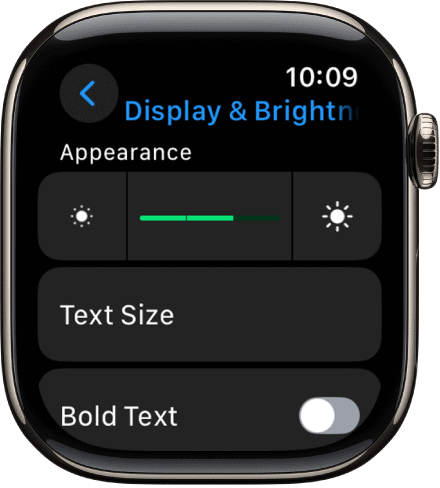

This directly raises the screen intensity for all watch apps.
Don’t miss the best of The Mac Observer
Set us as a preferred source and our Apple reporting ranks higher in your Google Search results and Discover feed — one tap, no account changes.
2. Increase brightness using the Watch app on iPhone
If the watch is paired to an iPhone, brightness can be changed remotely.
- Open the Watch app on iPhone.
- Tap Display & Brightness.
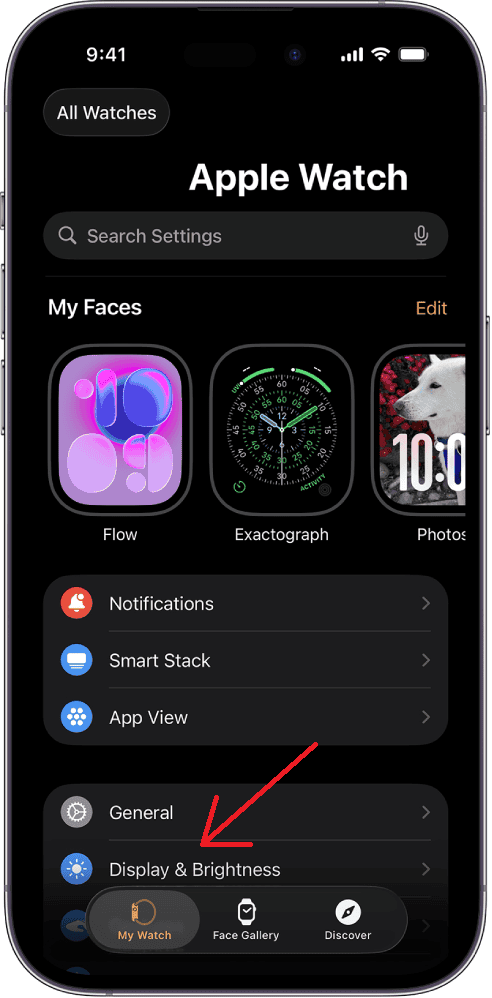
- Drag the Brightness slider to the right.

This mirrors the same brightness level shown on the watch.
3. Use Always On Display to improve visibility
On supported models, the Always On feature keeps the screen visible with better brightness transitions.
- Go to Settings on the watch.
- Tap Display & Brightness.
- Select Always On and turn it on.
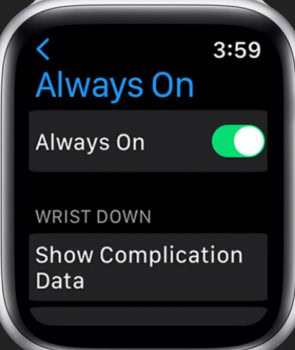

This helps the display remain viewable in low motion scenarios.
4. Increase Wake Duration
A longer wake duration gives more time to view the brighter display.
- Open Settings.
- Tap Display & Brightness.
- Select Wake Duration.
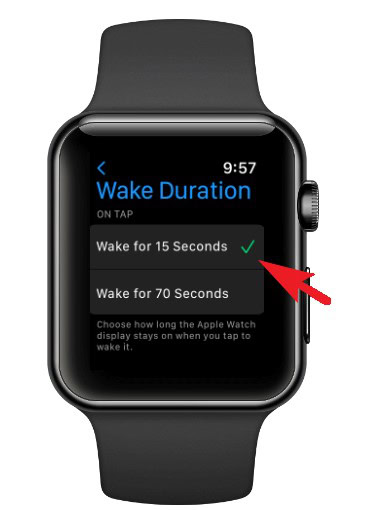
- Choose Wake for 70 Seconds.

This prevents the brighter display from dimming too quickly.
5. Turn off Reduce Motion
Some visual settings affect how brightness and animations appear.
- Open Settings.
- Tap Accessibility.
- Tap Reduce Motion.
- Turn it off.
This improves overall visual clarity across apps.
6. Use Theater Mode toggle controls
If brightness appears low, Theater Mode may be limiting screen activity.
- Swipe up to open Control Center.
- Check if Theater Mode is enabled.
- Turn it off if active.
This restores normal screen wake and brightness behavior.
7. Clean the watch screen
A smudged display can appear dim even at high brightness.
- Wipe the screen with a dry microfiber cloth.
- Avoid liquids or rough materials.
A clean screen enhances brightness visibility.
Additional Tips
• Keep watchOS updated to ensure the latest display controls.
• Disable Low Power Mode if brightness feels limited.
• Ensure the watch is not in Power Reserve, which restricts display output.
• Outdoor brightness improves automatically due to ambient light sensors.
Conclusion
Increasing brightness on Apple Watch can be done through display settings, the Watch app, and supporting features that improve visibility. Whether the change is made directly on the device or through the iPhone, the watch responds instantly to brightness adjustments. With the right settings enabled, the display remains clear during both indoor and outdoor use.
FAQs
Features like Theater Mode, Low Power Mode, or Reduce Motion may be limiting the display.
Yes. The ambient light sensor increases brightness outdoors.
No. The slider maximum is the highest supported level.
Yes. Always On improves visibility but may slightly reduce battery life.



Discussion