

The iPhone camera is a world-class tool for mobile photography, but certain interface elements can be distracting for users who prefer a clean viewfinder. The camera grid is a 3×3 overlay designed to help with the Rule of Thirds and alignment. However, if these lines obstruct your view, you can easily disable them through your iOS system settings.
Table of contents
Simple Ways to Customize Your Viewfinder
1. Access the Main Camera Settings
To modify how your viewfinder looks, you must navigate through the system settings rather than the camera app itself. This ensures your preferences are saved across all photo and video modes for a consistent experience.
- Go to Settings app on your iPhone.
- Scroll down and tap on Camera.
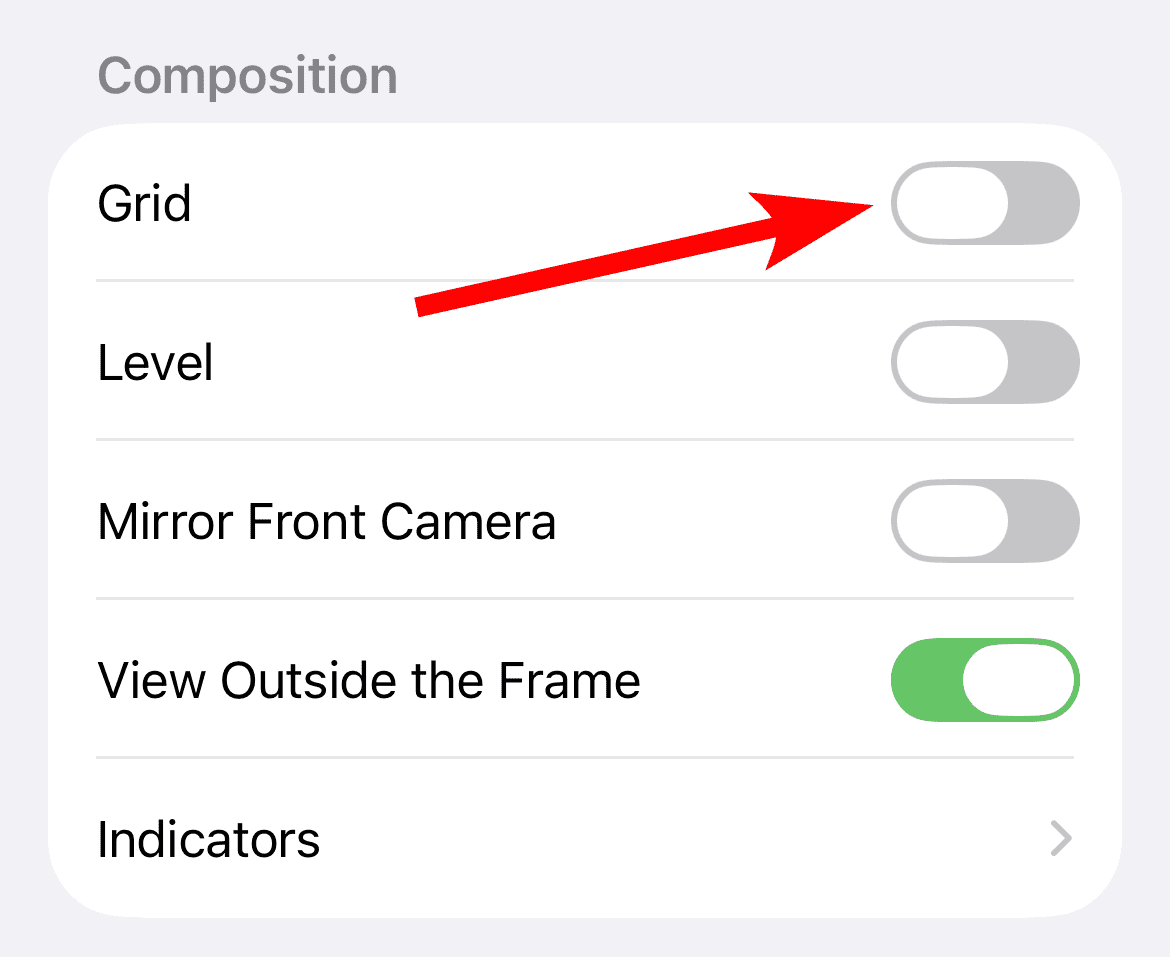
- Locate the Composition section.
- Toggle the switch next to Grid to the Off position.

2. Disable the Level Feature
In recent iOS updates, Apple introduced a horizontal level that appears when your phone is held flat or upright. While helpful for straight horizons, it can clutter the screen alongside the grid. To remove this specific overlay:
Don’t miss the best of The Mac Observer
Set us as a preferred source and our Apple reporting ranks higher in your Google Search results and Discover feed — one tap, no account changes.
- Navigate to Settings and select Camera.
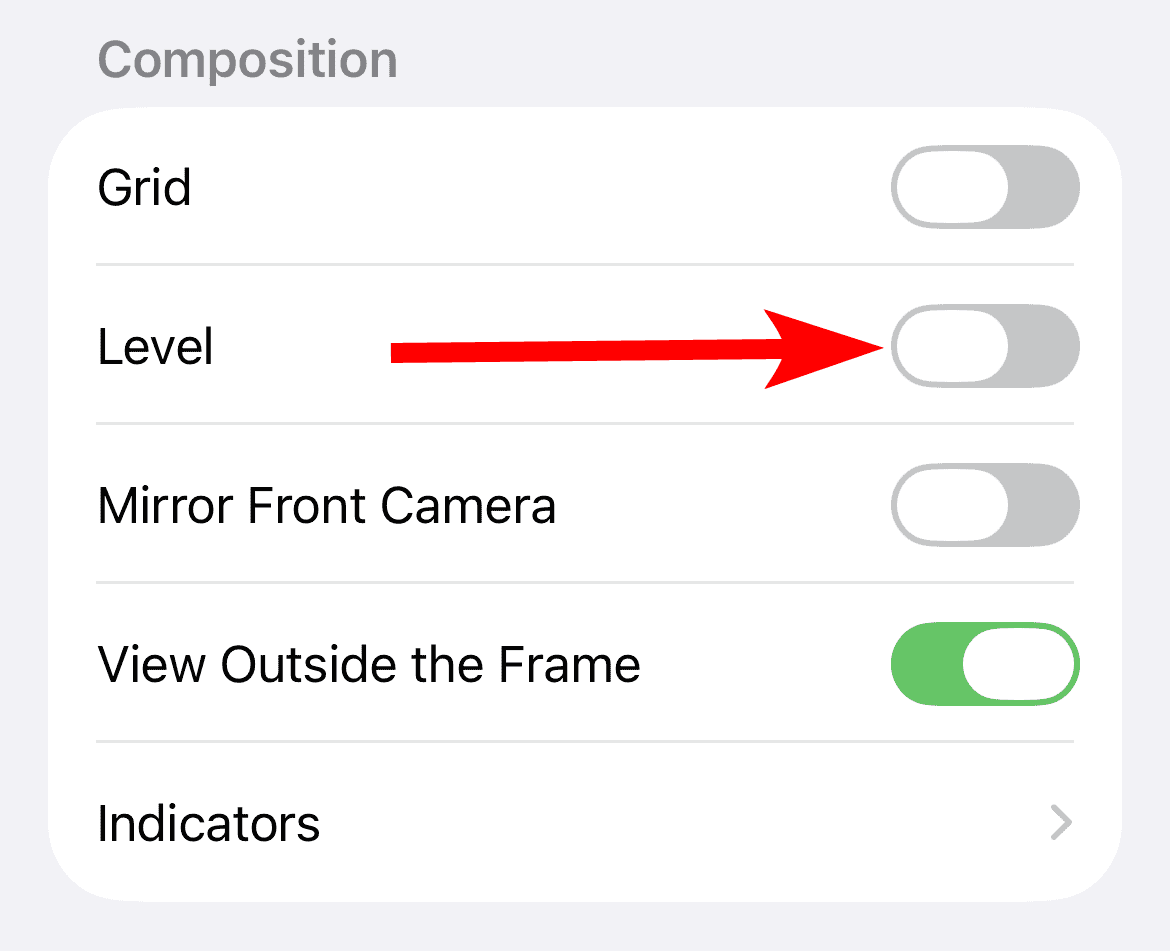
- Under the Composition header, find Level.
- Toggle the switch to Off to remove the leveling bar from your screen.

3. Adjusting Camera Control and Intelligence
If you are using a newer model like the iPhone 16, you might find that certain visual overlays or AI features interfere with your focus. You may want to disable Visual Intelligence Camera Control to streamline your hardware interactions and prevent accidental activations of advanced scanning features while you are trying to frame a shot.
4. Manage Viewfinder Presets
Sometimes, the grid returns because of specific “Preserve Settings” configurations. If your grid keeps reappearing after a restart, you should check your preservation toggles to ensure the UI remains in your preferred state.
- Go to Settings > Camera.
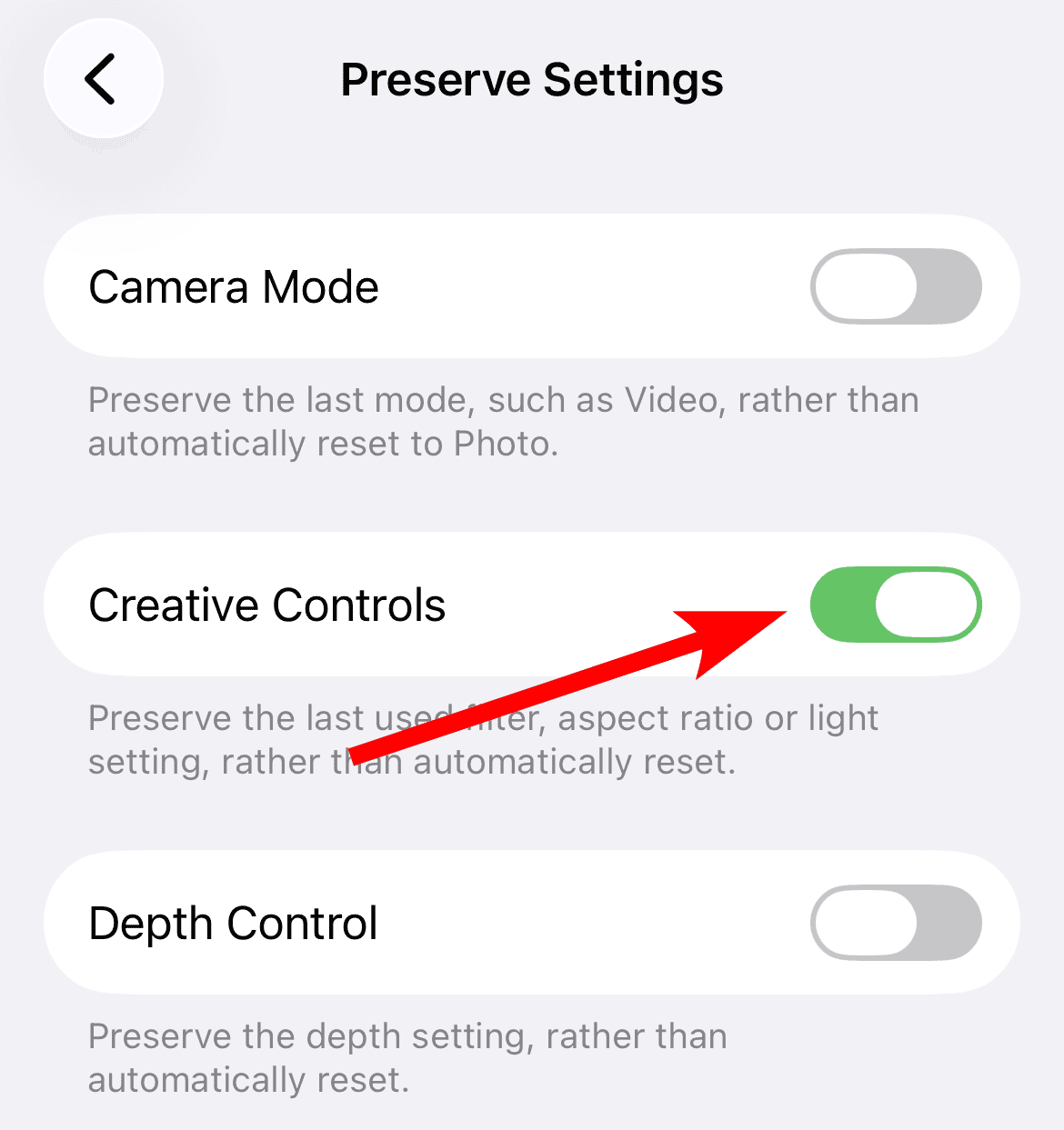
- Tap on Preserve Settings.
- Turn on the Creative Controls toggle so it maintains your preferred UI layout. That way, the grid does not default back to “On.”

5. Prepare for Interface Updates
Apple frequently updates the look and feel of its imaging software. Recent reports suggest that iOS 18 to bring major redesigns for Phone Safari and Camera apps, which may change where these toggles are located in the future. Staying informed on these updates ensures you can always find your composition tools.
FAQ
The grid is a composition tool based on the “Rule of Thirds,” helping photographers place subjects along intersecting lines for more balanced photos.
No, disabling the grid only removes the visual guide from your screen; it has no impact on the resolution, color, or clarity of your images.
Absolutely. You can use external triggers to capture images. For example, learning a camera remote Apple Watch setup allows you to frame shots and trigger the shutter without ever touching your iPhone.
Mastering Your iPhone Camera Composition
Removing the grid is just one step in customizing your mobile photography experience. By decluttering your viewfinder, you can focus more on the subject and less on the interface. For those who want to expand their capabilities further, learning how to take a photo with AirPods can provide even more freedom when snapping shots from a distance without touching the screen.



Discussion