
Apple released macOS Tahoe 26.2 to improve system speed and visual effects. However, many users now see blurry desktop backgrounds after they install the update. This issue usually stems from scaling bugs or corrupt cache files. You can fix these display problems quickly with the following expert methods.
Table of contents
Effective Solutions for macOS Wallpaper Clarity
1. Adjust the Desktop Tinting Settings
First, you should check your transparency settings. macOS Tahoe 26.2 often tints windows based on your wallpaper color. This feature sometimes creates a soft or muddy visual effect on the desktop.
- Open your System Settings menu.
- Select the Appearance tab.
- Turn off the toggle for Tint windows background with wallpaper color.
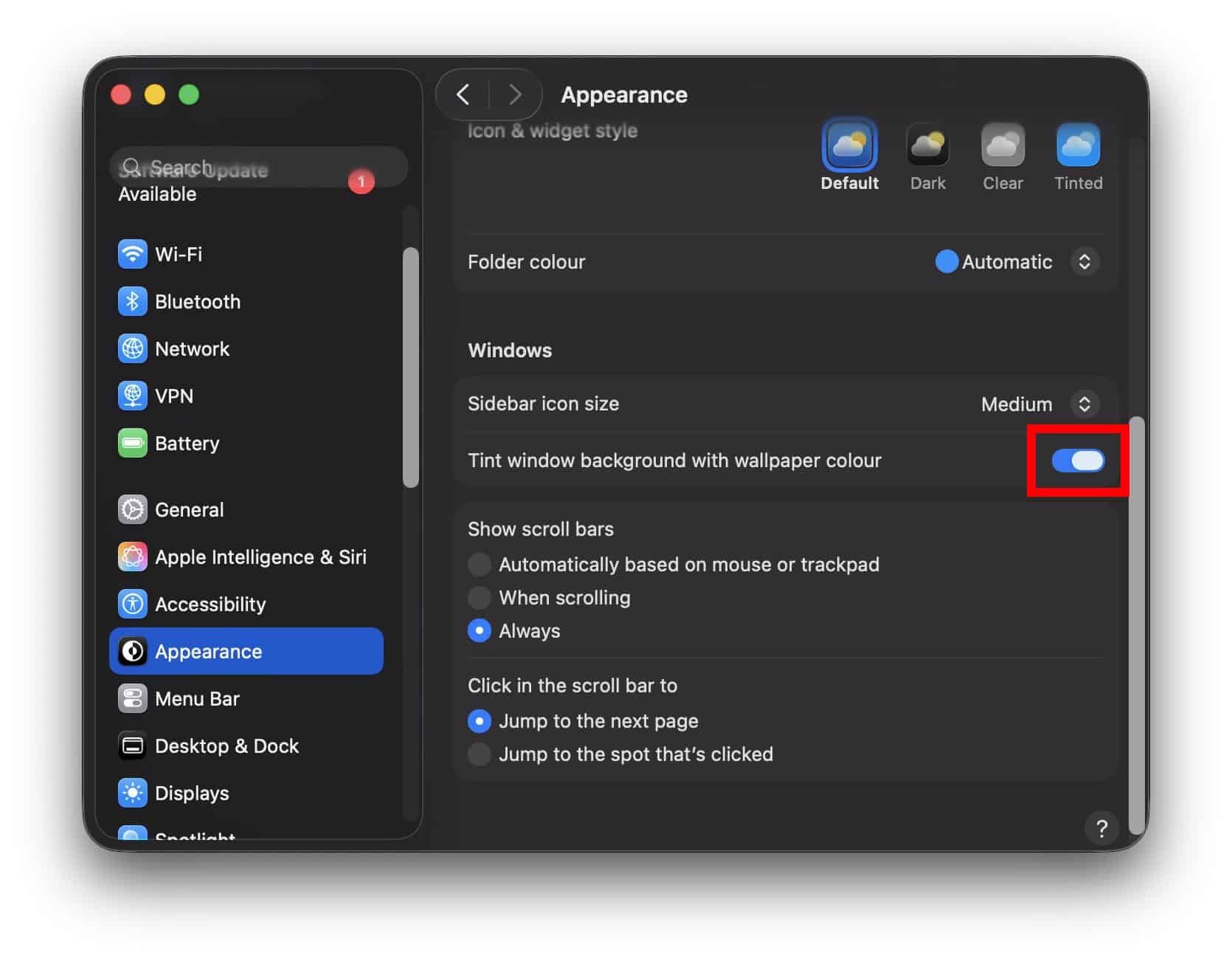
- Restart your Mac to refresh the display engine.
- You can also download 4k MacBook Air wallpapers to test image sharpness.
2. Disable the Automatic Blur Feature
Additionally, macOS applies a blur effect during specific Focus modes. The system occasionally fails to remove this blur when you switch back to your normal desktop.
Don’t miss the best of The Mac Observer
Set us as a preferred source and our Apple reporting ranks higher in your Google Search results and Discover feed — one tap, no account changes.
- Right-click any empty space on your desktop.
- Choose the Change Wallpaper option.
- Locate the Blur setting at the bottom.
- Switch this setting to Off immediately.
- Consequently, you might use Nugget wallpapers to find high-resolution files that resist system blurring.
3. Reset the Wallpaper Cache and Database
Furthermore, a corrupt database file often causes persistent image distortion. You must delete the old cache to force the system to render images correctly.
- Open Finder and press
Command + Shift + G. - Enter
~/Library/Application Support/com.apple.wallpaperinto the path box. - Delete every file inside this specific folder.
- Launch Terminal and type
killall Dock.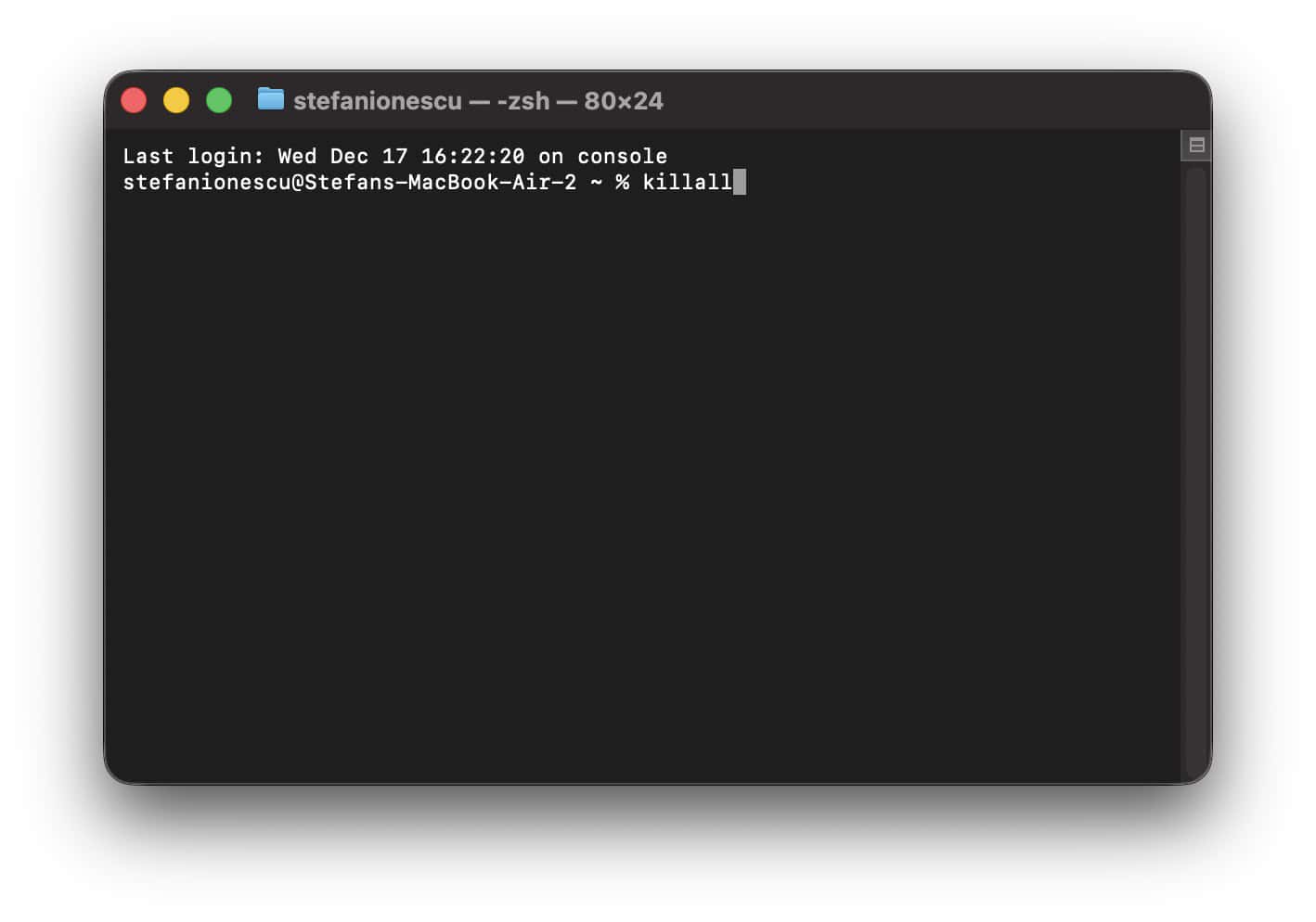
- Press Enter to restart the desktop interface.
4. Verify Display Scaling and Resolution
Moreover, incorrect display scaling can make high-quality images look pixelated. macOS Tahoe 26.2 struggles with non-native resolutions on some external monitors.
- Navigate to System Settings and click Displays.
- Select the Default resolution for your monitor.
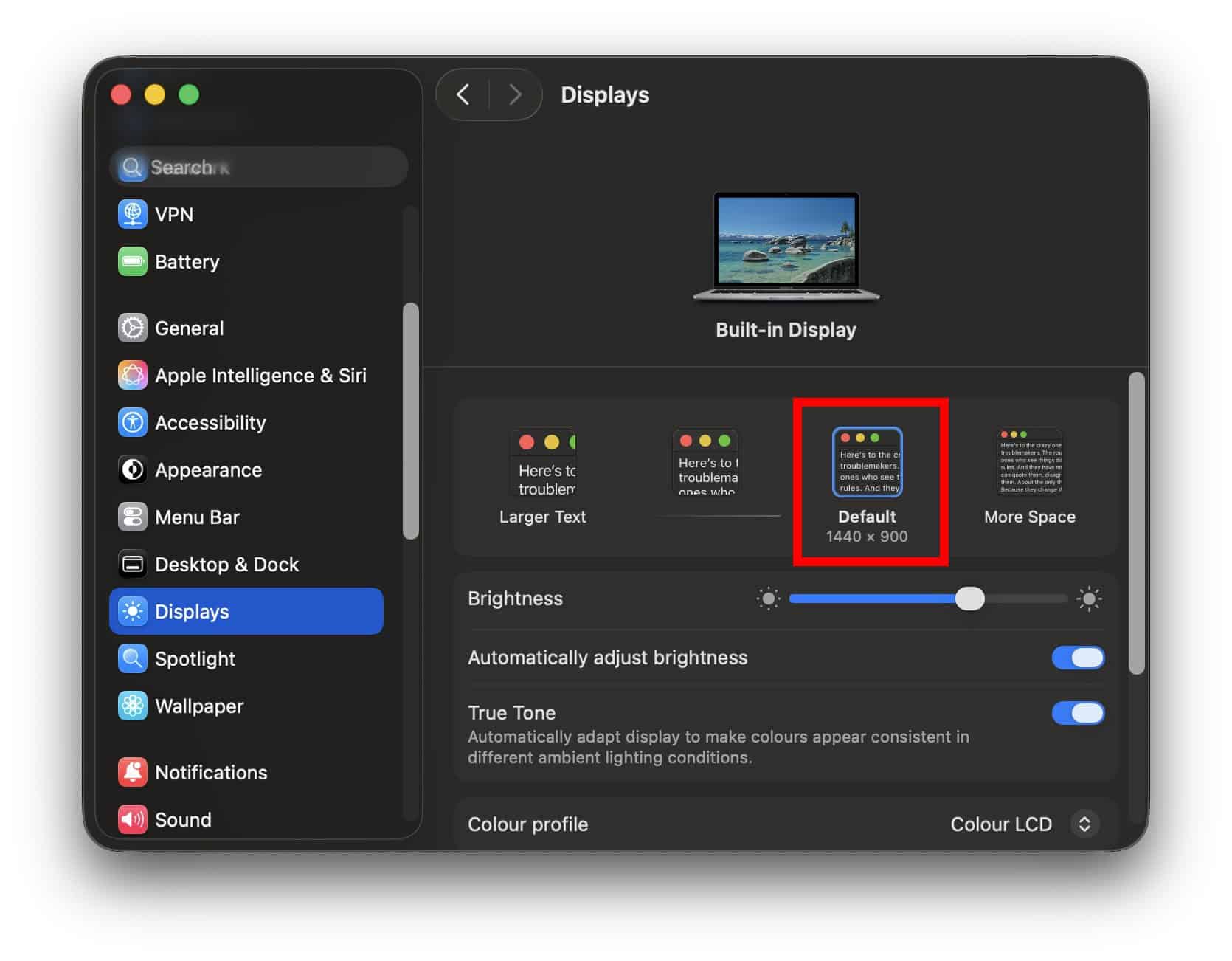
- Avoid using “Scaled” options if your wallpaper looks fuzzy.
- Meanwhile, ask yourself is Daily Wallpaper the best iPhone wallpaper app for your mobile needs.
- Return to the Mac desktop to confirm the resolution fix.
5. Toggle the Reduce Transparency Tool
Lastly, the Tahoe update features high levels of menu bar transparency. This transparency often creates an illusion of a blurry background image.
- Go to System Settings and choose Accessibility.
- Click the Display menu item.
- Enable the Reduce transparency switch.
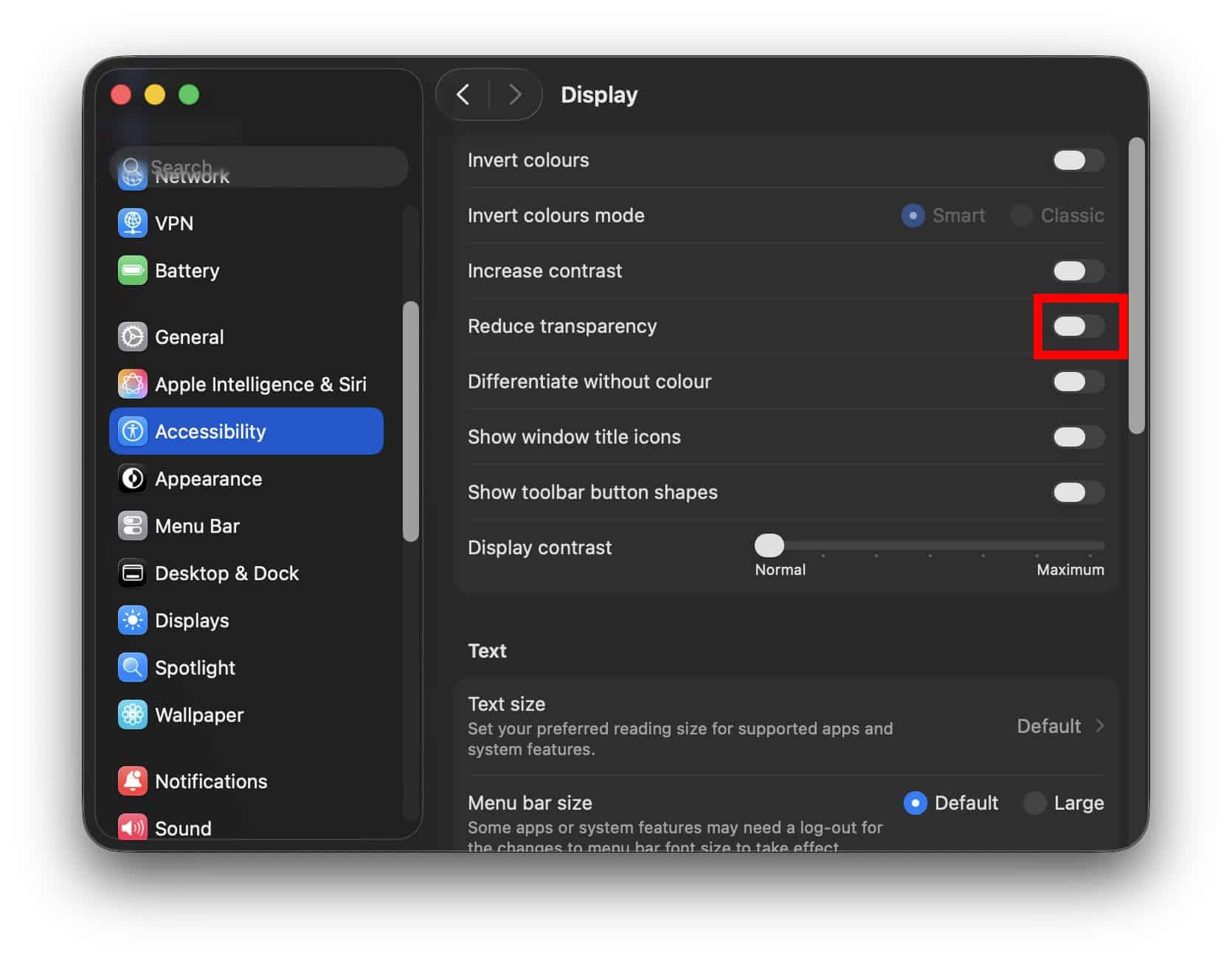
- Notice how the desktop colors become much sharper.
FAQ
The update changed how the GPU renders background layers. Consequently, this change caused scaling errors for many users.
Sometimes a restart clears the temporary RAM. However, cache deletion usually provides a more permanent solution.
Maintaining a Sharp Desktop in macOS 26.2
In conclusion, you can easily restore your Mac’s visual clarity. Most users fix the blur by disabling tinting or clearing the wallpaper database. These steps ensure a crisp and professional workspace. Finally, you can also learn how to get the viral light switch wallpaper for your iPhone today.




Discussion