

Backing up your iPhone to iCloud ensures your photos, messages, app data, and settings are safely stored online. If your device is lost, replaced, or reset, you can restore everything from that backup during setup.
Here’s how to create an iCloud backup and make sure it’s working properly.
Table of contents
What You Need Before You Start
- An active Apple Account (Apple ID)
- Enough available iCloud storage
- A Wi-Fi connection
- Your device connected to power (recommended)
Apple provides 5GB of free iCloud storage. If your backup is larger than that, you may need to upgrade to a paid iCloud+ plan or free up some space.
Don’t miss the best of The Mac Observer
Set us as a preferred source and our Apple reporting ranks higher in your Google Search results and Discover feed — one tap, no account changes.
To check your available storage:
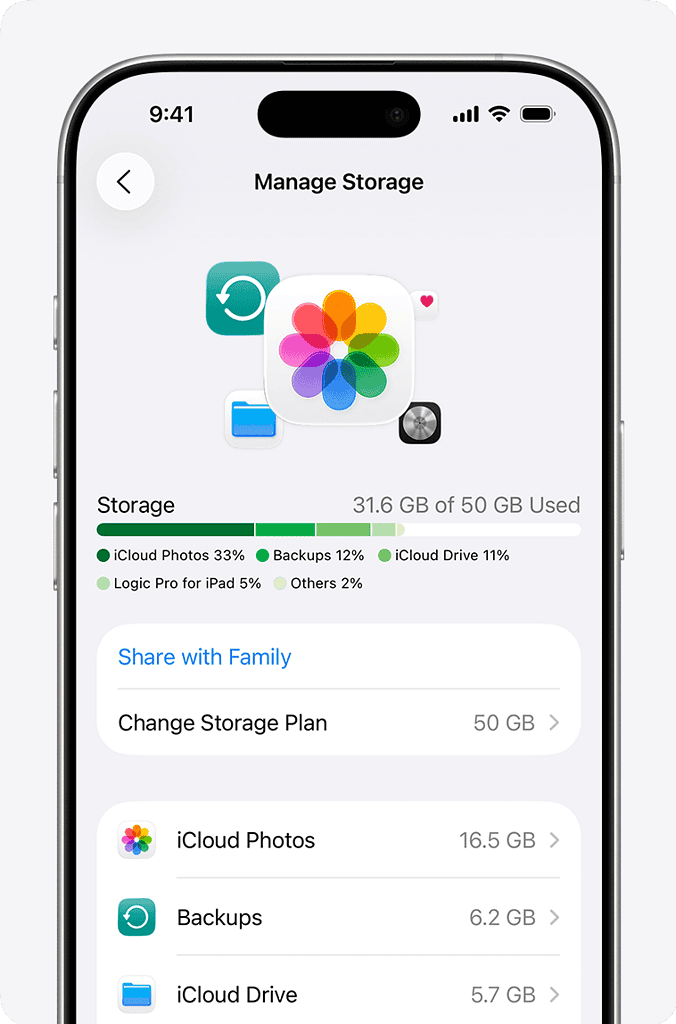
- Open Settings
- Tap your name
- Select iCloud
- Tap Manage Storage
How to Back Up Your iPhone to iCloud
- Open Settings
- Tap your name at the top
- Go to iCloud
- Tap iCloud Backup
- Turn on Back Up This iPhone
- Tap Back Up Now

Stay connected to Wi-Fi until the process completes. You can check progress on the same screen.
Turn On Automatic iCloud Backups
Once enabled, your iPhone will back up automatically when:
- It’s connected to Wi-Fi
- It’s plugged into power
- The screen is locked
To confirm automatic backups are enabled, go to Settings > [Your Name] > iCloud > iCloud Backup
Make sure the toggle is on.
You’ll also see the date and time of your last successful backup at the bottom of this page.
What Does iCloud Backup Include?
An iCloud backup typically includes:
- App data
- Device settings
- Home screen layout
- Messages (if not already synced with iCloud)
- Photos and videos (if iCloud Photos is off)
- Apple Watch backups
If you use iCloud Photos, your photos are synced separately and not duplicated inside the backup.
How to Fix iCloud Backup Problems
If your iPhone won’t back up:
- Make sure you’re connected to Wi-Fi
- Check that you have enough iCloud storage
- Sign out and back into iCloud
- Restart your device
- Update to the latest version of iOS
If backups fail repeatedly, resetting network settings can also help.
How to Restore From an iCloud Backup
When setting up a new or erased iPhone:
- Turn on the device
- Follow the setup steps
- On the Apps & Data screen, tap From iCloud Backup
- Sign in with your Apple ID
- Choose the most recent backup
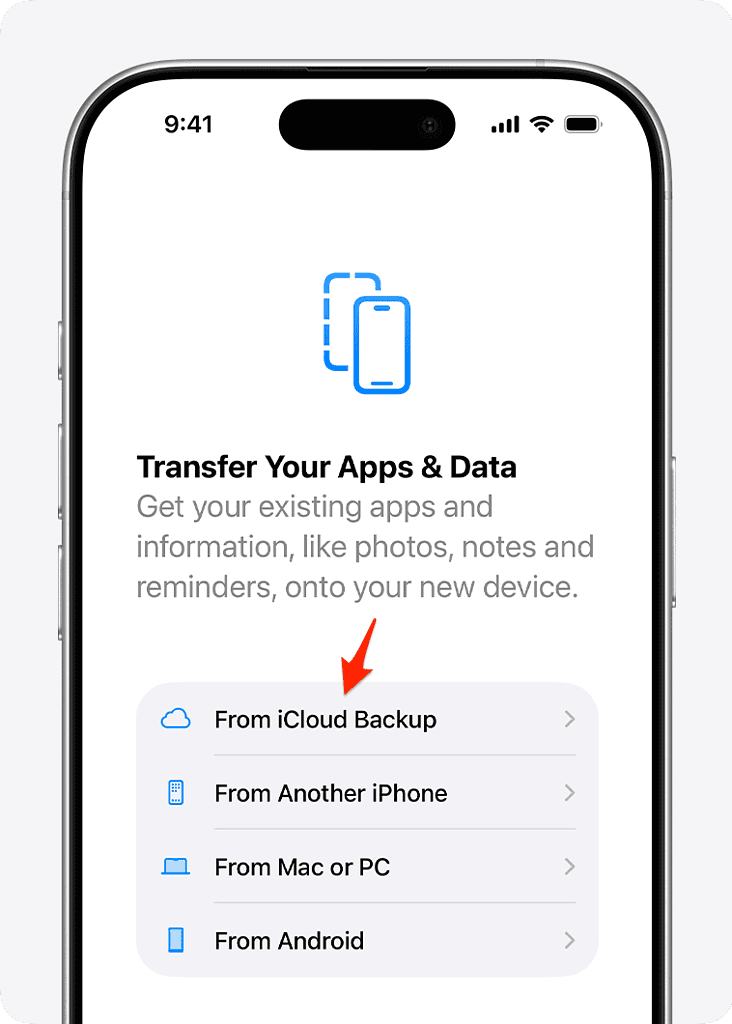
Your apps and data will download in the background after the device finishes basic setup.
Keeping regular iCloud backups ensures your data is protected without needing a computer. Once automatic backup is enabled, the process runs quietly in the background, so you don’t have to think about it again.




Discussion