

If iMessage is not working on your iPhone, you’re not alone. Many users run into issues where messages fail to send, stay stuck on “Not Delivered,” appear as green bubbles instead of blue, or show an “iMessage needs to be enabled to send this message” error.
In most cases, the problem is caused by a temporary software bug, network issue, incorrect settings, or an Apple service outage. The good news is that you can usually fix iMessage in just a few minutes without losing any data.
Don’t miss the best of The Mac Observer
Set us as a preferred source and our Apple reporting ranks higher in your Google Search results and Discover feed — one tap, no account changes.
This guide covers all the proven troubleshooting methods to get iMessage working again on your iPhone.
Check Apple’s System Status
Before changing settings on your iPhone, make sure the issue isn’t on Apple’s side.
Apple occasionally experiences outages that affect iMessage, FaceTime, and other services. When this happens, no amount of troubleshooting on your device will fix the problem until Apple resolves the issue.
- Open Apple’s System Status page in Safari.
- Look for iMessage in the list of services.
- If it shows a green indicator, the service is working normally.
- If there is a yellow or red warning, wait for Apple to fix the outage.
Check Your Internet Connection
iMessage requires an internet connection through Wi-Fi or cellular data. If your internet connection is weak or unavailable, messages may fail to send.
- Open Settings.
- Tap Wi-Fi.
- Make sure Wi-Fi is turned on.
- Verify that you’re connected to a working network.
- If Wi-Fi isn’t available, enable cellular data.
- Open Safari and load a webpage to confirm internet access.
Update Your iPhone
Many iMessage problems are caused by software bugs that Apple fixes in later iOS updates.
Installing the latest version of iOS is one of the easiest ways to solve messaging issues.
- Open Settings.
- Tap General.
- Select Software Update.
- Download and install any available update.
- Restart your iPhone after the update finishes.
Enable Automatic Date and Time
Incorrect date and time settings can interfere with Apple’s messaging services and activation process.
The safest option is to let iPhone manage these settings automatically.

- Open Settings.
- Tap General.
- Select Date & Time.
- Turn on Set Automatically.
- Verify that the displayed time zone is correct.
Turn iMessage Off and Back On

Refreshing iMessage often resolves temporary activation and syncing issues.
- Open Settings.
- Tap Apps.
- Select Messages.
- Turn off iMessage.
- Wait about five minutes.
- Turn iMessage back on.
- Wait for activation to complete.
Verify Your Send & Receive Settings
If iMessages are sending from your email address instead of your phone number, or if iMessage appears grayed out, your Send & Receive settings may be incorrect.
- Open Settings.
- Tap Apps.
- Select Messages.
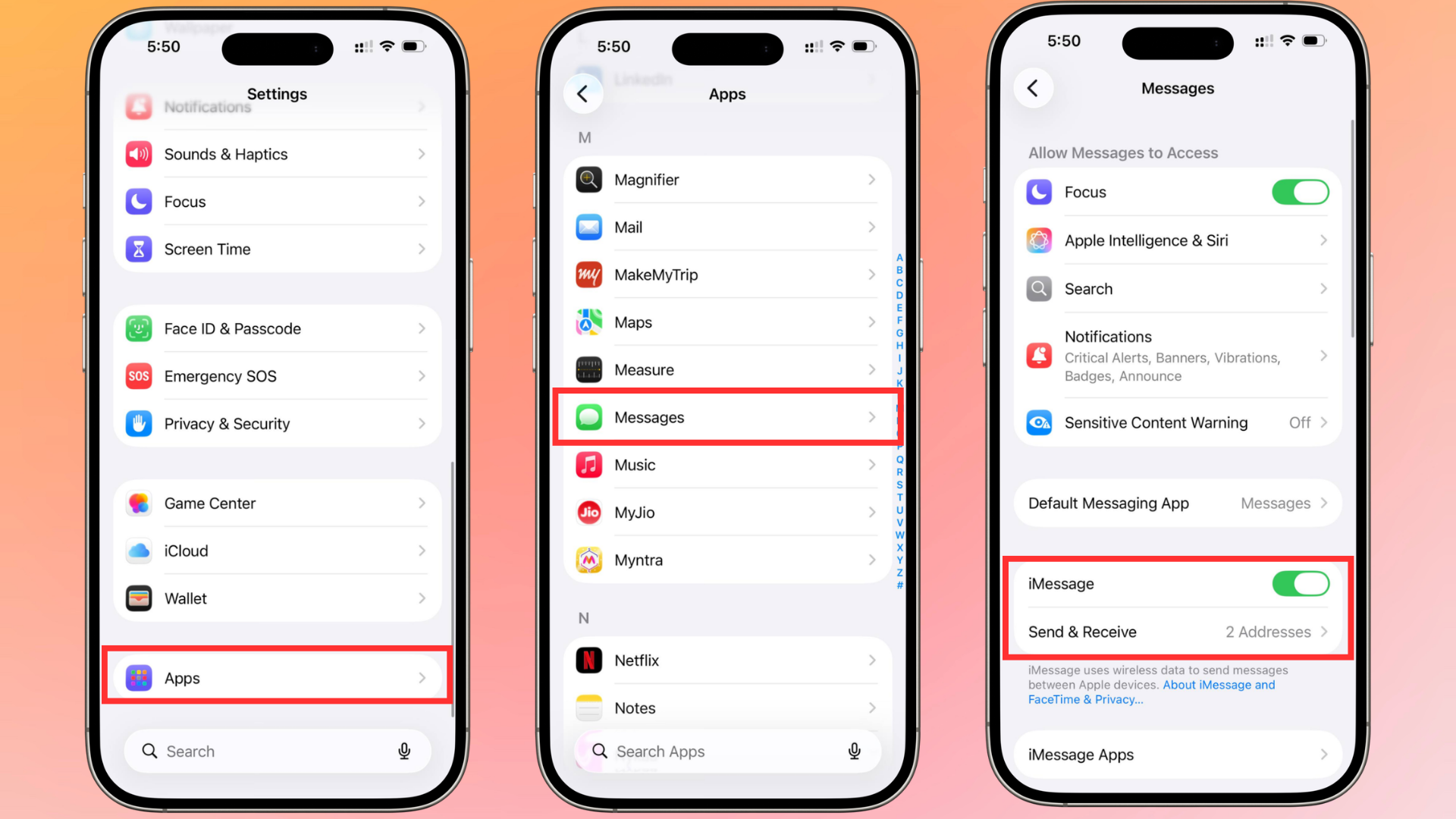
- Tap Send & Receive.
- Confirm that your phone number is selected.
- Check that your Apple ID email addresses are correct.
- Under Start New Conversations From, select your phone number.
Sign Out of iMessage and Sign Back In
Reconnecting your Apple ID can fix activation issues and account-related messaging problems.
- Open Settings.
- Tap Apps.
- Select Messages.
- Tap Send & Receive.
- Tap your Apple ID.
- Choose Sign Out.
- Restart your iPhone.
- Return to the same screen and sign back in.
Turn On SMS, MMS, and RCS Messaging
If iMessage becomes unavailable, these settings allow your iPhone to continue sending messages through your carrier.
Apple added support for RCS messaging, making communication between iPhone and Android devices more reliable.
- Open Settings.
- Tap Apps.
- Select Messages.
- Enable Send as SMS.
- Turn on MMS Messaging.
- Tap RCS Messaging.
- Enable RCS Messaging if supported by your carrier.
Reset Network Settings
If iMessage still isn’t working, your network configuration may be causing the issue.
This won’t erase your photos, apps, or personal files. However, saved Wi-Fi passwords will be removed.
- Open Settings.
- Tap General.
- Select Transfer or Reset iPhone.
- Tap Reset.
- Choose Reset Network Settings.
- Enter your passcode if prompted.
- Wait for the iPhone to restart.
Check if the Problem Is Limited to One Contact
Sometimes the issue isn’t with your iPhone at all.
If iMessage only fails with one person, they may have recently switched devices, changed phone numbers, or disabled iMessage.
- Send messages to other contacts.
- Ask the affected contact if they recently changed phones.
- Confirm they still have iMessage enabled.
- Remove the conversation and start a new message thread.
Contact Apple Support
If none of the above methods work, there may be an account, activation, or hardware issue requiring direct assistance from Apple.
Apple Support can run additional diagnostics and verify whether there is an issue linked to your Apple ID or device.
FAQs
The most common causes include internet connectivity problems, Apple server outages, outdated iOS software, incorrect messaging settings, or Apple ID activation issues.
Green bubbles indicate SMS messages. This usually happens when iMessage is disabled, unavailable, or you’re messaging a non-Apple device.
The error usually appears when your iPhone cannot connect to Apple’s messaging servers or when the recipient is unavailable.
No. It only removes saved network-related settings such as Wi-Fi passwords, VPN configurations, and cellular preferences.
FaceTime and iMessage use similar activation systems. If both stop working, check your internet connection, Apple ID, date and time settings, and software updates.
Summary
- Check Apple’s System Status page.
- Confirm Wi-Fi or cellular data is working.
- Install the latest iOS update.
- Enable automatic date and time.
- Turn iMessage off and back on.
- Verify Send & Receive settings.
- Sign out of Apple ID and sign back in.
- Enable SMS, MMS, and RCS messaging.
- Reset Network Settings.
- Check whether the issue affects only one contact.
- Contact Apple Support if the problem continues.
Conclusion
Most iMessage issues can be fixed by checking your internet connection, updating iOS, refreshing iMessage settings, or correcting your phone number configuration. If messages still won’t send after trying every method above, Apple’s support team can help identify deeper account or activation problems.
Following these troubleshooting steps should get iMessage working again and help prevent future interruptions.


Discussion