

To change what the Action button does on Apple Watch Ultra, open the Settings app, tap Action Button, tap Action, then pick a function such as Workout, Backtrack or Dive. The same button sounds the siren: press and hold it, wait for the countdown to finish, and the watch starts an alarm meant to attract help.

Every Ultra model asks you to choose an Action button function during setup, including the new Apple Watch Ultra 4. You can change it whenever you like.
What the Action button can do
Apple’s watchOS 27 guide lists these functions, and notes that third-party apps may add more. Some also respond when you press the Action and side buttons together.
Don’t miss the best of The Mac Observer
Set us as a preferred source and our Apple reporting ranks higher in your Google Search results and Discover feed — one tap, no account changes.
- Workout: open the Workout app or start a selected workout. Press again for a secondary action, or press both buttons to pause.
- Stopwatch: start, press again to mark a lap, or press both buttons to pause.
- Backtrack: record your route. Press both buttons to switch between Record and Retrace.
- Dive: start a dive. Press both buttons for a secondary action in the selected diving app.
- Flashlight, Voice Memo, Translate and Recognize Music: press once to start, press again to stop.
- Accessibility: turn the selected Accessibility feature on, then press again to turn it off.
- Waypoint and Shortcut: drop a Compass Waypoint, or run the selected shortcut.
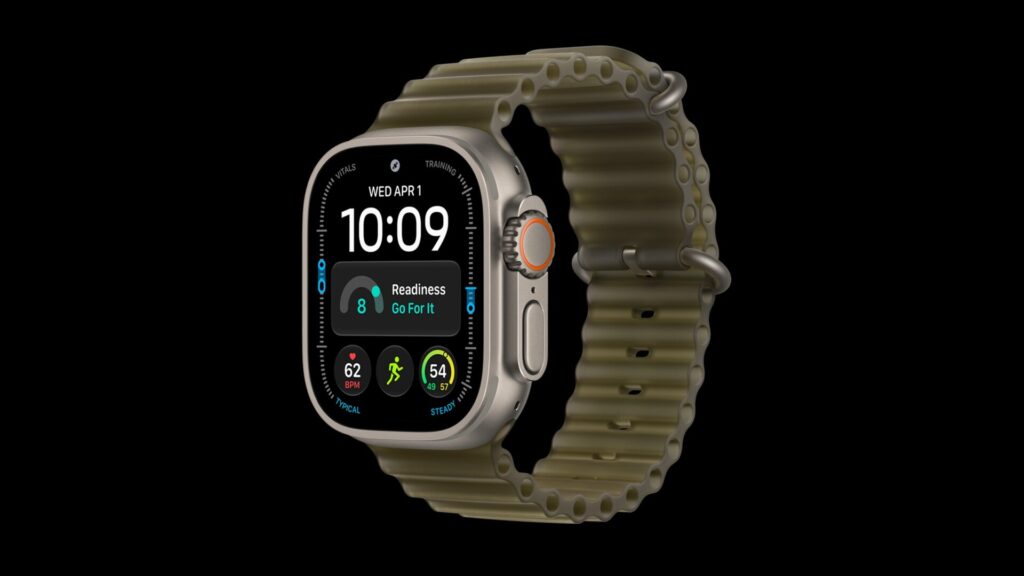
How to change the Action button
- Open the Settings app on Apple Watch Ultra.
- Tap Action Button, then tap Action.
- Choose an action. If more than one app supports it, tap the app shown and choose a different one.
Quick Switch is faster for a one-off change: press and hold the Action button, then choose an action. To decide which actions appear there, or to turn Quick Switch off, go to Settings > Action Button > Quick Switch.
To disable the button, go to Settings > Action Button > Action and tap None.
How to sound the siren
Apple says the siren “emits high-intensity sound patterns to attract help in case of emergency,” and the watch taps your wrist while it plays. Apple’s general support article on Siren for Ultra models says it can be heard up to 600 feet away, using two high-pitched sounds that alternate and repeat.
There are four ways to start it:
- Action button: press and hold it, then wait for the countdown to finish.
- Side button: press and hold it, then drag the Siren slider to the right.
- Siren app: open it and tap the start button.
- Siri: say “Start the siren,” then tap the start button.
Apple warns against sounding it close to your ears or in enclosed spaces where possible. According to the same support article, the siren pauses for phone calls, timers and alarms but not for music or podcasts, keeps going until you stop it or the battery runs out, and may play quieter than expected until a wet watch dries.
How to cancel or stop the siren
- During the countdown, holding the Action button: let go.
- During the countdown, after dragging the Siren slider: rest your palm on the display for at least three seconds.
- While it’s sounding: tap Stop in the Siren app. If you’ve left the app, double-click the Digital Crown to open the App Switcher, tap the Siren app, then tap Stop.
Keep the siren from going off by accident
Apple’s guide uses a press and hold of the Action button for both Quick Switch and the siren countdown, and turning off Hold to Turn On, below Siren in Settings > Action Button, stops that hold from sounding the siren.
The side button, the Siren app and Siri still start it, so the siren stays within reach in an emergency. For more on the new Ultra and the rest of Apple’s lineup, see our September event recap.



