

If you’re not a fan of Mail’s tendency to drop attachments into the body of your emails, then, well…at least you can right-click (or Control-click) on them and choose “View as Icon.”
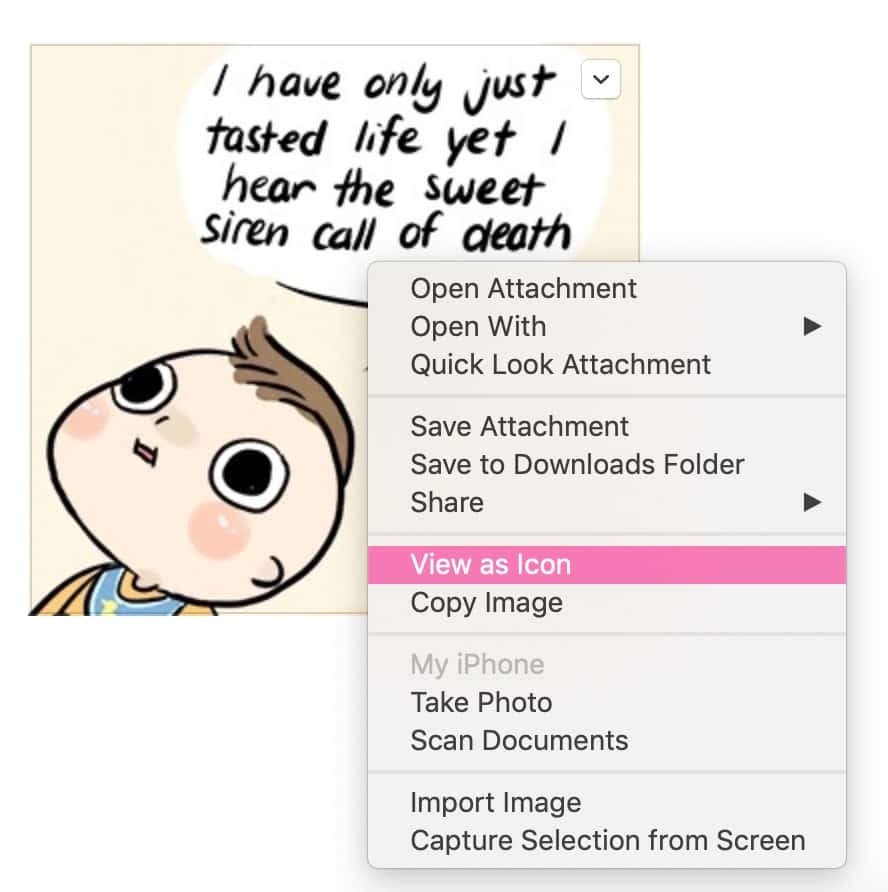
The resulting icon is much easier to drag around the body of your message, at least.

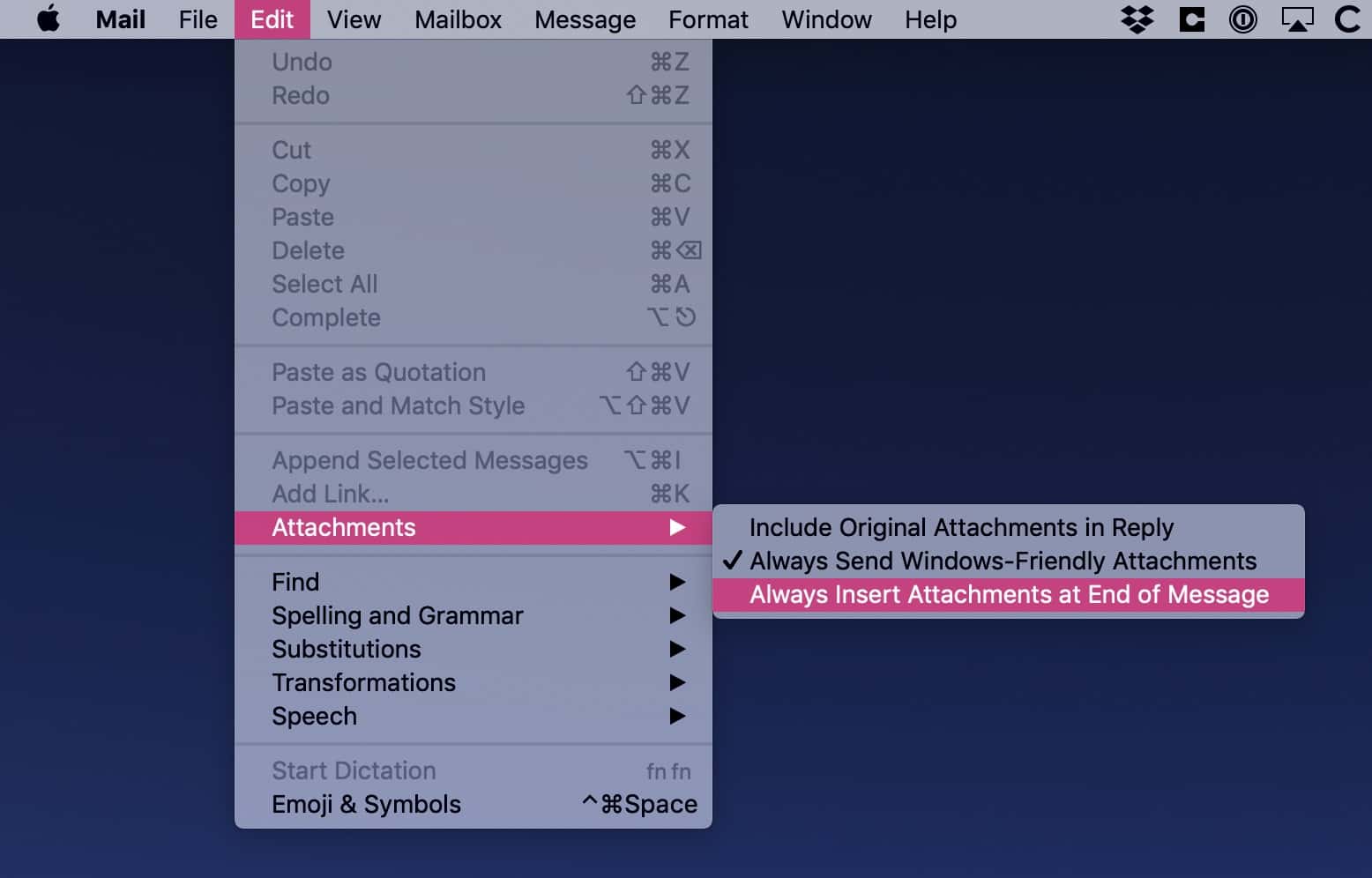
There’s another option, though, and it’s to have Mail always insert attachments at the end of your emails, even after your signature. To turn on this global setting, make sure you don’t have an email draft as your frontmost window in Mail, then choose Edit> Attachments> Always Insert Attachments at End of Message (a checkmark should appear next to the option if it’s on).
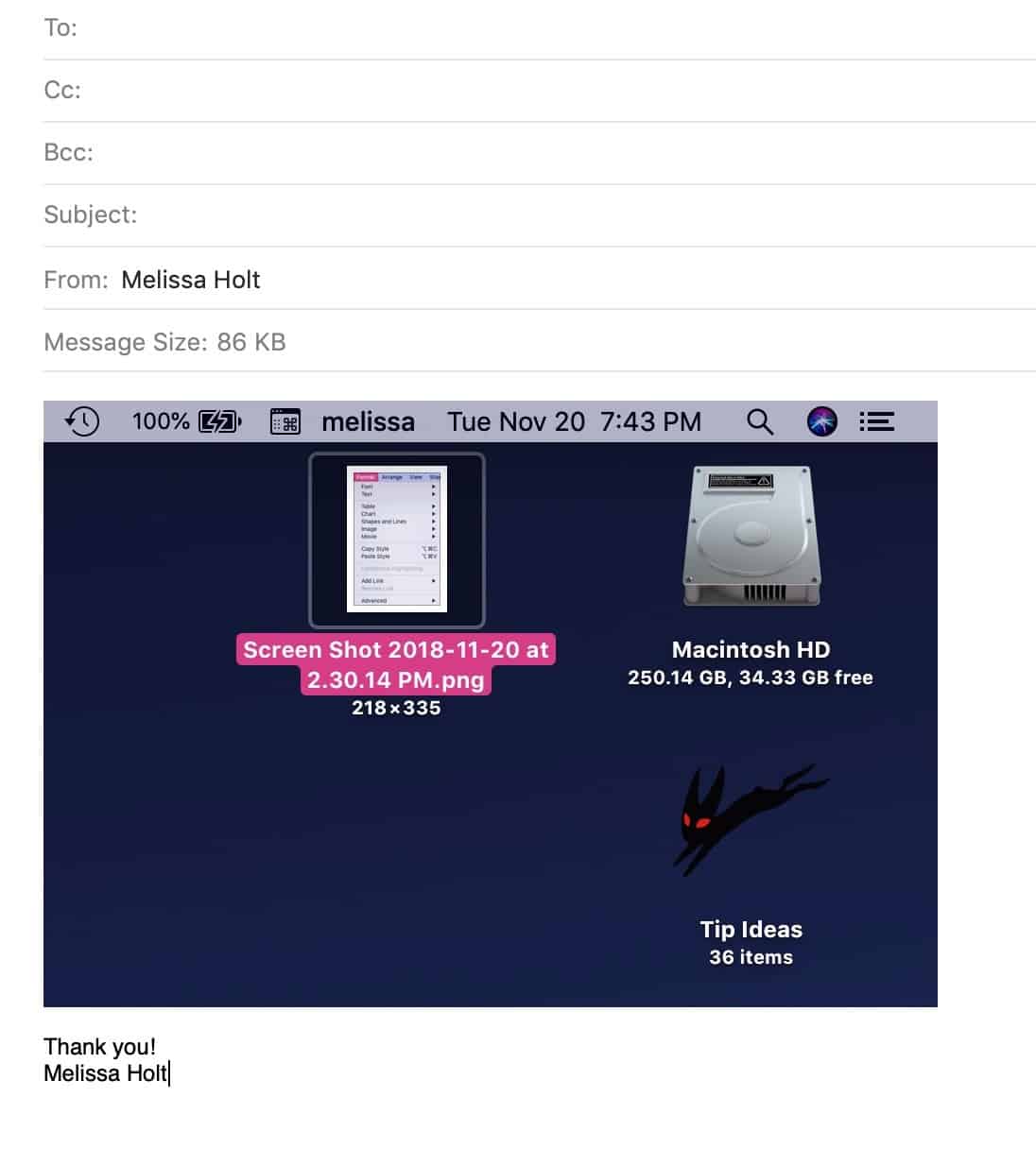
And then dropping in an attachment will go from this…
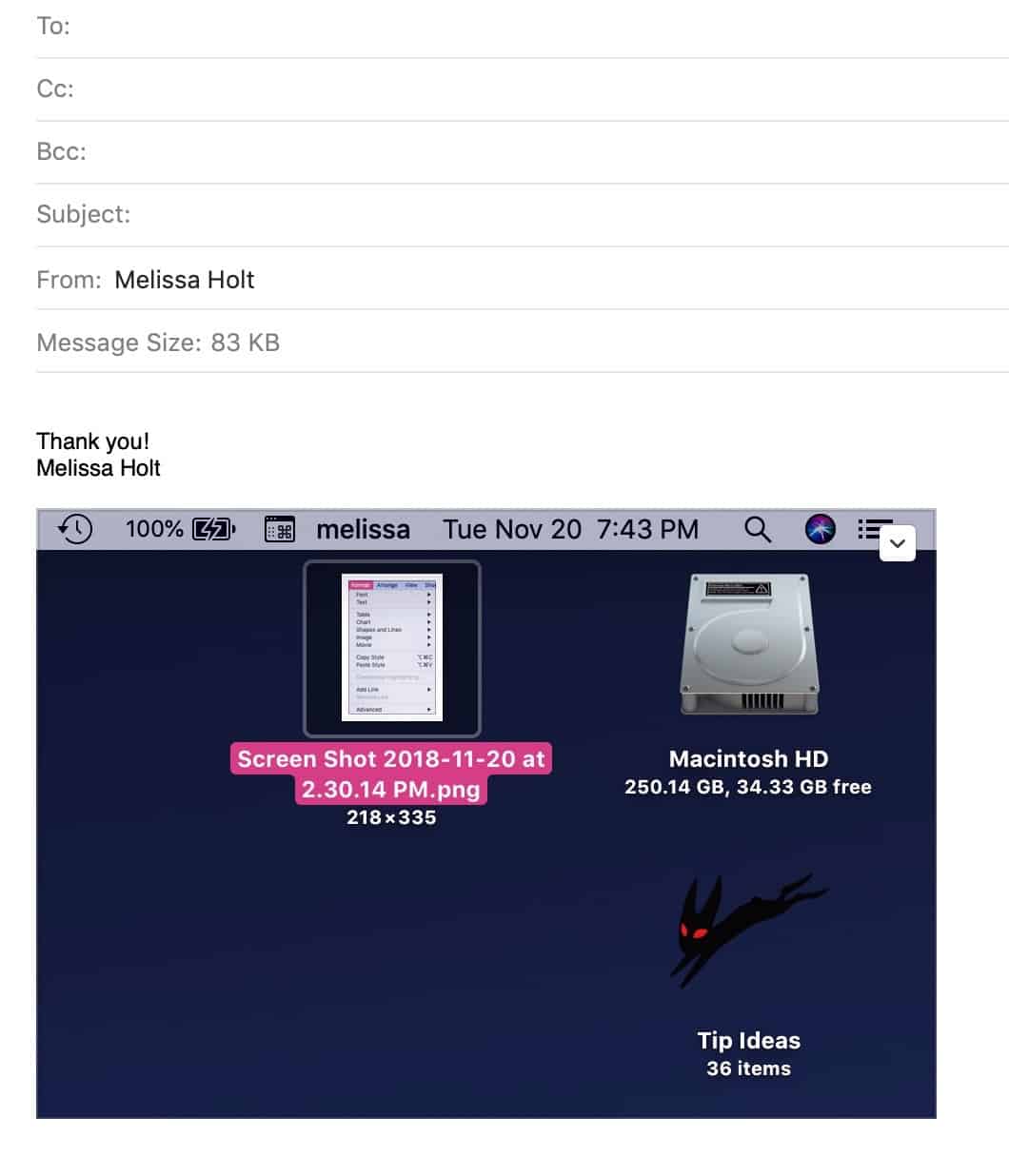
…to this. See how it’s after my signature?
You may have to quit Mail and reopen it a time or two to force this change to take effect (I had to, at least). And this only applies to attachments you drag in or insert with the paper-clip icon in Mail’s compose window (and not to pictures you share directly from Photos, say). But when in doubt…right-click and choose “View as Icon.” Sometimes you just gotta get huge attachments out of your way, no matter what.
Don’t miss the best of The Mac Observer
Set us as a preferred source and our Apple reporting ranks higher in your Google Search results and Discover feed — one tap, no account changes.


Ahhh yes, Apple Mail – another Apple app like iTunes that they totally screwed up. Can’t trash mail from server from Mail anymore – stupid, stupid, stupid on Apple’s part.
This is an important shortcut for anyone who regularly emails people with accounts on Microsoft Exchange Server. Often, if an attachment is anywhere but at the very end of an email that you are sending to someone like that, the attachment and any text that appears below it can get crammed into a separate attachment which the recipient may not notice or be able to open. At work, we leave this setting on all the time – except when we want the attachment (such as an image) to appear in the body of the email and we know MES is not involved.
Nice Tip…. Just never knew it existed and have been working around this issue without realizing there was a solution.
Thanks