

Apple Intelligence, the company’s suite of AI features, shapes how you use your device and unlock its full potential. Whether you’re using hands-free commands or getting smart suggestions, these tools make your experience smoother and more intuitive. But when it doesn’t appear or stops working, it can really disrupt your routine. If Apple Intelligence stopped working after iOS 18.5, try these quick fixes.
1. Check Apple Intelligence Supported Devices
Many iPhone users are excited to try Apple Intelligence on their iPhone, but keep in mind that this feature only works on certain models. If you don’t see Apple Intelligence, check whether your iPhone is compatible with it. Here’s a list of compatible devices:
- iPhone 15 Pro
- iPhone 15 Pro Max
- iPhone 16
- iPhone 16 Plus
- iPhone 16e
- iPhone 16 Pro
- iPhone 16 Pro Max
2. Change Region and Language
Apple Intelligence works only in specific languages and in specific regions. Make sure to change your iPhone’s language and region settings, and also that Siri is set to the same language as your device. Here’s how you can do it:
Don’t miss the best of The Mac Observer
Set us as a preferred source and our Apple reporting ranks higher in your Google Search results and Discover feed — one tap, no account changes.
Time needed: 1 minute
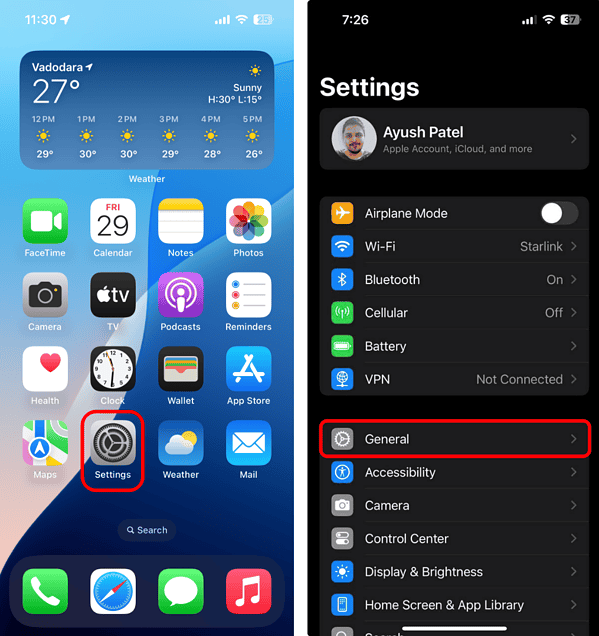
- Go to Settings > General.
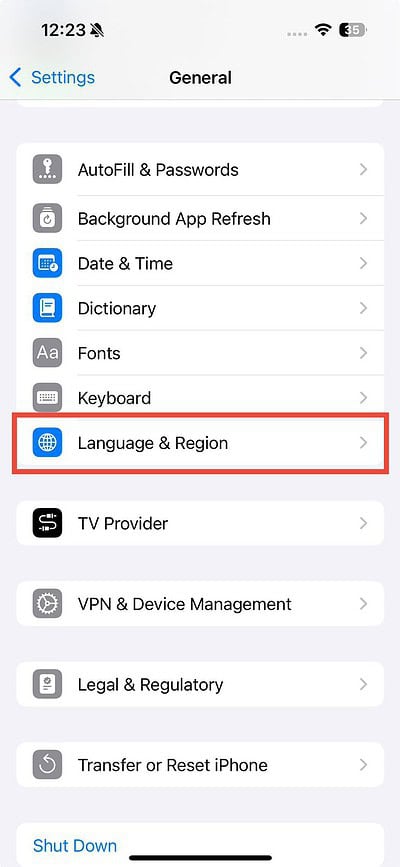
- Tap Language & Region > Region.
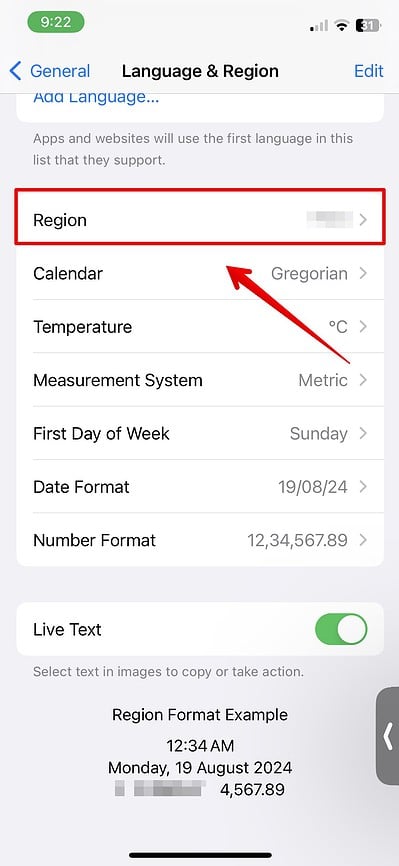
- Select a compatible region from the list.
To change the system language:
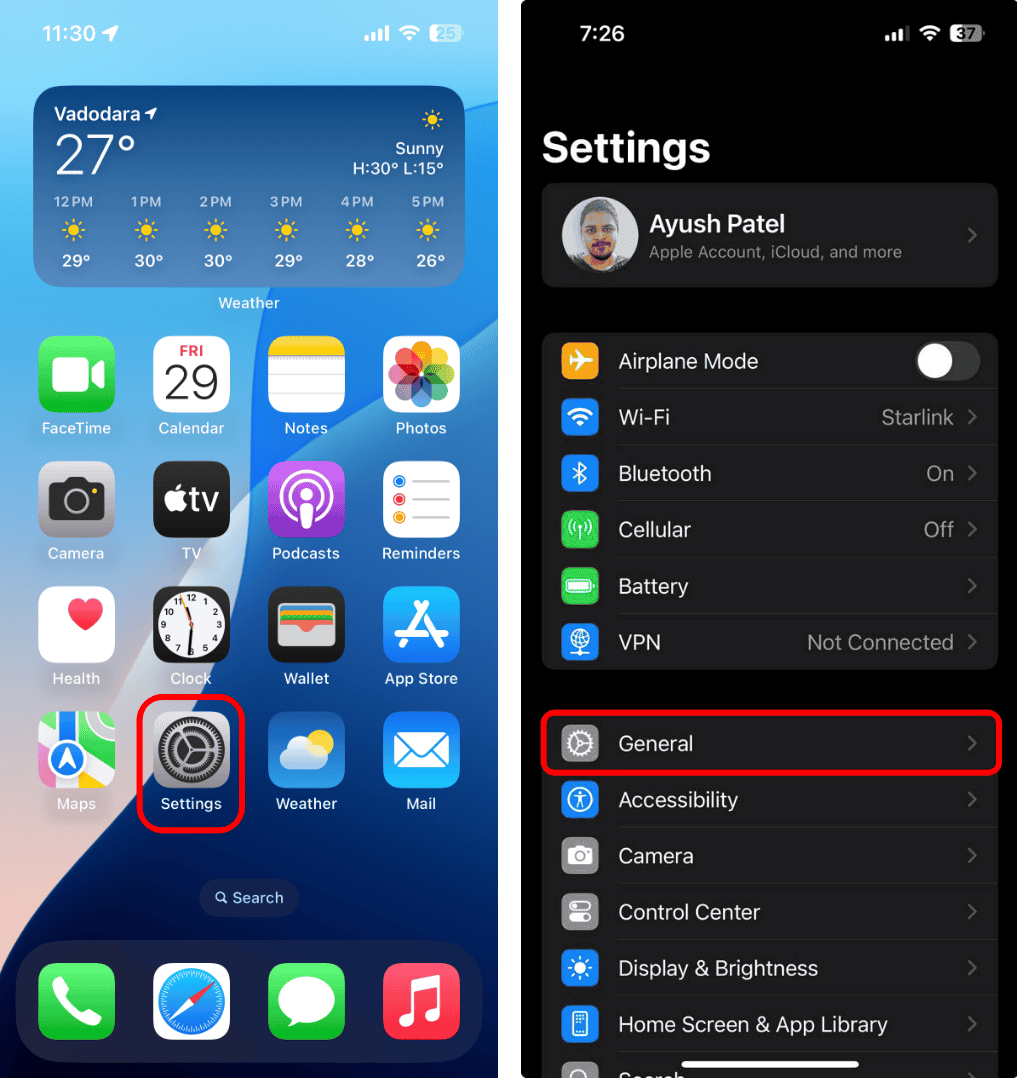
- Go to Settings > General.
- Tap Language & Region.
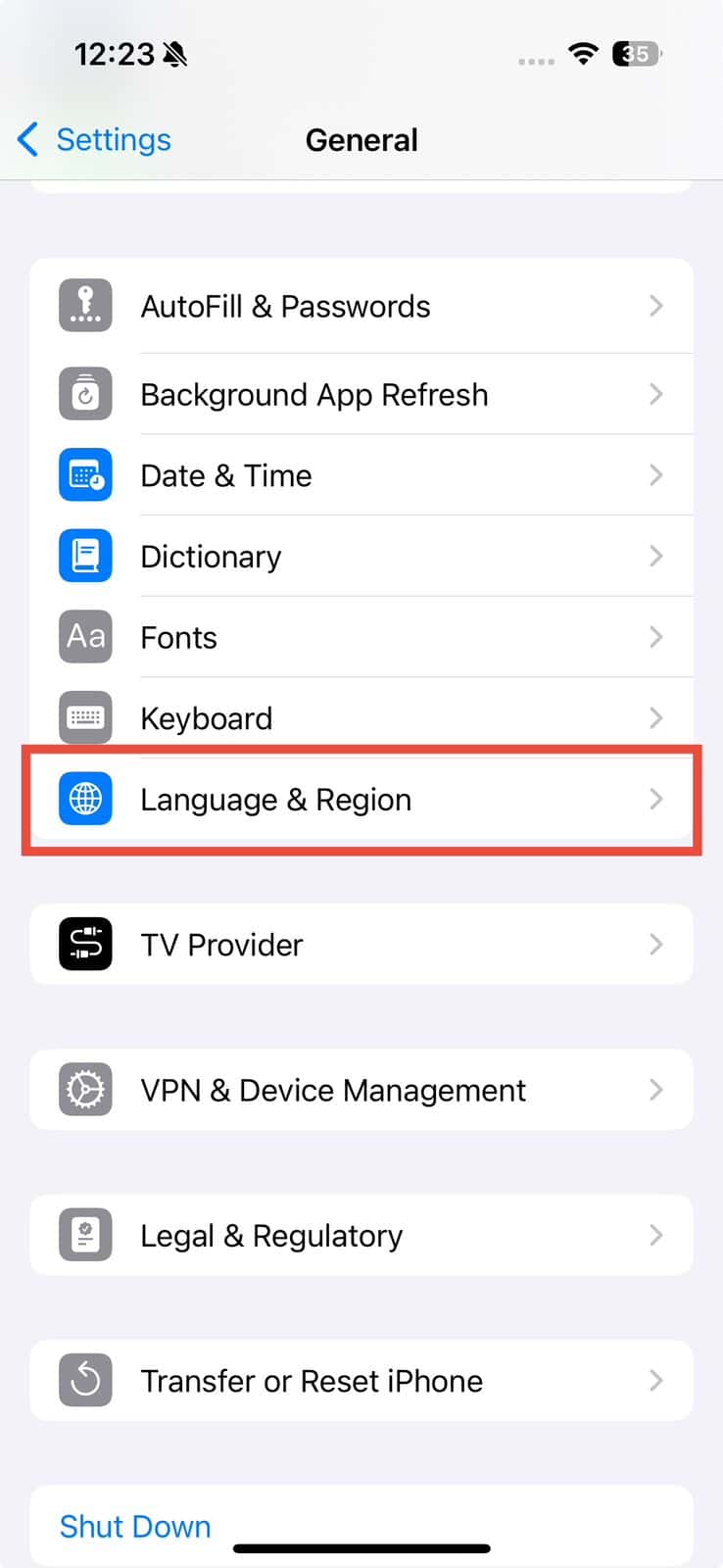
- Check the language under the Preferred Languages section. Drag a compatible language to the top of the list, or tap Add Language to add it if it isn’t there.

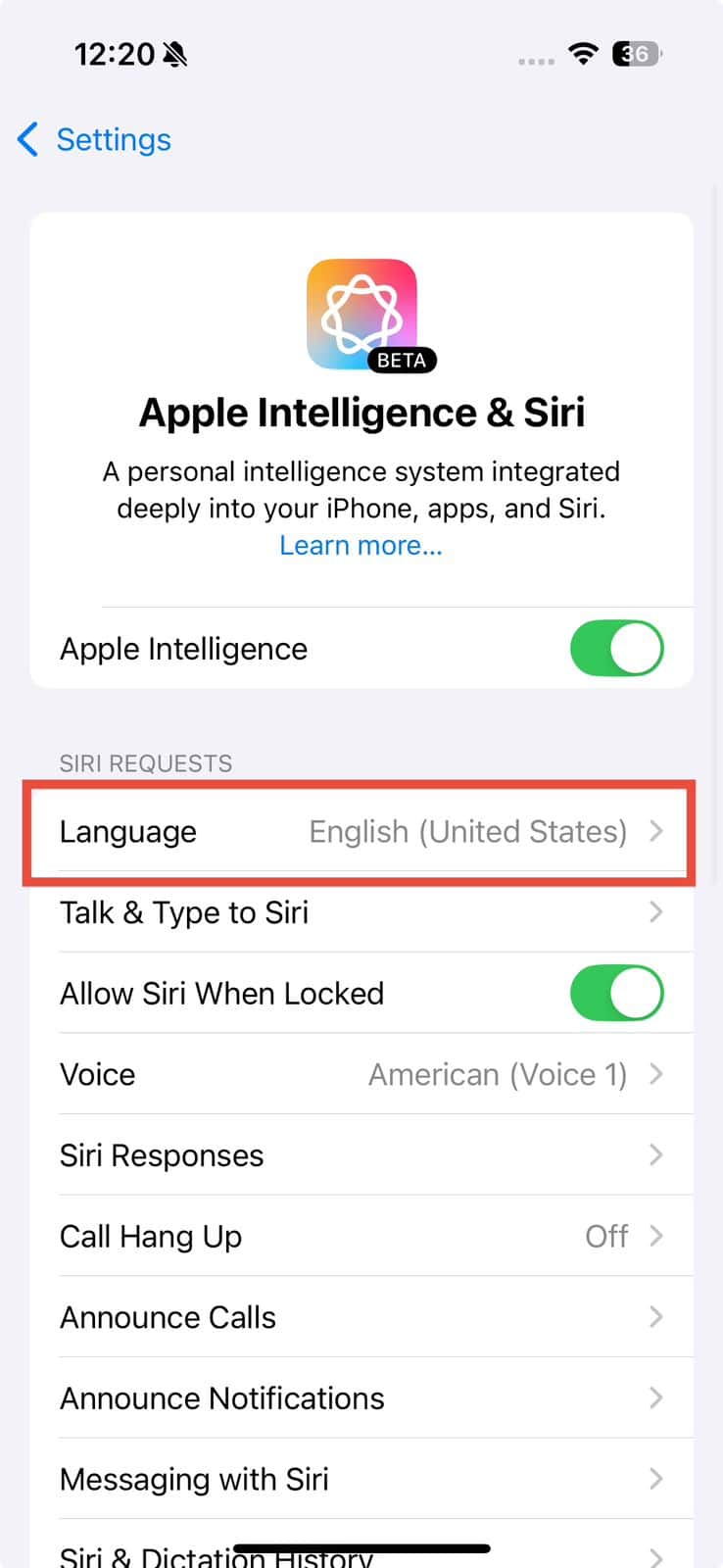
To change Siri’s language:
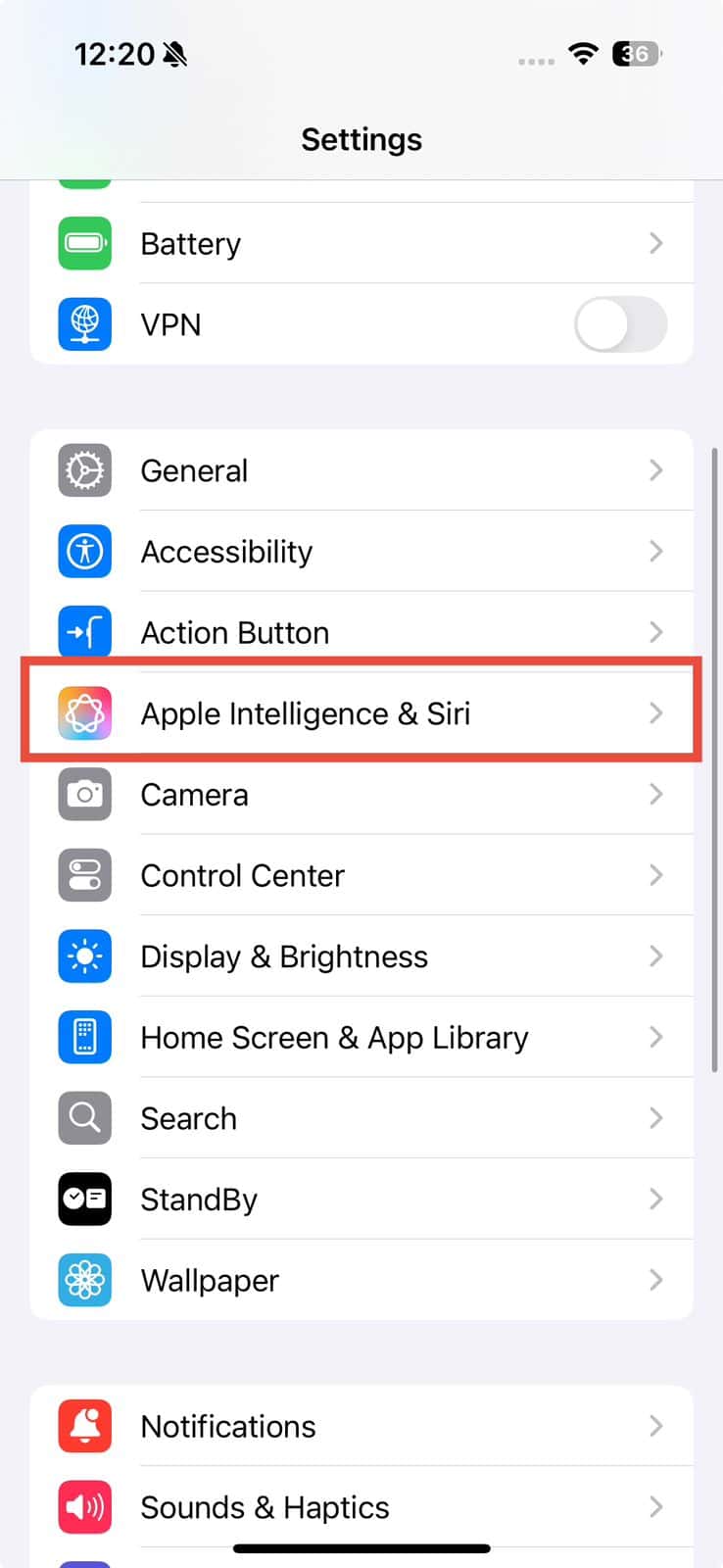
- Open the Settings app on your iPhone.
- Tap Apple Intelligence & Siri > Language and choose the appropriate language from the list.
3. Enable Apple Intelligence
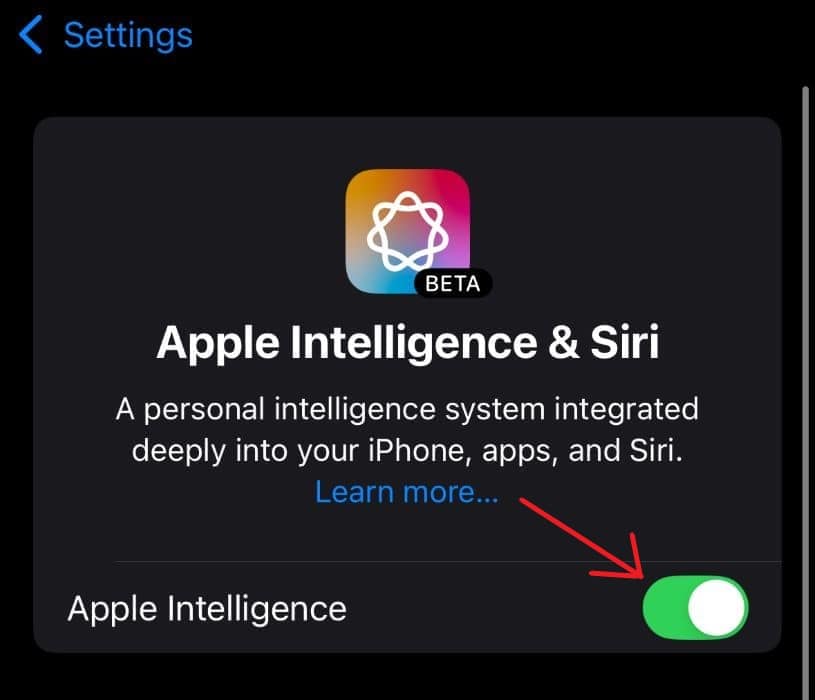
If the Apple Intelligence features like Writing Tools and Cleanup aren’t showing up, you might have accidentally turned off Apple Intelligence in your device settings.
- Go to Settings > Apple Intelligence.
- Turn the Apple Intelligence toggle on.
4. Free Up More Storage
Make sure you have enough storage on your iPhone to run Apple Intelligence, as it needs up to 7 GB of space. Your available storage can impact how well these features work. Check your iPhone’s storage, and if needed, free up space to ensure that everything runs smoothly.
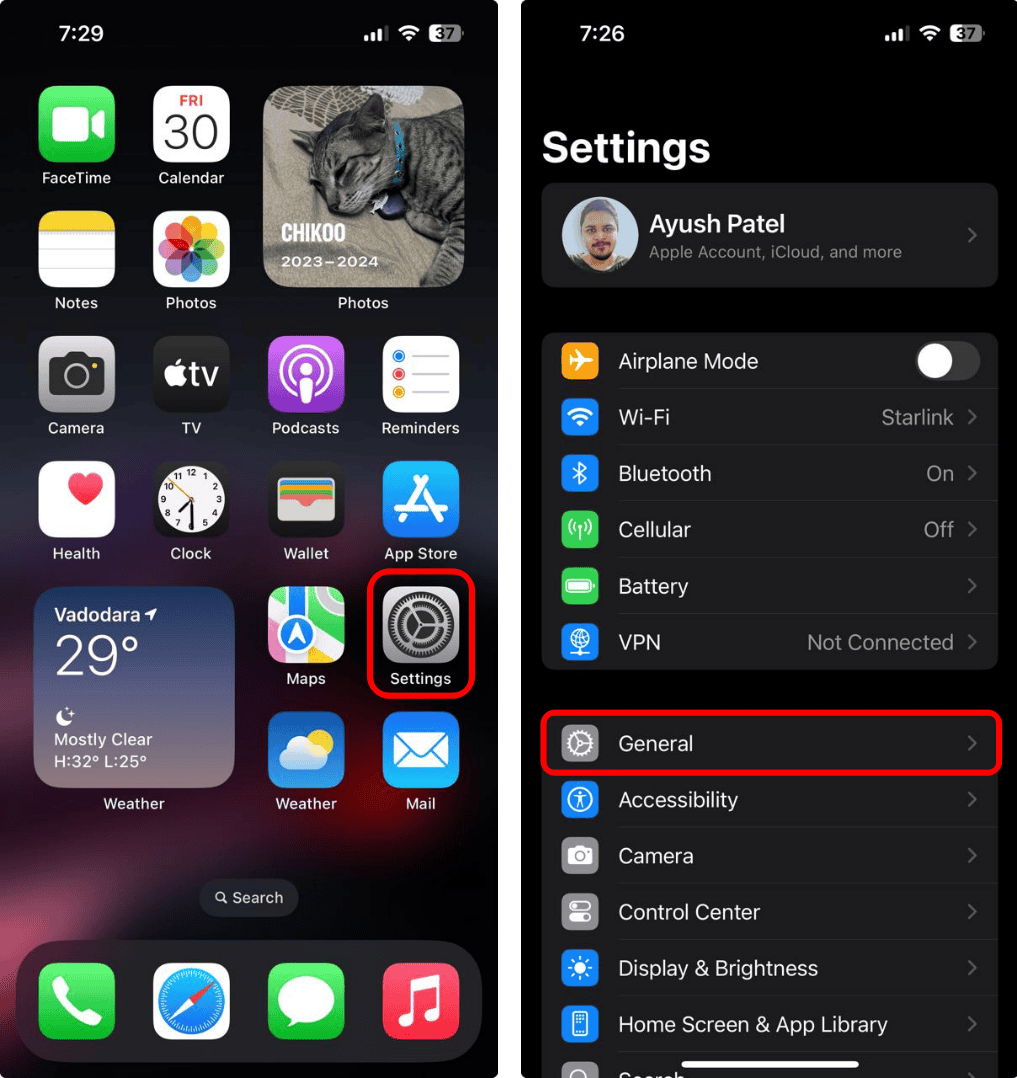
- Go to Settings > General.
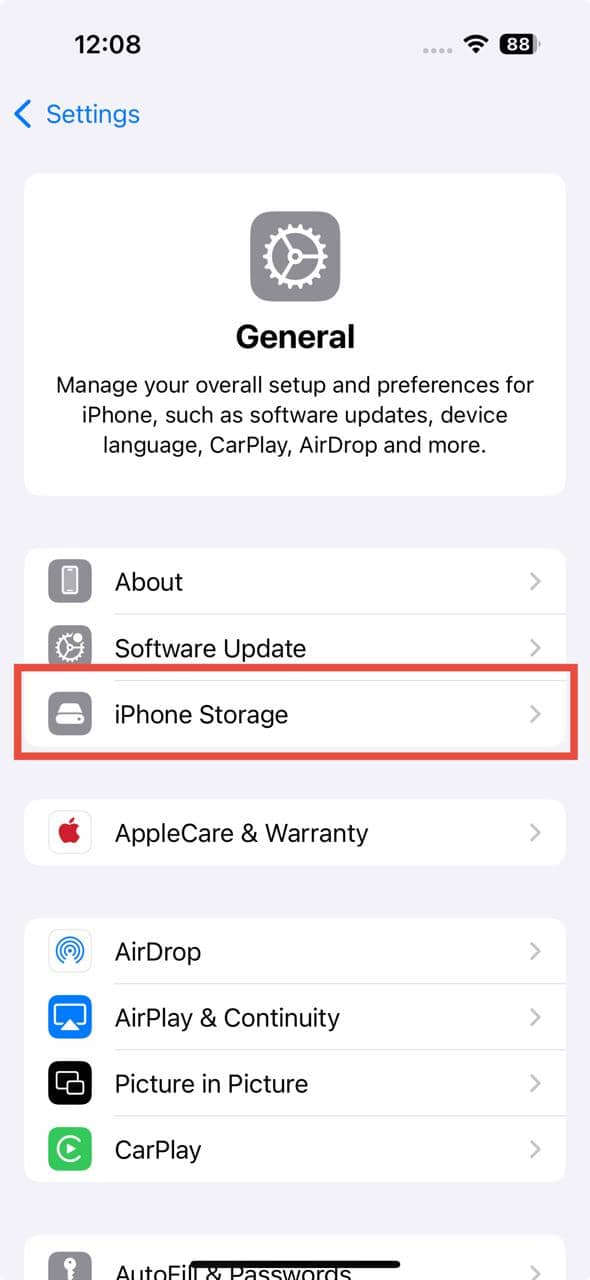
- Tap iPhone Storage.
- At the top, you’ll see a bar showing how much of your storage is available.
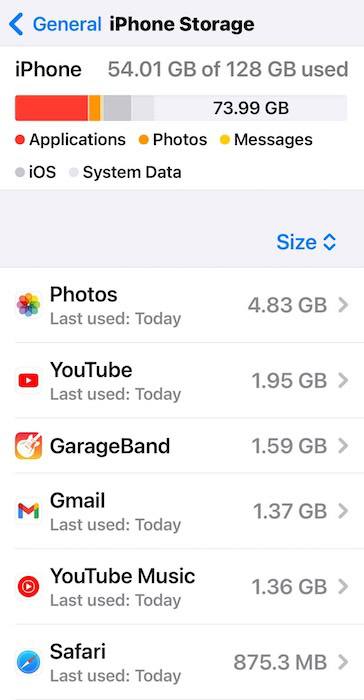
- If storage is nearly full, follow the recommendations to free up space by deleting photos, videos, documents, or unused apps.
5. Reset Your iPhone
When Apple Intelligence doesn’t appear or function properly, you can try resetting your iPhone. This gives you a fresh start and can fix deeper issues. Keep in mind that it will delete all the data stored on your device as well, so make a backup beforehand.
- Go to Settings > General.
- Tap Transfer or Reset iPhone > Erase All Content and Settings.

- Tap Continue and follow the on-screen instructions to complete the process.
If you’ve tried all the solutions above and Apple Intelligence is still not functioning correctly, the issue may be due to a software problem. Contact Apple Support or visit an Apple Store for further assistance.




Discussion