
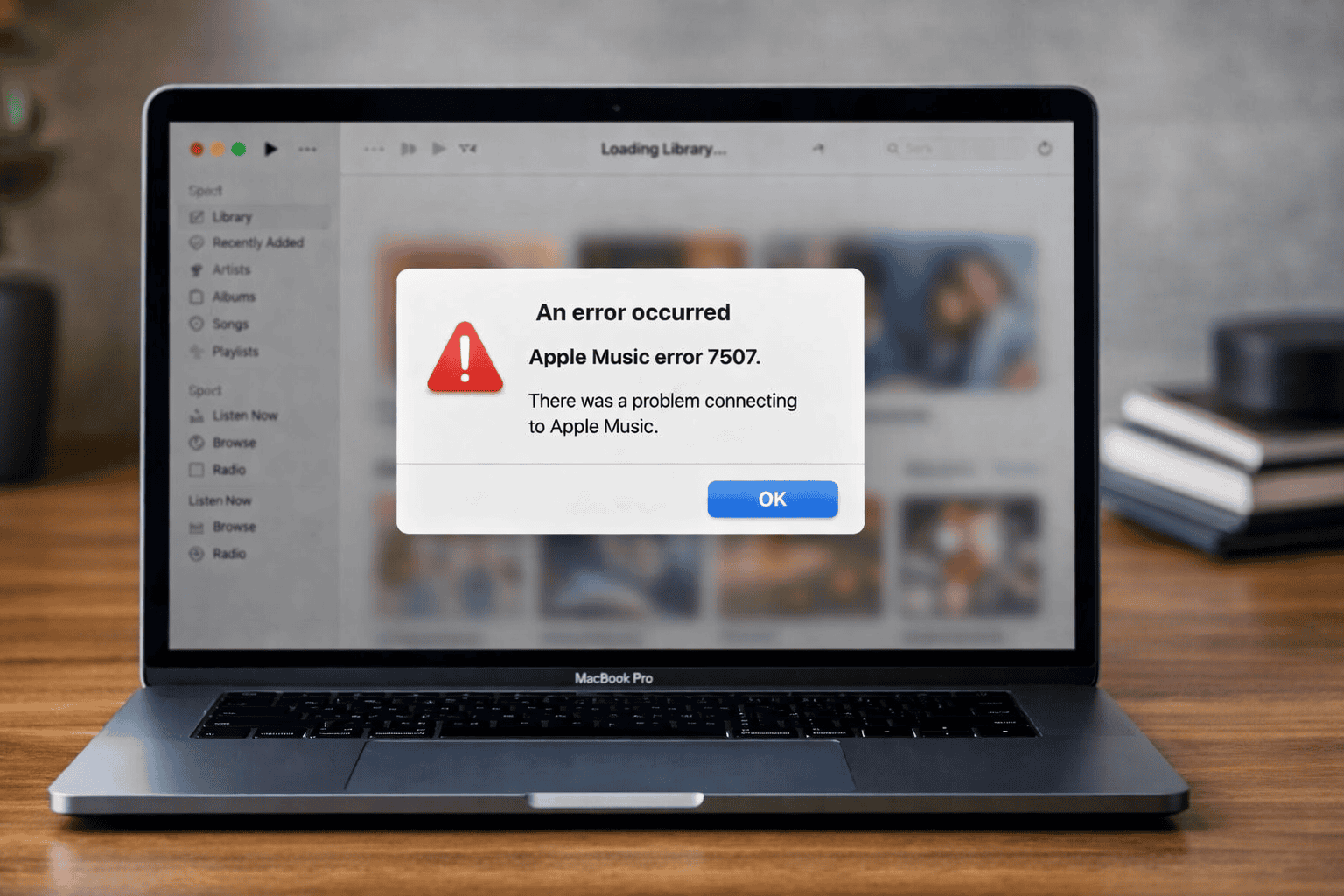
Apple Music error 7507 on your Mac is frustrating for many users. This error indicates a synchronization glitch between your app and Apple’s servers. Fortunately, you can resolve this playback hurdle quickly. Follow these targeted troubleshooting steps to restore your library immediately. These methods ensure a stable connection and smooth streaming experience.
Table of contents
Effective Solutions to Resolve “Apple Music Error 7507”
1. Manually Update Your Cloud Library
Often, the local database falls out of sync with Apple’s servers. Manually forcing a cloud update can clear the 7507 communication block. If your Apple Music is not loading correctly, this command refreshes your metadata and verifies your purchases. It effectively pushes through any pending library changes that might be stuck in a loop.
- Open the Music app on your Mac.
- Go to the File menu in the top bar.
- Select Library.
- Click on Update Cloud Library and wait for the process to finish.
2. Sign Out and Re-authenticate Your Apple ID
Sometimes, authentication tokens expire or become corrupted. Signing out clears these temporary files and establishes a fresh connection. If you need a refresher, learn how to use Apple Music to prevent future account conflicts. Re-logging ensures that the server recognizes your active subscription and allows you to access protected content without unexpected interruptions.
Don’t miss the best of The Mac Observer
Set us as a preferred source and our Apple reporting ranks higher in your Google Search results and Discover feed — one tap, no account changes.
- Click Account in the top menu bar.
- Select the Sign Out option.
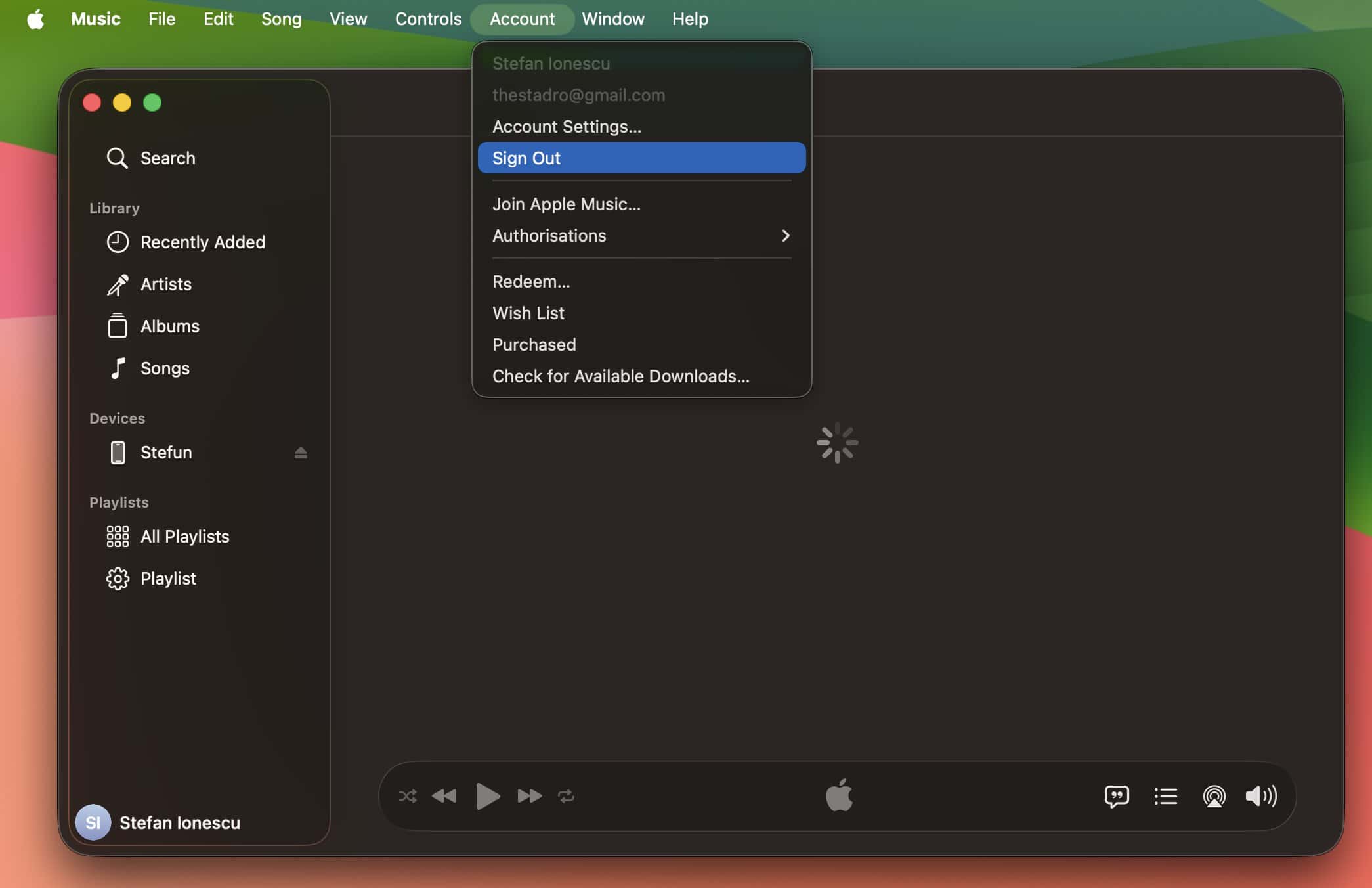
- Restart the Music app.
- Return to Account and sign in with your credentials.
3. Delete and Redownload Affected Tracks
Error 7507 often points to a corrupted local file or a “matched” track conflict. If you see this error while downloading, deleting the specific song from your library usually helps. Additionally, check out these Apple Music power tips you won’t find in the app to manage your media better. This forces a fresh download from Apple’s servers to replace the broken file.
- Locate the song causing the error.
- Right-click the track and select Delete from Library.
- Search for the song in the Apple Music catalog.
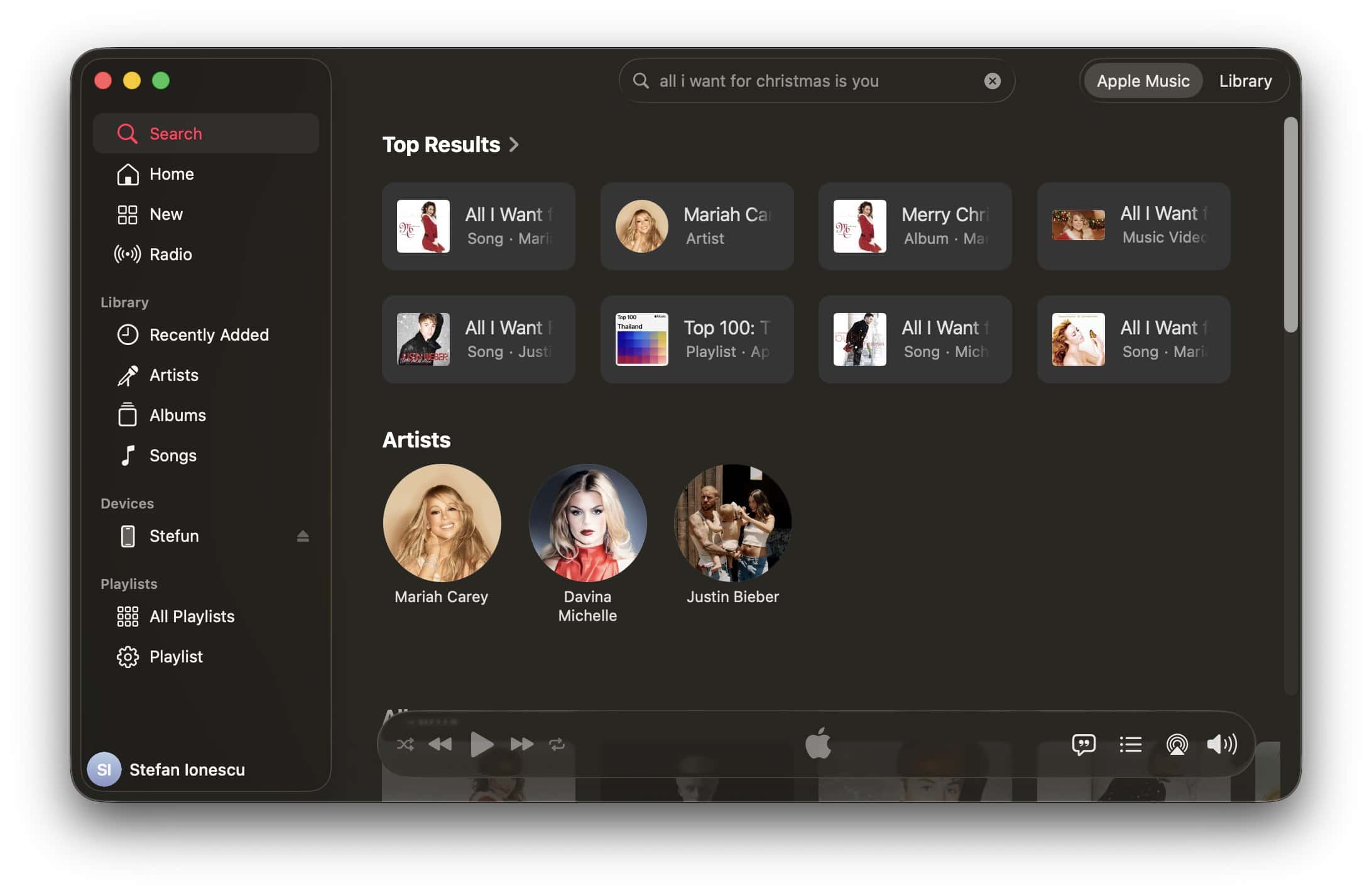
- Click the cloud icon to redownload a clean version.
4. Force Quit the Core Audio Process
The macOS audio engine occasionally causes issues. If the background process hangs, the app throws error 7507. Restarting the audio controller resets the hardware communication instantly. This method clears any stuck tasks in the system’s sound driver without requiring a full computer reboot. It effectively refreshes the way your Mac handles digital audio signals.
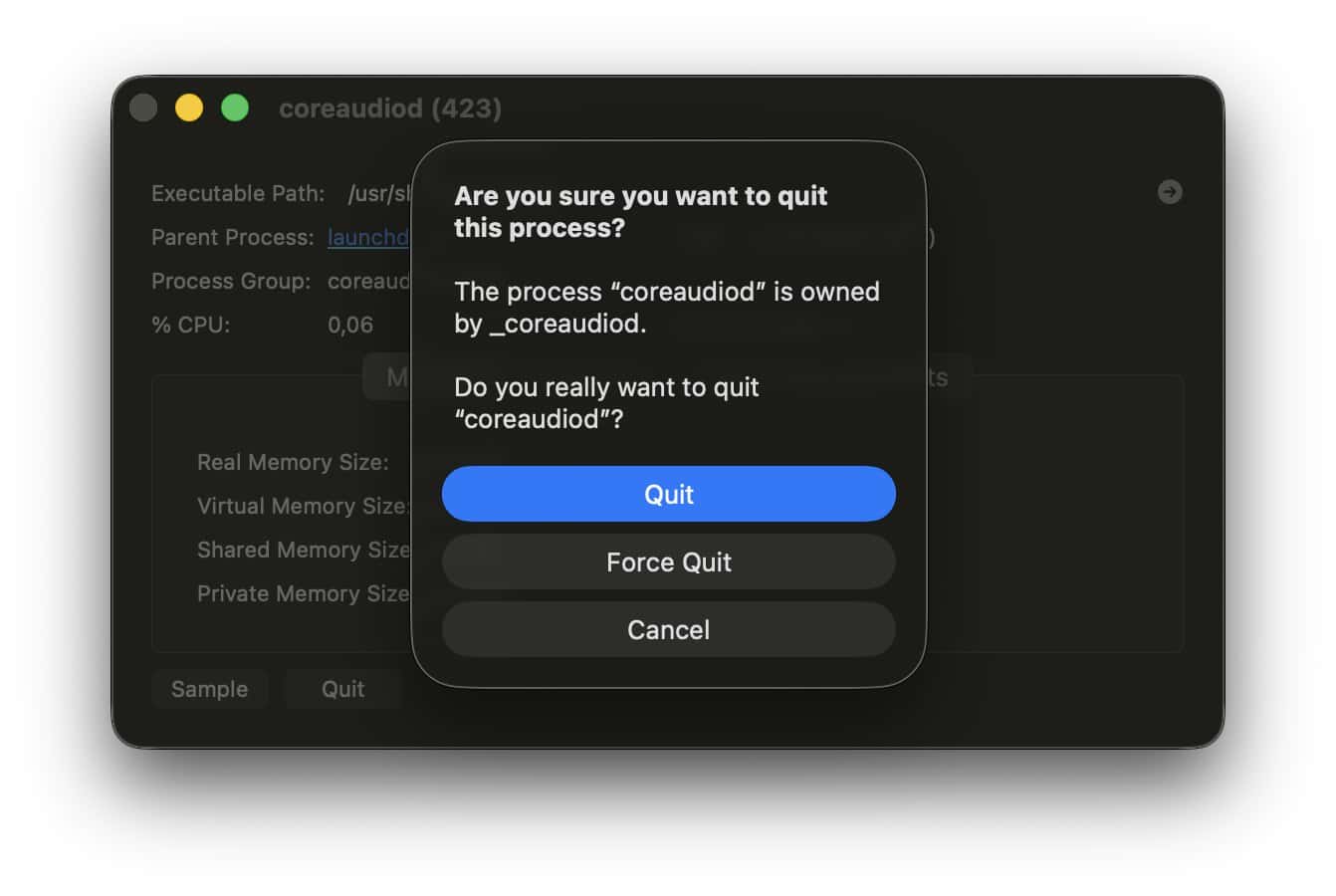
- Open Activity Monitor using Spotlight.
- Type
coreaudiodinto the search bar. - Select the process.
- Click the X icon to force it to quit.
5. Create a New Music Library File
A deeply corrupted library file can trigger persistent 7507 errors. You can isolate this by creating a temporary new library to test the connection. This identifies if the issue lies with your specific database or the application itself. If the new library works, you may need to re-import your music files to a fresh database.
- Quit the Music app completely.
- Hold the Option key and click the Music app icon.
- Select Create Library from the pop-up window.
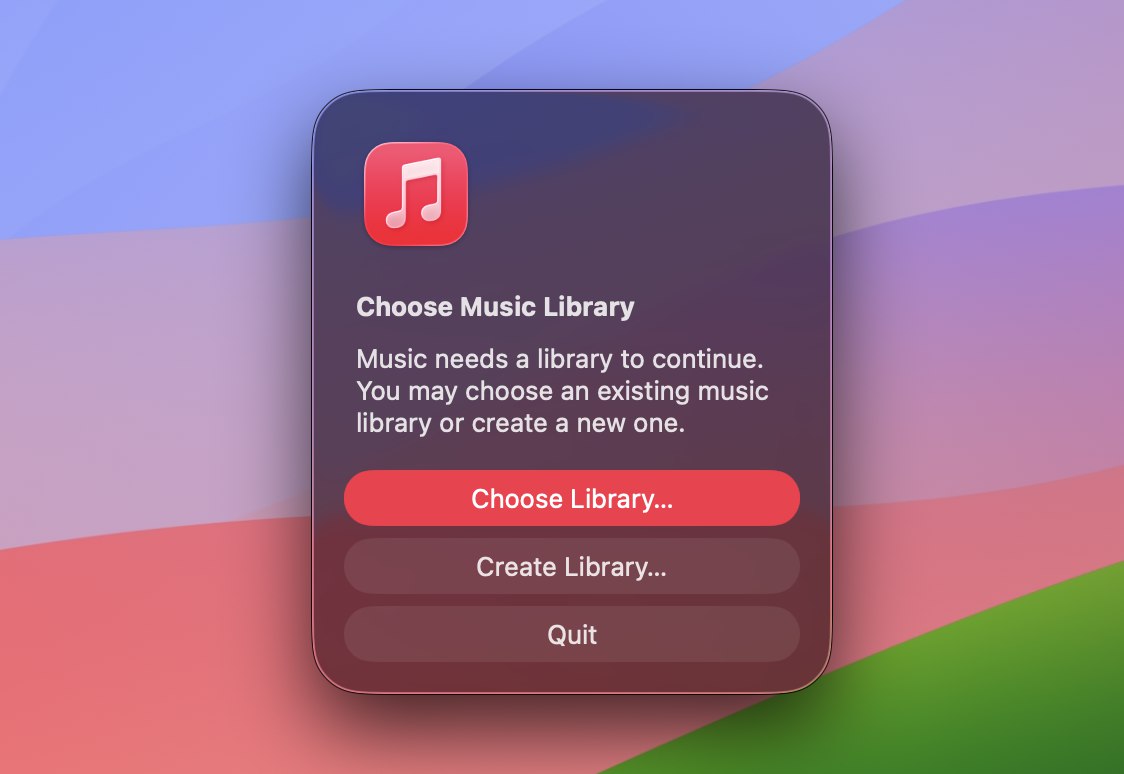
- Choose a location and name for the new library file.
FAQ
A mismatch between your local library and cloud servers usually causes it. Similarly, a weak internet connection or server-side maintenance can trigger the error.
Yes, signing out removes offline downloads from your Mac. However, your cloud library remains safe. You can easily redownload your tracks after signing back in.
Yes, sync issues occur on iOS too. You can toggle “Sync Library” in your iPhone settings to fix it. This often resolves the problem across all devices.
Restoring Seamless Playback on Your Mac
Technical glitches should not stop your music. Follow these steps to bypass error 7507 and enjoy your playlists again. Afterward, learn how to stop shuffling to regain full control over your listening experience. Consistent updates and library maintenance will keep your streaming experience smooth and error-free for years to come.




Discussion