

The rollout of a new operating system, even one as sophisticated as iOS 26, often brings unexpected quirks. One issue users face is the failure of the crucial Silence Unknown Callers feature, which is designed to block spam and unwanted calls. When this native call blocking functionality breaks down, it exposes your iPhone to a barrage of interruptions, defeating the purpose of the recent OS update. Here’s how to fix it.
Table of contents
Restoring Effective Call Blocking on Your iPhone
1. Verify the Silence Unknown Callers Setting
Sometimes the simplest oversight is the culprit. After a major update to iOS 26, settings can occasionally reset or not be applied correctly, leading the iPhone to ignore your call preferences. You should always ensure that the primary blocking function is toggled on.
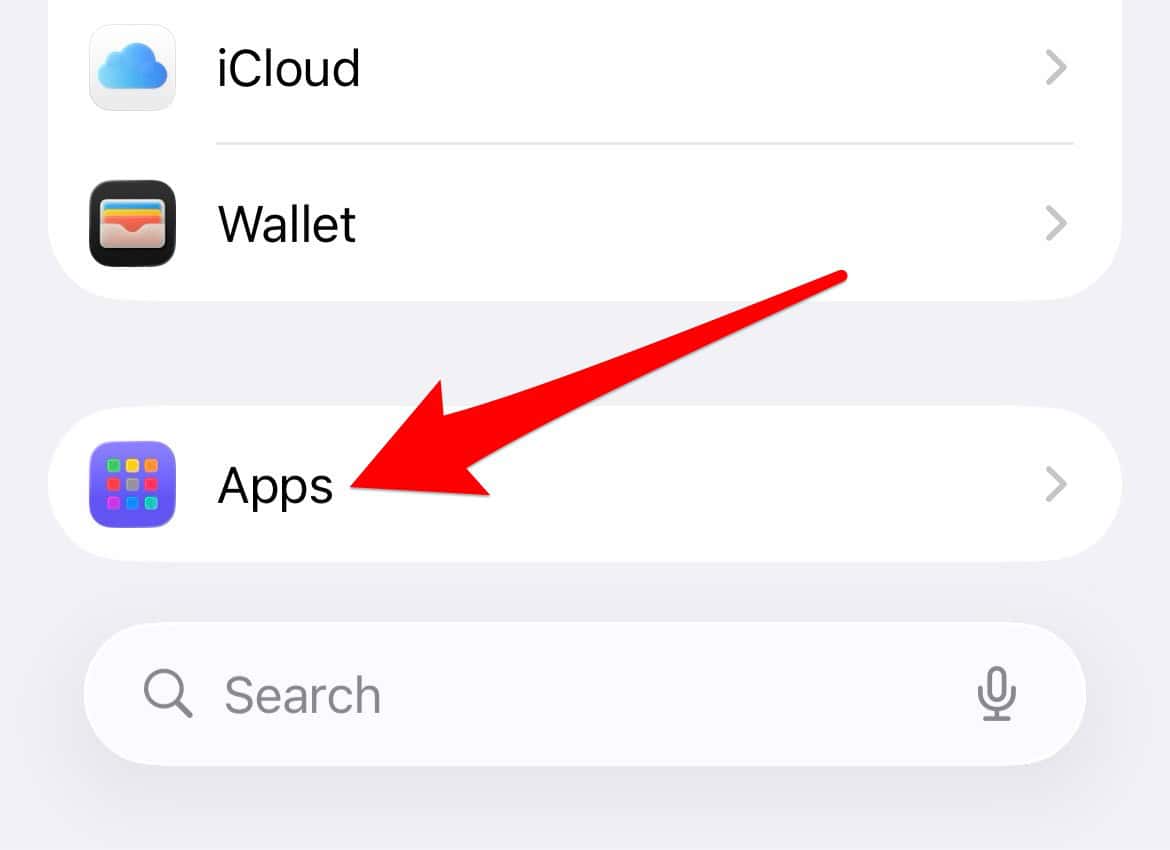
- Go to Settings > Apps.
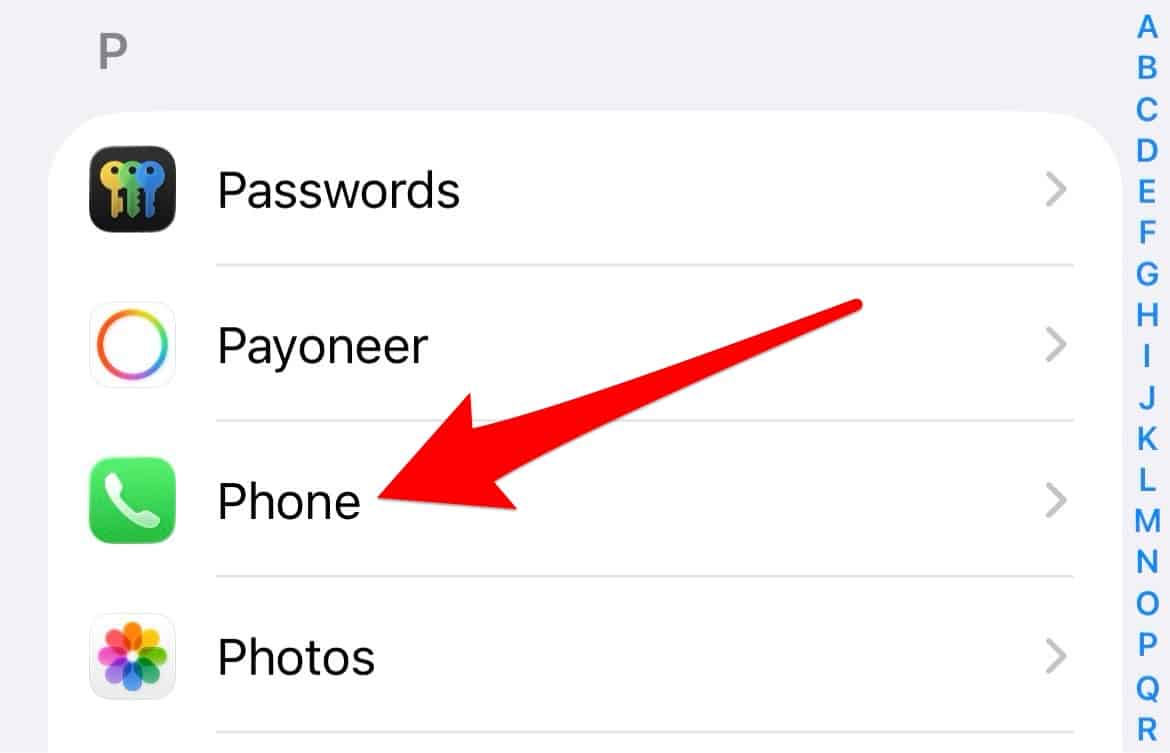
- Tap Phone.
- Scroll down and tap on Silence Unknown Callers.
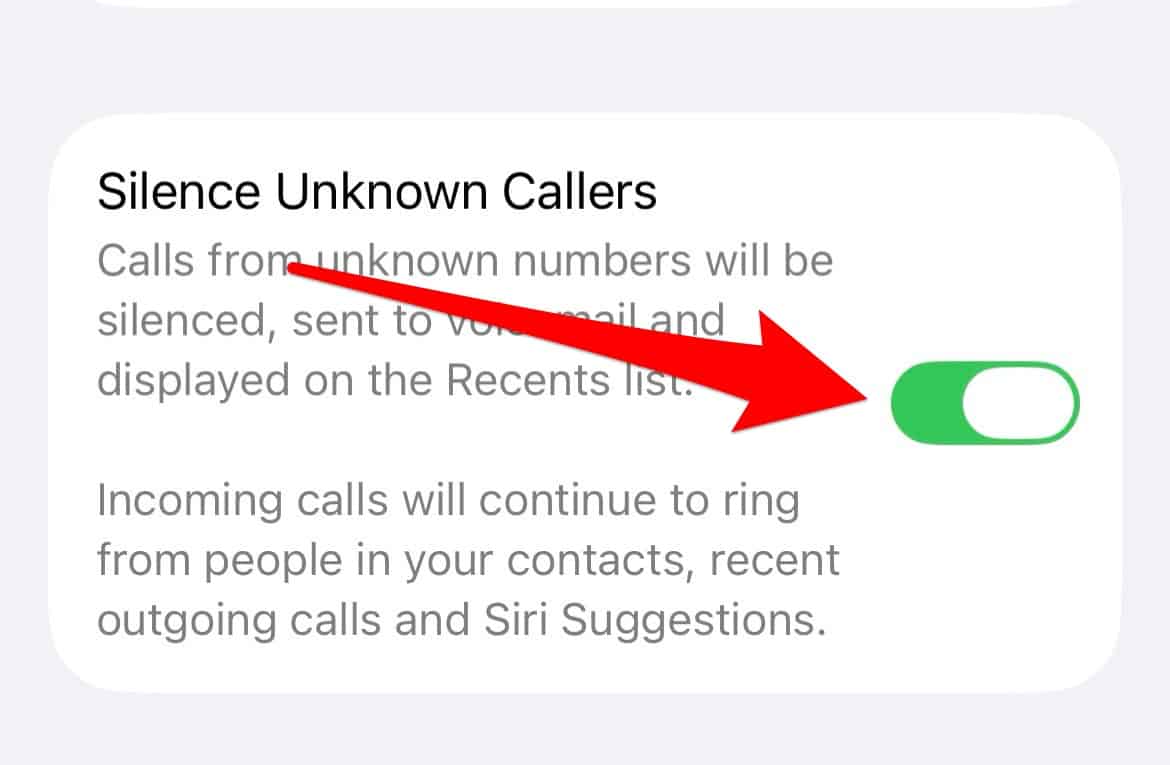
- Ensure the toggle is switched to the on (green) position.


2. Examine Your Communication History
The Silence Unknown Callers feature only works for numbers that have never been in your contacts list and with whom you have never previously communicated. If an incoming number has a message history or a previous outgoing call record with your device, the iPhone considers it a “known” number and allows the call to ring through.
Don’t miss the best of The Mac Observer
Set us as a preferred source and our Apple reporting ranks higher in your Google Search results and Discover feed — one tap, no account changes.
- Open the Messages or Phone app.
- Search for the number that keeps calling.
- Delete the message thread and then block the contact manually if a history exists.
3. Check and Update Carrier Settings
Mobile carriers sometimes release updated settings that improve call identification and filtering for your device. Also, a minor patch for iOS 26 may be required to fully enable the blocking functionality, as new iOS versions sometimes need quick follow-up fixes. Keeping both the OS and your carrier settings up to date is vital for maintaining a strong defense against phone spam.
- Check for iOS updates in Settings > General > Software Update.
- Check for carrier settings updates in Settings > General > About (a prompt will appear if an update is available).
- Install any available updates for optimal blocking performance.
4. Manually Block Persistent Area Codes
If you are continually harassed by calls originating from a specific geographic location or prefix, you can take proactive measures. Instead of relying only on the “Silence Unknown Callers” setting, you can manually target entire prefixes. This requires a workaround using your contacts list to capture and reject unwanted numbers.
- Create a new Contact (e.g., “Spam Area Code”).
- Enter the specific numbers you want to block (e.g., (555) 000-0000).
- Use a more sophisticated method to block an entire area code on an iPhone by creating a silent contact card that redirects unwanted callers.
5. Use Third-Party Blocking Applications
For persistent spam that consistently bypasses Apple’s native tools, especially those originating from communication apps that aren’t the native Phone app, leveraging third-party tools can offer an added layer of protection. These apps often maintain regularly updated databases of known spam numbers and can be more aggressive in their filtering.
- Search the App Store for reputable call-blocking apps.
- Download and enable the app’s settings in Settings > Phone > Call Blocking & Identification.
Consider learning how to block unknown WhatsApp callers on iPhone separately, as the native Phone settings do not cover calls made through messaging services.
Frequently Asked Questions
No. It allows calls from people you have recently called, people in your contacts, and numbers suggested by Siri based on your interactions in Mail or Messages.
The “Silence Unknown Callers” feature targets phone calls only. To block messages from unknown senders, you must enable the “Filter Unknown Senders” feature under Settings > Messages.
Securing Your Digital Life in iOS 26
Dealing with unwanted calls in a new operating system like iOS 26 can be a nuisance, but it’s rarely a permanent problem. By systematically checking your settings, clearing communication history, and leveraging both native workarounds and third-party tools, you can significantly reduce the flow of spam. These steps help stop and block spam calls on your iPhone and ensure your digital life remains uninterrupted.




Yes, they Fkd Up the blocking system. It used to be so simple ! Now no matter what I do I can’t block shitheads I don’t want to talk to !!!
I absolutely agree with the last poster. Iphones are getting awkward to use with too many setting meaning a mis-set setting could spoil your day. Why couldn’t they leave the instant block caller function as well as the new spam prevention changes.
Previously you could simply highlight an unknown number and scroll down to “block contact” No longer simple, no longer easy , now longer intuitive. Who comes up with this shit and thinks it’s an improvement 😡
Even after getting to the block number setting, I press the block button but nothing happens and it will not block the number