
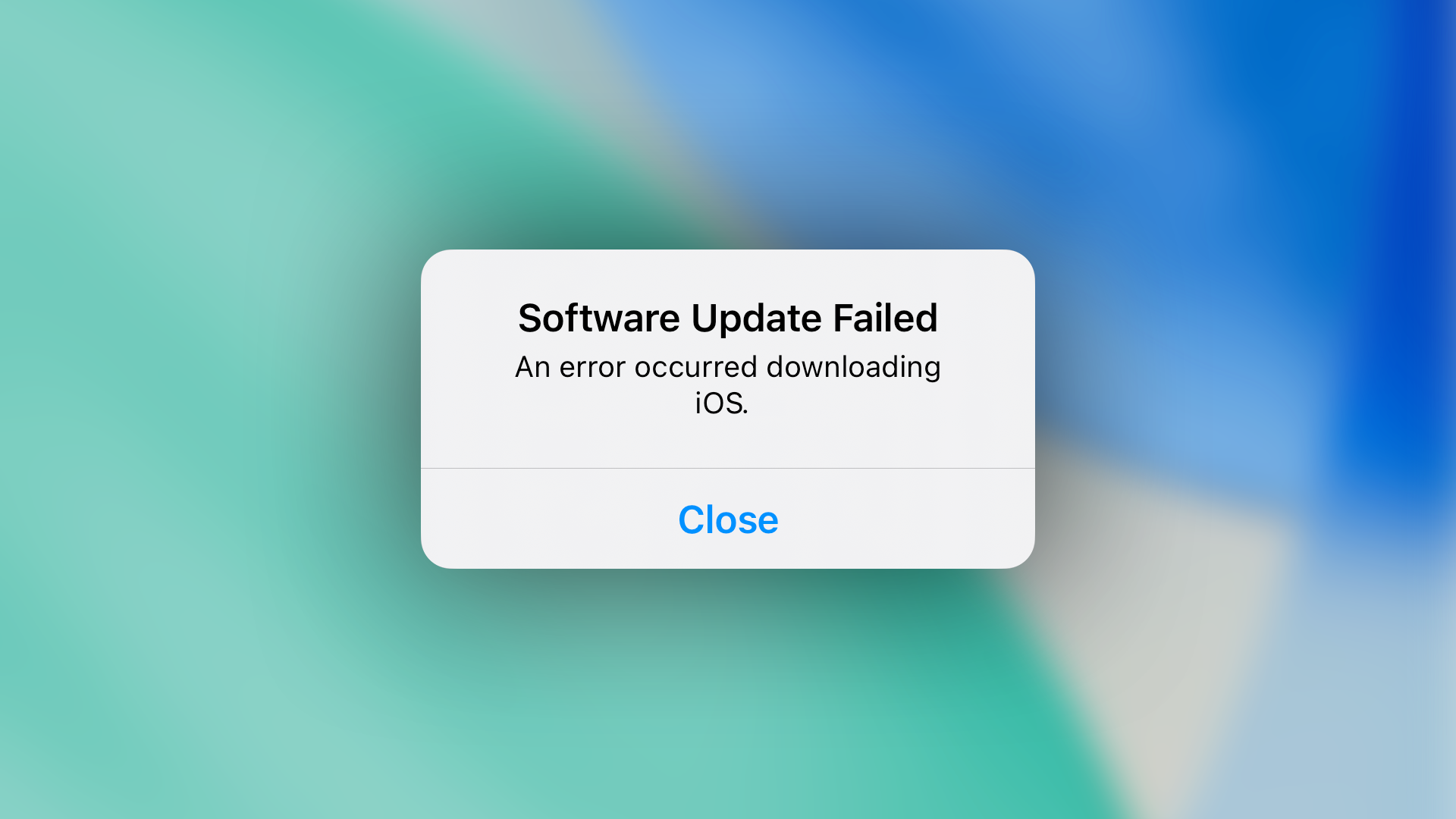
Updating to the latest iOS version is essential for your device’s performance and security. However, some users encounter issues when trying to update from iOS 18.7 to iOS 26. If you’re struggling with this issue, you’re not alone. This guide explains why you can’t update to iOS 26 and provides practical solutions to help you fix the problem.
Table of Contents
Why Can’t You Update to iOS 26?
If you’re experiencing problems with updating to iOS 26 from iOS 18.7, several factors could be at play. Common issues include compatibility problems, software bugs, or insufficient storage. These issues can cause the update process to fail, resulting in the “iPhone update error” message or preventing the update from completing altogether.
Solutions to Fix the iOS 26 Update Issue
1. Check Compatibility
Before proceeding with any solutions, it’s important to confirm if your device is in the iOS 26 compatibility list. Devices running iOS 18.7 may not all be eligible for the update. Apple periodically discontinues support for older models, so double-check your device’s eligibility for iOS 26 by visiting Apple’s official iOS compatibility page.
Don’t miss the best of The Mac Observer
Set us as a preferred source and our Apple reporting ranks higher in your Google Search results and Discover feed — one tap, no account changes.
2. Free Up Space on Your Device

One of the most common reasons for an update failure is insufficient storage. iOS updates typically require several gigabytes of free space. To free up storage, follow these steps:
Time needed: 15 minutes
- Open Settings on your device.
- Tap General.
- Select iPhone Storage.
- Review the list of apps and delete any unnecessary ones.
- Clear Safari cache by going to Settings > Apps > Safari > Clear History and Website Data.
If you don’t have enough space, the update may fail due to insufficient room to download the necessary files. You may also want to delete files like photos and videos, especially if you have your media synced with iCloud Drive. This, however, may take a long time, since you’ll need to comb through dozens of files and decide what to keep and what to remove.
3. Restart Your Device
Sometimes, a simple restart can resolve update errors. Restarting clears out temporary files that might interfere with the update process. Here’s how to restart your device:
- Press and hold the Power button until the Slide-to-power-off slider appears.
- Slide to power off and wait for your device to turn off completely.
- Press and hold the Power button again to turn it back on.
Once your device restarts, try updating again by going to Settings > General > Software Update.
4. Update Using iTunes or Finder

If updating over-the-air (OTA) through Settings isn’t working, try updating your device via iTunes or Finder on your computer. This method often bypasses bugs that occur with OTA updates. Here’s how to do it:
- Connect your iPhone to your computer.
- Open Finder (macOS Catalina or later) or iTunes (macOS Mojave or earlier, or Windows).
- Select your device when it appears in Finder or iTunes.
- Click Check for Update and follow the on-screen instructions to download and install the latest iOS version.
This method can help resolve the iOS 26 update bug if the issue is caused by a corrupted OTA file.
5. Use Recovery Mode To Install the Update
Sometimes, even Finder or iTunes may have difficulty fetching the update from Apple’s servers. To force this procedure, you can try putting your iPhone in Recovery Mode. At least one user was able to update to iOS 26 with that method. Here’s what to do:
- Connect your iPhone to your computer.
- Press and quickly release the Volume up button.
- Press and quickly release the Volume down button.
- Press and hold the Power button until you see the screen displaying a laptop and a cable.
- Finder (or iTunes) will display a message saying it needs to update or restore the iPhone.
- Click Update. Your computer will download the update and install it on your iPhone.
- If the iOS 26 installation goes through without issues, your iPhone should reboot normally.
 NOTE
NOTE
6. Try a Fresh Install Using DFU Mode
If you still can’t update to iOS 26, performing a Device Firmware Update (DFU) restore might help resolve the issues. DFU mode reinstalls the entire operating system, which can fix problems that other methods don’t. To use DFU mode:
- Connect to Finder or iTunes.
- Quickly press Volume Up, then Volume Down.
- Hold Power for 10 seconds, then continue holding Power while pressing Volume Down for 5 seconds.
- Release Power and keep holding Volume Down for 10 seconds.
- Your iPhone’s screen will stay black, but you should see a restore prompt in iTunes or Finder.
This step should be used as a last resort, since, like the Restore in Recovery Mode, it erases all data on the device. Make sure to back up your data before proceeding.
Tips to Avoid Future iOS Update Issues
- Keep your software up to date: Regularly check for updates to avoid running into issues when it’s time to upgrade.
- Maintain enough storage: Always keep several gigabytes of free space on your device to accommodate updates.
- Backup your data: Before performing any major updates, ensure your data is backed up, either through iCloud or iTunes.
iPhone Can’t Update to iOS 26: FAQ
To check if your device supports iOS 26, visit Apple’s official iOS compatibility page
If the update isn’t downloading, check your internet connection, restart your device, and make sure there’s enough space available. Try updating via iTunes or Finder if OTA fails.
Go to Settings > General > iPhone Storage and remove apps, photos, or files that you no longer need. This will help you free up space for the update.
Summary
- Check compatibility: Ensure your device supports iOS 26.
- Free up storage: Make space by deleting apps or files.
- Restart your device: Simple restarts often resolve issues.
- Use iTunes/Finder: Try updating through your computer. If this method doesn’t work with the device powered on, try using Recovery Mode.
- Use DFU mode: As a last resort, use DFU mode to restore and update.
If you can’t update to iOS 26, it’s likely due to a few common issues like storage, device compatibility, or update errors. By following these simple solutions, you can resolve the problem and get your device updated. Always make sure to back up your data and check for sufficient storage before initiating any major updates.


Discussion