

Apple’s iPhone keyboard is simple, reliable, and adaptive. However, many users prefer customizing it to type in multiple languages, use regional layouts, or even try third-party keyboards with extra features. Changing or adding keyboards on the iPhone takes only a few steps, and users can switch between them instantly while typing.
In this article, you’ll learn how to change your default keyboard, add new languages, fix layout problems, and explore third-party options for a more flexible typing experience.
Table of contents
Here’s How to Change Your Default Keyboard on iPhone
1. Add a New Language Keyboard
iPhone supports dozens of keyboard layouts, allowing users to type in multiple languages without downloading extra apps.
Don’t miss the best of The Mac Observer
Set us as a preferred source and our Apple reporting ranks higher in your Google Search results and Discover feed — one tap, no account changes.
- Open Settings on the iPhone.
- Tap General, then select Keyboard.
- Choose Keyboards, followed by Add New Keyboard.
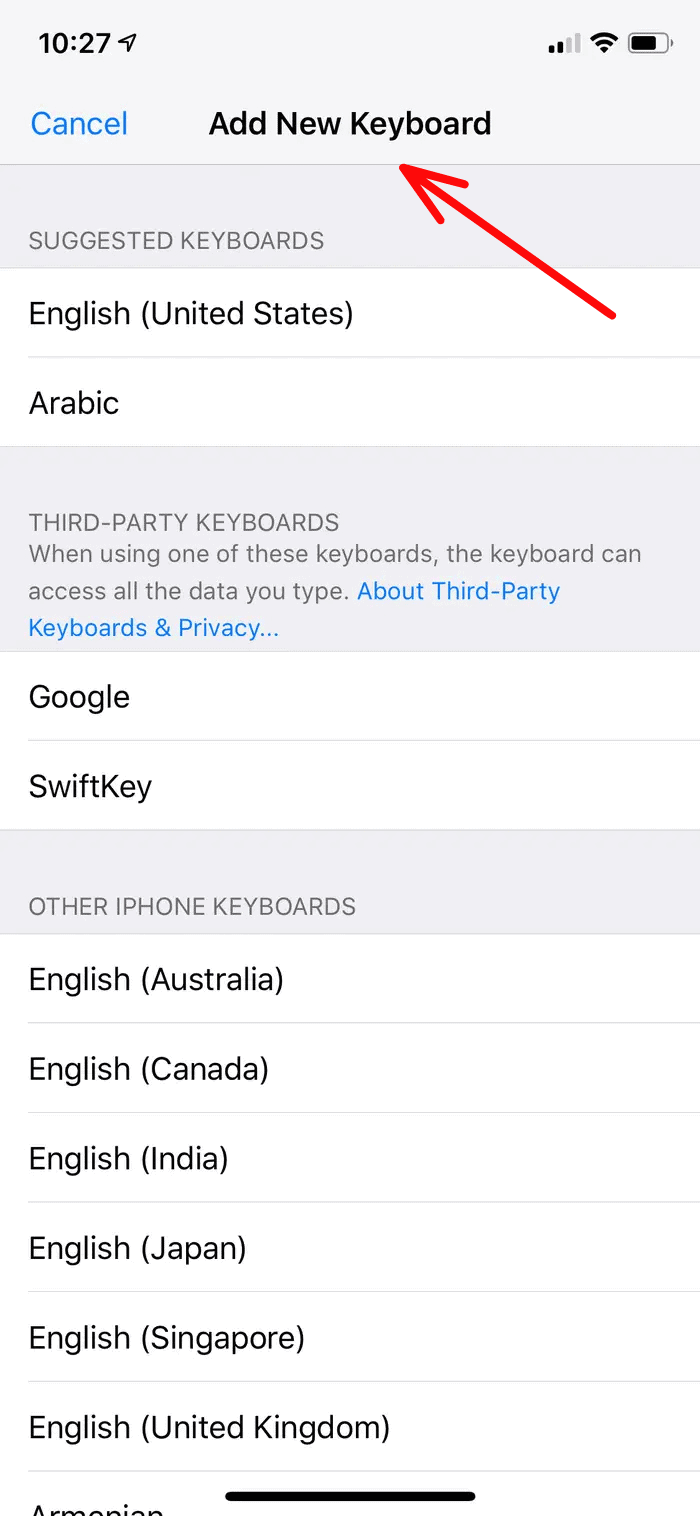
- Browse the list and select the language or layout to add.
- The new keyboard will now appear under your active list.

Once added, it can be accessed instantly while typing by using the globe icon on the iPhone keyboard.
Apple’s multilingual typing feature is also improving. The bilingual keyboard in iOS allows users to type in two languages simultaneously without manually switching. This is especially useful for users who communicate regularly in different languages.
If the layout appears misaligned or merged after updating to iOS 18, it may be a temporary software glitch. Users can refer to how to fix the iOS 18 keyboard merged issue for quick troubleshooting.
2. Switch Between Keyboards While Typing
Switching keyboards is quick and convenient.
- Open any app that uses the keyboard, such as Messages or Notes.
- Press and hold the globe icon or tap it to cycle through available keyboards.
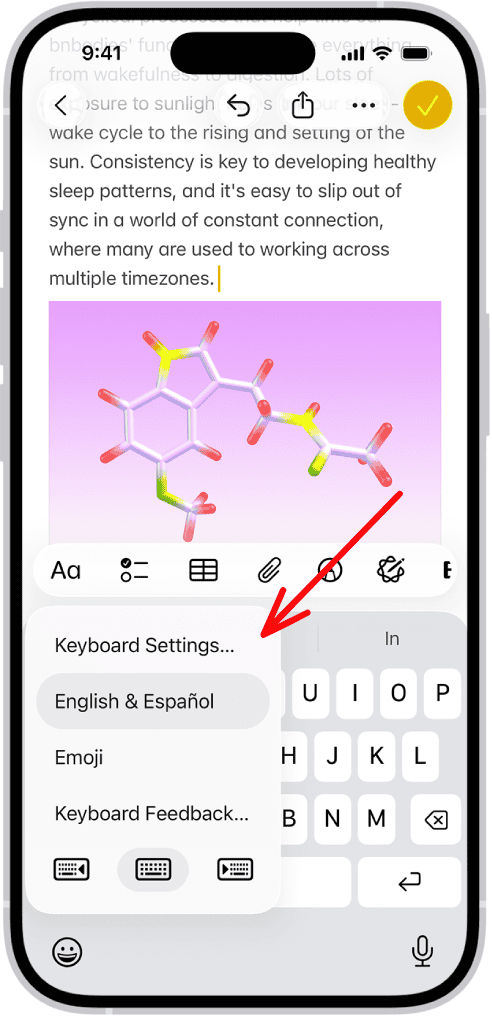
- Release when the desired keyboard layout appears.

Users can also rearrange their keyboard order in Settings > General > Keyboard > Keyboards, which changes how they cycle through them while typing.
Those who work across Apple devices may also want to change the language on a MacBook, keeping their typing preferences consistent between macOS and iOS.
3. Remove a Keyboard
Removing a keyboard is just as simple.
- Go to Settings > General > Keyboard > Keyboards.
- Tap Edit in the top-right corner.
- Tap the minus (-) icon next to any keyboard to delete it.
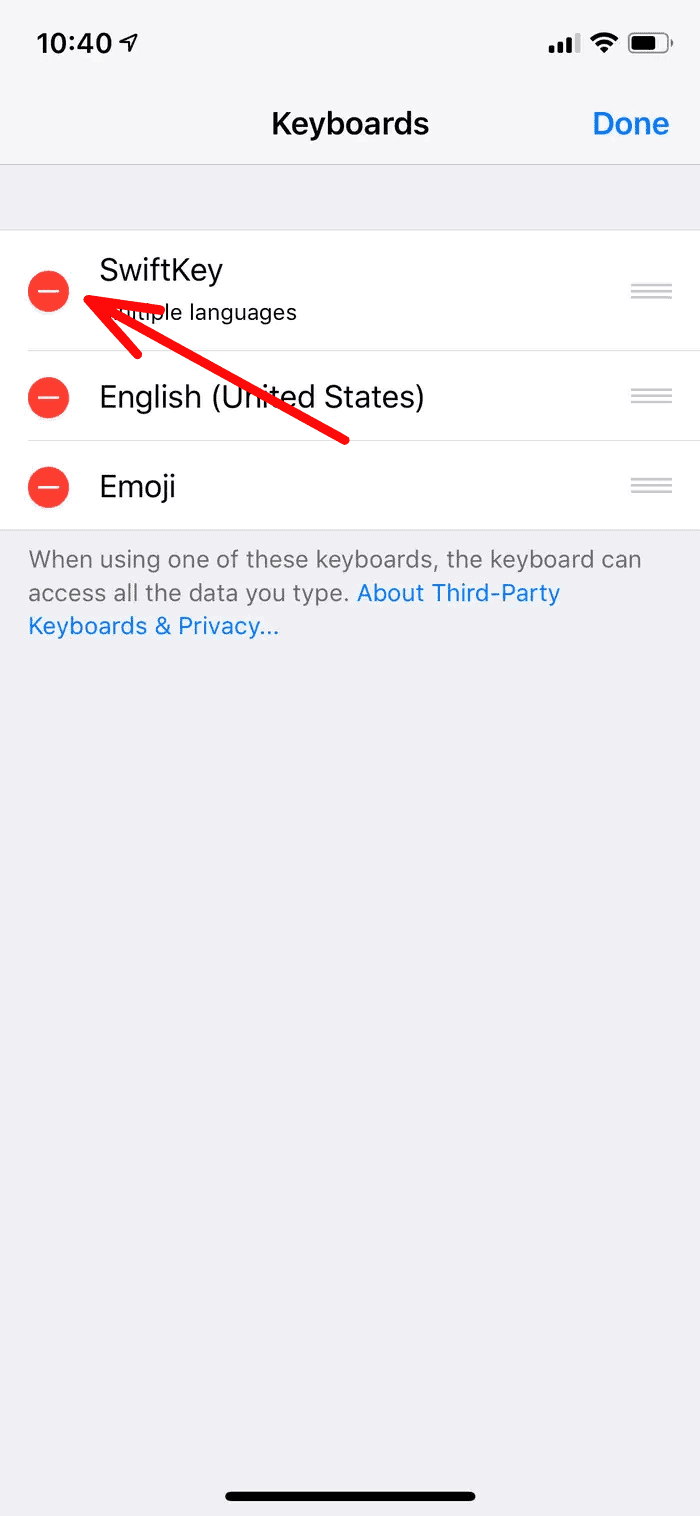
- Tap Done to save changes.

Removing a keyboard doesn’t affect saved languages or text suggestions, so users can re-add it later without losing preferences.
4. Popular Third-Party Keyboard Options
Several third-party keyboards have gained popularity for their unique features and reliability.
1. Gboard (by Google):
Google’s keyboard app offers gesture typing, voice input, GIF and emoji search, Google Translate integration, and multi-language typing without switching keyboards. The app also includes glide typing, where users drag their finger across letters instead of tapping individual keys.
2. SwiftKey (by Microsoft):
SwiftKey focuses on predictive text and learns typing patterns over time. It supports swipe typing, multiple languages simultaneously, cloud sync for personalized predictions across devices, and various themes. The keyboard adapts to writing style and frequently used words.
3. Grammarly Keyboard:
Designed for users who want real-time grammar and spelling correction, this keyboard checks text as it’s typed and offers suggestions. It works across all apps and provides more detailed feedback than standard autocorrect.
4. Fleksy:
Known for speed and customization, Fleksy offers extensive themes, extensions for GIFs and stickers, and holds multiple world records for fast typing. The keyboard includes gesture controls for quick editing and navigation.
Users who often type on larger screens can also make the keyboard bigger on iPad, improving comfort and reducing typing errors.
5. How to Install a Third-Party Keyboard
Installing third-party keyboards requires downloading an app from the App Store and enabling it in iPhone settings.
- Open the App Store on the iPhone.
- Search for the desired keyboard app (Gboard, SwiftKey, etc.).
- Tap “Get” and authenticate.
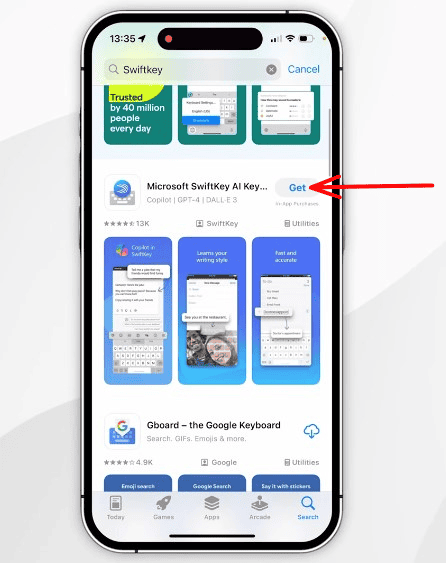
- Wait for the app to download and install.
- Open the Settings app.
- Navigate to General > Keyboard > Keyboards.
- Tap “Add New Keyboard”.
- Scroll to the “Third-Party Keyboards” section.
- Tap the newly installed keyboard to add it.

- A prompt appears asking for “Full Access”.
- Tap “Allow Full Access” if the keyboard requires it (optional but needed for some features).


Full Access allows keyboards to send data to external servers for features like cloud sync, GIF search, or translation. Users concerned about privacy can deny this permission, though some features may not work without it.
After installation, the third-party keyboard appears in the keyboard list alongside native iOS keyboards. It can be reordered or removed using the same methods as built-in keyboards.
Additional Keyboard Tips
- Keep your iPhone updated to ensure compatibility with language packs and third-party keyboards.
- Enable Predictive Text and Auto-Correction under keyboard settings for smoother typing.
- Reorder frequently used keyboards to make switching easier.
- If a keyboard becomes unresponsive, disable it temporarily and restart the device.
- Review privacy permissions before granting full access to third-party keyboards.
- Revisit keyboard settings after major iOS updates to ensure features like multilingual typing remain active.
Final Thoughts
Customizing the iPhone keyboard with multiple languages, alternate layouts, and third-party apps transforms the typing experience to match individual needs and preferences. The built-in iOS options cover most use cases with support for over 100 languages and various layout configurations, while third-party keyboards add some additional advanced features.
FAQs
Yes. Users can add several keyboards and switch between them anytime using the globe icon.
Most are safe, but always review developer information and privacy permissions before allowing full access.
There’s no strict limit, though adding too many may make switching slower.
The globe icon only appears if more than one keyboard is installed.
Yes. Certain languages allow users to switch between layouts, such as QWERTY, AZERTY, or QWERTZ, in keyboard settings.


Discussion