

If you’re a designer, developer, or part of a creative team, Figma is one of the most powerful tools for interface design, prototyping, and collaboration. It’s cloud-based, intuitive, and ideal for real-time teamwork, offering all in a single workspace.
While you can use Figma directly in a browser, downloading the Figma desktop app for Mac offers a faster and more stable experience. It runs independently from Safari or Chrome, supports offline editing, and takes full advantage of macOS performance.
I’ll walk you through everything you need to know about downloading and installing Figma on your Mac in this article. Whether you’re a designer switching from another tool or just getting started with interface design, I’ll show you exactly what to do.
Don’t miss the best of The Mac Observer
Set us as a preferred source and our Apple reporting ranks higher in your Google Search results and Discover feed — one tap, no account changes.
Table of contents
Why Use the Figma Mac App?
Before we jump into the installation, let me quickly explain what Figma is for anyone new to it. Figma is a cloud-based design tool that lets you create user interfaces, websites, apps, and graphics. The big advantage is that your work saves automatically to the cloud, so you can access your designs from any device.
While Figma runs primarily in your web browser, the desktop app offers better performance and some extra features. The Mac app feels more integrated with macOS and gives you faster load times compared to the browser version. It doesn’t rely on browser tabs, which means fewer distractions and smoother rendering for large projects.
If you often switch between creative tools, you might also want to explore the best Mac software for video editing or recommended software for C programming on Mac to enhance your full creative toolkit.
System Requirements for Figma on Mac
Let me tell you what you need before installing Figma. Your Mac should be running macOS 11 or later. Figma works on both Intel-based Macs and the newer Apple Silicon models with M1, M2, or M3 chips.
You’ll need at least 4GB of RAM, though I recommend 8GB or more if you plan to work on complex designs. You’ll also need an internet connection for the initial download and to sync your designs.
Here’s How You Can Download and Install Figma on Your Mac
1: Visit Figma’s Official Download Page
Start by opening Safari or any browser on your Mac. Go to the downloads page on Figma’s website. This is the official download page where you’ll find versions for macOS, Windows, and Linux.
Scroll down to the “Figma for macOS” section and click Download. Always download from the official site to ensure security and version compatibility. Then, save and run the DMG file from your browser.
If you’re unsure which macOS version you’re running, check our guide on macOS versions in order, a complete list from Cheetah to Tahoe.
2: Download the macOS Installer
Once you click download, the Figma.zip or Figma.dmg file will start downloading automatically. The process usually takes a few minutes, depending on your connection speed.
If your browser asks for permission, click Allow. After the file is downloaded, open your Downloads folder to locate it.
3: Install Figma on Your Mac
Now it’s time to install the app:
- Open your Downloads folder.
- Double-click the Figma.zip or Figma.dmg file to extract it.
- Drag the Figma icon into your Applications folder.
Once the installation is complete, go to Finder → Applications and double-click Figma to open it. The app should launch in a few seconds and is ready for setup.
4: Sign In or Create a Figma Account
When Figma opens for the first time, sign in using your email, Google, or Slack credentials. If you’re new to Figma, click Create Account, and registration is free and only takes a minute.
Your account automatically syncs all design files to the cloud, so your projects will always be accessible on any device.
If you use remote tools for team access, you can integrate Figma with collaboration apps or pair it with the best remote desktop software for Mac to manage projects securely across systems.
5: Add Figma to Your Dock for Easy Access
To make launching Figma easier:
- Right-click its Dock icon while open and select Options → Keep in Dock.
You can also make Figma launch at the startup:
- Go to System Settings → General → Login Items.
- Click the + icon and select Figma from your Applications folder.
This ensures you can jump straight into your projects every time you start your Mac.
6: Use Figma Offline
The desktop app supports offline work, letting you continue editing even without an internet connection. Any changes you make will automatically sync once your Mac reconnects to Wi-Fi.

This feature is great for travel, commuting, or working in places with limited connectivity — your design workflow stays uninterrupted.
Troubleshooting Common Installation Issues
Sometimes things don’t go smoothly, so let me share some solutions to problems I’ve encountered.
- If Figma won’t open after installation, try moving it to the Trash and downloading it again. Sometimes the download gets corrupted. Make sure you’re dragging the app from the extracted ZIP file, not trying to run it directly from the ZIP.
- If you see a message saying Figma can’t be opened because it’s from an unidentified developer, go to System Preferences, click Security & Privacy, and look for a message about Figma being blocked. Click “Open Anyway” to allow it.
- For login issues, make sure you’re using the correct email address. If you signed up with Google, you need to use the “Continue with Google” option rather than entering your password manually.
If Figma runs slowly or crashes, check that your Mac meets the minimum system requirements. Close other apps to free up memory. You can also try clearing Figma’s cache by going to Preferences and clicking “Clear Cache.”
Getting Started with Figma
After installation, you’ll want to learn the basics of using Figma. The app includes built-in tutorials that walk you through creating your first design. Click the question mark icon in the bottom right corner to access help resources.
Understanding the Interface
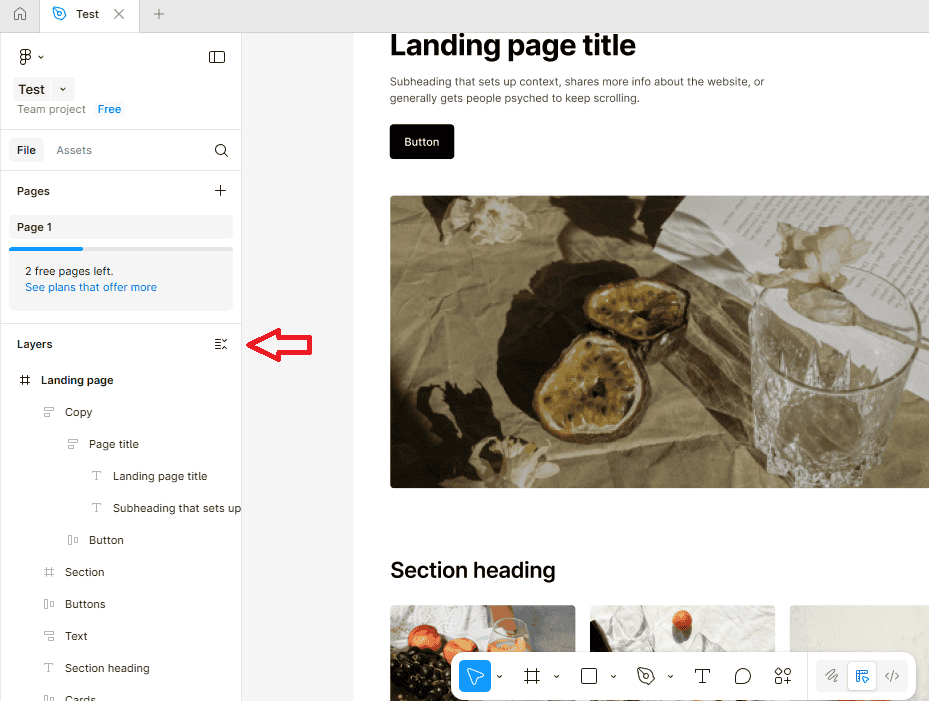
Figma’s interface has three main areas:
- The left sidebar shows your layers and pages.
- The center canvas is where you design.
- The right sidebar contains properties and settings for whatever you have selected.

Starting a New Design
Start by creating a new file. You can click the “New file” button or use the keyboard shortcut Command + N (or Ctrl + N on Windows). You’ll see a blank canvas where you can begin designing. Use the toolbar at the top to add shapes, text, and other elements.
Recommended Learning
I recommend watching a few YouTube tutorials to get familiar with the tools. Figma’s official channel has excellent beginner guides that explain everything from basic shapes to advanced features like Auto Layout and Components.
Tips for Using Figma on Mac
To get the most out of the Figma desktop experience, here are a few practical tips I’ve found useful:
- Use trackpad gestures and shortcuts – macOS supports smooth pinch-zooming and quick undo/redo gestures that make design navigation faster.
- Enable offline sync – open your key projects once online so they’re cached locally for offline work.
- Connect external displays – Figma scales beautifully across multiple monitors, perfect for dual-screen workflows.
- Use plugins wisely – desktop Figma supports most plugins from the browser version, so install only the ones you actually use.
- Leverage macOS features – Split View and Stage Manager are great for multitasking between Figma and apps like Notes or Safari.
- Back up project files – while Figma syncs to the cloud, exporting local .fig backups helps protect critical designs.
- Customize keyboard shortcuts – learn and adjust shortcuts in Figma’s settings to match your workflow and speed up editing.
These small adjustments can make your design process smoother and help you work more efficiently on macOS.
Final Thoughts
Installing Figma on your Mac is a simple process that takes just a few minutes. The desktop app offers better performance and integration compared to the browser version, making it worth the small download.
I’ve been using Figma on my Mac for years now, and it’s become an essential tool in my design workflow. The cloud-based nature means I never lose work, and the collaborative features make working with teams smooth and efficient.
The free plan is generous enough for most individual users and small projects. As your needs grow, the paid plans offer good value with unlimited files and advanced features. Whether you’re designing websites, mobile apps, or marketing materials, Figma gives you the tools you need.
FAQs
Yes. Figma’s free plan includes all the core features for individuals and small teams. You can upgrade to get advanced collaboration tools.
Yes. The desktop version supports offline editing, and your changes will sync automatically once you’re online again.
Absolutely. You can install it on multiple platforms, and your projects sync across devices.
Figma works best on macOS 11 or later with at least 4GB of RAM and an M1 or newer chip for optimal performance.
Yes. The desktop app supports the same plugin ecosystem as the browser version.


Discussion