
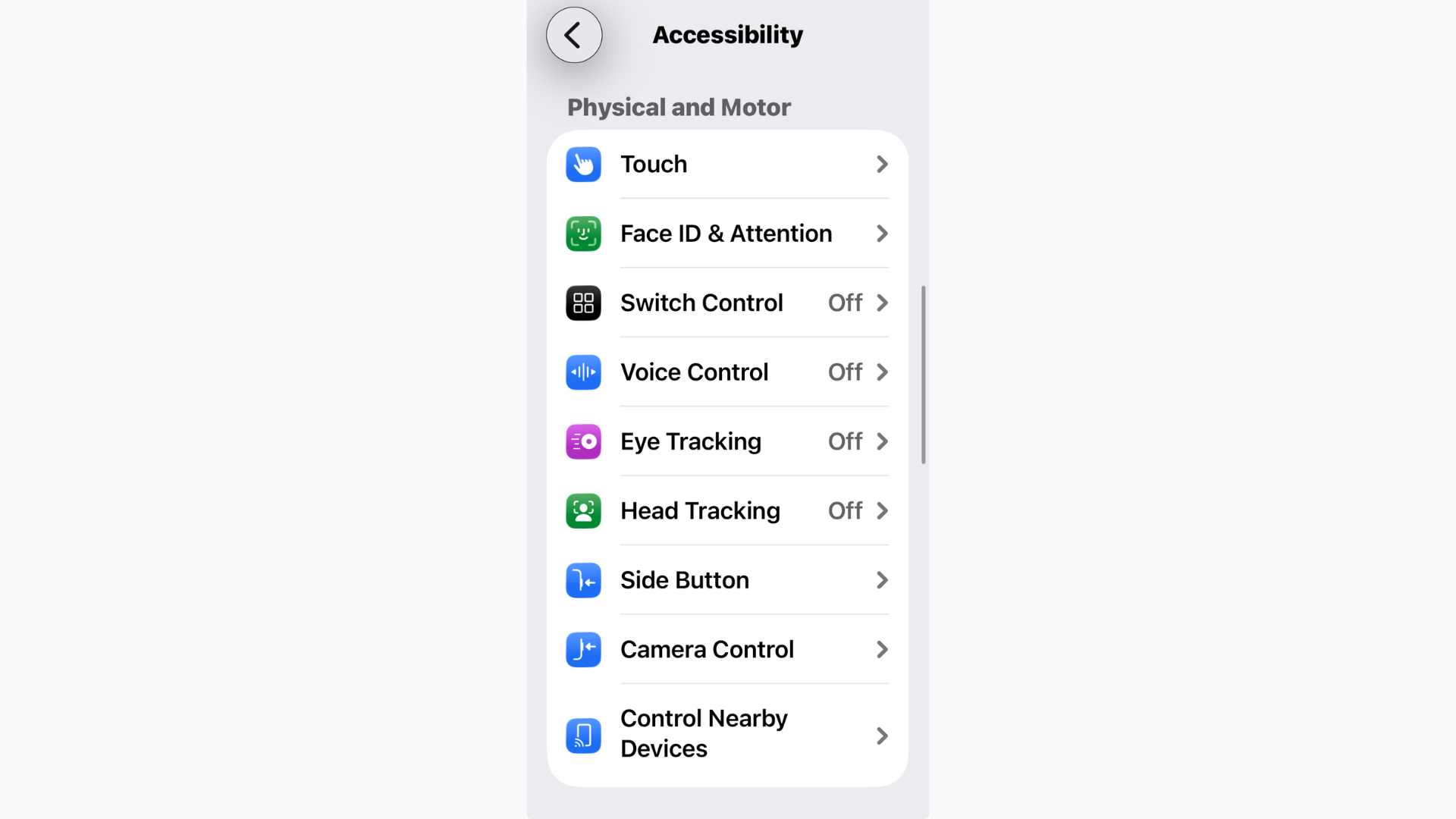
Face ID acting up after the iOS 26.2 update? Sometimes it’s a quick settings tweak. Sometimes it’s a smudge on the camera. And yes, sometimes it’s a deeper hardware issue. Let’s sort it fast.
Table of contents
- 1. Quick checks before you dive deep
- 2. Toggle Stolen Devices Protection
- 3. Fix Face ID through settings
- 4. Test attention settings
- 5. If Face ID won’t set up at all
- 6. Heat and battery can make Face ID flaky
- 7. Update iOS, even if you’re already on 26.2
- On iPad
- When to stop tinkering
- Related iOS 26.x guides you’ll actually use
- Bottom line
1. Quick checks before you dive deep
- Make sure nothing is covering the TrueDepth camera. Clean the notch area. Remove thick screen protectors or bulky cases.
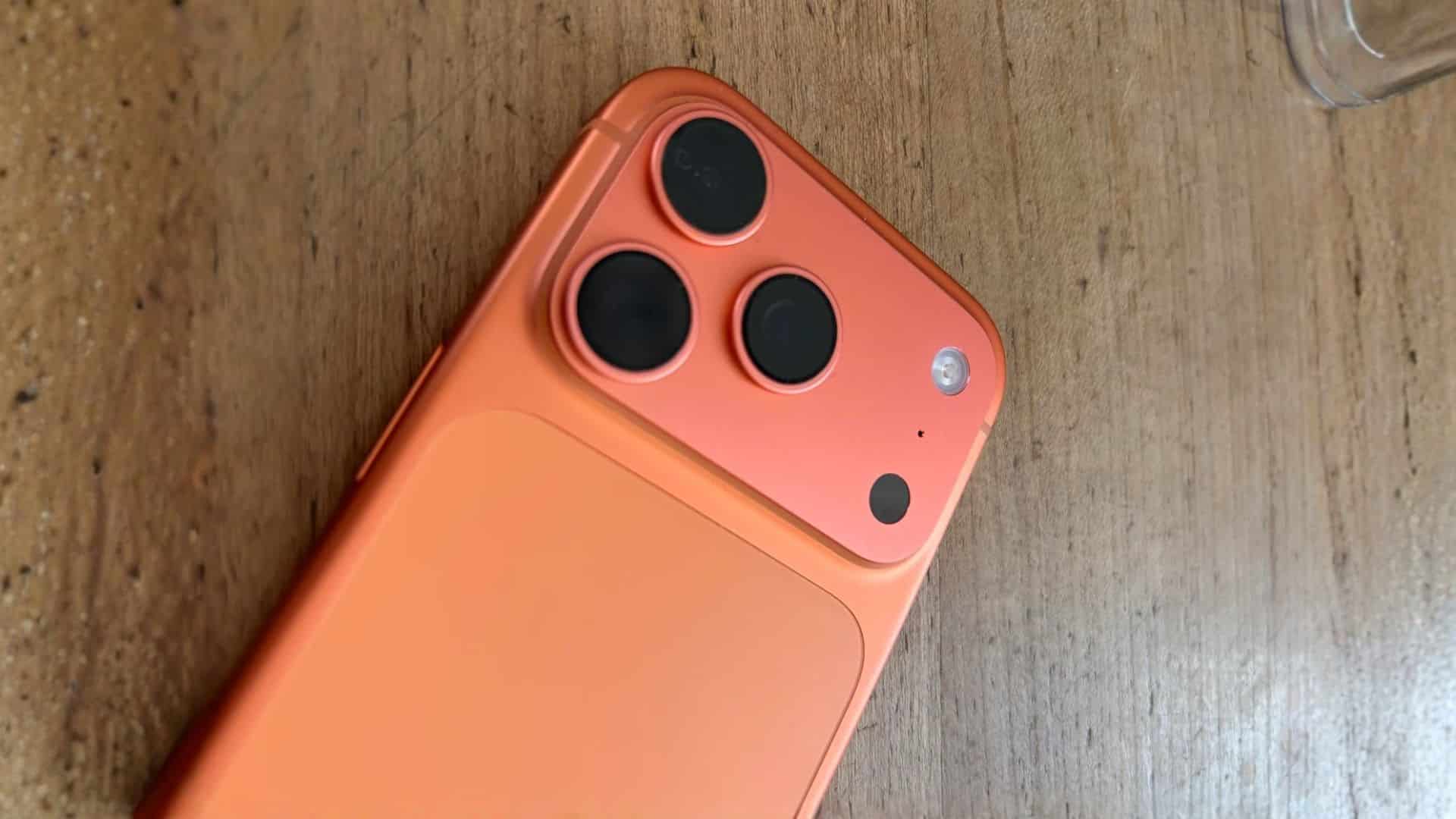
- Hold the phone at arm’s length. Keep your eyes, nose, and mouth fully visible. Very dark sunglasses can block infrared.
- Restart your iPhone. It clears stuck services and often brings Face ID back.

2. Toggle Stolen Devices Protection
- Open Settings on your iPhone.
- Go to Face ID & Passcode.
- Enter your passcode to unlock the menu.
- Scroll down to Stolen Device Protection.
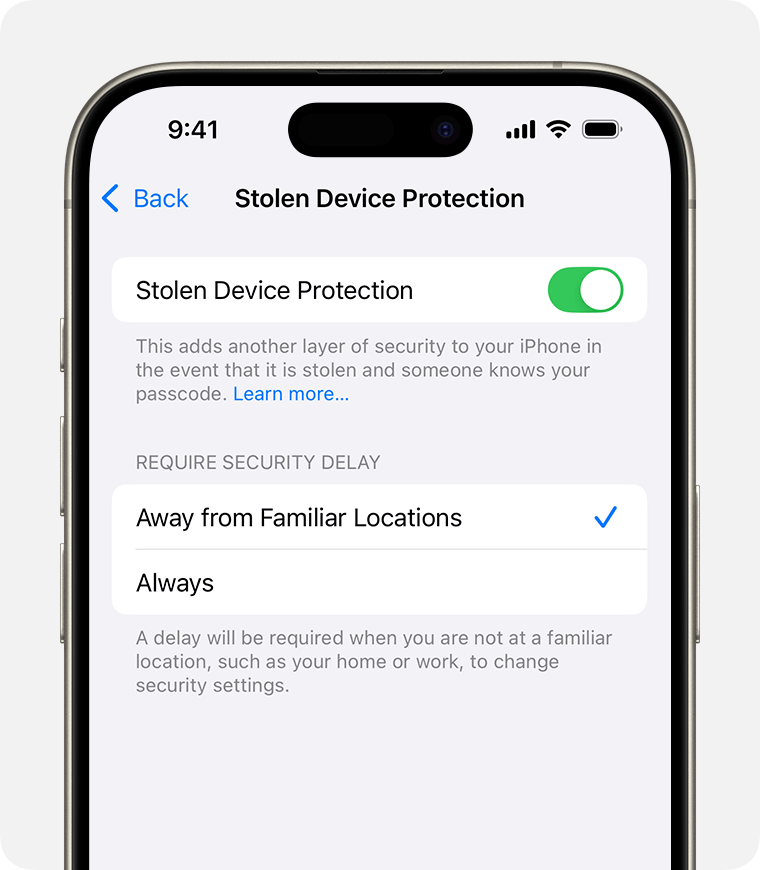
- Toggle the switch off, wait a few seconds, then toggle it back on.
3. Fix Face ID through settings
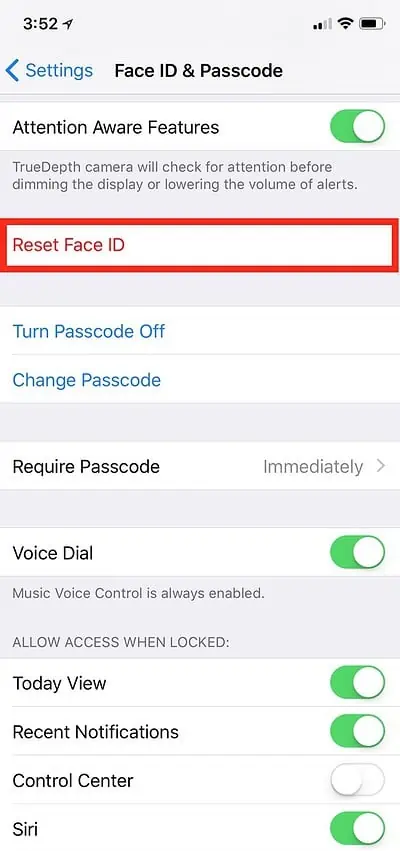
- Open Settings → Face ID & Passcode and confirm iPhone Unlock, Apple Pay, and other toggles are on.
- Tap Reset Face ID, then Set Up Face ID again. Do both scans slowly and evenly. If you routinely look different for work or training, add Alternate Appearance.
4. Test attention settings
If Face ID struggles because of glasses or accessibility needs, try temporarily turning off Require Attention for Face ID in Settings → Face ID & Passcode. Know the trade-off: it’s less secure. Turn it back on once you confirm the root cause.
5. If Face ID won’t set up at all
When you tap Set Up Face ID and it errors out immediately, try this sequence:
Don’t miss the best of The Mac Observer
Set us as a preferred source and our Apple reporting ranks higher in your Google Search results and Discover feed — one tap, no account changes.
- Force restart your iPhone, then try setup again.
- Reset All Settings in Settings → General → Transfer or Reset → Reset. Your data stays, system settings reset.
- If you see Face ID is not available or A problem was detected with the TrueDepth camera, you’re likely hitting a hardware or calibration fault. At that point, contact Apple Support or an authorized repair center, especially if you’ve had a display repair.
6. Heat and battery can make Face ID flaky
Overheating can throttle sensors and slow the camera, which makes Face ID feel unreliable. If your phone runs hot after updating, cool it down and see our guide: fix iOS 26.2 overheating. Battery churn after a big update is normal for a day or two; if it drags on, see iOS 26.2 battery drain.
7. Update iOS, even if you’re already on 26.2
Apple pushes quick point releases that quietly fix Face ID and camera quirks. Go to Settings → General → Software Update. If you don’t see the patch or it gets stuck, these will help:
- iOS 26.2 update not showing up — fixes
- Stuck on Update Requested — fix
- Taking forever to download or install — complete guide
You can also track known issues here: All reported iOS 26 bugs and fixes. Mac Observer
On iPad
Using iPad in landscape? Make sure your hand isn’t covering the camera. iPad even shows a “camera covered” hint with an arrow when that happens. Clean the bezel, re-scan Face ID, and test again.
When to stop tinkering
If Face ID worked perfectly before and now shows persistent Face ID disabled or it fails right after a third-party screen repair, that’s service territory. Apple has to pair the TrueDepth system properly; DIY or non-authorized repairs often break it. Book support and save yourself the loop.
Related iOS 26.x guides you’ll actually use
- All reported iOS 26/26.2 bugs and issues with fixes
- Is iOS 26 stable? We answer
- Why iOS 26.2 feels laggy — causes and fixes
- Can’t read notifications? Try these visibility tweaks
- Make iOS 26 less animated
- If you give up on 26.x: Downgrade from iOS 26 to iOS 18 safely
Bottom line
Start simple. Clean the TrueDepth camera, re-enroll Face ID, and check attention settings. Update to the latest iOS 26.x build. If setup fails with camera warnings, skip the hacks and book service. It’s the fastest path back to a reliable unlock.


Discussion