

The persistent pop-up demanding your IMAP password can halt your access to new messages, causing significant problems for iPhone users. This error typically signifies a crucial failure in the authentication process between your device and the mail server. The Internet Message Access Protocol (IMAP) is vital for syncing your inbox. Successfully resolving this login loop requires systematic troubleshooting to pinpoint and correct the configuration error, restoring smooth, reliable email access.
Table of contents
Resolving Email Connectivity Issues on Your Apple Device
1. Verify Credentials and Server Configuration
Before proceeding to complex fixes, ensure the password you are entering is absolutely correct for the email account, not your Apple ID. This is the primary suggestion from user communities. Incorrect server information is another common culprit. Your iPhone must have the correct incoming and outgoing server details, including port numbers and SSL/TLS settings, which are mandated by your email provider.
- Go to Settings > Apps > Mail.
- Tap Accounts, select the problematic account, and then tap the email address to view details.
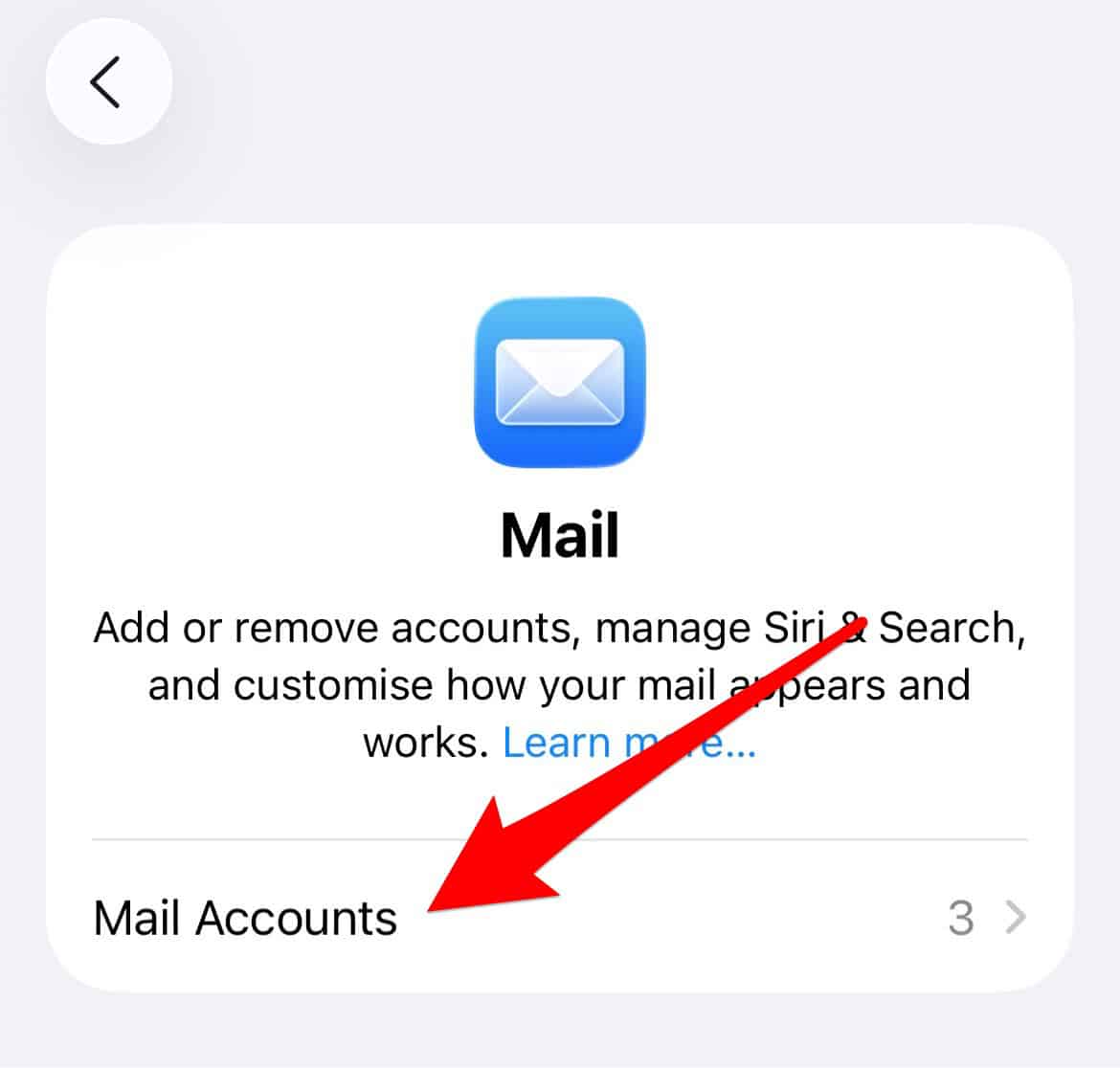
- Under the IMAP section, select Incoming Mail Server and verify the Host Name and Server Port with your provider’s documentation.
- Confirm that the correct User Name (often your full email address) is entered.

2. Delete and Re-add the Email Account
Account setup issues are frequently resolved by performing a full reset of the account settings on your device. Completely removing the account and then setting it up again forces your iPhone to download a fresh configuration profile from the mail server. This process clears corrupted cache and internal settings that might be causing repeated password authentication failures.
Don’t miss the best of The Mac Observer
Set us as a preferred source and our Apple reporting ranks higher in your Google Search results and Discover feed — one tap, no account changes.
- Go to Settings, then navigate to Mail.
- Tap Accounts, select the affected account, and choose Delete Account.
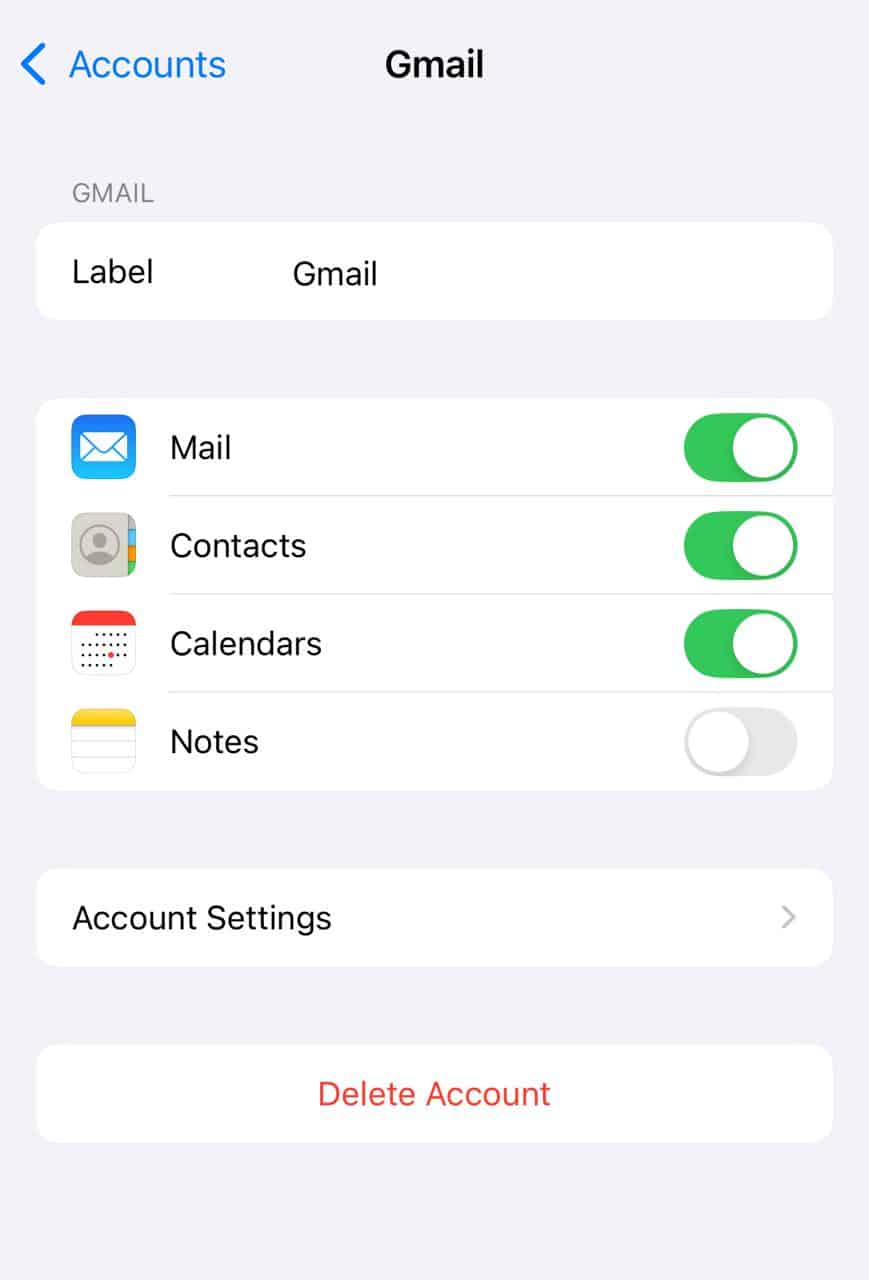
- Restart your iPhone to finalize the removal and clear any residual data.
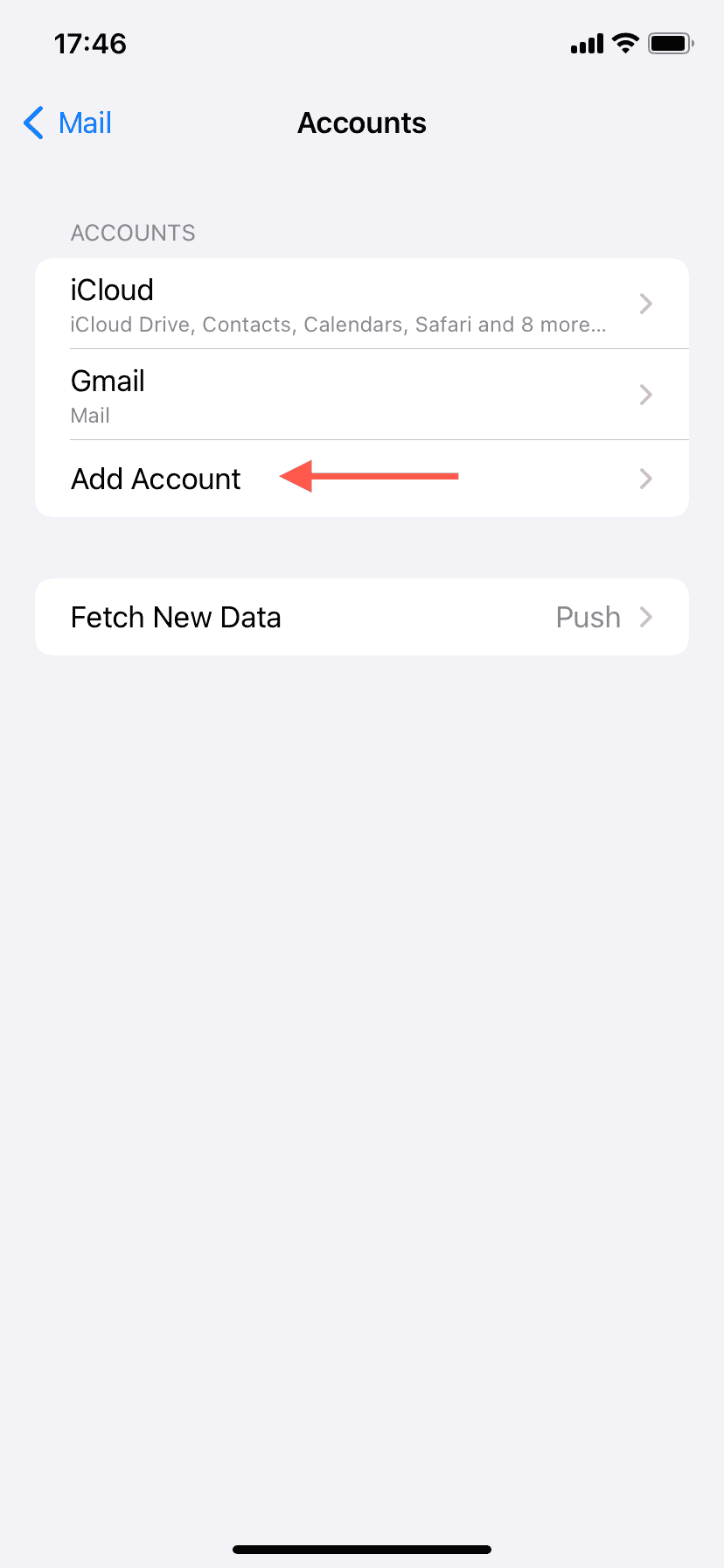
- Return to Settings > Mail > Accounts > Add Account and enter your login details to reconfigure.


3. Generate an Application Specific Password
If your email provider (such as Google, Yahoo, or Outlook) utilizes two factor authentication (2FA), your standard email password will not work for third-party clients like the native Mail app. In this case, you must log into your provider’s security settings online and generate a unique, one-time application specific password (ASP).

Use this newly generated ASP instead of your usual password when the iPhone prompts you for the IMAP password. This ensures secure access without compromising your main account password.
4. Update Your iOS Operating System
Older versions of iOS may contain bugs that interfere with network protocols or authentication standards, leading to connection failures and password requests. Apple consistently releases updates that patch security vulnerabilities and improve the overall stability of core applications, including the native Mail app. Following these steps ensures your device uses the latest security standards and configuration profiles, resolving compatibility issues with IMAP servers.
- Connect your iPhone to a power source and a reliable Wi-Fi network.
- Go to Settings, then tap General.
- Tap Software Update.
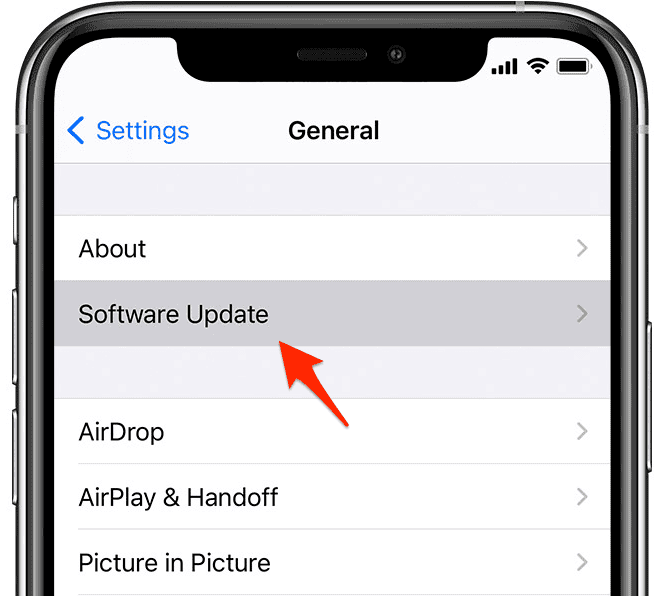
- If an update is available, tap Download and Install, then follow the on-screen prompts. Once your mail is working, you can efficiently manage your communications by learning how to search within Apple Mail.

5. Check for Security Software or VPN Interference
Third-party security software, VPNs, or certain network blockers can sometimes intercept and interfere with the Mail app’s connection attempts to the IMAP server, which results in a failure to authenticate. Temporarily disabling any such network-level application, or removing a configuration profile, is a necessary step to determine if it is the source of the recurring password prompt.

When considering different mail solutions, you might want to compare Apple Mail versus iCloud Mail before selecting the best Apple Mail clients for your needs.
FAQ
This is typically due to an incorrect password, a corrupt account setting on the phone, or a temporary server-side issue with your email provider’s authentication system.
Yes. IMAP (Internet Message Access Protocol) stores and syncs your emails on the server, allowing you to access the same messages from multiple devices. POP (Post Office Protocol) downloads emails to a single device and usually deletes them from the server.
It is a unique, single-use password generated by an email provider (like Google or Outlook) specifically for use with third-party apps and clients when two factor authentication is enabled on the main account.
Optimizing Mail Connectivity for Consistent Performance
Effectively resolving the persistent IMAP password request requires a methodical approach, beginning with credential verification and culminating in potential security workarounds like using an Application Specific Password. By systematically addressing these common points of failure, users can quickly restore reliable service. Maintaining correct server configurations and keeping your device software up to date are essential steps toward preventing recurring connection issues and avoiding disruptive iPhone Mail notification issues.


if I delete my mail account will it erase all my stored mail
My iPhone software is current. I don’t use any other mail software.
Why can’t APPLE get the darn password correct????