

HomePod error 1109 indicates a communication failure between your speaker and Apple’s servers. This error usually triggers during setup or when Siri attempts to play music. You must fix network instability or account sync issues to restore your audio experience. These simple steps will help you resolve the problem quickly.
Table of contents
Effective Solutions for HomePod Connectivity
Your device often fails when a handshake issue occurs within the HomeKit ecosystem. Some users might look for the best HomePod alternative when these errors persist. However, you can usually fix error 1109 by refreshing the connection between your Apple ID and the Home app.
1. Restart Your HomePod
A simple reboot often clears temporary software glitches or cache issues. This action refreshes the connection to your Wi-Fi and Apple’s authentication servers. Therefore, you should restart the device through the Home app to ensure a clean software environment and stable playback for your favorite music tracks.
Don’t miss the best of The Mac Observer
Set us as a preferred source and our Apple reporting ranks higher in your Google Search results and Discover feed — one tap, no account changes.
- Open the Home app on your iPhone or iPad.
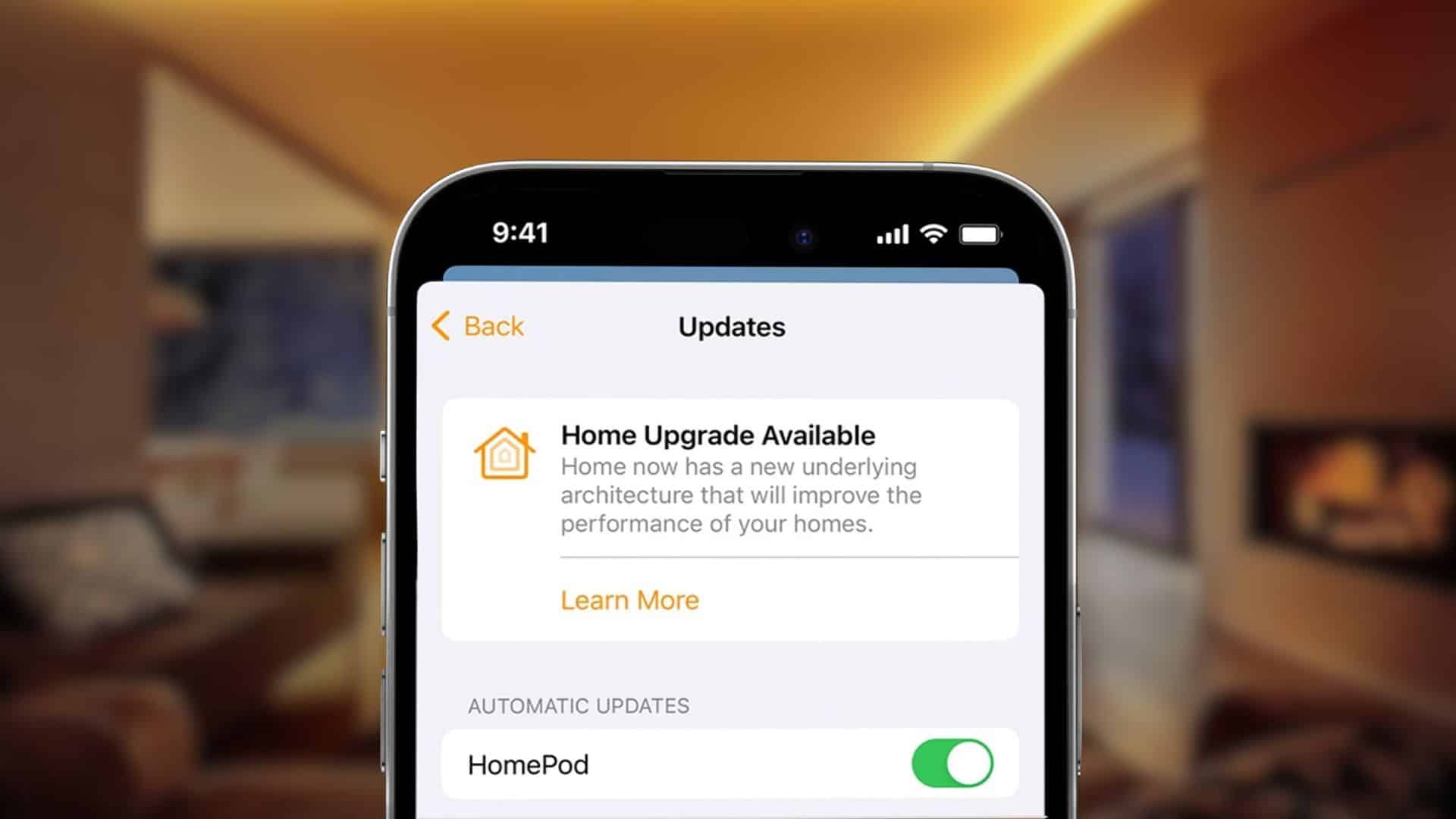
- Long-press your HomePod icon.
- Scroll down and select Reset HomePod.
- Tap the Restart HomePod option.

2. Toggle iCloud Keychain
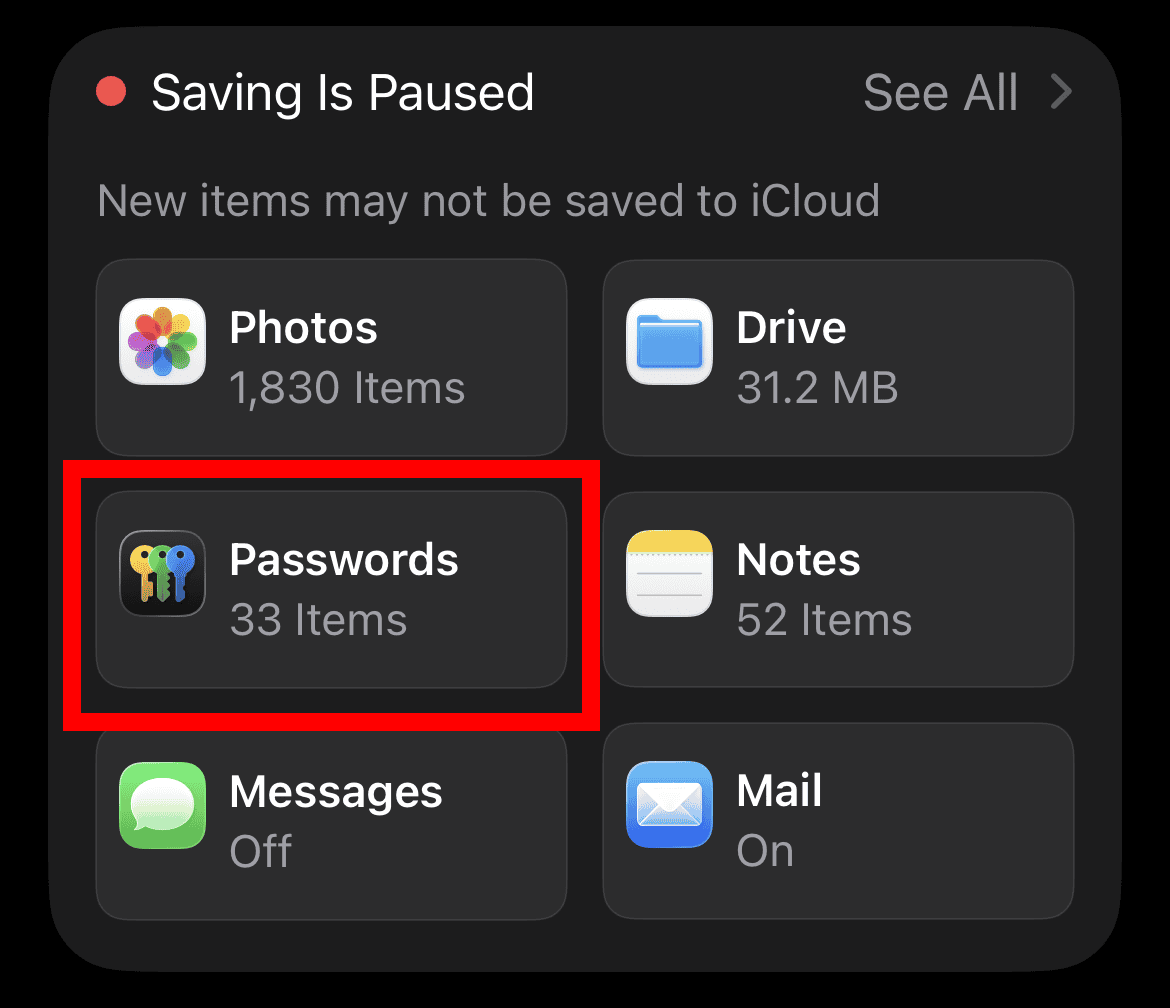
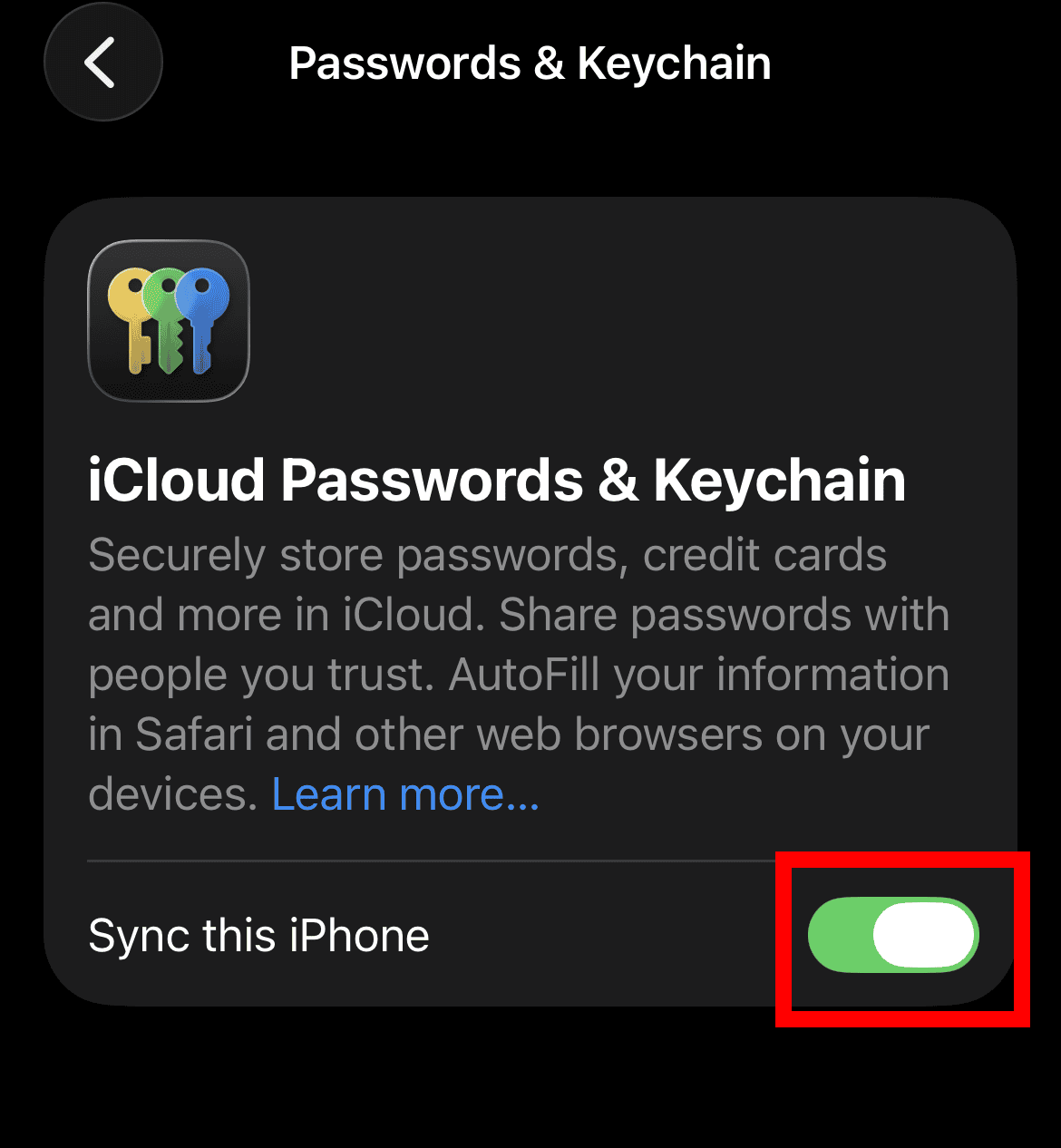
Authentication issues with your iCloud account often cause error 1109. You should disable and re-enable Keychain to force a sync of security certificates. This step ensures that your HomePod receives the correct credentials to access Apple’s secure media services and confirms your current identity across all devices.
- Open Settings on your iPhone.
- Tap your Name, then select iCloud.
- Choose Passwords and Keychain.
- Toggle Sync this iPhone off, wait ten seconds, and turn it back on.


3. Update the HomePod Software
Apple releases patches to fix specific bugs that cause connectivity timeouts. You should keep your software up to date to ensure stable server communication. Furthermore, HomePod 16.0.1 is here to fix audio lag and stability issues for all users seeking the best performance from their speakers.
- Open the Home app.
- Tap the three-dot menu and select Home Settings.
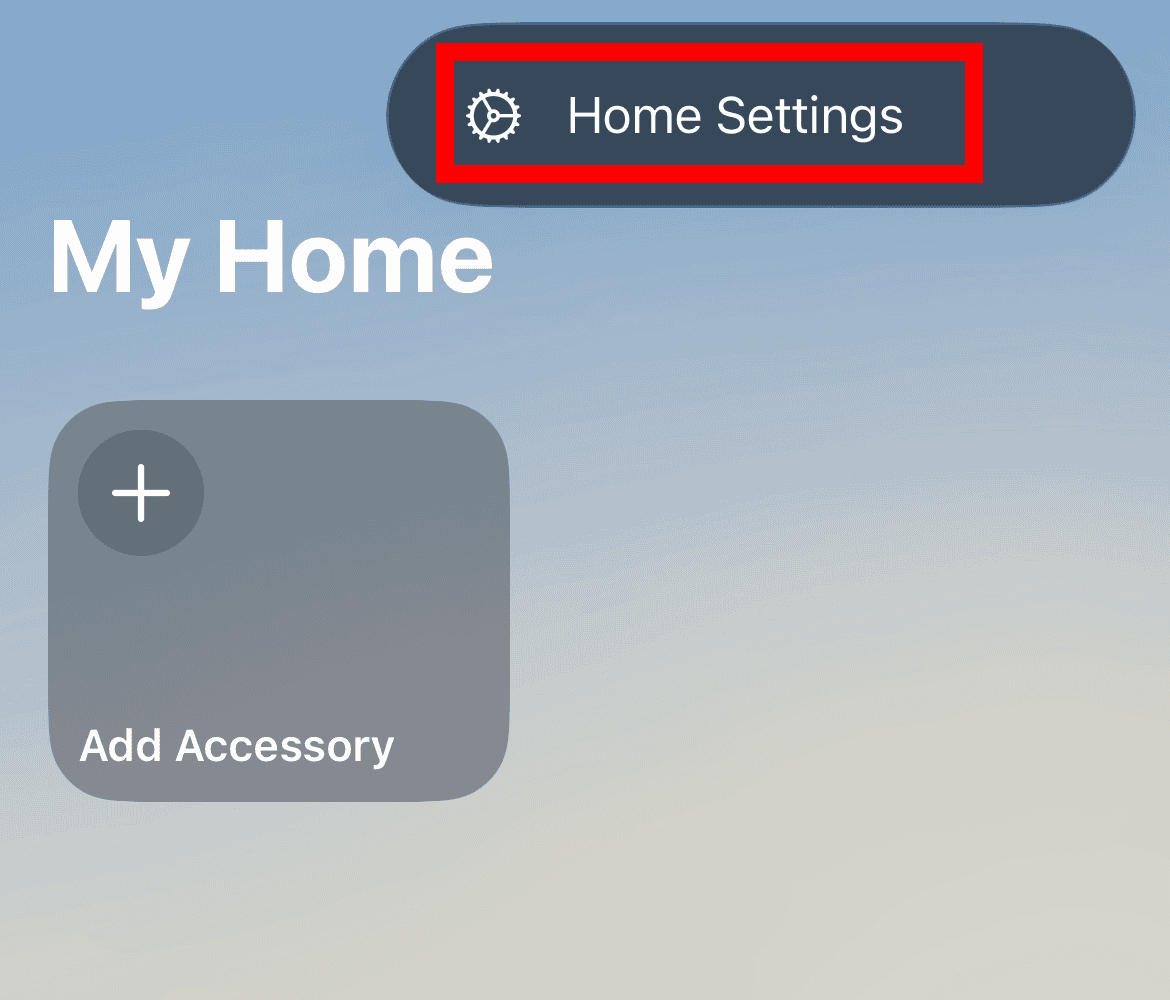
- Choose Software Update.
- Tap Install if an update exists.

4. Reset Your Wi-Fi Router

Your router might block specific ports that the HomePod needs to reach Apple. A power cycle clears IP conflicts that prevent the speaker from verifying its status. Additionally, this refresh helps your network assign a stable path for encrypted data transmissions and improves the overall strength of your connection.
- Unplug your router from the power source.
- Wait for at least 30 seconds.
- Plug the router back in and wait for the signal.
- Ask Siri to play music to test the connection.
5. Factory Reset and Re-pair
A full factory reset eliminates corrupt configuration files when other methods fail. This process returns the HomePod to its original state for a clean setup. Consequently, the HomePod could be so fun in 2026 as Apple improves these hardware interactions and makes the setup process much smoother for every user.
- Unplug the HomePod for 10 seconds, then plug it back in.
- Touch and hold the top of the HomePod.
- Keep holding until the white light turns red.
- Lift your finger after you hear three beeps.
FAQ
It means the HomePod cannot successfully authenticate or reach Apple’s configuration servers.
Yes, a VPN on your iPhone can create a mismatch in network credentials.
No, it is almost always a software or network configuration issue.
Restoring Your HomePod Connection
Fixing error 1109 ensures your smart home remains functional and your music stays uninterrupted. These steps eliminate the sync issues within the HomeKit ecosystem. If you recently upgraded, this HomePod 2 review explains how newer hardware manages these protocols more effectively for a better and more reliable user experience.


Discussion