

To log in to Apple Music on a PC, sign in with an Apple ID using either the Apple Music app for Windows or the Apple Music web player. Once signed in, playlists, albums, and recommendations sync automatically. The steps below explain what is required and how to complete the login correctly on a PC.
Table of contents
What you’ll need
Before attempting to sign in, ensure you have the following items ready.
- An active Apple ID: This is the email and password associated with your Apple Music subscription.
- Two-Factor Authentication (2FA) device: Apple usually sends a six-digit verification code to a trusted device like an iPhone or iPad during a new login.
- The Apple Music App or a Browser: Windows 10 and 11 users should download the “Apple Music” app from the Microsoft Store. Older systems may still use iTunes.
Here’s how to login to Apple Music on a Windows PC
Method 1: Using the Windows App
The standalone Apple Music app provides the best audio quality and offline capabilities.
Don’t miss the best of The Mac Observer
Set us as a preferred source and our Apple reporting ranks higher in your Google Search results and Discover feed — one tap, no account changes.
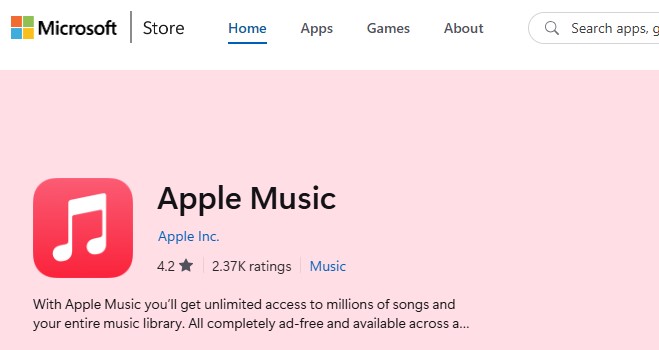
- Download and install Apple Music from the Microsoft Store.
- Launch the application.
- Look for the Sign In button located at the bottom of the left-hand sidebar.
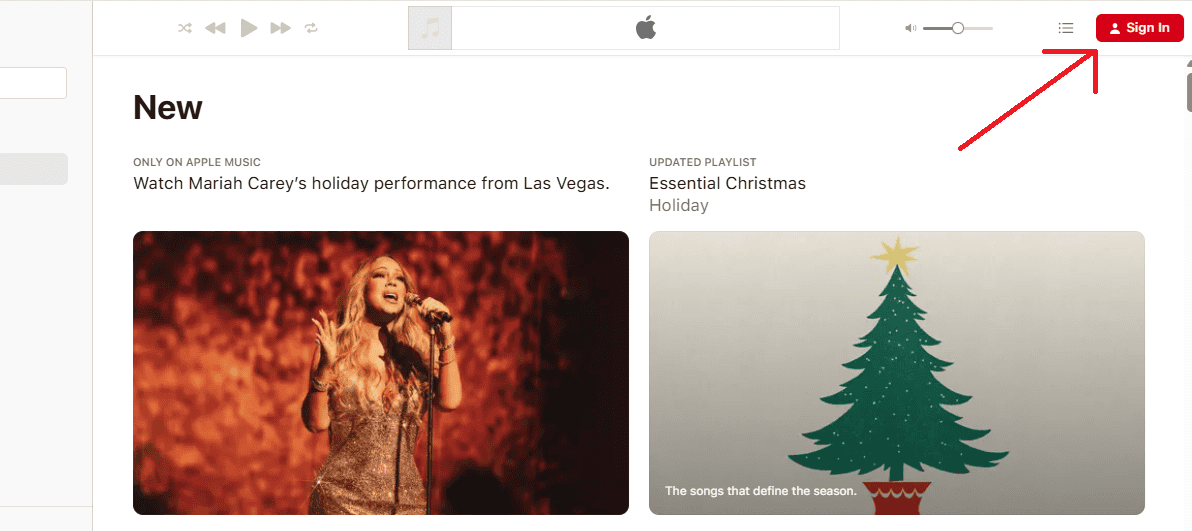
- Enter your Apple ID email and password.
- Input the two-factor authentication code sent to your trusted device.
- Once verified, your library will load automatically.


If the app fails to load content after signing in, it might be a network issue where Apple Music cannot connect to the servers. Checking your internet connection usually resolves this.
Method 2: Using the Web Player
For those who cannot install apps or are using a work computer, the browser version is efficient. It functions similarly to the app but does not support lossless audio or offline downloads.
- Open your preferred web browser (Chrome, Edge, or Firefox).
- Navigate to music.apple.com.
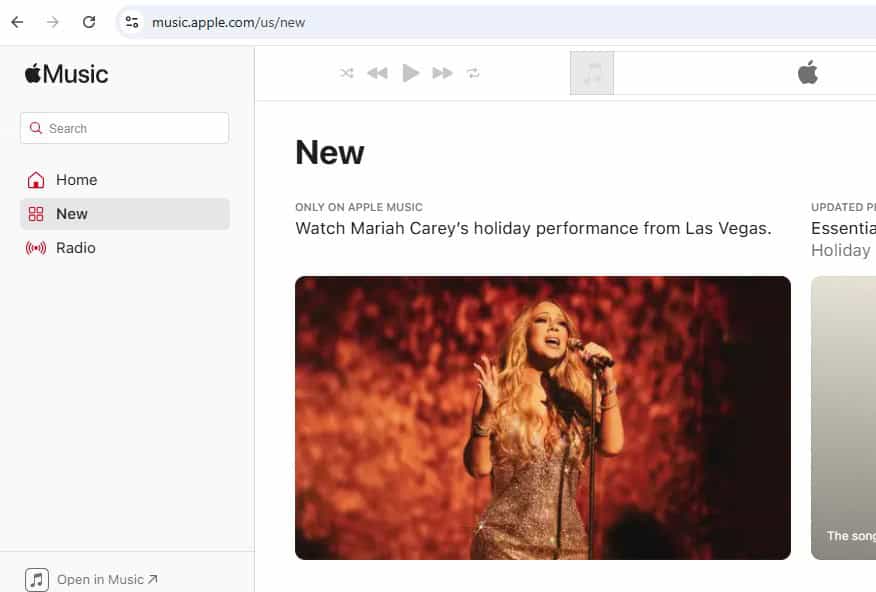
- Click the Sign In button in the top-right corner of the page.
- Enter your credentials and complete the 2FA prompt.

This method is highly versatile. If you want to learn more about the interface and specific browser features, reading a guide on the Apple Music web player can help you navigate the browser-based experience effectively.
Additional Tips
- Confirm the Apple Music subscription is active before attempting to log in.
- Allow extra time for the library to sync after the first successful sign-in.
- Use the web player to check whether login issues are app-specific.
- Network instability can interrupt authentication even with correct credentials.
- Replay statistics may not appear immediately if account syncing is incomplete, which is commonly addressed in cases where Apple Music Replay 2025 is not working.
- Check this article if the Apple Music app isn’t working on your iPhone.
Conclusion
Logging in to Apple Music on a PC depends on Apple ID access and the platform used. The Windows app offers offline downloads and deeper system integration, while the web player provides quick access without installation.
So, now you finally know how to login to Apple Music on a PC. Make sure to share this article on social media to help others learn the same process, in case they don’t already know.
FAQs
Yes. The modern Apple Music app for Windows 10 and 11 replaces iTunes for streaming. You can also use the web player in any browser without installing software.
This is part of Two-Factor Authentication (2FA). Apple requires this code to verify that the person signing in is actually the account owner, adding a layer of security to your billing information.
Yes, the Windows app supports Lossless and Hi-Res Lossless audio. You can enable this in the app settings under the Playback tab, provided your audio hardware supports the higher sample rates.
In the app, click your profile picture or name at the bottom of the sidebar and select Sign Out. On the web player, click the account icon in the top-right corner and choose Sign Out.


Discussion