

Safari in macOS Tahoe shows a system Smart Collection called Recently Saved, which lists your newest bookmarks and can’t be removed. While you cannot delete this section permanently, you can reduce its visibility or avoid triggering it by changing how you bookmark items or adjusting Safari and iCloud settings.
Table of Contents
Solutions
Use the Bookmarks Menu Instead of the Sidebar
The sidebar always shows Recently Saved, but the Bookmarks menu does not display this Smart Collection. There are two ways to use the Bookmarks function without running into Recently Saved.
Don’t miss the best of The Mac Observer
Set us as a preferred source and our Apple reporting ranks higher in your Google Search results and Discover feed — one tap, no account changes.
Time needed: 5 minutes
- Open Safari on your Mac.
- Select the Bookmarks menu from the top bar.
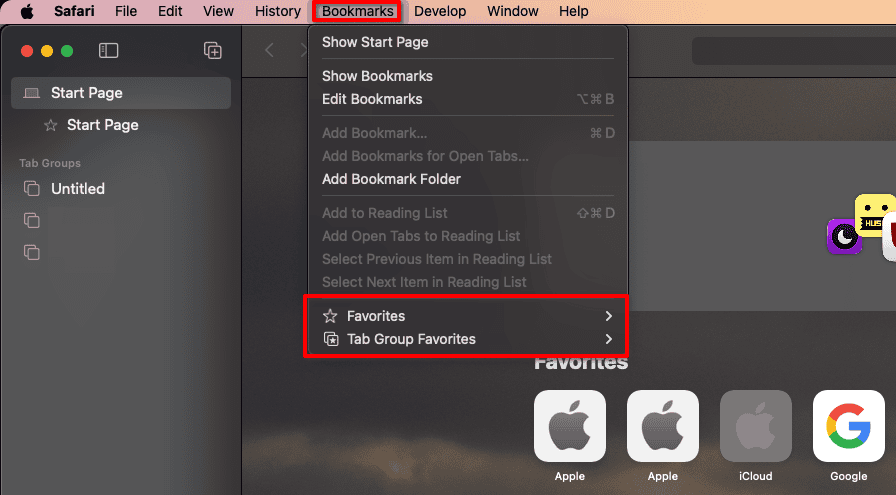
- Access your folders without showing Recently Saved.
- Keep using this menu when managing bookmarks.
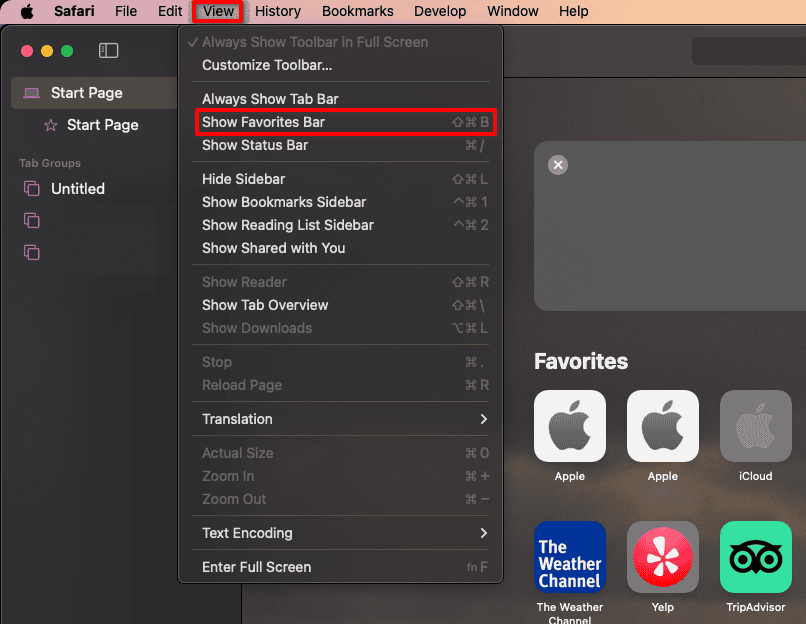
- Additionally, you can show the Favorites Bar below the address bar by going to View > Show Favorites Bar or pressing Command + Shift + B


Disable iCloud Safari Syncing To Hide Changes Across Devices
Recently Saved appears more often in Safari when bookmarks sync across devices. Turning off iCloud Syncing prevents new bookmarks from triggering the list.
- Open System Settings on your Mac.
- Select Apple ID > iCloud > Saved to iCloud.
- Turn off syncing for Safari.
- Restart Safari and check the sidebar again.
Create Bookmarks From iPhone or iPad Instead of Your Mac
Recently Saved in the Safari sidebar appears only for items added from your Mac. Saving bookmarks from other devices keeps that list empty.
- Open Safari on your iPhone or iPad.
- Save bookmarks using Share > Add Bookmark.
- Wait for sync to complete if iCloud is enabled.
- Check the sidebar on your Mac to confirm the list stays empty.
Switch the Safari Sidebar Filter To Reduce Visibility
You can change the sidebar to another view, which hides Recently Saved until you switch back to bookmarks.
- Open Safari on your Mac.
- Select the sidebar icon in the toolbar.
- Switch from Bookmarks to Reading List or History.
- Return to bookmarks only when needed.
- You can create a custom entry to save your bookmarks without showing Recently Saved, but this solution may not work for everyone’s needs
Hide the Safari Sidebar Entirely When Working
If you do not need the Safari sidebar visible, closing it removes Recently Saved from view.
- Open Safari.
- Click View > Hide Sidebar.
- Use the Bookmarks menu when needed.
- Reopen the sidebar later if required.
Tips
- Organize new bookmarks into folders immediately to keep your list tidy.
- Use the Bookmarks menu as your primary way to access saved sites.
- Disable iCloud syncing only if you do not rely on cross-device updates.
- Bookmarking from iPhone or iPad helps prevent Recently Saved from filling.
- Switch sidebar filters when you prefer a cleaner Safari layout.
- If you want to browse without leaving traces, Incognito Mode in Safari doesn’t store the session history; however, bookmarks you save are kept after closing the anonymous window.
FAQ
No. Recently Saved is a system Smart Collection and stays visible whenever the bookmarks sidebar is active.
Safari tracks bookmarks added on your Mac. If iCloud Syncing is enabled, changes from other devices may refresh the list.
No. It prevents new syncing activity, but your bookmarks remain on your Mac unless you delete them.
Summary
- Use the Bookmarks menu or the Favorites Bar
- Disable Safari Syncing in iCloud
- Bookmark from iPhone or iPad
- Switch sidebar filters
- Hide the sidebar
Safari in macOS Tahoe does not let you delete Recently Saved entirely, but several workarounds reduce how often you see the list. Using the Bookmarks menu, adjusting iCloud settings, or bookmarking from other devices limits how the collection updates. Choose the method that fits your workflow best.


![Fix “macOS Cannot Verify That This App is Free from Malware” [2026]](https://www.macobserver.com/wp-content/uploads/2025/05/MacBook-displaying-multiple-macOS-Gatekeeper-icons-under-a-red-X-surrounded-by-Gatekeeper-dialogs-over-the-default-macOS-Sequoia-wallpaper.webp)

Sad … this should have been a simple option checkbox. Shame on Apple – they are turning into Microsoft slowly.