

The crucial Search function within the Messages app often breaks after upgrading to a major operating system like iOS 26, leading to blank results or failed lookups. This prevents users from quickly finding old conversations. Fortunately, this common bug can usually be solved by one core technique that forces the operating system to reload its internal index, quickly restoring full search functionality.
Table of contents
Resolving Core Search Functionality Issues in Messages
1. Perform a Full System Reboot
A simple restart is often the first and most effective step in fixing minor software glitches caused by update installation. This process clears temporary files and forces the operating system to reload, potentially resolving conflicts that prevent the Messages app from indexing correctly. If your iPhone’s search capabilities are misbehaving, always try a restart before moving on to more complex solutions.
- Press and quickly release the Volume Up button.
- Press and quickly release the Volume Down button.
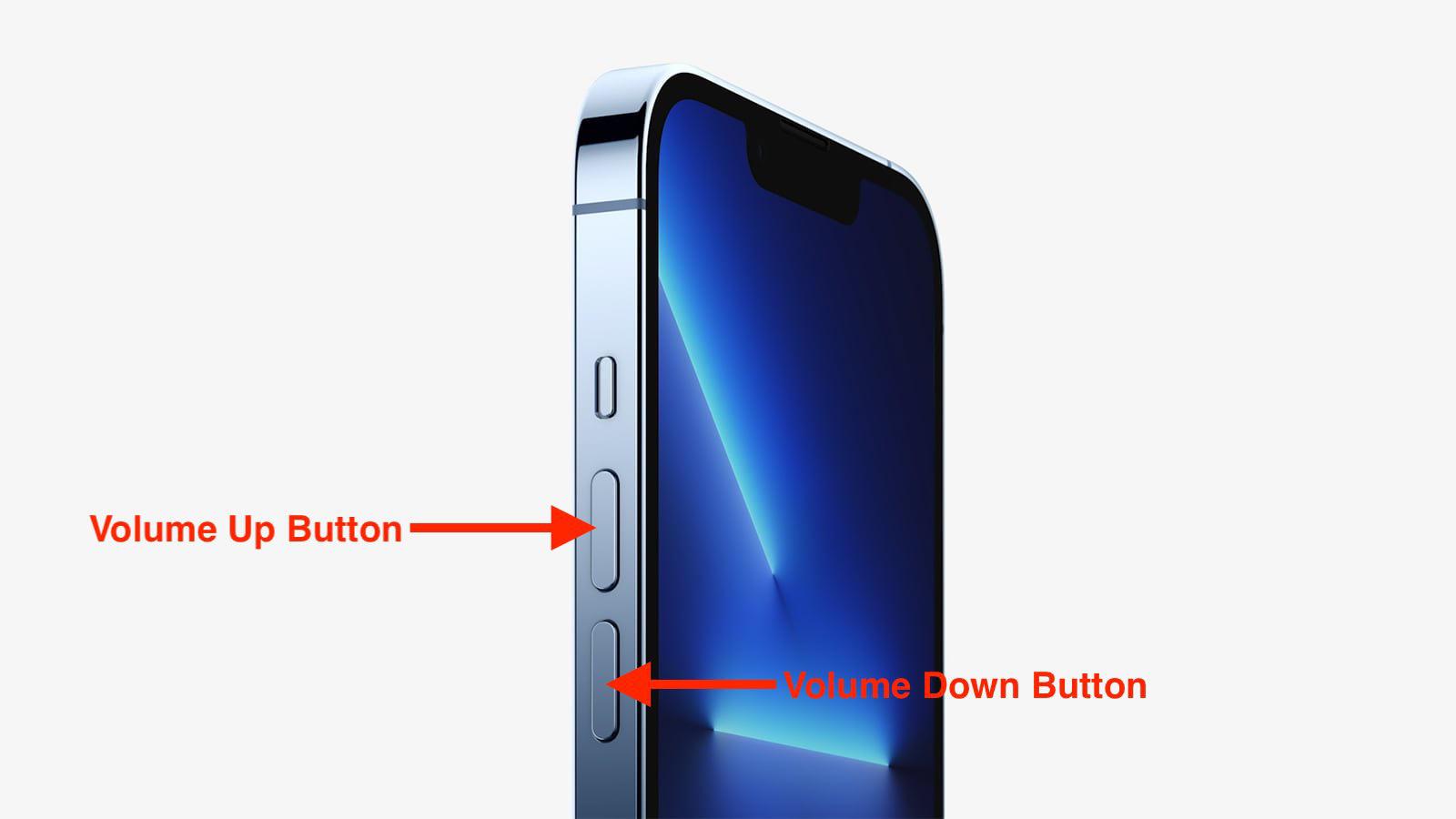
- Press and hold the Side button until the Apple logo appears.
- Release the Side button and allow the phone to boot normally.
2. Verify Messages Search Settings
Sometimes, the issue isn’t a bug but an inadvertent change in how the operating system handles search results. After a major update like iOS 26, it is wise to check the core Spotlight settings to ensure the Messages app is permitted to appear in search results. This setting is crucial for ensuring system-wide searches, including those initiated in the app, can access your conversation data. You can also customize notification sounds; learn how to fix no sound for text messages.
Don’t miss the best of The Mac Observer
Set us as a preferred source and our Apple reporting ranks higher in your Google Search results and Discover feed — one tap, no account changes.
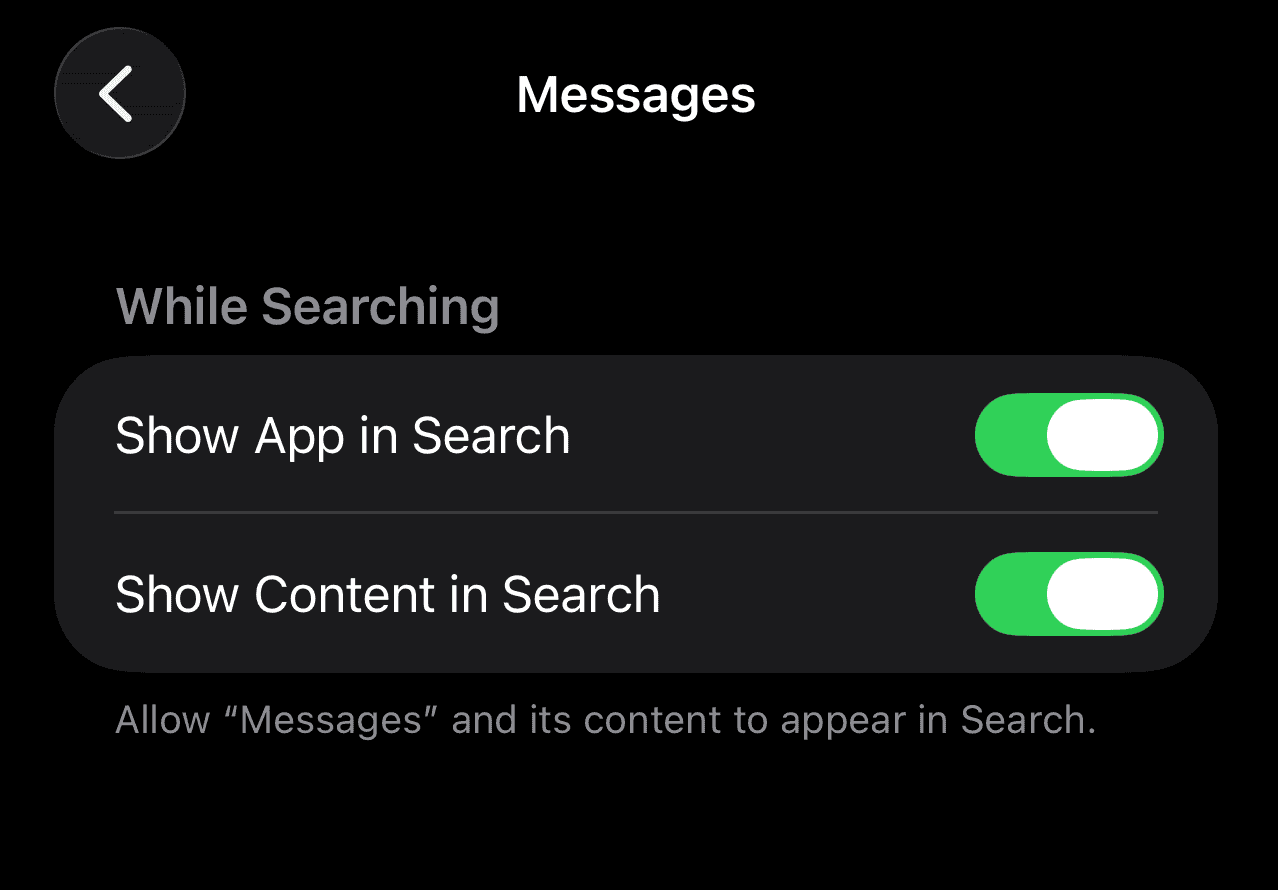
- Open the Settings > Search > Messages.
- Ensure that Show App in Search and Show Content in Search are both toggled ON.

3. Reindex Spotlight and Messages Data
The root cause for search failure is frequently a corrupted or incomplete Spotlight index, which is what the Messages search relies on. Forcing the iPhone to rebuild this index is a reliable fix. While this process may take some time depending on how much data is on your device, it is crucial for reestablishing accurate, reliable search results. You can also ensure other features like Apple Cash gets new animated stickers in Messages app are working correctly by performing these steps.
- Open Settings > Search > Messages.
- Toggle off Show App in Search (this will also automatically toggle off Show Content in Search).
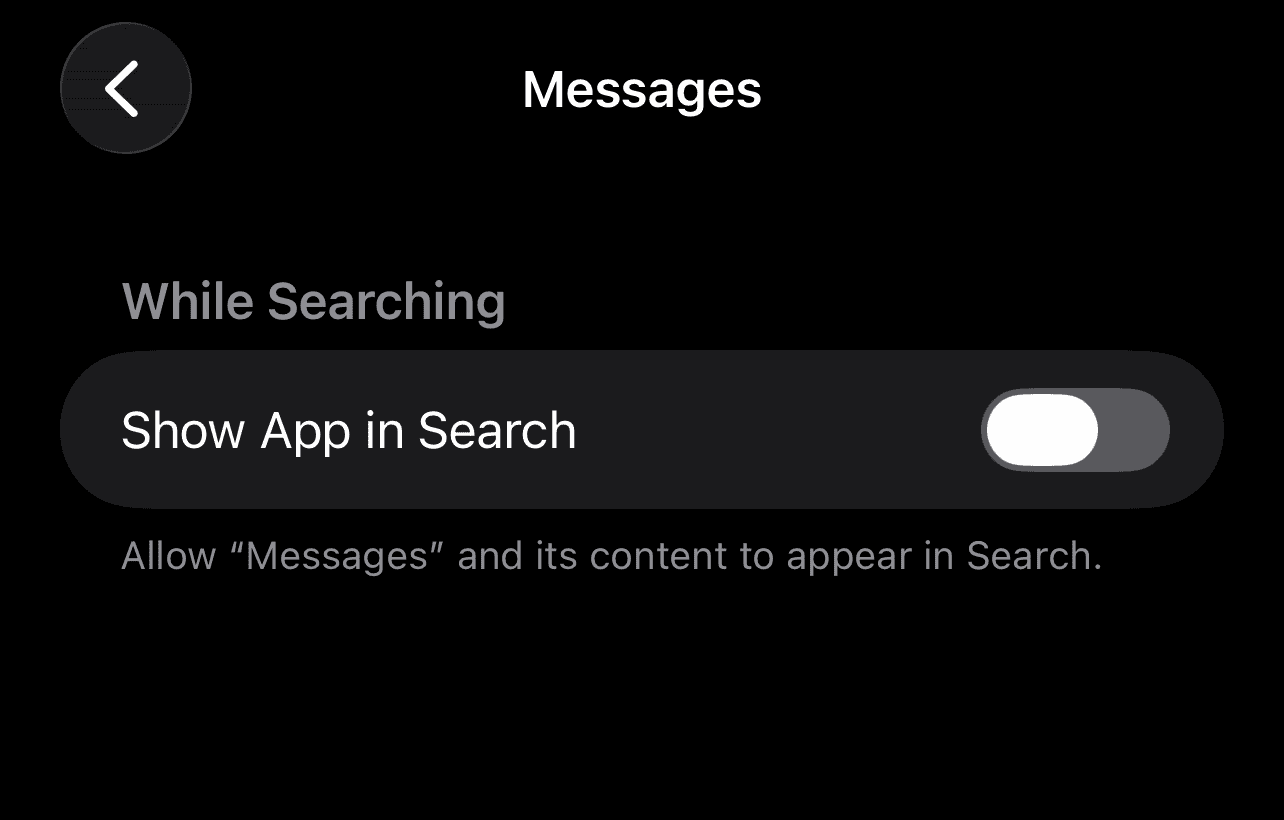
- Wait five minutes.
- Toggle the Messages app’s search settings ON again to force a re-index of your conversation data.

4. Check Available iPhone Storage
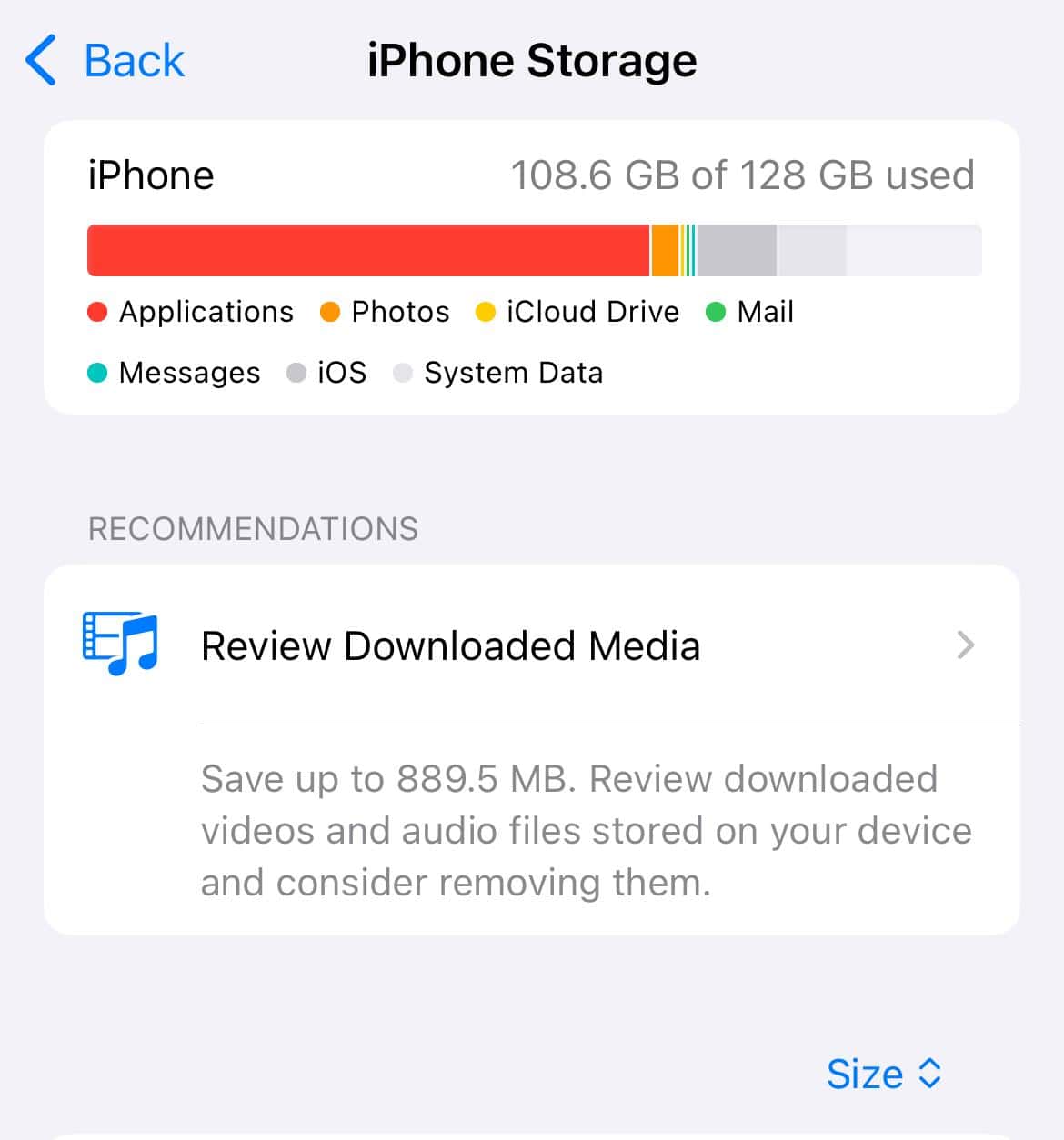
Low storage on your iPhone can lead to erratic behavior, as the system struggles to allocate space for essential background processes, including re-indexing data or processing new messages. If your storage is nearly full, the Messages app may fail to properly update its search database, leading to a breakdown in functionality. Freeing up space is a vital part of general iPhone maintenance.
- Go to Settings > General > iPhone Storage.
- If storage is below 10GB free, consider deleting large media files or unused apps.
- Within the Messages app settings, review and delete large attachments in the Review Large Attachments section.

5. Toggle iMessage On and Off
In some cases, forcing the Messages app to re-establish its connection to Apple’s servers can clear up lingering network-related issues that affect indexing. This step essentially gives the app a clean slate for its service connection, sometimes fixing deep-seated communication errors. This can also address issues related to other settings, like how you turn off audio in Messages.
- Open Settings.
- Scroll down and tap Messages.
- Toggle the iMessage switch OFF.

- Wait 30 seconds.
- Toggle the iMessage switch ON again. You may be asked to sign in with your Apple ID.

FAQ
Major iOS updates often change the architecture of the Spotlight index. If the index migration process fails or gets interrupted, the search function loses access to your message database until the index is manually rebuilt.
No. None of the standard troubleshooting steps, including restarting the device or rebuilding the Spotlight index, will cause you to lose your message history.
Generally, no. While all Apple devices sync messages, the Spotlight index is local to each device. If search fails on your iPhone running iOS 26, your Mac’s Messages search should remain unaffected.
Restoring Seamless Communication in iOS 26
The “Search in Messages” failure in iOS 26, while frustrating, is a resolvable software issue rooted in the Spotlight indexing process. By systematically working through these solutions, most users can quickly restore this vital functionality, avoiding the inconvenience of manually scrolling through years of conversations. If the issue persists after attempting all five fixes, ensure your device is running the latest patch update from Apple, as hotfixes often follow a major OS release. For users who also rely on desktop notifications, here is a guide on how to turn off or mute Messages on Mac to stop alerts.


Discussion