

Apple Game Center personalizes the gaming experience. It works on iPhone, iPad, and Mac. The platform links a player’s progress to a single Apple ID. Families often share gaming devices. Therefore, setting up distinct profiles is essential. This keeps scores and achievements separate. A direct “multiple accounts” feature does not exist. However, several strategies manage different gaming identities. These methods help separate player data effectively.
Table of contents
Strategies for Switching and Managing Gaming Profiles on iOS/iPadOS
Managing separate player accounts requires navigating iOS settings. This creates distinction between users. The core concepts remain the same. This applies to both phone and iPad users.
1. Switching the Primary Apple ID for a New Profile
Switching the Apple ID is the clearest way to set up a separate account. This action logs all new progress under a different profile. It ensures a unique achievement history. You must sign out of the current Apple ID first. Then, sign in with the new one. This method is the standard approach for distinct accounts. Thus, the seamless transition makes the overall Game Center experience on iPad easy to manage.
Don’t miss the best of The Mac Observer
Set us as a preferred source and our Apple reporting ranks higher in your Google Search results and Discover feed — one tap, no account changes.
- Go to Settings. Tap your name at the top.
- Scroll to the bottom. Tap Sign Out.
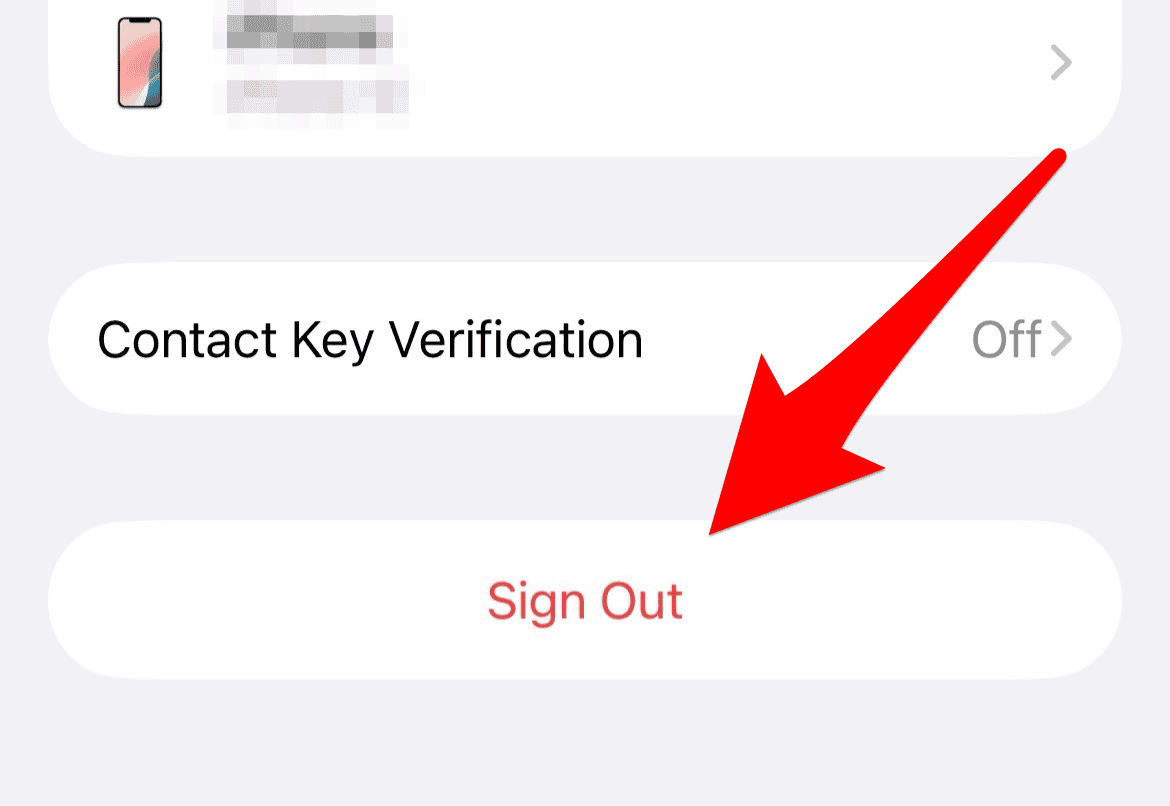
- Enter your Apple ID password. Turn off Find My. Confirm the sign-out process.
- Next, tap Sign in to your iPhone. Enter the new player’s Apple ID credentials.

2. Customizing the Game Center Nickname for Existing Accounts
Switching Apple IDs provides total separation. Alternatively, you can change the public Game Center Nickname. This manages multiple personas within one Apple ID. This works well for one person. He or she may want a different identity for certain games. This change avoids disrupting services like iCloud or the App Store.
- Open the Settings app on your device.
- Scroll down. Tap on the Game Center menu option.

- Tap your current Nickname at the top. The editing screen opens.
- Enter the desired new nickname. Confirm the change for your profile.

Apple removed the dedicated Game Center application from iOS. Consequently, many users cannot find their gaming dashboard. Accessing the main settings page is crucial. You manage friends, profile details, and privacy settings here. You can easily access the Game Center settings directly.
3. Verifying Game Center Sign-In Status per Game

Some games allow an in-app check. This confirms you logged into the correct profile. It is wise to verify the sign-in status. Do this especially after switching the primary Apple ID. Some games may temporarily cache old credentials. They might hold the previous user’s game state.
- Open the specific game you wish to play. Use the new profile.
- Look for a Settings or Profile option. Find this in the game’s main menu.
- Confirm the Game Center icon shows the correct Nickname. Check credentials for the current player.
FAQ
No, Game Center is a service. It integrates directly into iOS and macOS. Access its settings through the main Settings app.
Your progress ties to the Apple ID you signed out of. It is often stored in iCloud or the game itself. When you sign back in with that ID, your progress may restore (if the game supports cloud saves).
A game links to only one active Game Center account. To switch the game progress, switch the entire Apple ID.
Optimizing the Shared Gaming Environment
Managing multiple player accounts requires discipline. You must use Apple ID switching and profile customization. Separate the gaming identities through distinct Apple IDs. Ensure saved progress gets proper management. Therefore, families and users enjoy their individual achievements without conflict. This careful management ensures a smooth experience. It helps maintain optimal performance. Furthermore, it is useful when you need to fix common Game Mode issues.


Discussion