

AirPlay is a powerful feature on your iPhone that allows you to wirelessly stream content and mirror your screen to compatible devices like Apple TV or smart speakers. While incredibly convenient, you may need to quickly turn off AirPlay or configure settings to prevent automatic, unwanted connections. I will explain the direct methods for disabling active sessions and the preventative steps for future control.
Table of contents
Direct Methods to Stop Active AirPlay Sessions
1. Immediately Disconnect from the Active AirPlay Stream
When you are currently mirroring your screen or streaming a video, the quickest way to end the session is directly from the Control Center or the Now Playing interface. This action immediately stops the media transfer and returns content playback to your iPhone.
- Open the Control Center by swiping down from the top right corner (or up from the bottom for older iPhone 8 and older).
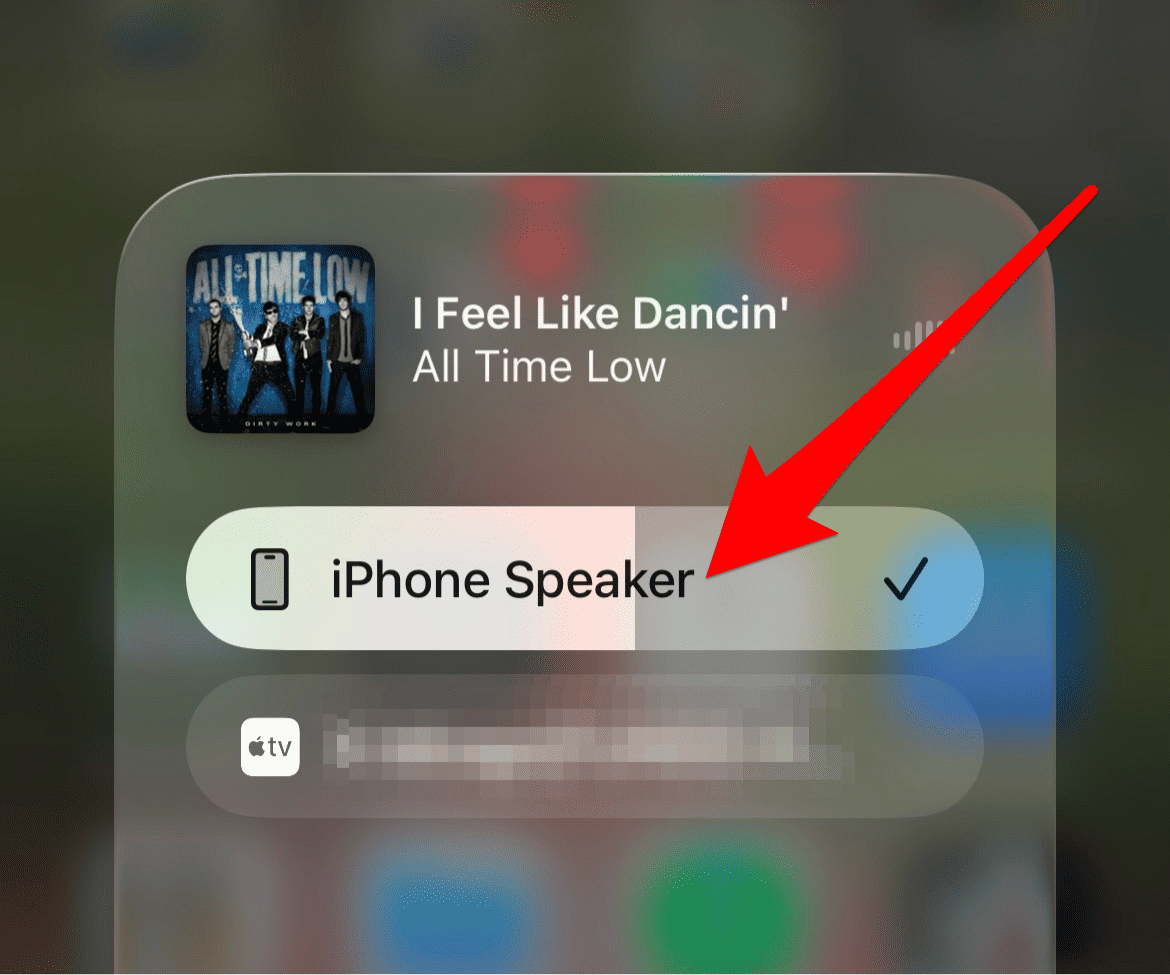
- Tap on the AirPlay icon (a screen with an upward triangle) within the music/media controls.
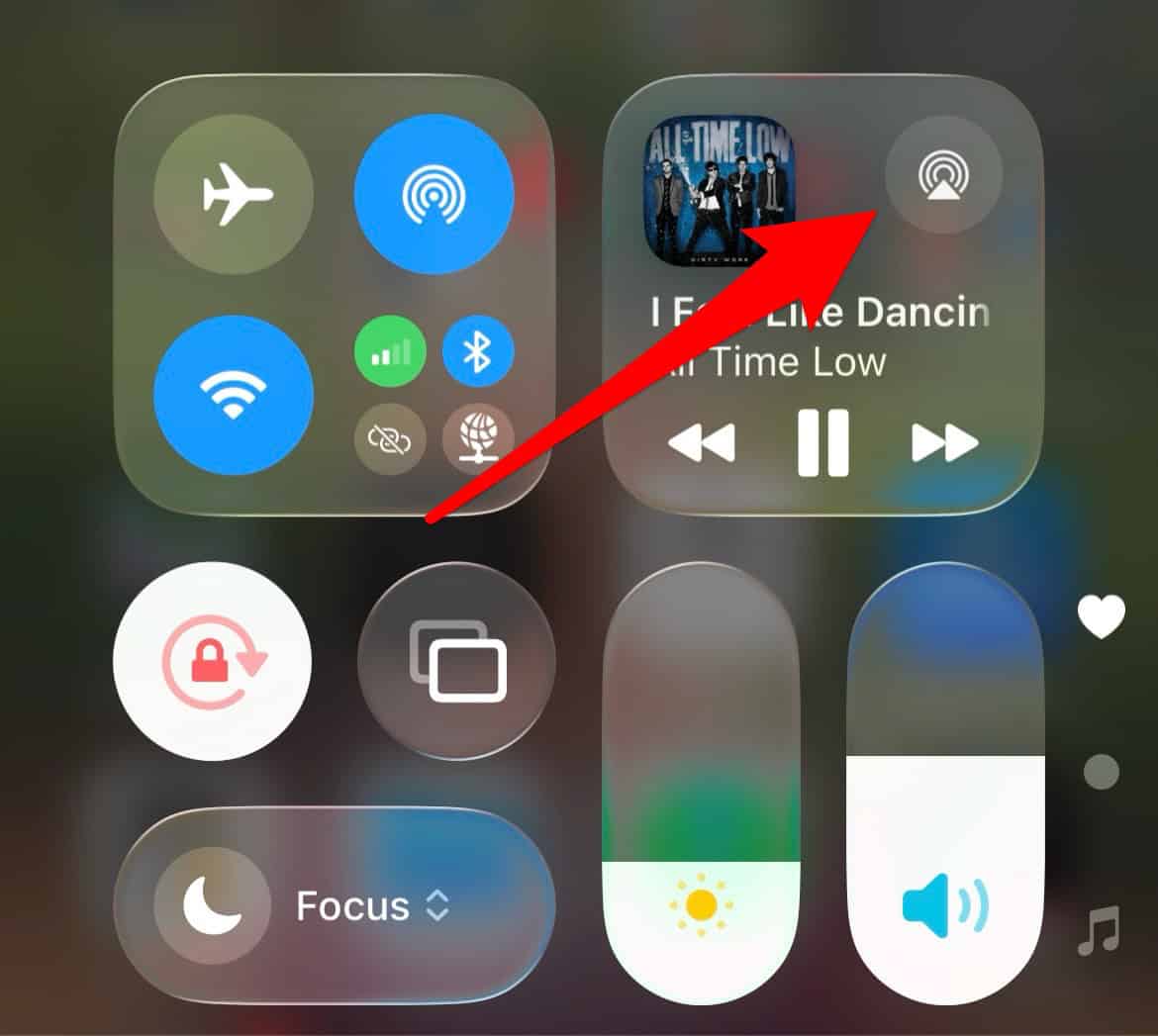
- Select Turn Off AirPlay or choose iPhone from the list of available devices.


2. Stop Screen Mirroring Separately
Screen Mirroring is a specific type of AirPlay connection that shares your entire screen. Even if you stop a video, the mirroring session may remain active, making the screen broadcast persist. This step ensures that your iPhone screen is no longer being broadcast to an external display. If you’re experiencing issues, you might also be wondering why isn’t my TV showing up on AirPlay.
Don’t miss the best of The Mac Observer
Set us as a preferred source and our Apple reporting ranks higher in your Google Search results and Discover feed — one tap, no account changes.
- Open the Control Center on your iPhone.
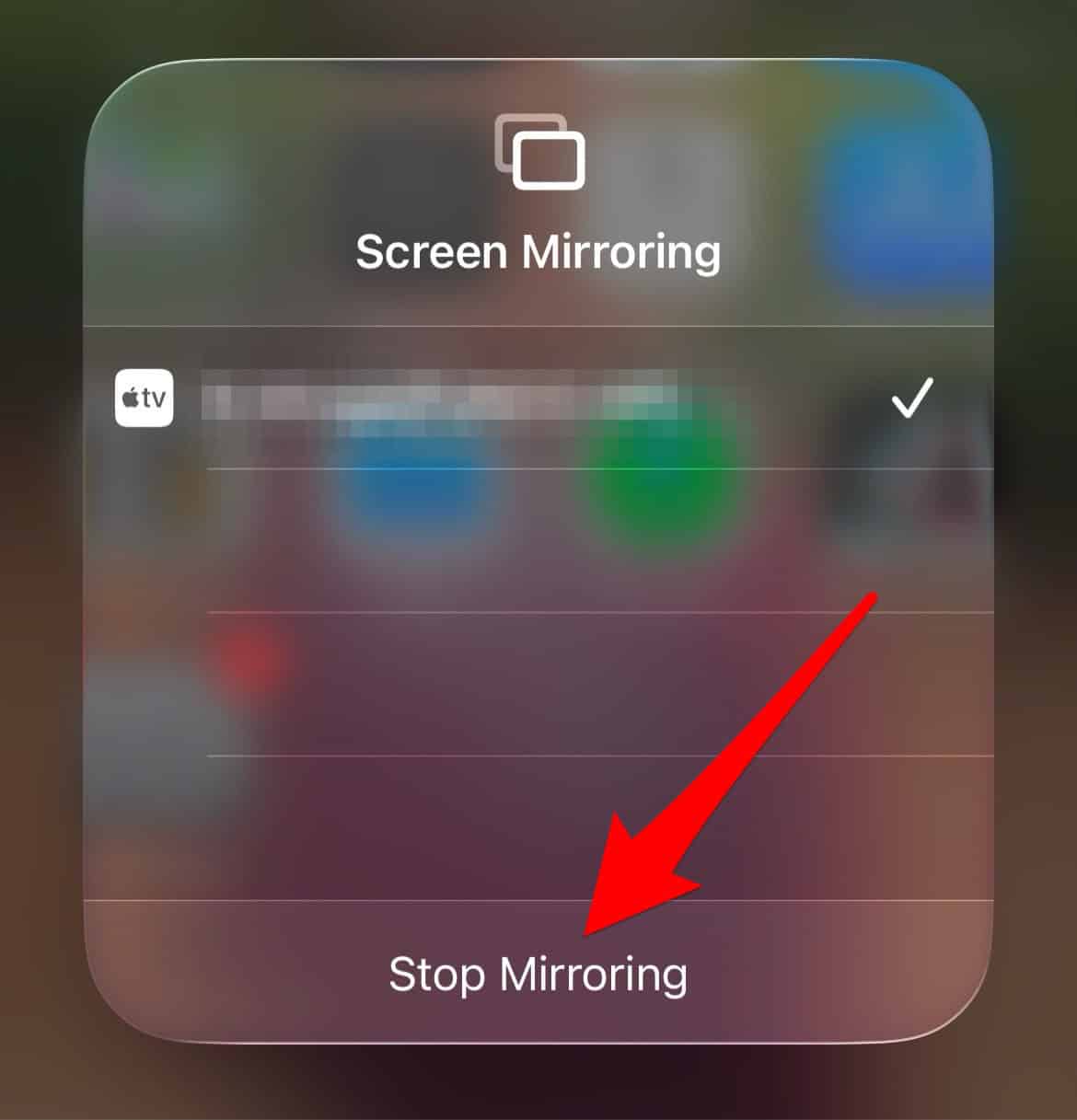
- Tap the Screen Mirroring button (two overlapping rectangles).
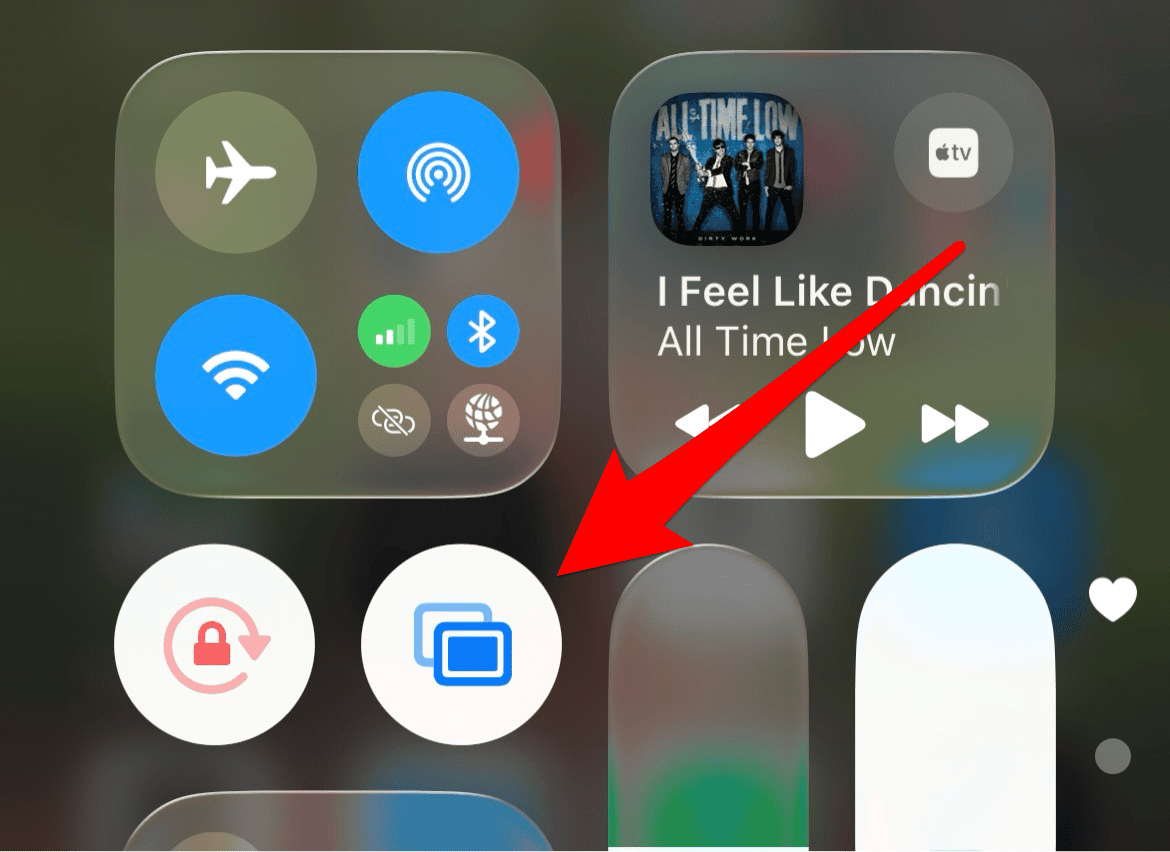
- Select Stop Mirroring from the bottom of the list to instantly break the connection.


How to Prevent Future Automatic AirPlay Connections
1. Disable Automatic AirPlay for Apple TV and HomePod

Certain AirPlay receivers, such as the Apple TV and HomePod, are designed to automatically connect to nearby iPhones based on recent usage, which can be disruptive. Adjusting this setting on the receiver device is key to preventing unwanted future connections.
- On your Apple TV, go to Settings > AirPlay and HomeKit.
- Select AirPlay and then set Require Password to on, or change the Allow Access setting to First Time Only or Off.
- For HomePod, open the Home app, tap the HomePod, tap the settings gear, and adjust Allow Speaker Access settings.
2. Restrict Control Center Access to AirPlay
While you cannot disable the AirPlay feature entirely via iPhone Settings, you can prevent devices from spontaneously connecting when you are watching media. This method ensures that the connection requires a manual choice from you. This is a crucial step if you find your Apple TV is showing up when it shouldn’t. If you’ve also been having trouble and your AirPlay is only playing audio, check the connection settings.
- On your iPhone, go to Settings > General > AirPlay & Continuity.
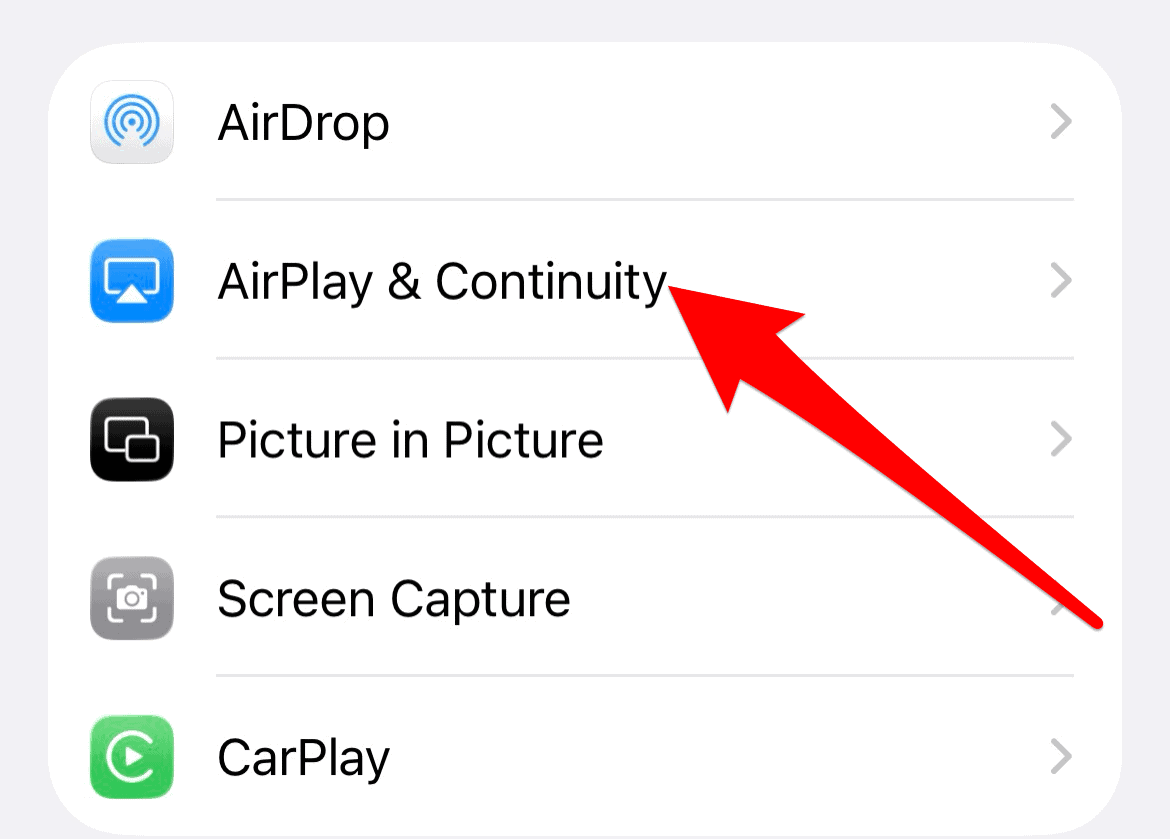
- Select Automatically AirPlay.
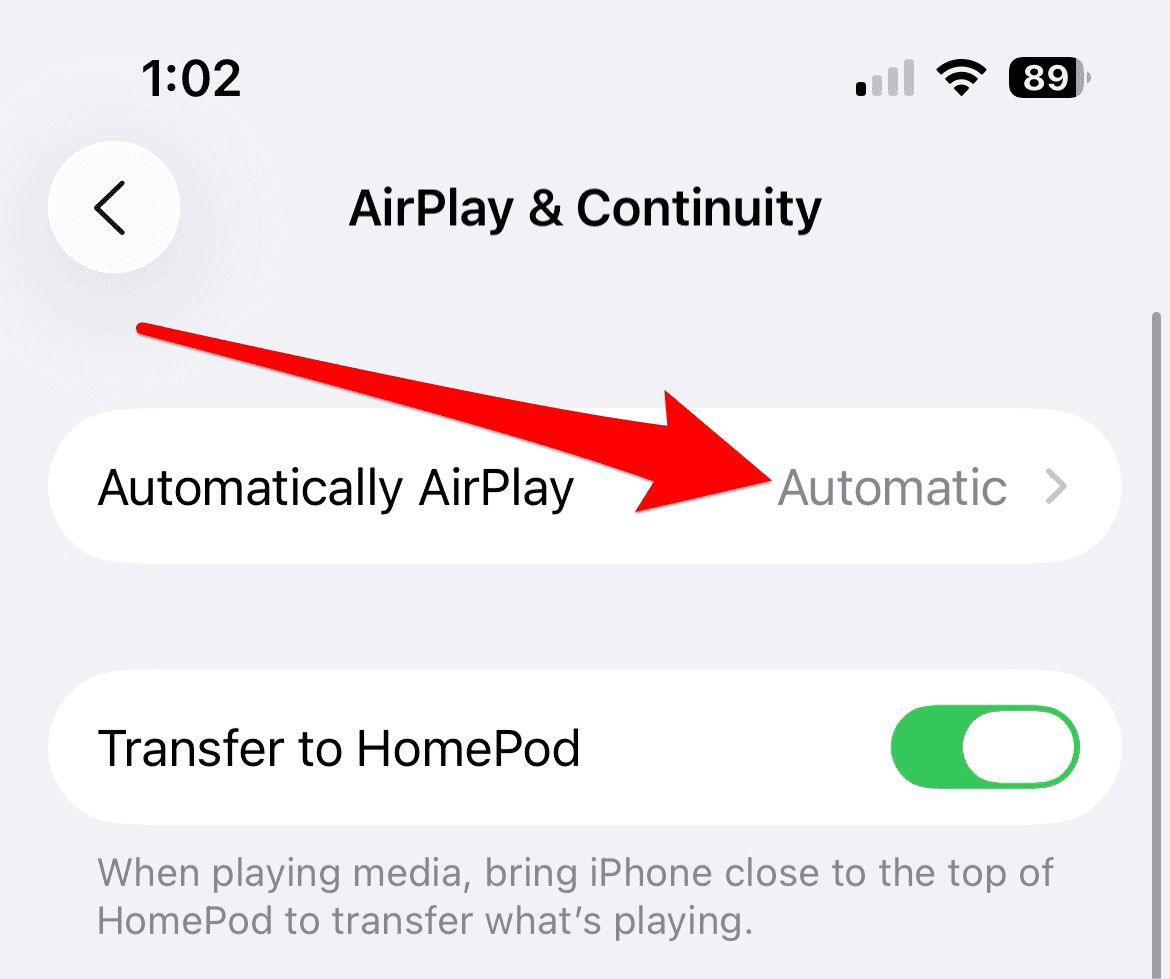
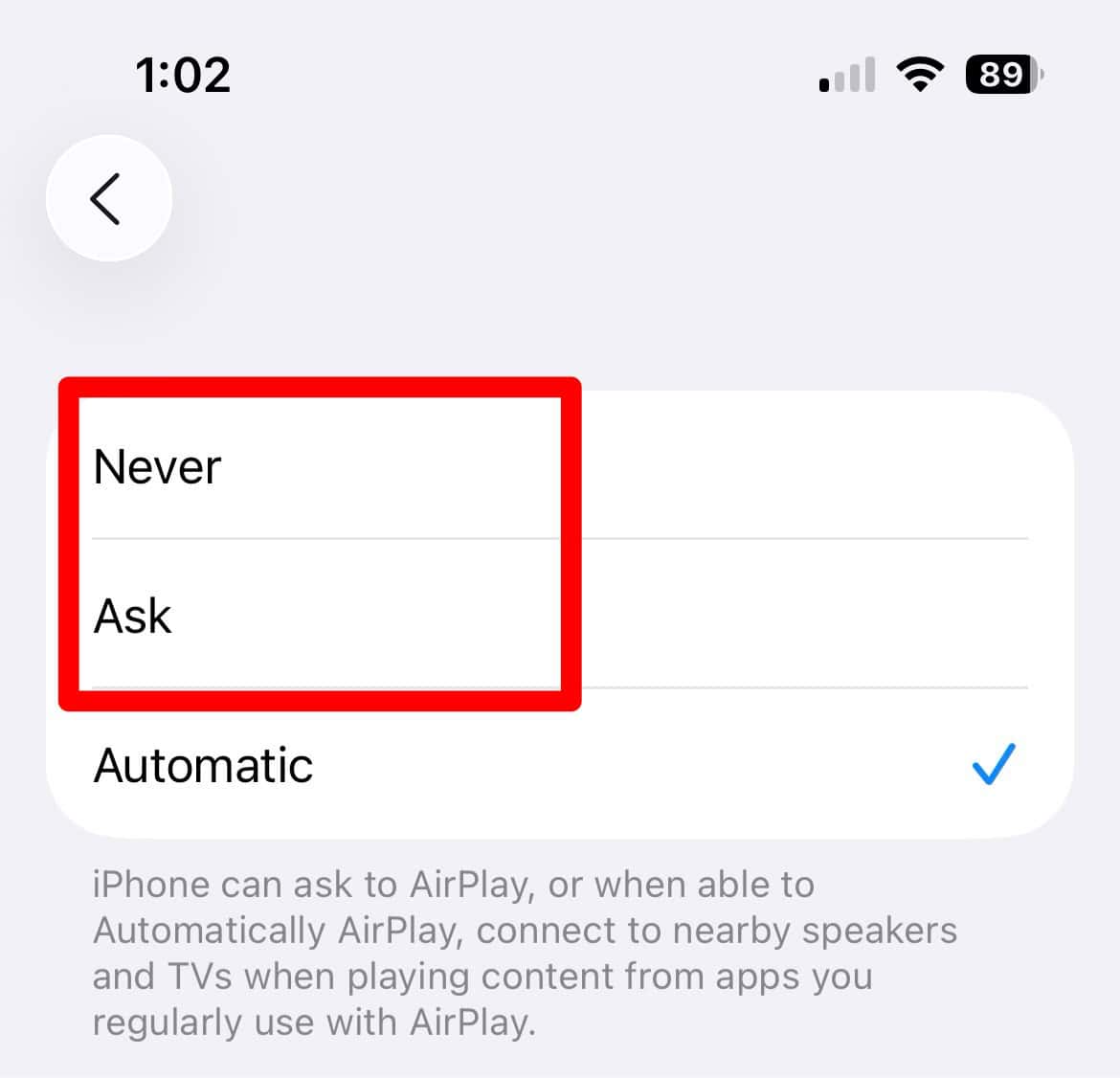
- Choose Ask or Never to prevent unsolicited or surprise connections.


3. Use Airplane Mode or Disable Wi-Fi and Bluetooth
Since AirPlay requires an active wireless connection (usually Wi-Fi, sometimes Bluetooth for initial handshake), completely disabling these radios on your iPhone is the most foolproof method to prevent any data streaming whatsoever.
- Open Control Center.
- Tap the Airplane Mode icon (an airplane) to disable all radios, including Wi-Fi and Bluetooth, simultaneously.
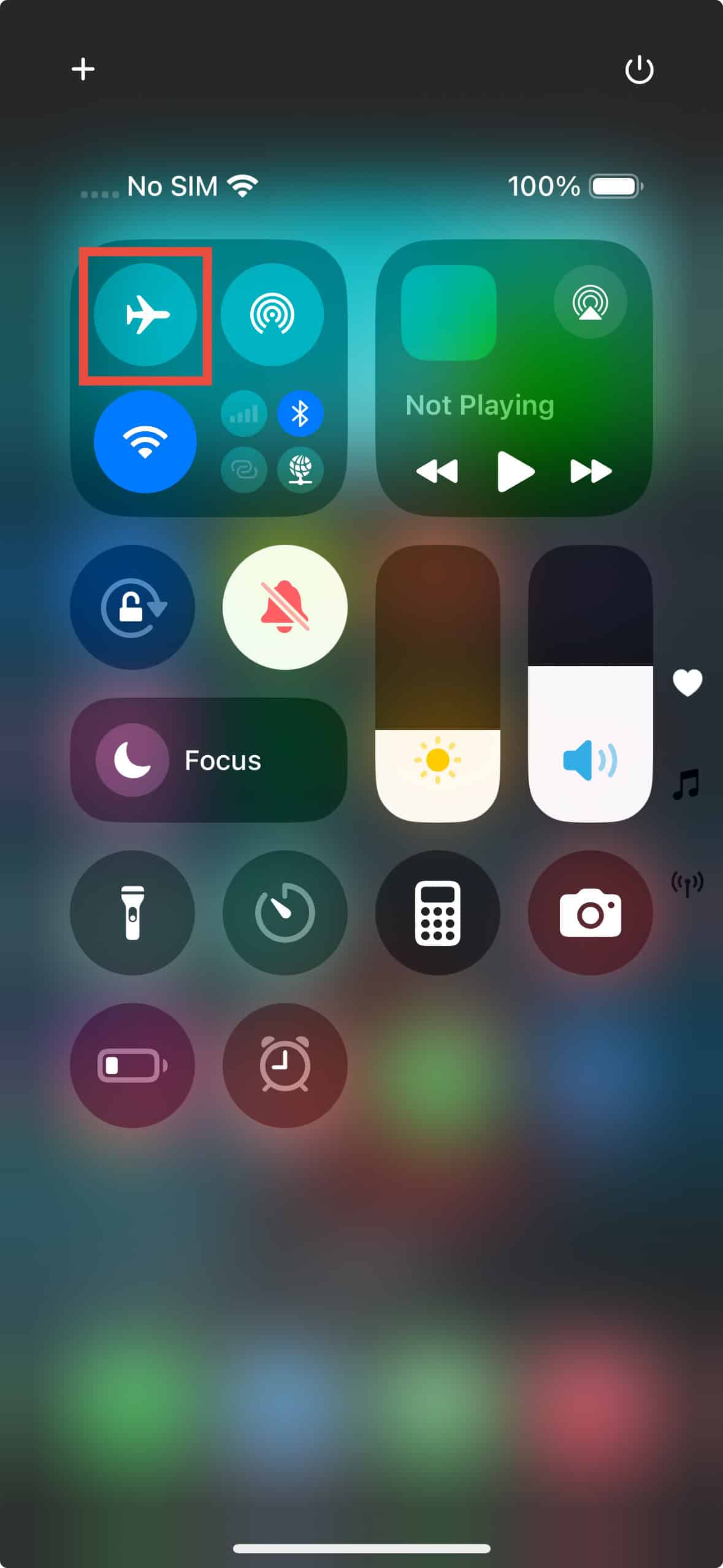
- Alternatively, you can tap the Wi-Fi and Bluetooth icons separately to toggle them off. This is a great troubleshooting step if you find that Apple AirPlay is not working correctly.

FAQ
No. The AirPlay icon is a system feature and will always appear when an AirPlay-compatible device is detected on your network, even if you set your phone to “Never” automatically connect in the settings.
The most effective method is to set a password or a code requirement on the receiving device (e.g., Apple TV). Go to Settings > AirPlay and HomeKit on the receiver and choose the Require Password option. You can also change the Allow Access setting to Only People Sharing This Home.
Yes, AirPlay relies primarily on Wi-Fi for streaming data. Disabling Wi-Fi, either alone or via Airplane Mode, will immediately break any active AirPlay connection and prevent new ones from starting.
Maintaining Control Over Your iPhone’s Streaming Features
Mastering how to turn off AirPlay and manage its automatic connections is key to maintaining privacy and ensuring content plays where you intend. The methods provided offer comprehensive solutions for stopping immediate streams and preventing future interruptions, giving you control over your wireless media. If performance is an issue, learn how to fix AirPlay lagging.


Discussion