

watchOS 26 has brought some improvements to the Apple Watch, but many users have reported issues with workout alerts not working properly. If you’re experiencing the watchOS 26 no alerts issue in the workout-running app, you’re not alone. The good news is that there are several solutions available to fix the problem. This article will guide you through the steps to restore those much-needed alerts and get your Apple Watch working as expected.
Table of Contents
Solutions for watchOS 26 Not Playing Workout Alerts
Firstly, make sure you didn’t disable notifications on your Apple Watch altogether. With that out of the way, try the methods below.
1. Check Your Internet or iPhone Connection
If your Apple Watch is not connected to the internet or your iPhone, the alerts may not work. Voice alerts and notifications in watchOS 26 require an active connection. Here’s how to ensure your device is properly connected:
Don’t miss the best of The Mac Observer
Set us as a preferred source and our Apple reporting ranks higher in your Google Search results and Discover feed — one tap, no account changes.
Time needed: 5 minutes
- Connect to Wi-Fi: Ensure that your watch is connected to Wi-Fi or your iPhone.
- Pair with iPhone: Open Apple Watch app on your iPhone, and make sure the watch is paired correctly.
- Check Bluetooth: Ensure Bluetooth is enabled on both your iPhone and Apple Watch.
2. Download Voice Files to Your Watch
If you are trying to use alerts without an iPhone or Wi-Fi, you must download the necessary voice files to your Apple Watch. To do this:
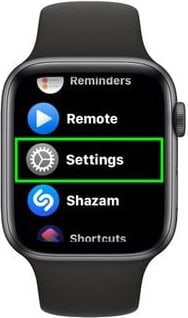
- Open Settings on your Apple Watch.
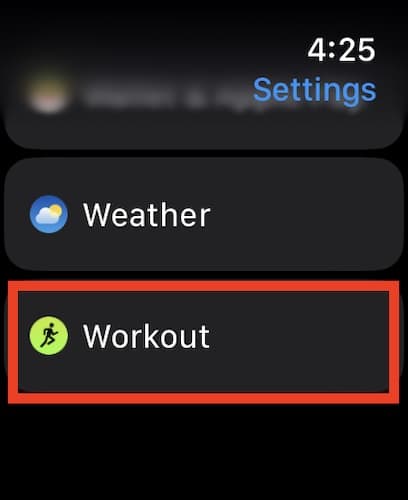
- Go to Workout.
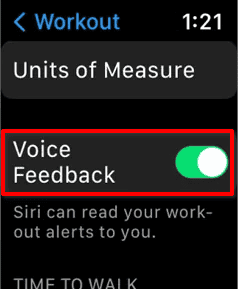
- Turn Voice Feedback on (or off, then on again) to download the voice files for the workout alerts.
3. Modify Your Notification and Siri Settings
Make sure you set up your notification settings correctly so workout alerts play as they should. Follow these steps:
- Open Settings on your Apple Watch.
- Tap on Notifications.
- Ensure you turned on Announce Notifications.
- Go to Siri > Spoken Responses and set it to Always On.
4. Update watchOS 26 or Revert to an Older Version
If you’re still experiencing issues, it could be a bug in watchOS 26. You may need to update your watchOS or revert to an earlier version. To update:
- Open the Apple Watch app on your iPhone.
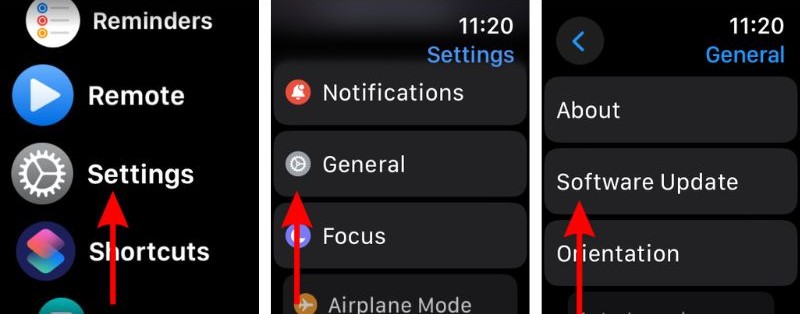
- Tap General > Software Update.

- Follow the prompts to install the latest watchOS version.
- Alternatively, you can try updating via the Apple Watch itself in Settings > General > Software Update.
No Workout Alerts on watchOS 26: Tips To Fix
- Keep your Apple Watch connected to your iPhone for reliable alerts during workouts.
- Ensure your watchOS is up-to-date to benefit from bug fixes.
- Use Bluetooth headphones for better audio feedback when offline.
FAQ
Alerts may not work if your Apple Watch is not connected to Wi-Fi or Bluetooth, or if your settings are not configured correctly.
Make sure your Apple Watch is connected to either Wi-Fi or your iPhone, and check if you enabled Bluetooth
Yes, but you will need to download the voice files to your Apple Watch and use Bluetooth headphones for audio feedback.
Updating to the latest version of watchOS may resolve bugs or issues related to alerts.
Summary
- Ensure your Apple Watch is connected to the internet or paired with your iPhone.
- Download the necessary voice files to your Apple Watch.
- Modify your notification and Siri settings to allow alerts.
- If the issue persists, update your watchOS or revert to a previous version.
Conclusion
If you’re struggling with the issue that makes watchOS 26 not play workout alerts, these solutions should help you restore them quickly. By following the steps above, you can ensure that your Apple Watch provides the necessary notifications during your workouts, allowing you to stay on track with your fitness goals.




Discussion