

If your iMessage keeps turning off, the issue usually comes down to settings, connectivity, or account verification. The most common fix is reactivating iMessage in Settings and ensuring your Apple ID is properly signed in. Understanding why this happens and how to resolve it can save time and frustration when your messages stop working
Table of contents
The Reason iMessage Keeps Turning Off
iMessage may disable itself when your Apple ID is not verified, your device loses network connectivity, or system updates reset certain settings. In some cases, carrier restrictions or temporary glitches can also cause iMessage to turn off. Identifying the root cause helps you apply the right solution quickly.
How to Fix iMessage Keeps Turning Off
1. Sign Back Into Apple ID
One of the most common reasons iMessage turns off is an Apple ID sign-out. When your account is not properly linked, iMessage cannot authenticate and will disable itself. Re-signing in ensures your device is recognized and restores messaging functionality.
Don’t miss the best of The Mac Observer
Set us as a preferred source and our Apple reporting ranks higher in your Google Search results and Discover feed — one tap, no account changes.
- Open Settings on your iPhone.
- Tap Apps.
- Tap Messages.
- Select Send & Receive.

- Sign in with your Apple ID credentials.

2. Check Network Connection
iMessage requires a stable internet connection to function correctly. If your Wi-Fi or cellular data is weak, the service may fail to activate or stay enabled. Ensuring a strong and consistent connection helps prevent iMessage from turning off unexpectedly.
- Go to Settings.
- Tap Wi-Fi and ensure you are connected.
- If using cellular data, tap Cellular and confirm data is enabled.
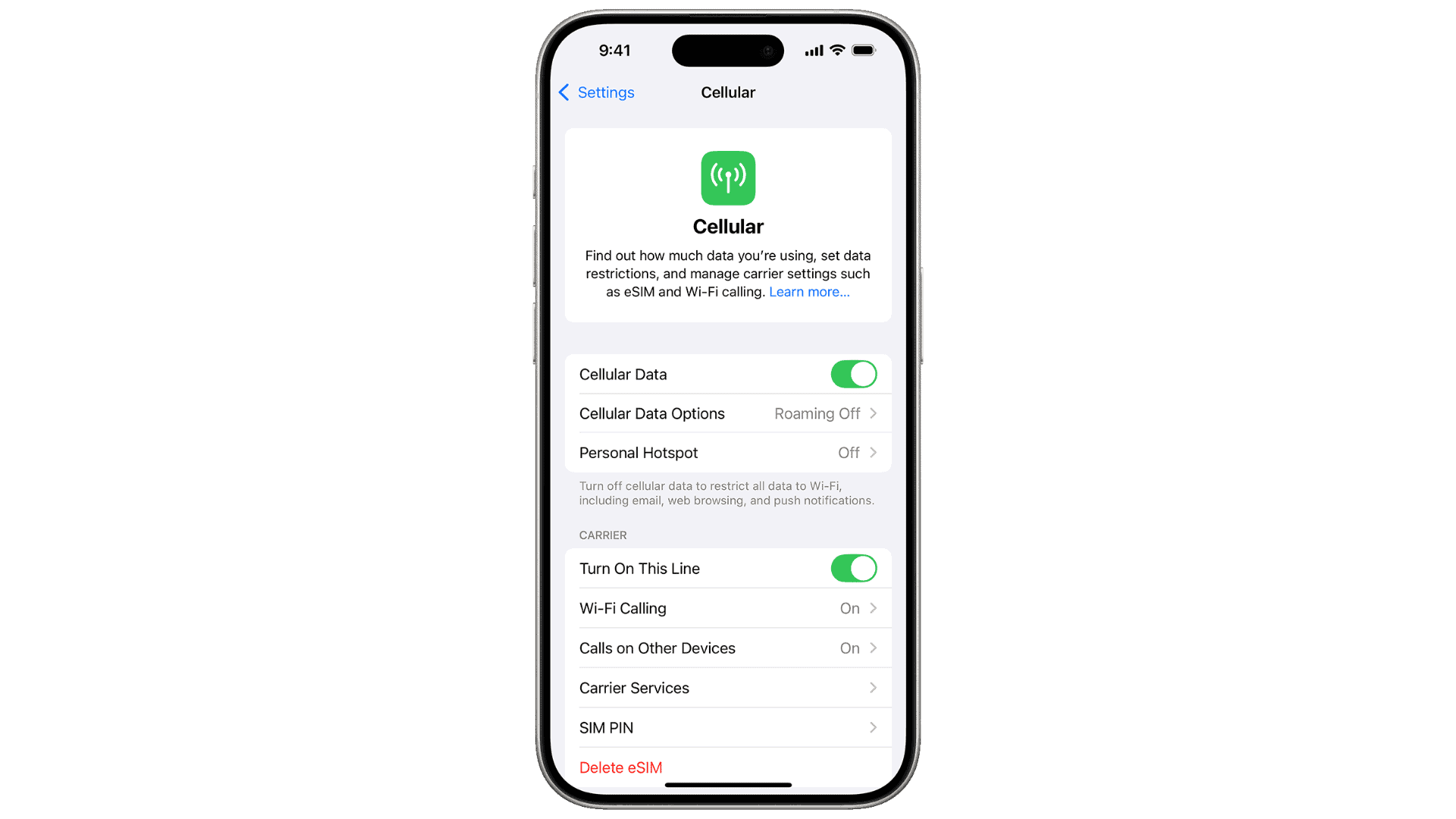
- Test by opening Safari to confirm connectivity.

3. Update iOS Software
Outdated software can cause iMessage glitches and compatibility issues. Apple frequently releases updates that fix bugs and improve stability, so keeping your device current is essential. Installing the latest iOS version often resolves persistent iMessage problems.
- Open Settings.
- Tap General.
- Select Software Update.
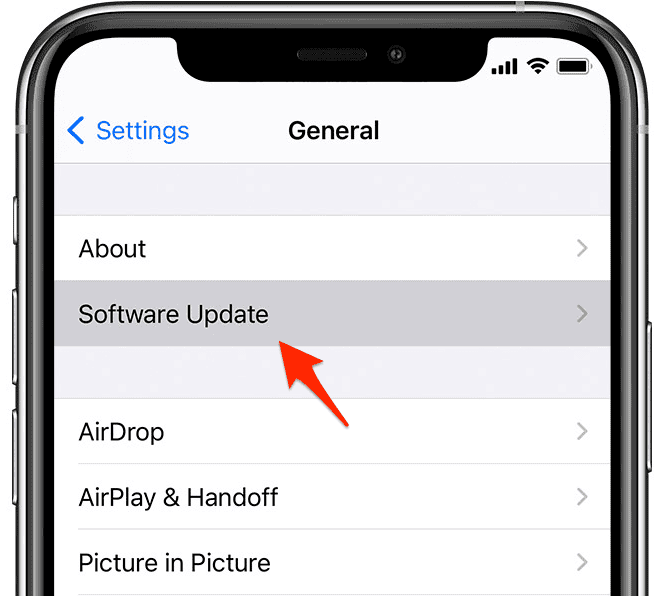
- Download and install the latest iOS version.

4. Reset iMessage Settings
Sometimes, toggling iMessage off and back on can refresh its connection with Apple’s servers. This simple reset clears temporary glitches and forces the service to reinitialize. It is a quick fix that often restores normal functionality.
- Open Settings.
- Tap Apps.
- Tap Messages.
- Toggle iMessage off.
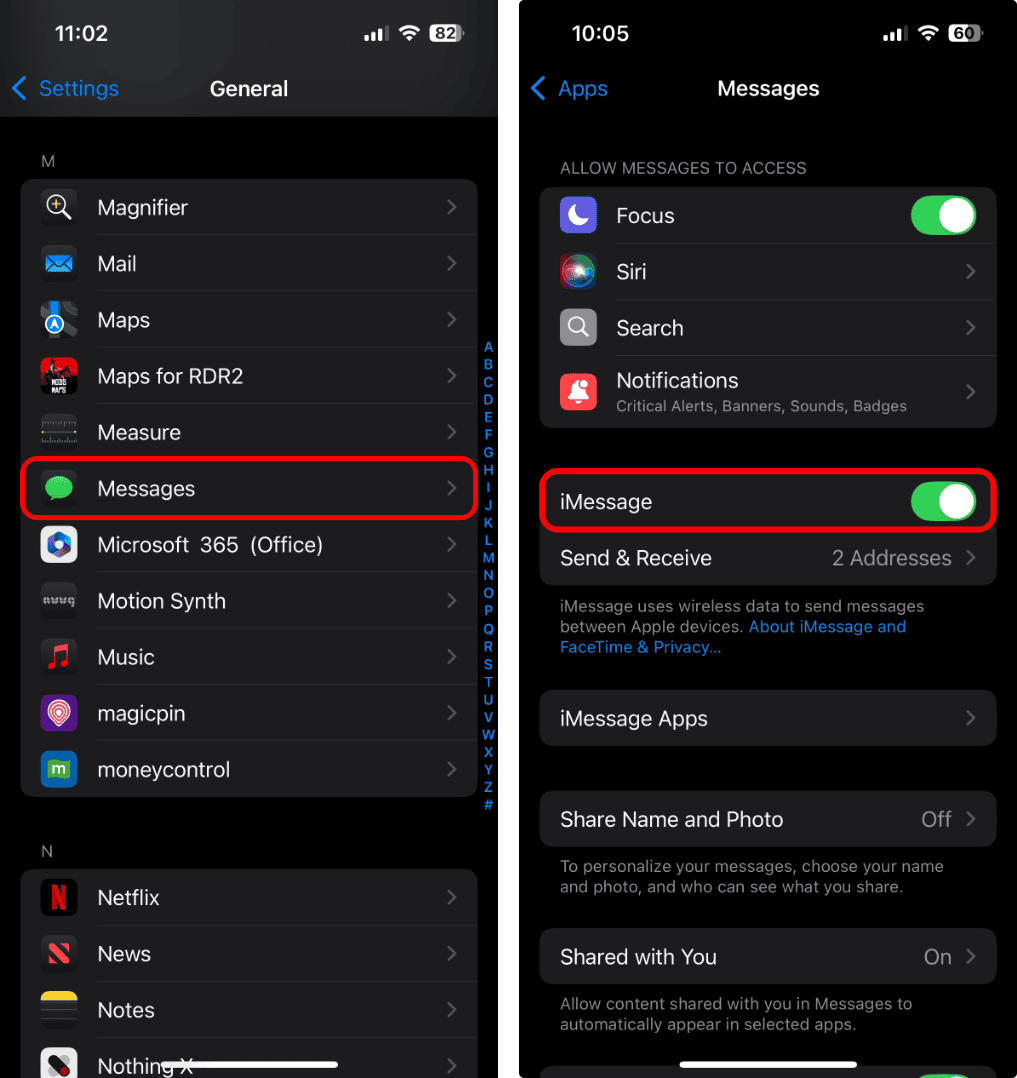
- Wait a few seconds, then toggle it back on.

5. Contact Carrier Support
If none of the above solutions work, your carrier may be the source of the issue. Some carriers have restrictions or require specific settings for iMessage to function properly. Contacting support ensures that your plan and network are configured correctly.
- Call your carrier’s customer support.
- Ask if iMessage is supported on your plan.
- Request assistance with activation if needed.
For more guidance on setup, you can follow this detailed guide on how to use iMessage.
FAQ
This usually happens when your Apple ID is not verified or your device cannot connect to Apple’s servers.
Yes, but only within Apple’s time limit. Learn more about how long you have to unsend an iMessage.
There are several reliable apps available. Explore the best iMessage alternatives for more options.
Conclusion: Fixing iMessage Turning Off on Your Device
iMessage turning off is often linked to Apple ID sign-outs, poor connectivity, or outdated software. By following the steps above, you can restore functionality and keep your messages flowing. If you want to expand your messaging options, you can even learn how to get Apple’s iMessage on Windows for cross-platform use.


Discussion