
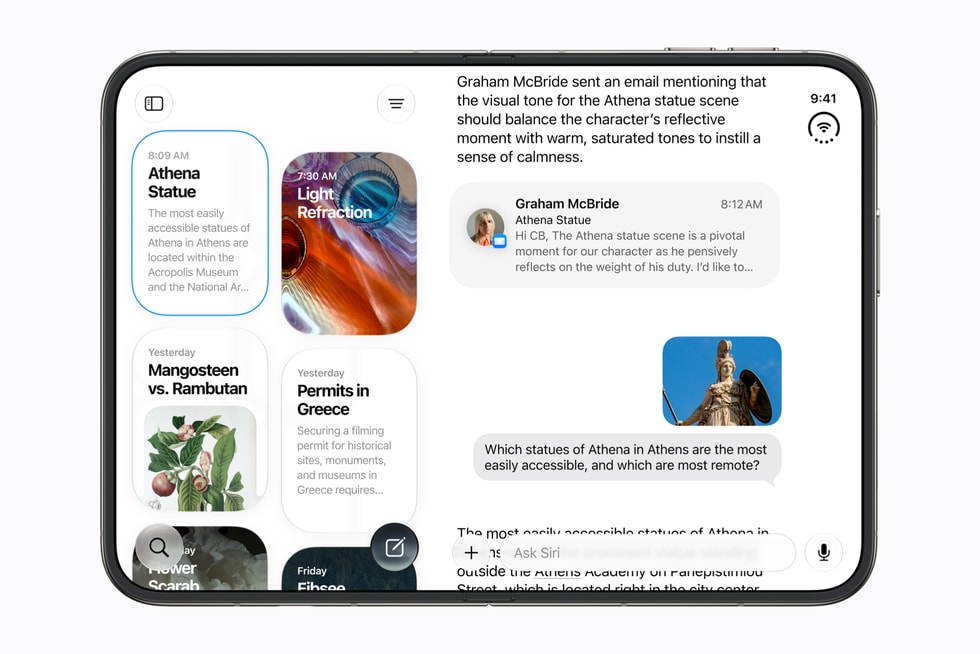
iOS 27 lets you go back to the previous Siri, which Apple calls Siri Classic. In Settings > Siri, turn Siri off, turn it back on, and choose Siri Classic.
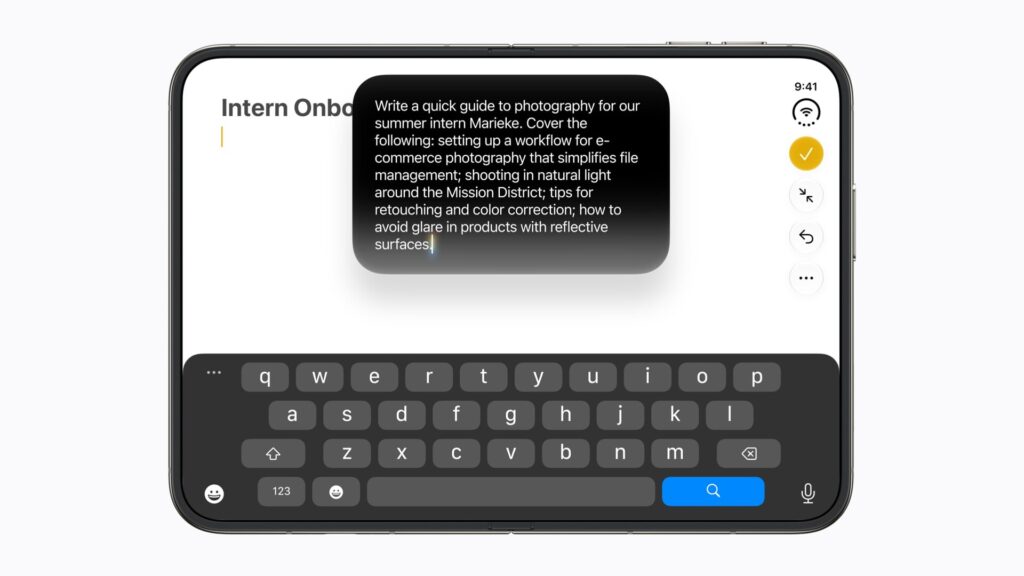
There’s no separate Siri AI switch. Turning Siri off and on again is how you pick a version, so check two things before you do it, and know what Siri Classic leaves out.
How to switch from Siri AI to Siri Classic
- Open the Settings app and tap Siri.
- Scroll down and tap Turn Off Siri, then tap Turn Off Siri again to confirm.
- Tap Turn On Siri.
- Tap Use Siri Classic.
Apple’s two guide pages name that last button differently. “Turn on and activate Siri on iPhone” says to tap Use Siri Classic, while the page on turning off Apple Intelligence features says Siri Classic. Tap whichever one appears on your screen.
Don’t miss the best of The Mac Observer
Set us as a preferred source and our Apple reporting ranks higher in your Google Search results and Discover feed — one tap, no account changes.
Check this before you switch
Turning Siri off isn’t a neutral step. Among the fixes in iOS 27, Apple’s developer release notes list a bug in which disabling Siri “might not delete your Siri and Dictation interaction history from your device.” Put the other way round, turning Siri off is meant to clear that history from your iPhone.
Apple’s pages don’t say what happens to your Siri app conversations when you move to Siri Classic. They sync through iCloud, but if an answer, a draft or a plan in there matters to you, copy it somewhere else first.
What you give up
Apple’s guide marks a long list of features as Siri AI only. After the switch, you lose:
- The Siri app. Apple says you have the dedicated app, with its synced conversation history, “when you turn on Siri AI (Beta).”
- The new ways to start Siri. The Dynamic Island swipe, Ask Siri in touch-and-hold menus, and questions about a screenshot all require Siri AI.
- Personal context, onscreen awareness and Write with Siri. That’s the core of Siri AI: finding things across your messages, mail and photos, acting on what’s on screen, and drafting or editing text virtually anywhere you type.
- Siri mode in Camera. Without Siri AI, Apple points you to Visual Intelligence, which opens from the Camera Control on supported models, the Action button, a Lock Screen control or Control Center.
- Expressive Voices. The Pace and Expressivity controls in Settings > Siri > Voice are Siri AI only, and need iPhone Air, an iPhone 17 Pro model or later, such as iPhone 18 Pro.
- Always-on typing. With Siri AI on, Apple says you can always type to Siri. With Siri Classic, turn on Type to Siri in Settings > Siri > Requests.
What stays, and what comes back
Saying “Siri” or “Hey Siri” and pressing and holding the side button still work. Apple lists those as the standard ways to activate Siri, separate from the extra methods it reserves for Siri AI.
Two ChatGPT options also return. With Siri Classic, Settings > Siri > ChatGPT has a Confirm Requests switch you can turn off so Siri sends requests to ChatGPT without asking each time. If you turn ChatGPT off, a Setup Prompts switch stops Siri from suggesting it. Apple says neither option is available with Siri AI.
Leaving Siri AI doesn’t turn off Apple Intelligence. Other features keep their own switches, including Summarize Messages (Settings > Apps > Messages), Summarize Message Previews (Settings > Apps > Mail), Summarize Notifications (Settings > Notifications) and Call Context cards (Settings > Apps > Phone > Apple Intelligence & Siri > Show When Calling). Change those only if you want less AI across the board.
Going back to Siri AI later
The way back is on the same screen: Settings > Siri > Try Siri AI (Beta). Apple doesn’t say whether returning puts you back in the queue. The first time, setup adds you to a waitlist whose length Apple says “can vary,” so don’t count on getting Siri AI back instantly.
Apple has also said more third-party apps are coming to Siri AI soon, so it may be worth another try later. Our iOS 27 guide covers the rest of the update.



