

If you’ve just picked up the Logitech MX Master 3S for your Mac, you’ve already made a smart choice. It’s easily one of the best mice you can buy—comfortable, precise, and built to handle long workdays without missing a beat. But to get the most out of it, you need the right software. And that’s where things can get a little confusing, especially if you’re switching between macOS versions or juggling multiple devices. Let’s make it simple.
The Software You Actually Need

Here’s the thing: the MX Master 3S doesn’t reach its full potential out of the box. Sure, you can plug it in or connect it via Bluetooth, and it’ll work. But you’re missing the customizations that make it special—button remapping, app-specific profiles, gesture control, and that buttery-smooth scrolling experience.
On macOS, all of that lives inside Logi Options+, Logitech’s official control software. This replaced the older Logitech Options app, which still works for older mice but feels dated. Logi Options+ is cleaner, faster, and designed with macOS Monterey and newer in mind. If you’ve got an M1, M2, or M3 Mac, this is the version you want.
Don’t miss the best of The Mac Observer
Set us as a preferred source and our Apple reporting ranks higher in your Google Search results and Discover feed — one tap, no account changes.
Setting It Up
Installing Logi Options+ is straightforward. Download it from Logitech’s website, open the installer, and follow the prompts. Once it’s up and running, connect your MX Master 3S—either through Bluetooth or the Logi Bolt receiver—and it should appear automatically.
From there, you can adjust everything from scroll speed to pointer sensitivity. More importantly, you can assign custom actions to each button. For example, you can set the thumb wheel to switch between tabs in Safari, map the gesture button to Mission Control, or assign keystrokes for quick shortcuts in apps like Final Cut or Photoshop.
If you’re someone who lives in multiple apps all day, the software’s per-app customization is a game changer. It remembers what you want each button to do in each app and switches automatically as you move between them.
What to Watch Out For
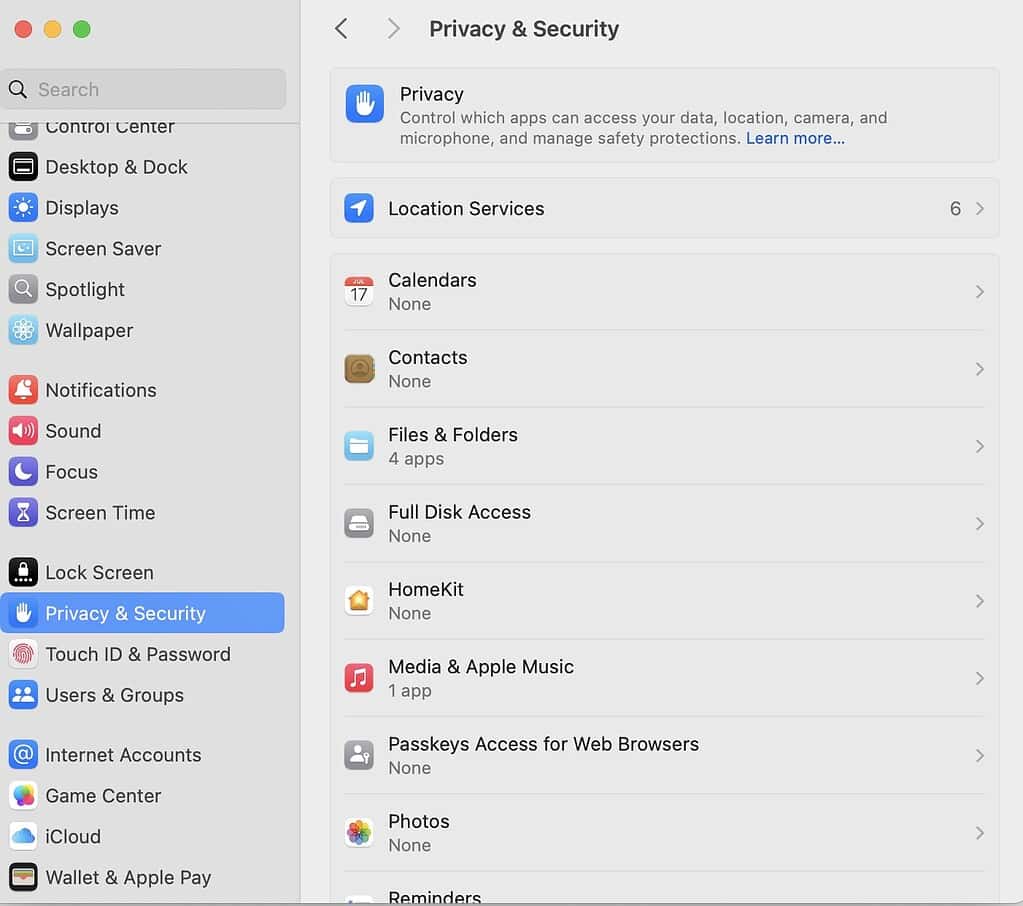
Some users report that permissions on macOS can block certain gestures or button functions after installation. If that happens, go to System Settings > Privacy & Security > Accessibility, and make sure Logi Options+ is allowed to control your Mac. Once you enable it, everything works as intended.
The Bottom Line
The MX Master 3S is already great hardware, but with Logi Options+, it becomes the perfect Mac companion. Whether you’re editing video, managing spreadsheets, or just living in browser tabs all day, this combo feels like an extension of your workflow. Set it up once, tweak it to fit your habits, and you’ll wonder how you ever worked without it.




Discussion