

If you’re a Mac user setting up your Meta Quest 2, you’ll notice there’s no native app for macOS. The official desktop software is still Windows-only. That said, a Mac can still handle everything from development to file transfers if you use the right tools.
Table of contents
Can You Download Meta Quest 2 Software on Mac?
Not yet. Meta’s desktop app runs on Windows 10 and 11, mainly for VR streaming and device management. On macOS, you’ll need a different route.
Depending on what you’re trying to do, develop, move files, or sideload new content, you can get similar results with tools built for the Meta Quest 2 Mac setup. Full compatibility details are listed on Meta’s setup page.
Don’t miss the best of The Mac Observer
Set us as a preferred source and our Apple reporting ranks higher in your Google Search results and Discover feed — one tap, no account changes.
If you already move photos or videos between devices, the process feels a lot like transferring photos from iPhone to Mac.
Use Meta Quest 2 Mac Tools: MQDH and SideQuest
Meta Quest Developer Hub (MQDH)
Meta offers one official app for macOS, the Meta Quest Developer Hub. It lets you install test builds, capture logs, and manage apps directly from your Mac.
Download it from Meta Developers, install it, and connect your headset with a USB-C cable. Once you approve the access prompt in your headset, MQDH should recognize the device automatically.
It won’t stream PC-VR games, but it’s the go-to option for development and debugging on macOS.

Image Source: YouTube
SideQuest for Mac
For non-developers, SideQuest is the easier choice. It supports macOS and handles sideloading, app installs, and file transfers. Download it from sidequestvr.com, connect your headset, allow USB debugging, and you’re ready to manage apps or move videos.
This setup feels as intuitive as adjusting app layouts or icon styles on macOS, much like changing transparency and color settings on iPhone.

Image Source: YouTube
Setting Up Meta Quest 2 on Mac
You can’t install the full Windows app, but you can still connect your headset for development, sideloading, and file transfers. Here’s how.
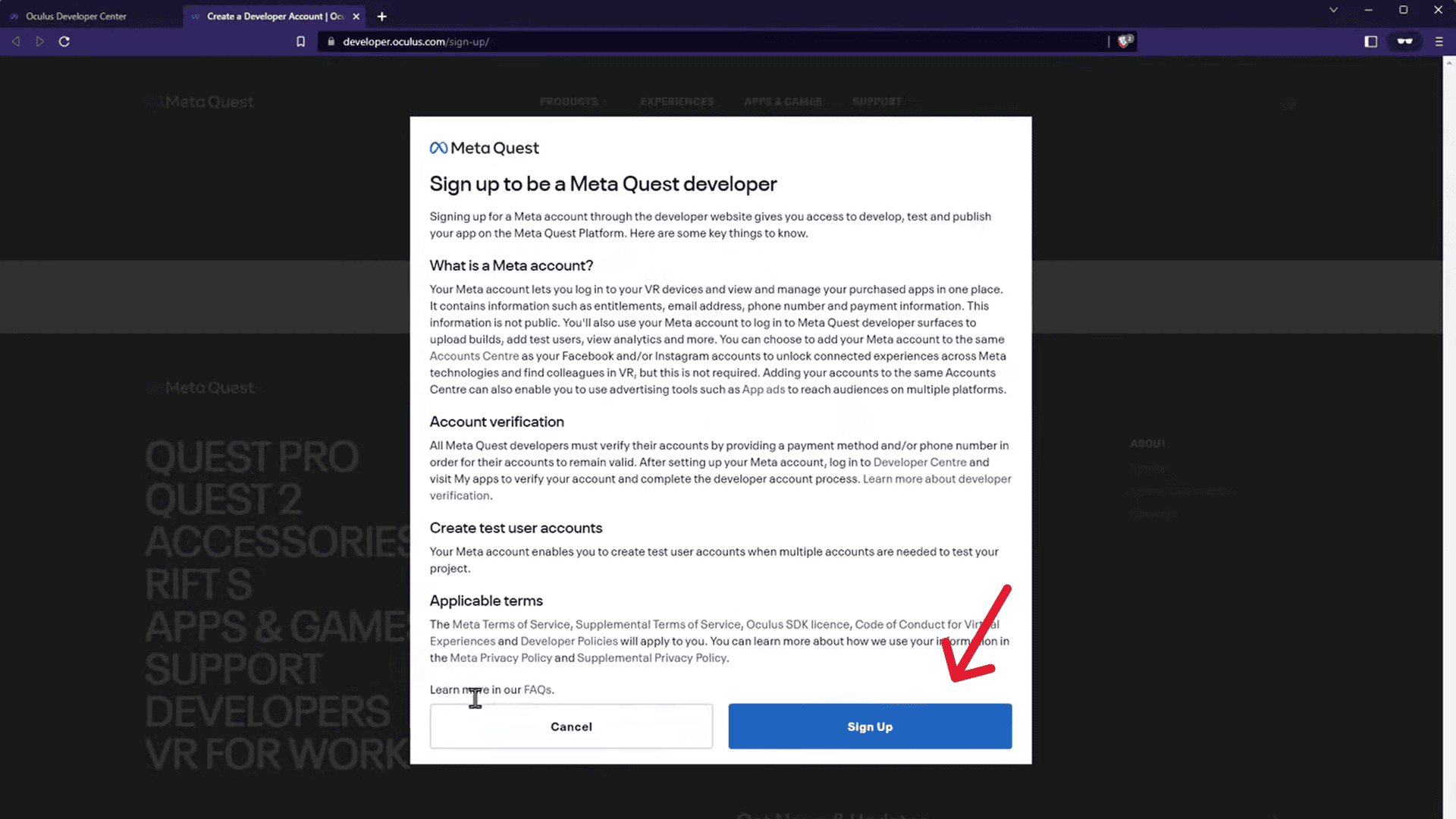
- Create a Developer Account – Visit Meta for Developers, sign in, and accept the developer terms. That enables Developer Mode on your Quest 2.
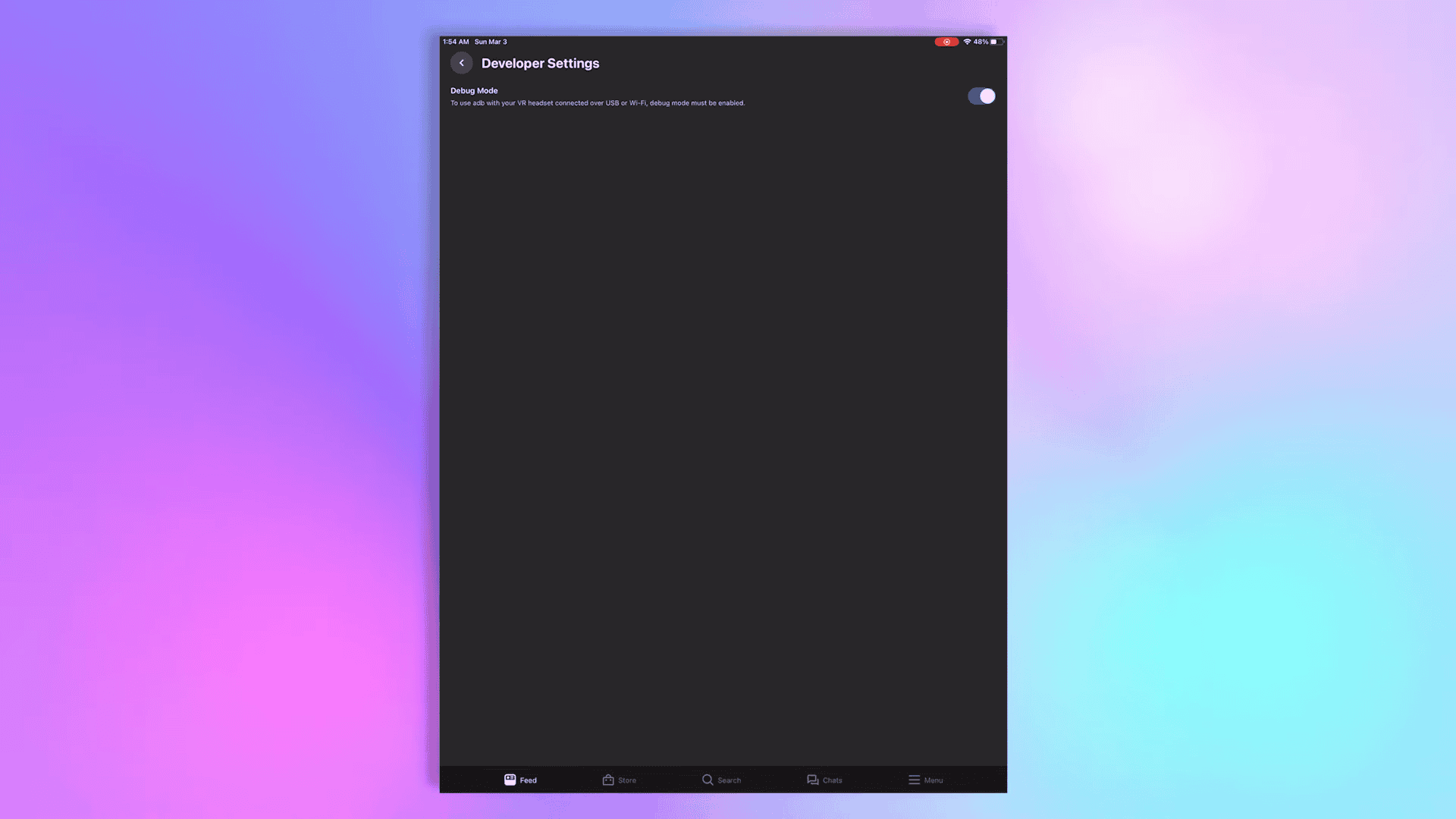
- Turn on Developer Mode – Open the Meta Quest mobile app, select your headset under Devices, and toggle Developer Mode on. Restart the headset once it’s active.
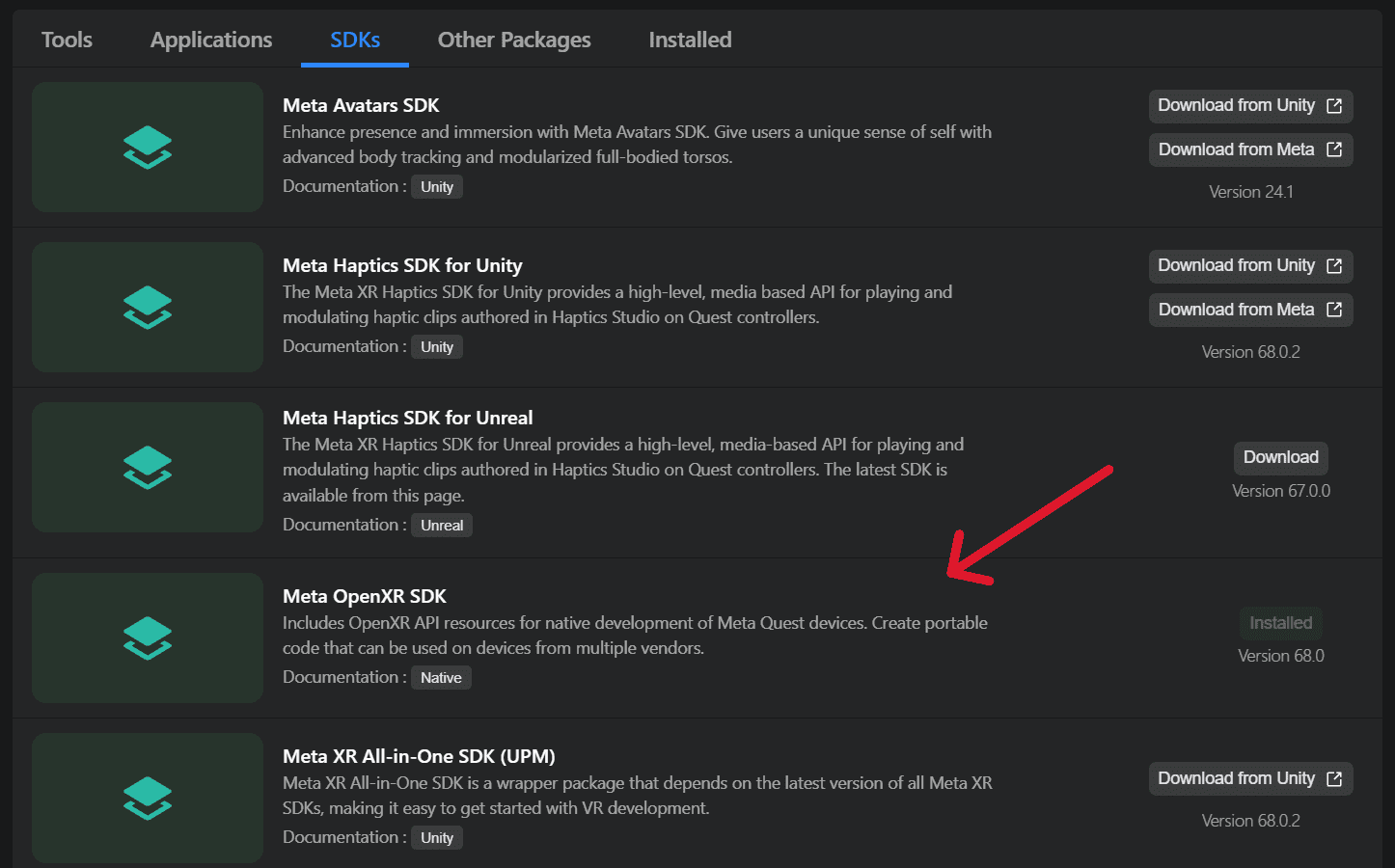
- Install MQDH for Mac – Drag the downloaded app to Applications, open it, and sign in. It runs natively on Apple Silicon.
- Connect via USB-C – Use a 5 Gbps or faster cable. When the headset asks, choose Allow access to data or USB debugging. MQDH should detect it.
- Manage or Sideload Files – Transfer recordings or install builds directly.If Finder doesn’t show your headset, fixing file visibility on macOS usually clears it up.


What Doesn’t Work Yet
Quest Link and Air Link, the features that let you stream PC-VR games, are still Windows-exclusive. macOS lacks the required runtime drivers and GPU access. Everything else, though testing, file management, and app installs, works without issue.
The Takeaway
There’s no full Meta Quest 2 app for macOS, but that doesn’t make your Mac useless. The Meta Quest Developer Hub covers development and testing, while SideQuest for Mac keeps sideloading and file management simple.
If your goal is gaming, you’ll need a Windows machine. For everyone else, developers, testers, or anyone organizing VR content, a Meta Quest 2 Mac setup is more than enough.




Discussion