

If you’ve installed iOS 26, you’ll notice the Lock Screen got some visual changes alongside the Liquid Glass redesign. One of the questions people ask right away: how do I make the clock bigger? Whether it’s for easier readability, a cleaner aesthetic, or just personal style, Apple has finally given us more flexibility over the Lock Screen clock.
Let’s break down how to do it.
Table of contents
Before You Start
- Update your iPhone to iOS 26. (Here’s how to update iOS)
- Make sure your device is compatible. iOS 26 works with iPhone 12 and later, plus the SE (2nd gen and newer).
- Back up your iPhone before experimenting with customization. (Here’s how to back up to a Mac or PC)
How to Make the Clock Bigger in iOS 26
- Wake your iPhone and stay on the Lock Screen.
Don’t unlock fully—just wake the display so you can see the time. - Long-press on the Lock Screen.
This opens the customization view introduced in iOS 16 and expanded in iOS 26’s new Lock Screen. - Tap Customize.
You’ll see options to edit wallpaper, widgets, and the clock.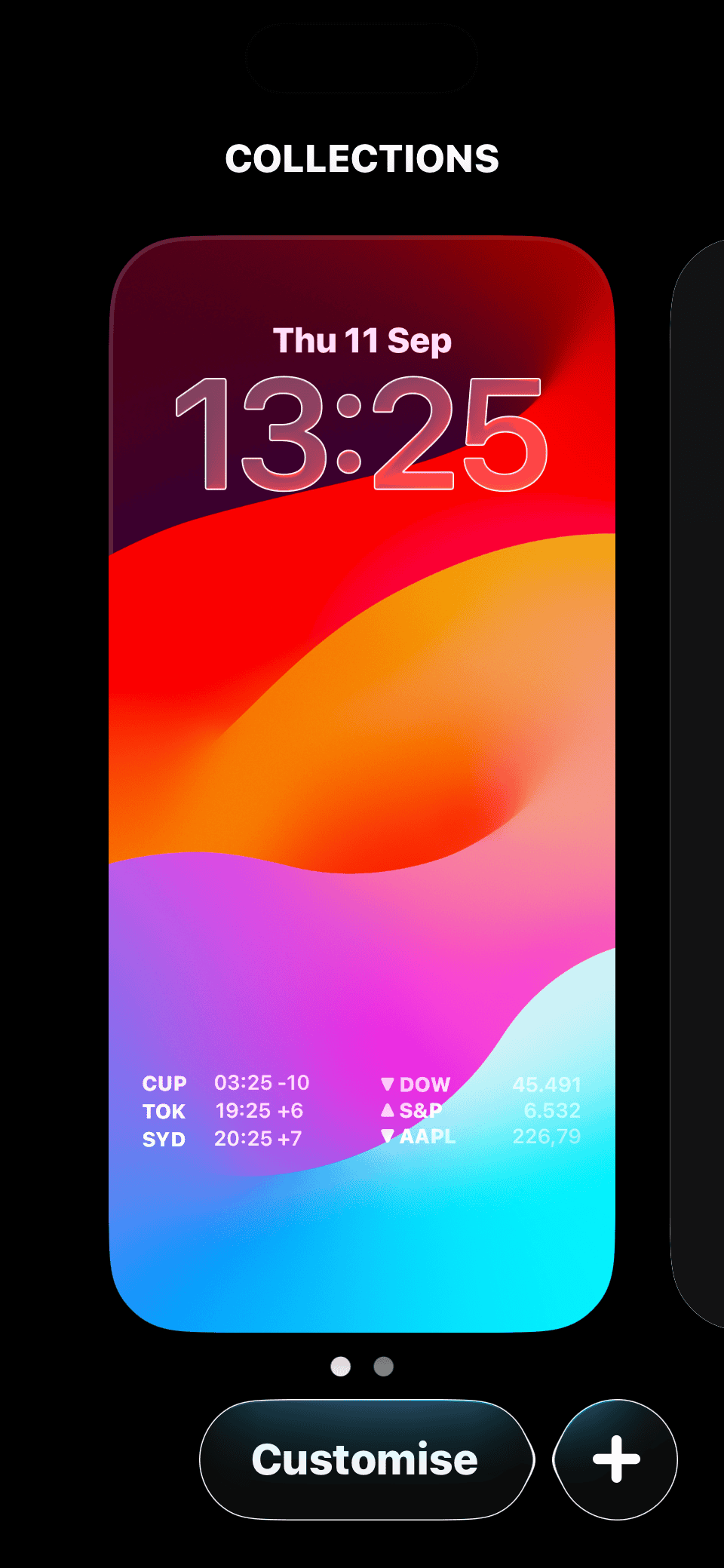
- Select the Clock.
When you tap directly on the clock, a style panel pops up at the bottom of the screen. - Choose a Larger Font.
Scroll through the available font sizes and styles. In iOS 26, the largest option is noticeably bigger than before, making the time much easier to see at a glance.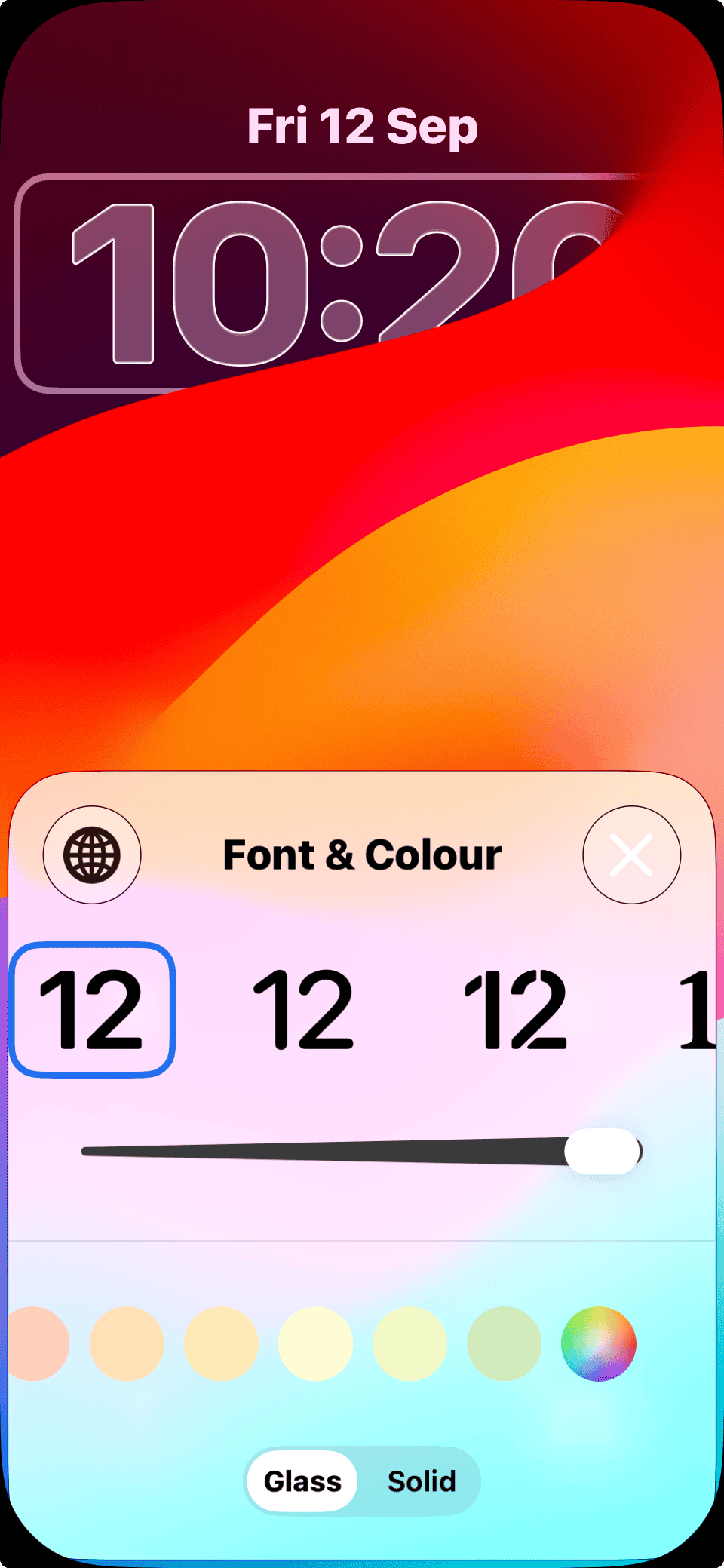
- Adjust Color and Weight.
You can pick bolder weights or brighter colors to make the clock stand out even more against wallpapers like the new iPhone 17 set. - Save Your Changes.
Tap Done in the top-right corner. Your Lock Screen now displays the time in the larger style you selected.


Tips for Better Visibility
- Use contrast wisely: A lighter wallpaper works best with a bold dark font, while dark wallpapers pair nicely with lighter clock text.
- Combine with Adaptive Time: iOS 26 also introduced Adaptive Time, which lets the clock dynamically shift for readability against busy backgrounds.
- Experiment with widgets: If your main concern is legibility, try removing some Lock Screen widgets so the clock has more breathing room.
FAQ
No. These adjustments are only available for the Lock Screen.
Yes. If you have an iPhone with Always-On Display, the larger clock style will carry over.
No. Widgets still appear below the clock. Choosing a bigger clock simply changes the time display, not the widget area.
Don’t miss the best of The Mac Observer
Set us as a preferred source and our Apple reporting ranks higher in your Google Search results and Discover feed — one tap, no account changes.
Quick Recap
- Wake your iPhone and long-press the Lock Screen.
- Tap Customize.
- Select the clock and choose a larger font style.
- Adjust color and weight for better contrast.
- Save your changes.
Conclusion
With iOS 26, Apple continues to give iPhone users more personalization options. The ability to make the Lock Screen clock bigger may sound like a small tweak, but it’s one of those everyday quality-of-life features that makes your phone easier and more enjoyable to use. Pair it with Liquid Glass, custom wallpapers, and Messages backgrounds for a fully refreshed look.


Discussion