

The “Rainbow Screen of Death” is a display error where the iPhone screen shows a series of distorted, colored lines instead of the standard interface. While this visual glitch can prevent you from using the device, it does not always indicate permanent hardware damage. Often, this issue stems from a loose internal connection or a system software error that can be resolved with specific troubleshooting steps.
The following guide outlines the causes of this display issue and provides practical methods to restore the screen to normal function.
Table of contents
Why is this happening
To address the problem effectively, it is helpful to understand the underlying cause. The rainbow screen typically results from an interruption in the communication between the iPhone’s logic board and the display assembly.
Don’t miss the best of The Mac Observer
Set us as a preferred source and our Apple reporting ranks higher in your Google Search results and Discover feed — one tap, no account changes.
This differs from the iPhone Black Screen of Death, which usually signifies a complete power or boot failure. In the case of a rainbow screen, the display component is receiving power, but the video signal is corrupted. This often occurs if the device was dropped, causing the internal LCD ribbon cable to shift. Alternatively, it can be a software driver crash similar to the iPhone Green Screen of Death, where the operating system fails to render the image correctly.
Here’s How to Fix the Rainbow Screen of Death
The following solutions range from basic software resets to physical adjustments and hardware repair options.
1. Perform a Force Restart
A force restart physically cuts power to the logic board and forces the hardware to reboot. This can clear temporary software glitches that may be causing the display error.
For iPhone 8 and later (including X, 11, 12, 13, 14, 15, SE 2/3):
- Press and quickly release the Volume Up button.
- Press and quickly release the Volume Down button.
- Press and hold the Side button (power button).
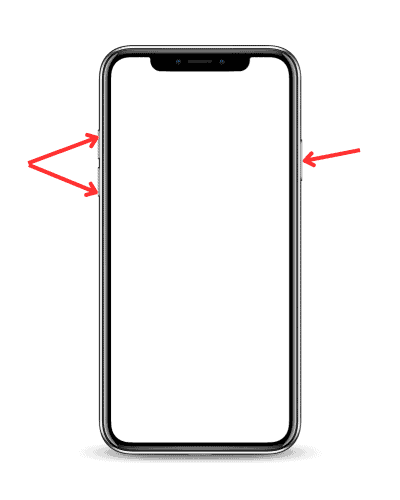
- Continue holding the button until the screen turns black and the Apple logo appears.

For iPhone 7 and 7 Plus:
- Press and hold the Volume Down button and the Sleep/Wake button simultaneously.
- Release both buttons when the Apple logo appears on the screen.
2. Massage the Screen Connection
If a restart does not resolve the issue, the internal ribbon cable may be slightly unseated. Applying pressure to the connection point can potentially push the connector back into place.
- Identify the area where the logic board connects to the display (typically near the rear camera at the top right of the device).
- Place a soft cloth over the screen to prevent scratches.
- Press firmly but carefully with your thumb on that specific area for a few seconds.
- Attempt a force restart again while maintaining this pressure.
3. Check for Software Update
If the screen is visible enough to navigate, or if you can connect it to a computer, an outdated iOS version could be causing display driver incompatibility.
- Go to Settings > General > Software Update.
- If an update is available, tap Update Now.

- If the screen is unusable, connect the iPhone to a Mac or PC. Open Finder or iTunes, select your device, and click Check for Update.

4. Perform a Factory Reset
A factory reset eliminates all settings and data, returning the device to its original state. This removes any corrupted files or settings that might be interfering with the display. Note: This will erase all data, so ensure you have a backup.
- Go to Settings > General > Transfer or Reset iPhone.
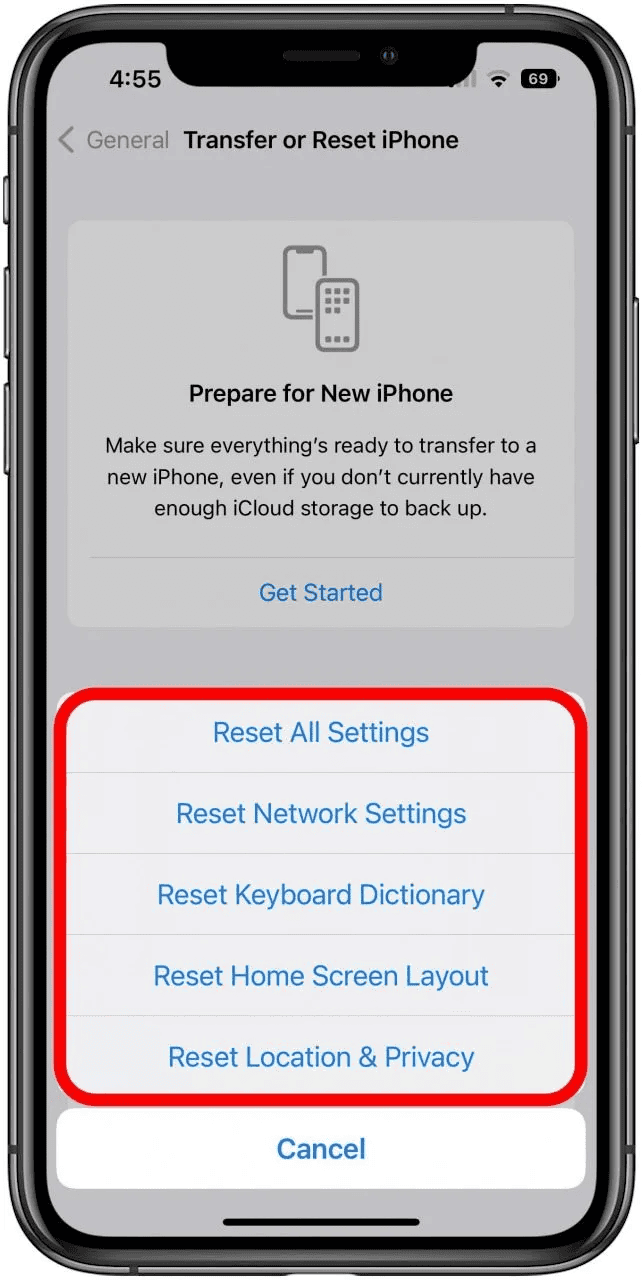
- Select Erase All Content and Settings.
- Follow the on-screen prompts to confirm the reset.

5. Restore via Recovery Mode
If the standard reset fails or the screen is non-responsive, Recovery Mode is a deeper restoration method.
- Connect the iPhone to a computer and launch Finder or iTunes.
- Follow the Force Restart steps described above, but do not release the button when the Apple logo appears. Hold it until the “Recovery Mode” screen appears.
- Select Restore on your computer. This will wipe the device and install a clean version of the latest iOS.


6. Visit Apple Store
If none of the software solutions or physical adjustments resolve the issue, the problem is likely a permanent hardware failure. The LCD panel or the logic board connector may be damaged.
- Schedule an appointment at the Genius Bar or visit an authorized service provider.
- A technician can open the device safely to reseat the cable or replace the display assembly entirely.
Additional Tips
iPhone display errors manifest in various colors, and identifying the specific color can assist in diagnosis. The rainbow screen is primarily a hardware connection symptom, while the White Screen of Death is commonly linked to failed software updates or jailbreaking.
Similarly, the Orange Screen of Death typically indicates a critical system corruption that requires a full restoration. Understanding these distinctions helps determine whether the problem requires a software fix or a hardware repair.
Final Thoughts
The rainbow screen issue is generally caused by physical impact or software corruption. By performing a force restart, updating software, or checking the screen connection, users can often resolve the problem without professional service. However, if these methods fail to restore the display, the LCD or ribbon cable is likely damaged, and the device will require a screen replacement from Apple Support or an authorized technician.
FAQs
No. It often signals a loose internal connection or a software crash. Many devices can be recovered by restarting the system or reseating the screen connector.
If the issue is software-related, a factory reset or Recovery Mode restore will fix it. If the LCD panel has physical damage, a reset will not resolve the visual distortion.
Yes, physical impact is a common cause. Dropping the phone can dislodge the internal ribbon cables connecting the screen to the motherboard, resulting in distorted colors.



Discussion