Apple says your iPhone, iPad, Mac, Apple Vision Pro and Apple TV should adjust automatically for time zone changes and daylight saving time when Date & Time is set to update automatically. Apple’s support document for when you can’t change the time or time zone, last updated July 15, 2026, lists the settings to check if a device shows the wrong time or doesn’t adjust for daylight saving time.
That is the problem to watch for when clocks change this fall, and when you travel across time zones. Below are Apple’s steps for each device, the manual fallback and the reasons a setting can be dimmed.
Who needs this
If your device kept the old time after the clock change, shows the wrong time zone after a trip, or won’t let you touch Date & Time settings, these steps apply. Apple notes the option to set the date and time automatically might not be available on all devices.
Don’t miss the best of The Mac Observer
Set us as a preferred source and our Apple reporting ranks higher in your Google Search results and Discover feed — one tap, no account changes.
Fix it on iPhone, iPad or Apple Vision Pro
Apple’s steps:
1. Make sure your device is connected to the internet.
2. Install the latest software updates for your device.
3. Open Settings. Tap General, tap Date & Time, then turn on Set Time Automatically. Apple says this sets your date and time based on your time zone.
4. If a message says that updated time zone information is available, restart your device and any paired Apple Watch.
5. Open Settings. Tap Privacy & Security, tap Location Services, scroll to the bottom and tap System Services, then turn on Setting Time Zone. This lets the device use its current location to determine the correct time zone.
Fix it on Mac
1. Make sure your Mac is connected to the internet.
2. Open Location Services settings and make sure Location Services is turned on.
3. Scroll to the bottom of the list of apps and services and click the Details button next to System Services. Make sure the settings for time zone and system customization are turned on.
4. Open Date & Time settings and make sure the option to set time and date automatically and the option to set time zone automatically are both turned on.
5. Restart your Mac.
Fix it on Apple TV
Apple says these steps require tvOS 10 or later on Apple TV HD or Apple TV 4K. On an older version of tvOS or an older Apple TV, you can set the time zone manually.
1. Make sure your Apple TV is connected to the internet.
2. Open Settings, select General, then scroll down to the Date & Time section and turn on Set Automatically. If it’s already on, turn it off and back on.
3. If a message says that updated time zone information is available, restart your Apple TV to get the update.
4. If the message doesn’t appear, press and hold the Back button or the Menu button on your Apple TV remote to go to the Home Screen. Wait several minutes, then return to Date & Time settings. If the message appears now, restart your Apple TV.
If the time is still wrong: set it manually
Apple says that if a device still shows an incorrect date, time or time zone, change each setting manually instead of using Set Automatically.
- iPhone, iPad, Apple Vision Pro: Open Settings, tap General, tap Date & Time, then turn off Set Automatically. Tap Time Zone and enter a city with the time zone you need, or tap the date to change the date and time.
- Mac: Open Date & Time settings and turn off the options to set time and date automatically and to set time zone automatically. You can then set the time, date and time zone yourself.
- Apple TV: Open Settings, select General, scroll to Date & Time and turn off Set Automatically. Then open Settings, select General, select Time Zone and choose a time zone.
Why the setting might be dimmed
Apple lists a few reasons you might not be able to change these options:
- Carrier or region. The option to turn Set Automatically on or off might not be available with all carriers or in all countries and regions.
- Screen Time. If the device has a Screen Time passcode, the setting might be dimmed.
- Work or school profiles. A corporate profile with device restrictions installed can also gray it out.
Other pitfalls Apple mentions
- Syncing with a Mac. If the time on your device is wrong after you sync it with your Mac, make sure Date & Time are set correctly on the Mac.
- Game timers. Apple says making manual adjustments to time settings to change app behavior, like game timers, isn’t recommended.
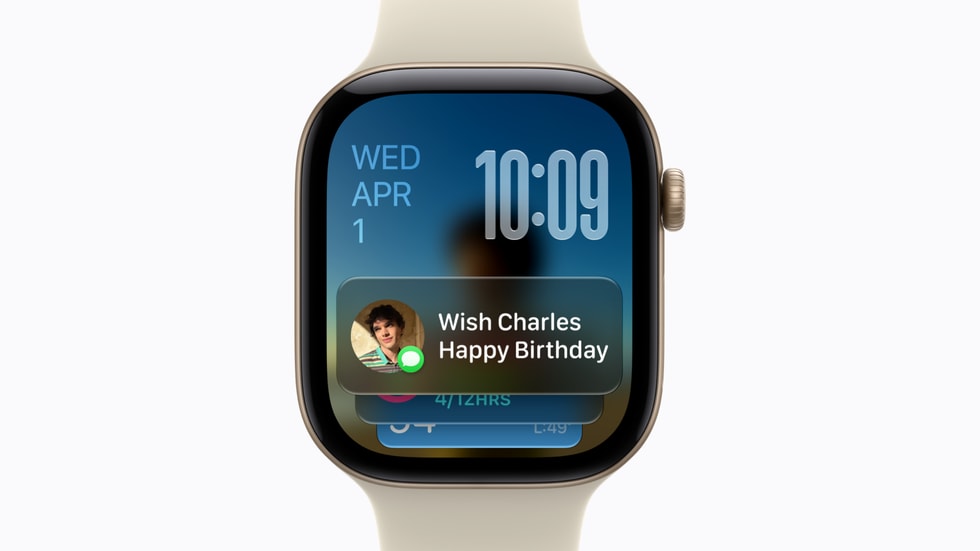
- Apple Watch. Apple has separate time settings for Apple Watch, including 24-hour time and setting the watch face ahead of the actual time.
Apple’s full guide is its support document, If you can’t change the time or time zone on your Apple device.