

If your iPhone refuses to update its time zone or the option is grayed out, you’re not imagining things. iOS handles time automatically most of the time, but when something in that chain breaks, your clock can drift or lock up completely. The good news is that the fix is almost always hiding in your settings. Let’s walk through the checks that actually matter so you can get your iPhone back on track.
Table of contents
Make Sure Your iPhone Can Set the Time Automatically
Here’s the thing. Your iPhone cannot set the time zone unless it has two basic ingredients: internet access and permission to use your location.
Start with the essentials:
Don’t miss the best of The Mac Observer
Set us as a preferred source and our Apple reporting ranks higher in your Google Search results and Discover feed — one tap, no account changes.
- Make sure your iPhone is connected to Wi-Fi or cellular data.
- Update to the latest iOS version if you haven’t yet. Software fixes often correct time zone issues.
- Then head to Settings > General > Date & Time and look at Set Automatically.

- If this switch is available, turn it on. This tells your iPhone to pull time zone data from Apple’s servers based on where you are.
If the switch is dimmed, don’t panic. That usually points to restrictions, which we’ll tackle next.
Turn On Location Services for Time Zone Detection
Your iPhone needs your approximate location to figure out your time zone. If it can’t access that data, it falls back to whatever zone it was using before.
Go to:
- Settings > Privacy & Security > Location Services > System Services
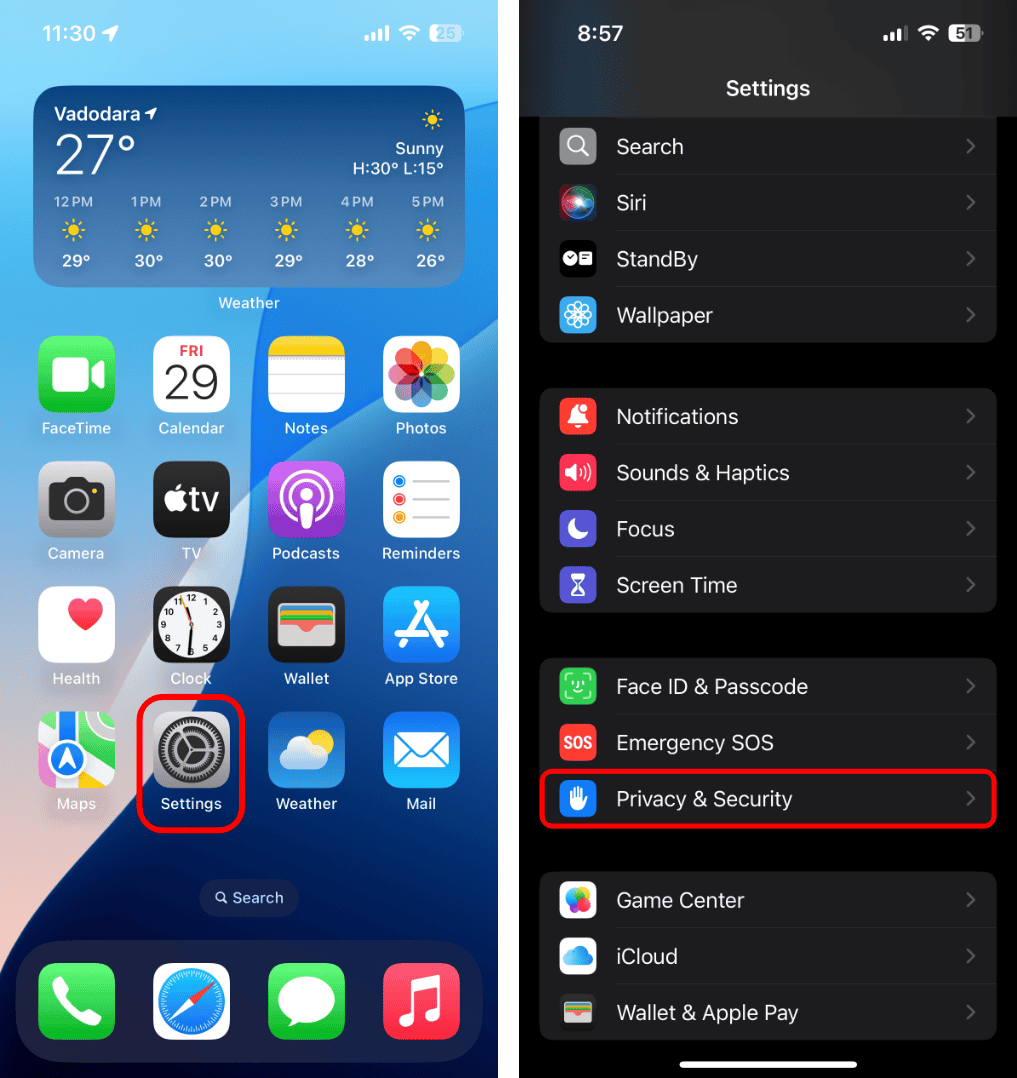
- Turn on Setting Time Zone.
This alone fixes the problem for many people. Without it, the iPhone has no idea whether you’re in Chicago or Singapore.
Restart After Time Zone Updates
Sometimes Apple pushes updated time zone info, and your device won’t apply it until it restarts. If you see a notice about new time zone data, restart your iPhone. Do the same for any paired Apple Watch.
A simple restart can solve hours of frustration.
When “Set Automatically” Is Still Grayed Out
If the toggle refuses to light up even after the steps above, you’re likely dealing with one of two things:
Screen Time restrictions
When Screen Time limits are active, especially with a passcode, certain system settings are locked.
Go to:
- Settings > Screen Time and review restrictions. If something looks off, adjust or disable it.
A corporate or school profile
Business and education devices often enforce time settings.
Go to:
- Settings > General > VPN & Device Management.
- If you see a profile installed, that profile may be controlling the clock. Only the administrator can change that.
Manually Set the Time Zone If Automatic Fails
If nothing automatic works, switch to manual mode:
- Settings > General > Date & Time
- Turn off Set Automatically.
- Tap Time Zone, enter the city you want, or adjust the date and time directly.
It’s not ideal, but it gives you control until the underlying issue is fixed.
What About Macs and Apple TV?
If you use multiple Apple devices, keep in mind that incorrect settings on a Mac or Apple TV can throw you off when they sync. Double-check their Date & Time settings if your iPhone keeps reverting after a sync.
Don’t Try to Break Game Timers
One last heads up. Manually changing the clock to cheat game timers or app cooldowns can create weird system issues. Apple warns against this for a reason. Stick to real fixes instead of workarounds that come back to bite later.
The Bottom Line
If you can’t change the time zone on your iPhone in iOS 18.7, you’re usually dealing with permissions, restrictions, or missing updates. Work through the steps above in order. One of them will give your iPhone the green light to update itself again.
Once it’s sorted, your clock should stay accurate whether you’re at home, traveling, or crossing time zones every week.




Discussion