

Apple’s Game Center offers a social platform for iOS gamers. Users track achievements, challenge friends, and compare scores. This is great for competitive play. Still, many users limit its functions. They might prefer privacy or fewer distracting notifications. Apple removed the dedicated Game Center application in iOS 10. Therefore, you manage or disable its features within the device’s main Settings app.
Table of contents
Comprehensive Guide to Managing and Turning Off Game Center Features
1. Sign Out to Completely Disconnect Your Account
Signing out is the most direct method. It disables your interaction with Game Center’s social features. This action prevents the system from recording new scores or achievements. Furthermore, it stops most Game Center notifications from appearing on your device.
Don’t miss the best of The Mac Observer
Set us as a preferred source and our Apple reporting ranks higher in your Google Search results and Discover feed — one tap, no account changes.
- Open the Settings app on your device.
- Scroll down and tap on Game Center.

- Scroll to the bottom of the Game Center settings.
- Tap on your Apple ID or nickname.
- Select Sign Out from the prompt. This finalizes the disconnection.

2. Stop Interruptions by Disabling Game Center Notifications
Some users keep their account active to track progress. However, they want to eliminate popups and banners. Controlling notifications becomes key in this case. These steps manage alerts without signing out fully. You maintain background achievement tracking. You still silence all interruptions. You can learn more about what happened to the Game Center app on iPhone and how to access it if you’re looking for the old application.
- Go to the Settings app.
- Tap on Notifications.
- Scroll down the list and select Game Center.
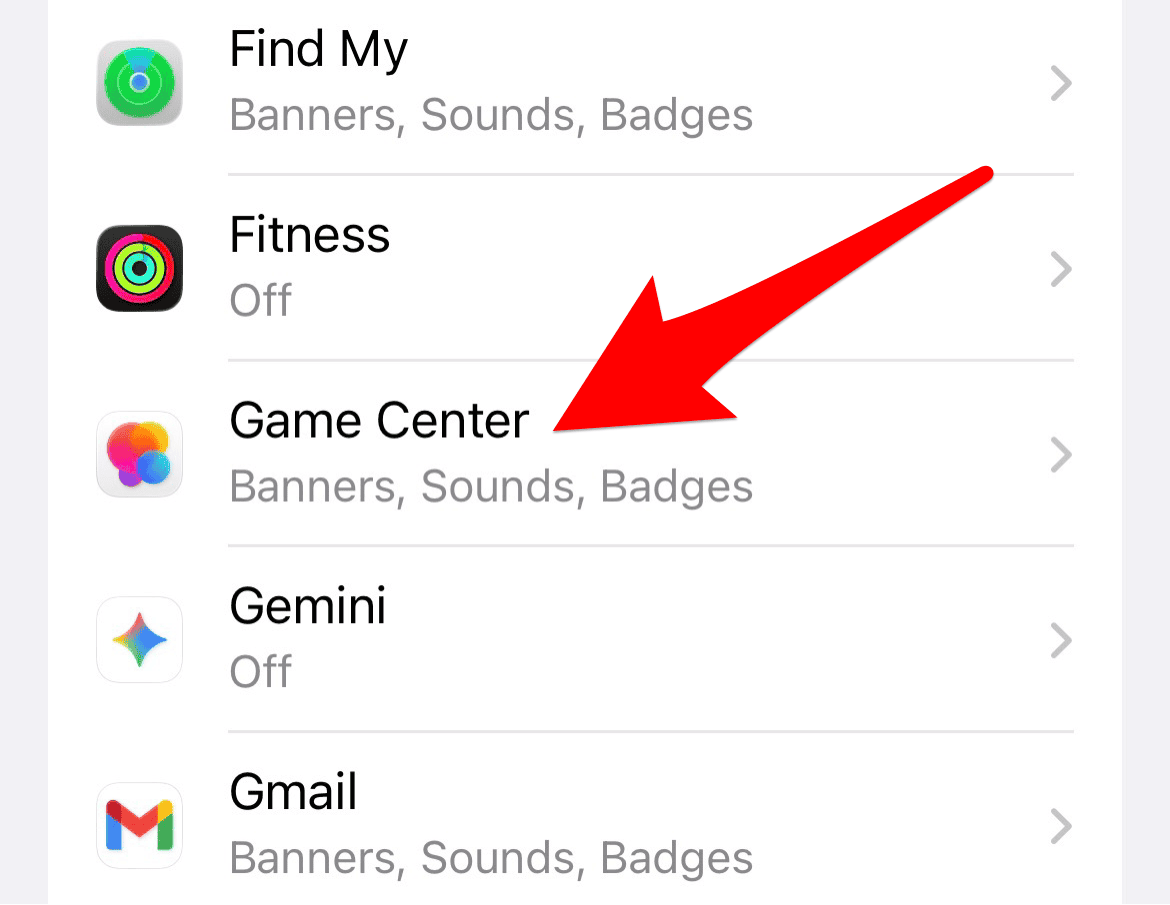
- Toggle off the switch next to Allow Notifications. This silences all alerts.

3. Use Screen Time to Restrict Multiplayer Games and Adding Friends
Device restrictions effectively disable specific social elements. This is especially useful for parental controls or self-management. You can prevent two things. First, you block initiating multiplayer sessions. Second, you stop the ability to add new friends. You achieve this without needing to sign out of your account.
- Navigate to Settings and select Screen Time.
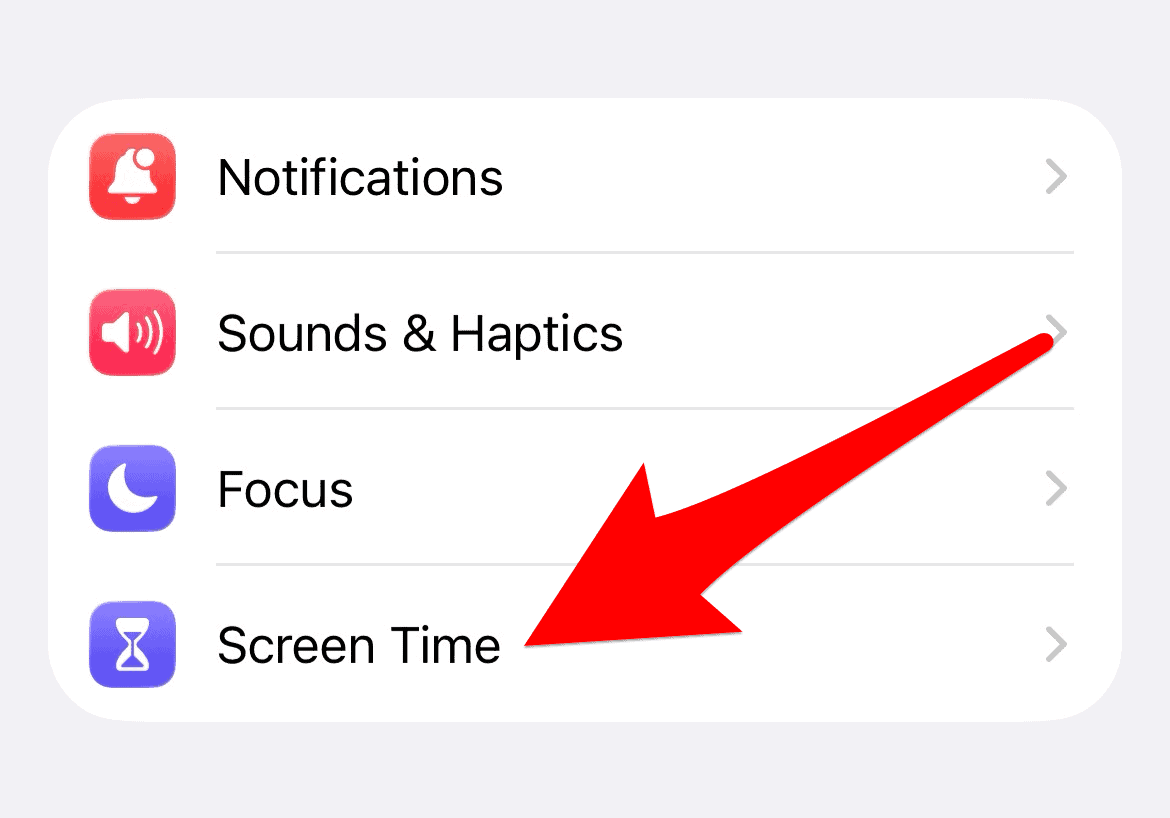
- Tap Content & Privacy Restrictions.
- Enter your Screen Time Passcode if one is required.
- Select the Game Center section.
- Choose Don’t Allow for both Multiplayer Games and Adding Friends.

4. Clear Individual Game Data and Achievements
Disabling the main service is one step. You may also want to remove personal scores or achievement data. This data ties to a specific application. Game Center manages the social overlay. However, the game itself stores the core progress data. This data is crucial for a complete reset. Therefore, you must clear this data. The process of clearing data from a game on iPhone or iPad removes your scores and progress completely. It effectively resets the game’s ties to the platform.
5. Preparing for the Future of Apple’s Gaming Ecosystem
The familiar standalone application is absent since iOS 10. This sometimes gives the appearance that the service is “disabled.” Nonetheless, Apple integrated it into the Settings app. It remains active by default until you sign out. This major design change highlights Apple’s evolving approach. Apple’s gaming ecosystem will change further. Apple plans to centralize all your titles into one place with a new application.
FAQ
No, Game Center is a core system service. It is integrated into iOS and iPadOS. You cannot delete it. However, you can sign out of your account. You can also restrict its functions via Screen Time. Finally, you can disable all its notifications.
No. Your achievements, high scores, and progress remain. Apple stores them on their servers. They link to your Apple ID. Signing back in later will restore all your data. You will experience no data loss.
Effective Management of Apple Gaming Titles
You cannot permanently remove Game Center from your iOS device. Nonetheless, Apple provides several simple methods. These methods control its visibility and social interaction. You have full power over your experience. This includes a full sign-out and parental controls. The gaming landscape on Apple devices constantly evolves. Consequently, new solutions are expected. These solutions will simplify the management of all your Apple gaming titles in a centralized location.


![Fix “macOS Cannot Verify That This App is Free from Malware” [2026]](https://www.macobserver.com/wp-content/uploads/2025/05/MacBook-displaying-multiple-macOS-Gatekeeper-icons-under-a-red-X-surrounded-by-Gatekeeper-dialogs-over-the-default-macOS-Sequoia-wallpaper.webp)

Hello, I have followed all your steps above but still get prompted to login to game centre.