
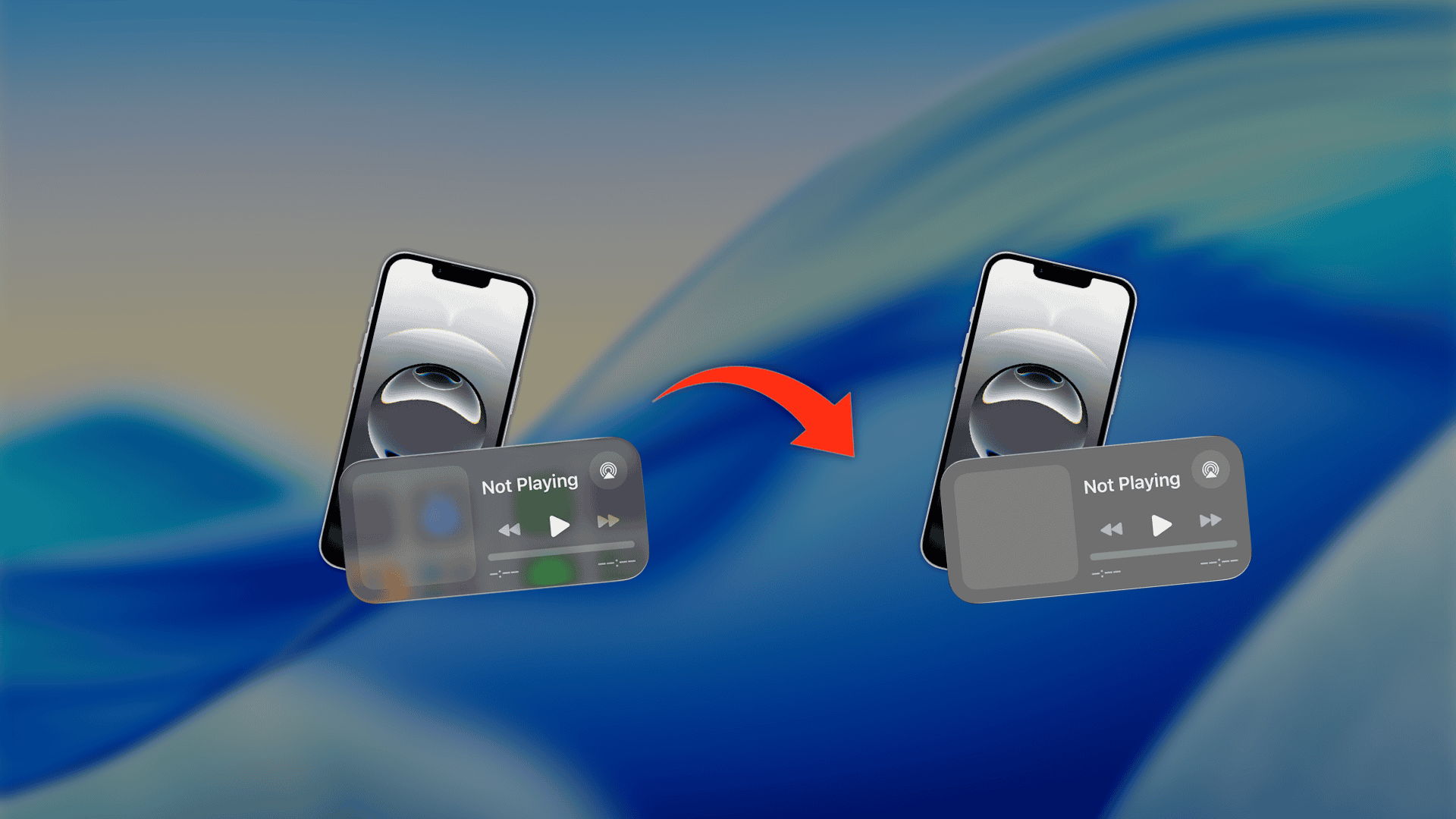
You cannot fully revert iOS 26 to the old flat design, but you can reduce Liquid Glass heavily, even though you can’t completely disable it. The best results come from Reduce Transparency, Increase Contrast, and the Liquid Glass style toggle in newer updates.
Table of Contents
Can’t Disable Liquid Glass? How To Reduce it and Get a Flatter Look in iOS 26
Many users dislike the Liquid Glass effects, like the reflections and “curved borders” in buttons, icons, and dialogs. If you want to make the iOS interface feel “flat” again, there are some solutions you can try.
1. Enable Reduce Transparency
This is the most reliable way to disable Liquid Glass in iOS 26 styling during day-to-day use. It replaces many frosted layers with more solid backgrounds in places like Control Center, menus, and sheets.
Don’t miss the best of The Mac Observer
Set us as a preferred source and our Apple reporting ranks higher in your Google Search results and Discover feed — one tap, no account changes.
Time needed: 3 minutes
- Open Settings.

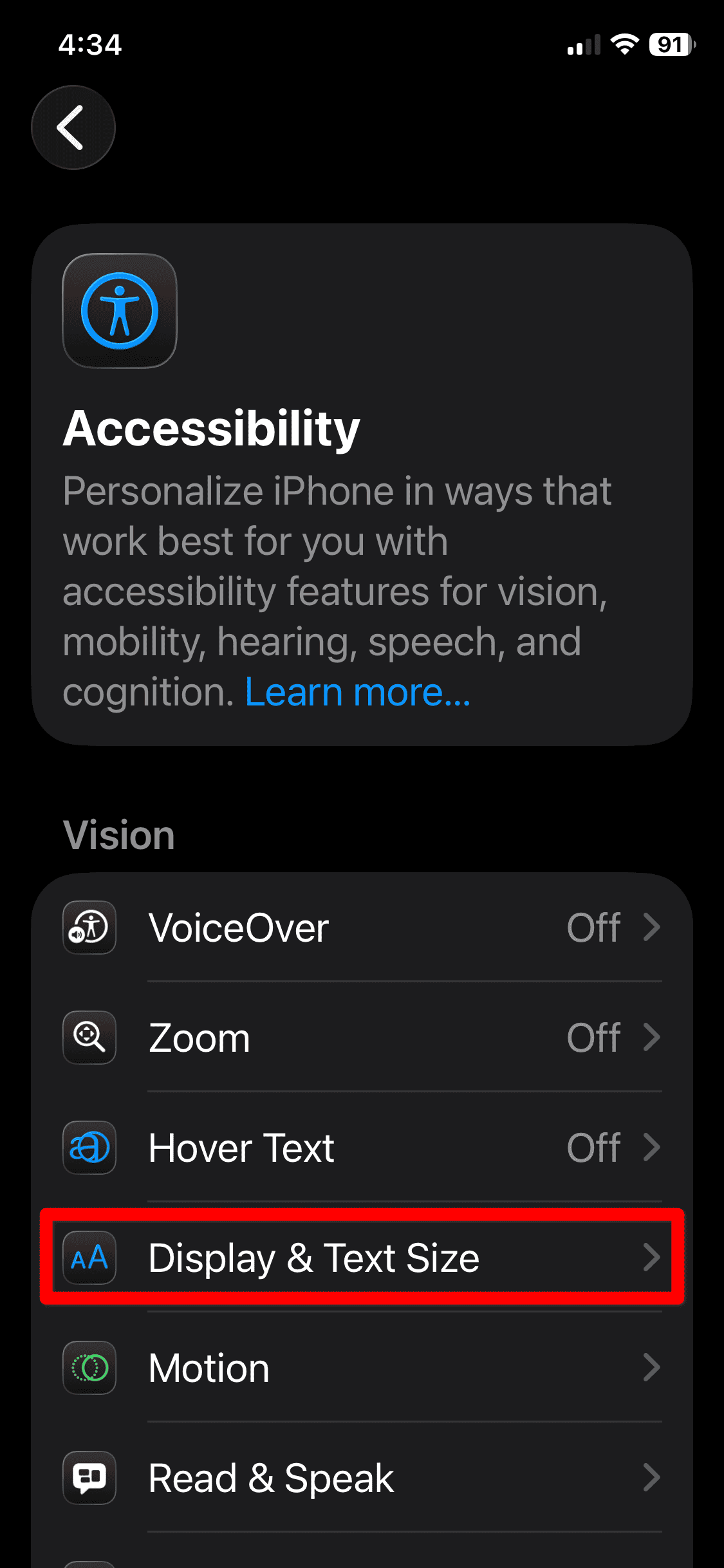
- Tap Accessibility > Display & Text Size.
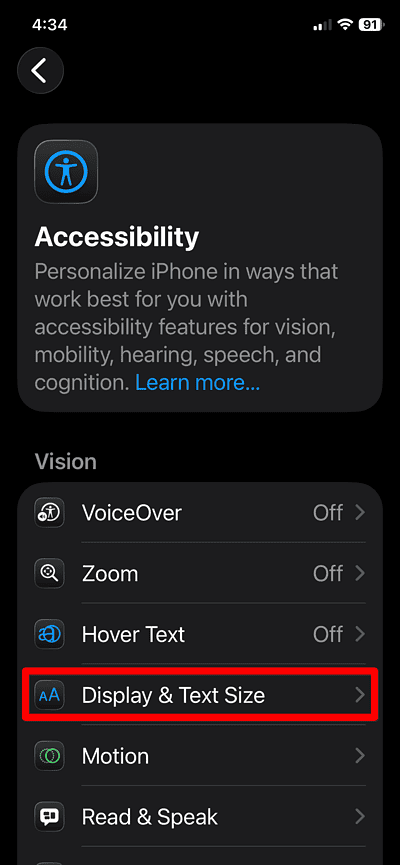
- Turn on Reduce Transparency.
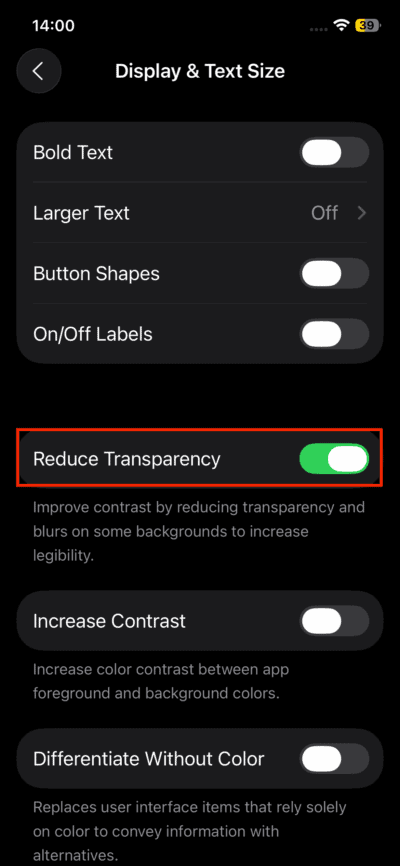
If you still see glassy elements, keep going with the next solution for clearer edges and text.
2. Turn on Increase Contrast
Increase Contrast makes UI boundaries stronger, and it improves readability over translucent layers. It helps when you want a flatter feel without changing every visual effect.
- Open Settings.
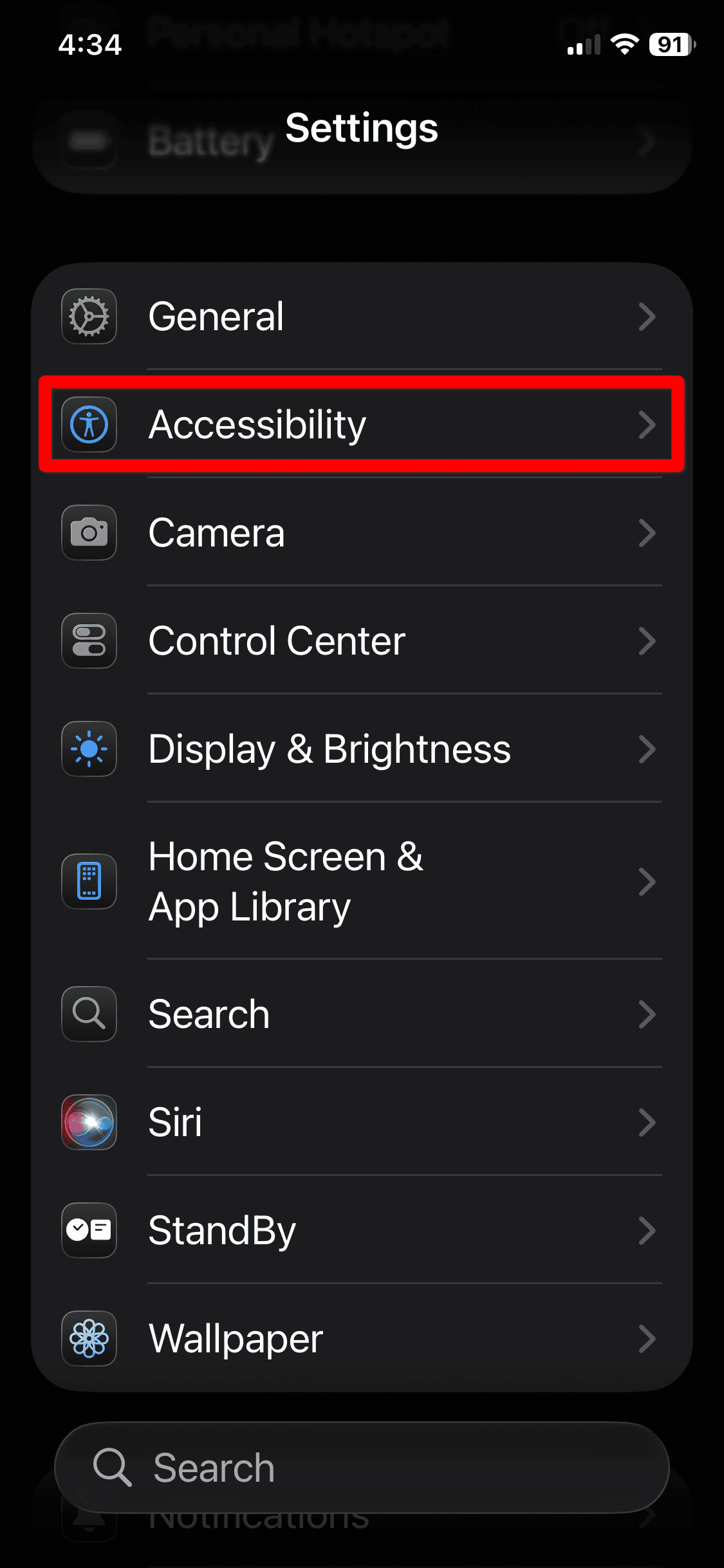
- Tap Accessibility > Display & Text Size.
- Turn on Increase Contrast.
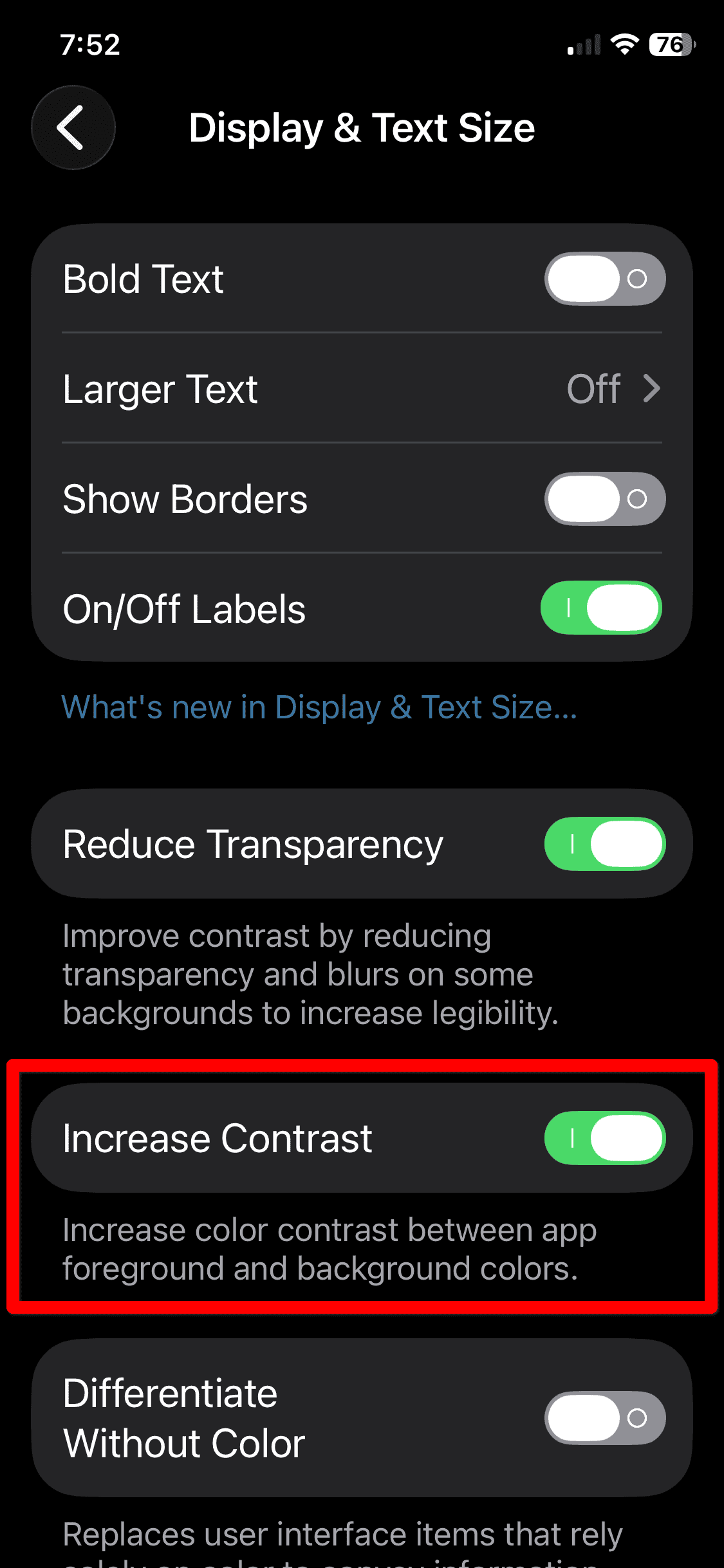
Combine this with Reduce Transparency for the closest thing to a flat UI on iPhone.
3) Reduce Motion To Tone Down the “Shimmer” Feel
Some users describe Liquid Glass as “swimmy” because of motion and layered animations. Reducing the UI animations in iOS will not remove translucency, but it can make the interface feel calmer. There are a few motion-related options in iOS, so here’s how to disable the right one:
- Open Settings.
- Tap Accessibility > Motion.
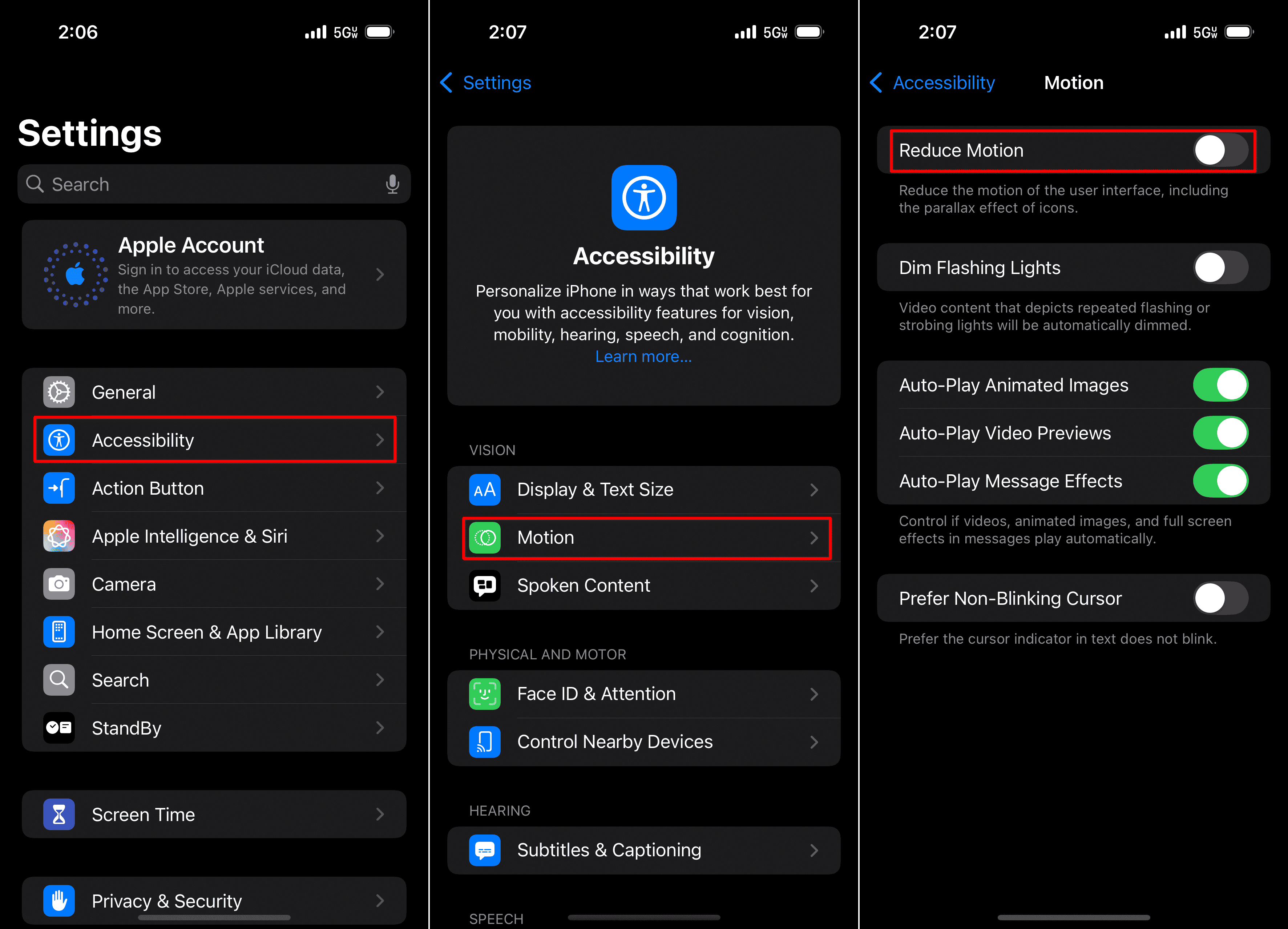
- Turn on Reduce Motion.
This option helps if you want to disable the “liquid” vibe without changing contrast settings.
4) Use the Liquid Glass Style Toggle, if Your iPhone Has It
Apple added a built-in Liquid Glass style control in later iOS 26 updates. It lets you pick a more opaque look, often called Tinted, which reduces the glassy appearance.
- Open Settings.
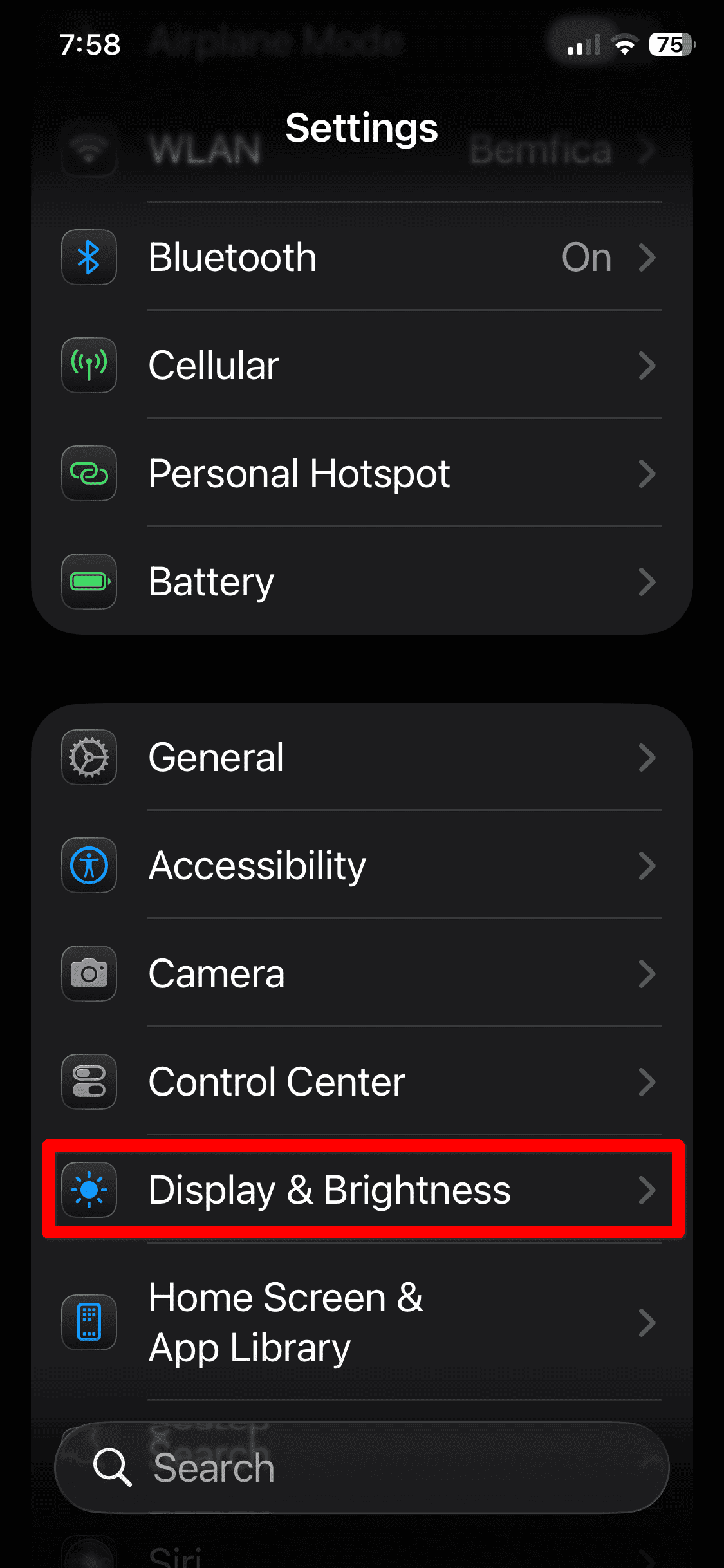
- Tap Display & Brightness.
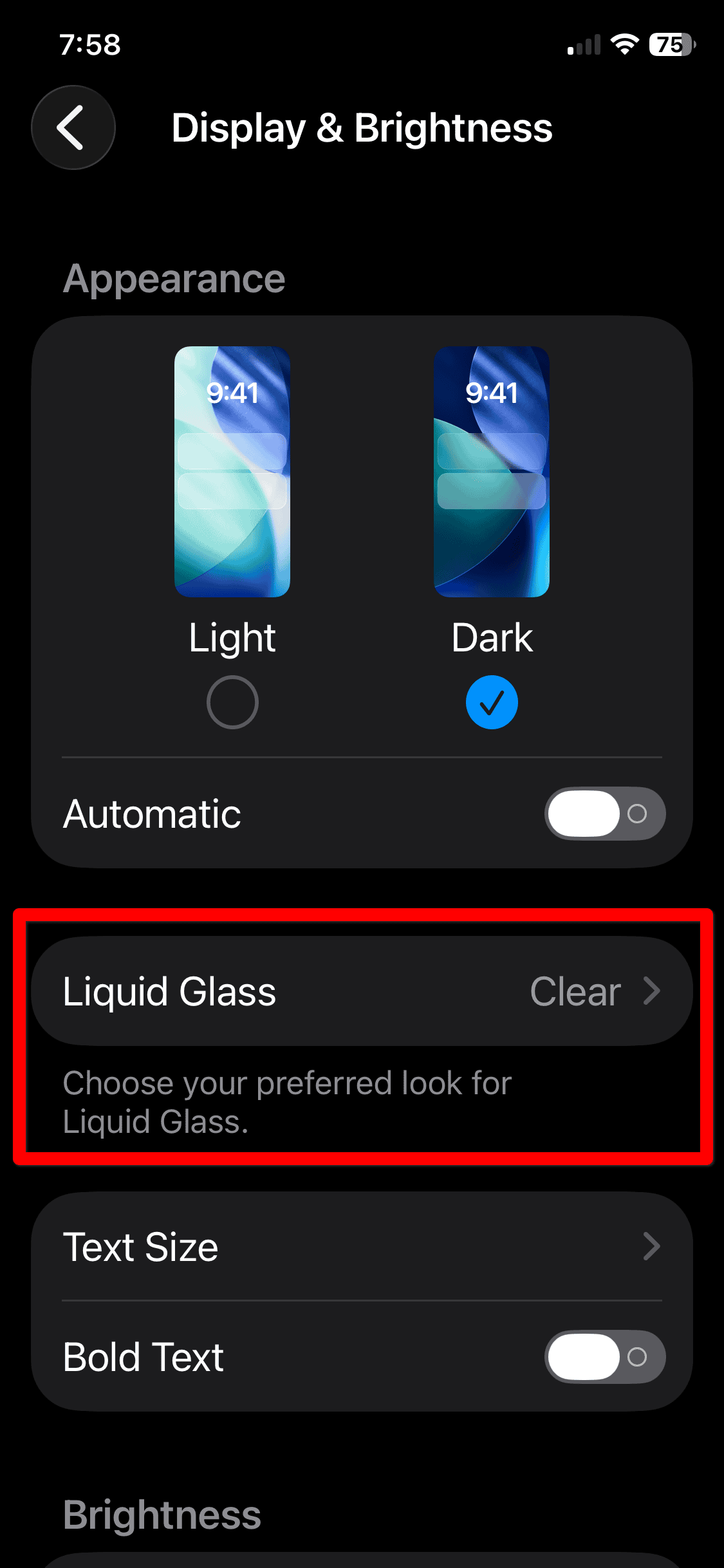
- Tap Liquid Glass.
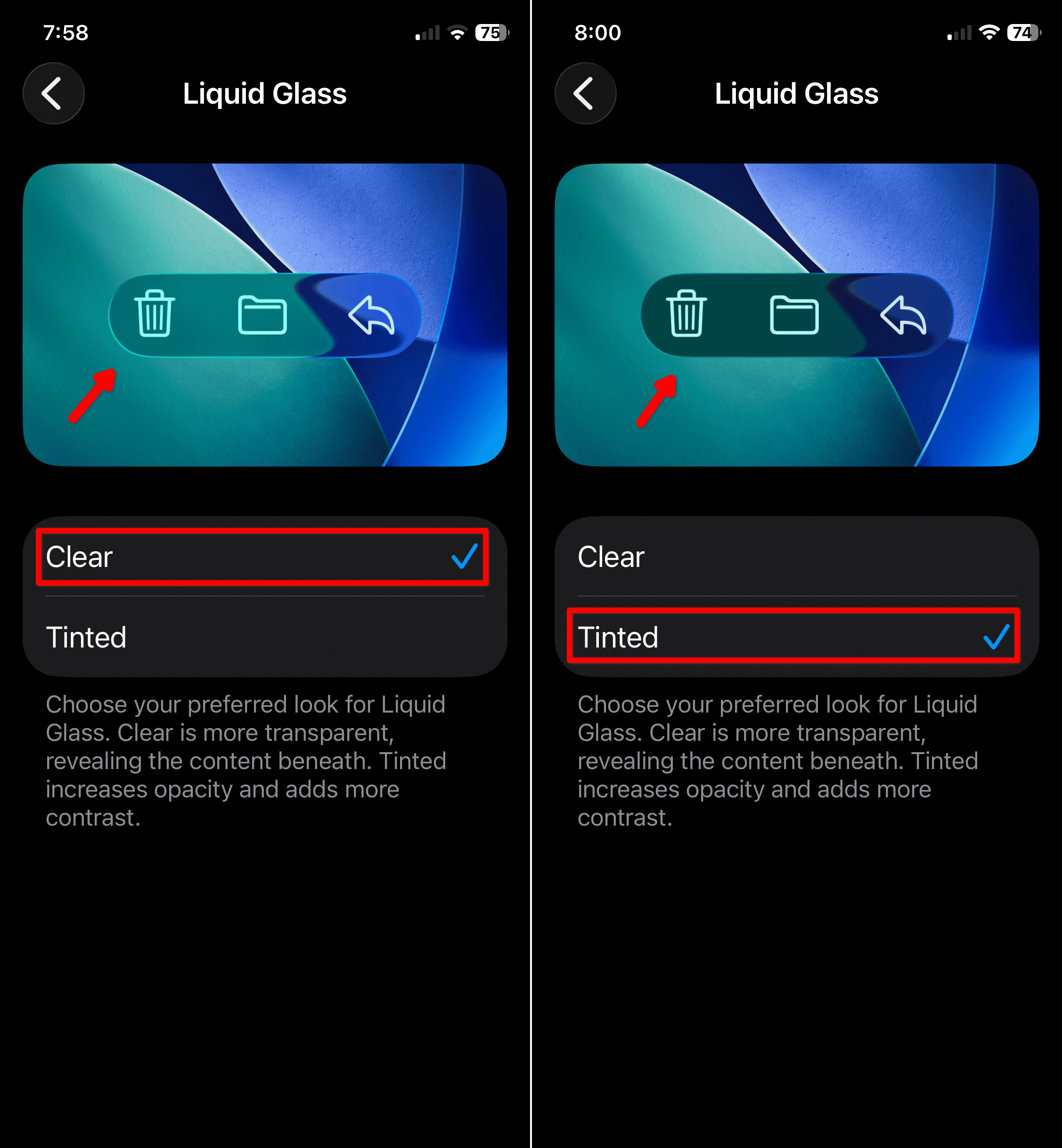
- Select Tinted or the least transparent option available.
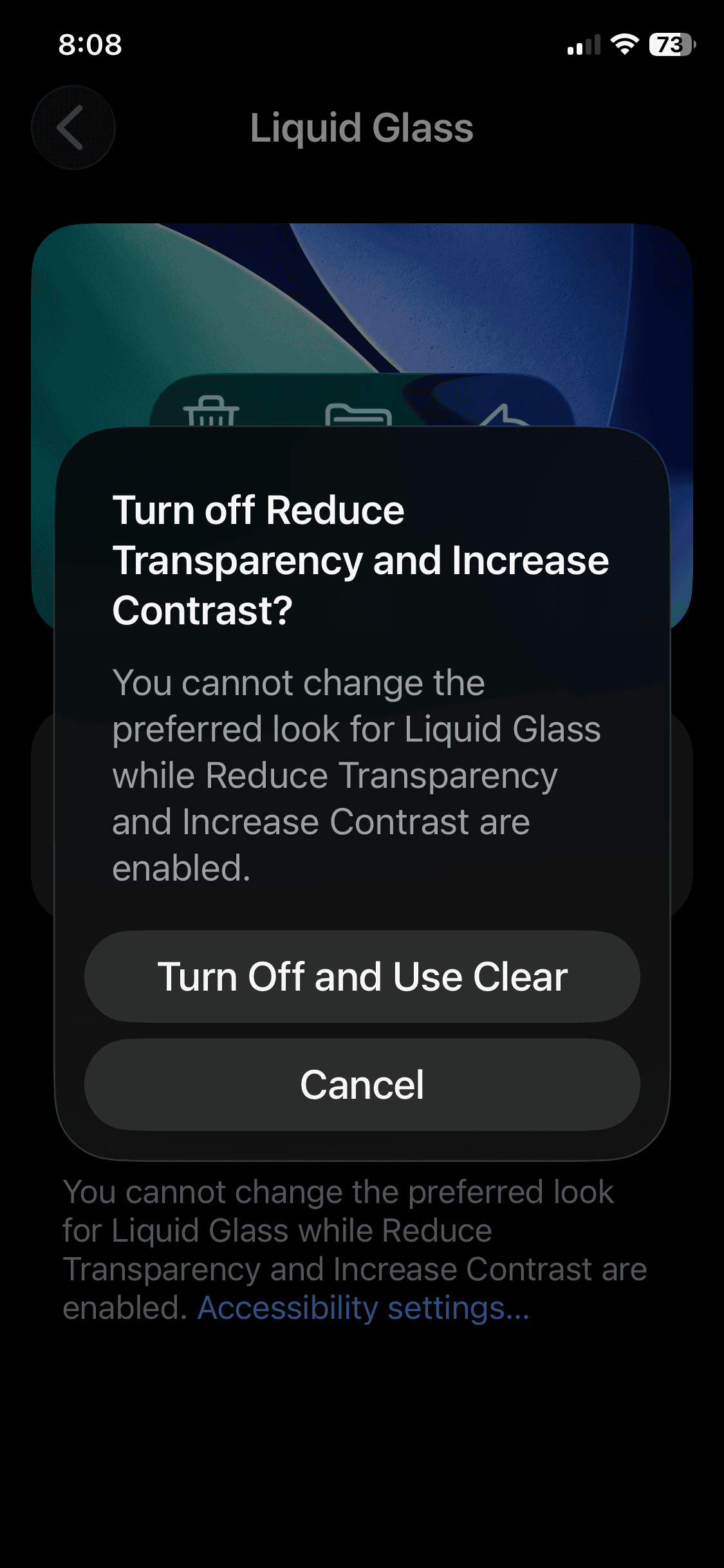
- Some builds require you to turn off Reduce Transparency and Increase Contrast before this menu unlocks. If that happens, decide which result you prefer and keep one approach.
Tips — Get the Most Out of Disabling Liquid Glass in iOS 26
- Start with Reduce Transparency, then add Increase Contrast if text still looks soft.
- If the new toggle forces conflicts, pick either Tinted or accessibility settings, and stick with one.
- Try a darker wallpaper to reduce the visible layering behind menus and panels.
- If you use an iPad, you will find the same settings under the same names in iPadOS.
FAQ
iOS 26 does not offer a full off switch, but you can reduce most effects using transparency and contrast settings.
Reduce Transparency makes the biggest visual difference across Control Center, menus, and pop-ups.
It may require a newer iOS 26 update, or Apple may limit it to specific builds or devices.
Darker, less translucent UI can reduce some rendering work, but results vary by app and usage.
Disable Liquid Glass and Revert to Flat Design on iOS 26: Summary
- Turn on Reduce Transparency for a more solid, flat look.
- Enable Increase Contrast to sharpen text and UI edges.
- Use Reduce Motion to cut down the “liquid” animation feel.
- Try the Liquid Glass style toggle if your iPhone includes it.
Conclusion
If you want to disable the Liquid Glass iOS 26 styling as much as possible, start with transparency and contrast. Then test the Liquid Glass style toggle, if your iPhone supports it, and keep the combination that feels most readable.




I really hope Apple gives us an option to disable this stupid design entirely or just removes it entirely from the next update. Liquid Glass is ass and I refuse to update until I am forced to, or they get rid of this hideous look. It’s terrible for accessibility and also is a HUGE drain on battery!
I was just forced into ios 26 from 17, words cannot describe how bad a headache this gave me. Thanks for the help.
This is an accessibility nightmare, everything looks like dog shit, enabled or not. This is just awful.
Thank you! I hated this update and your alterations made it far more bearable. I just want my phone not to give me a headache. :/
They certainly may feel a bit overwhelming at times. Though I don’t mind the animations themselves, something that definitely did help reduce my migraines while using my iPhone (even before iOS 26) was enabling Vehicle Motion Cues: https://www.macobserver.com/ios/vehicle-motion-cues-iphone/
Despite the name, they’re helpful in many situations, like when going down (or up) multiple flights of stairs, rocking on a chair, or even walking while using the phone. I keep the feature on 100% of the time, nowadays.
Thanks for the help