

Forgetting your Apple Watch passcode can be a hassle, especially if it prevents you from using apps, tracking your sleep, or checking your notifications. Thankfully, you won’t be inconvenienced for very long. Whether you have your iPhone nearby or not, you can restore access in just a few steps. Here’s exactly what to do if you forget the passcode to your Apple Watch.
Table of contents
Don’t forget your Apple Watch cellular plan
You’ll need to make one major choice during the reset process if your Apple Watch has cellular service. You’ll see an option to keep or remove your cellular plan. Choose the option to “Keep Plan” if you plan to pair your Apple Watch with your iPhone again. Select “Erase All” or “Remove Plan” if you no longer plan to use the Watch with your iPhone or are cancelling your cellular plan. Once you remove the plan, it’s a good idea to reach out to your carrier to cancel your cellular service as soon as possible.
What to do when you forget your Apple Watch passcode
1. Reset your Apple Watch using your paired iPhone
If your iPhone is nearby, this is the easiest route.
Don’t miss the best of The Mac Observer
Set us as a preferred source and our Apple reporting ranks higher in your Google Search results and Discover feed — one tap, no account changes.
- Keep your Apple Watch and iPhone close together.
- Open the Watch app on your iPhone.
- Tap My Watch > General > Reset.
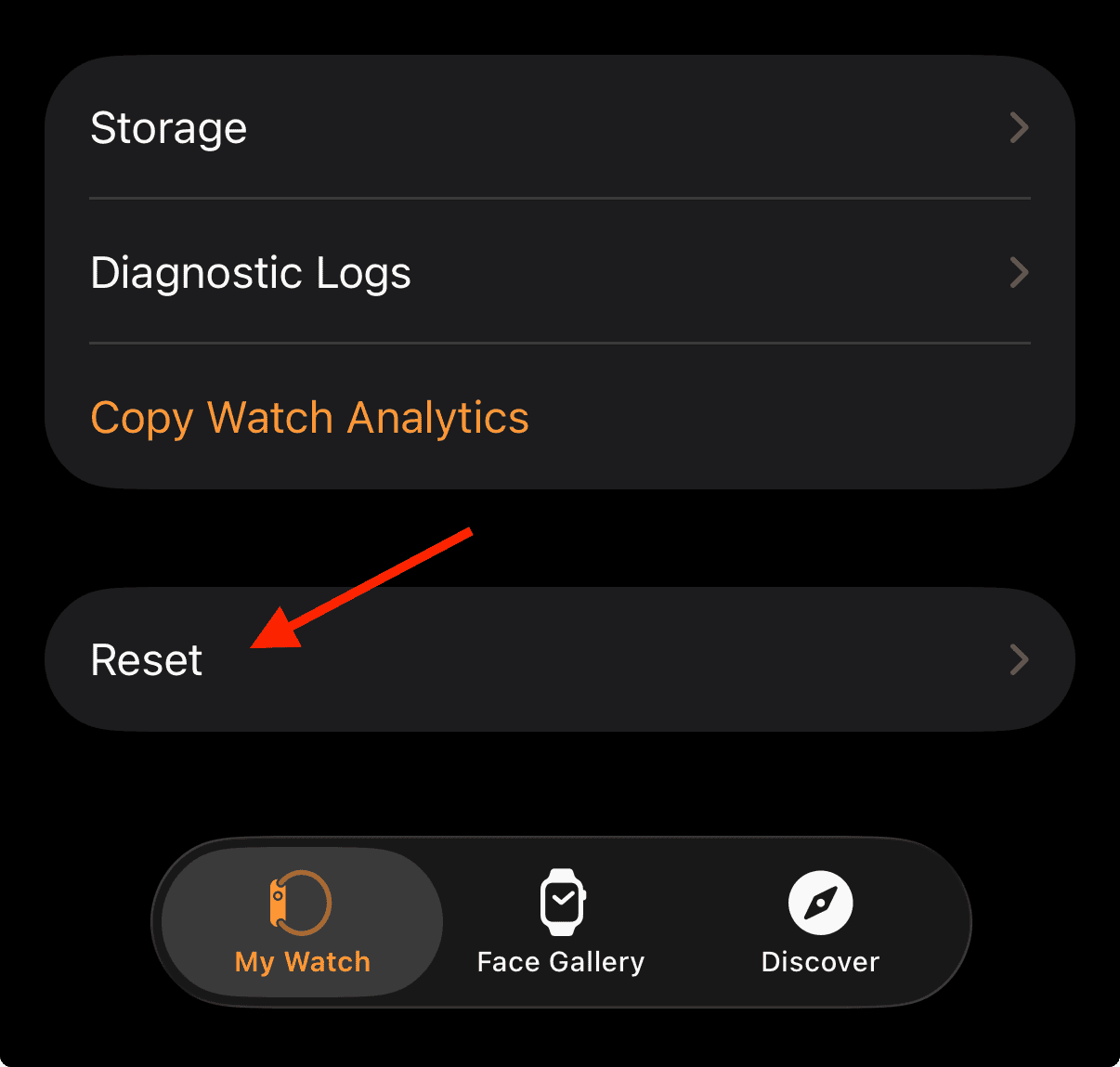
- Select “Erase Apple Watch Content and Settings.”
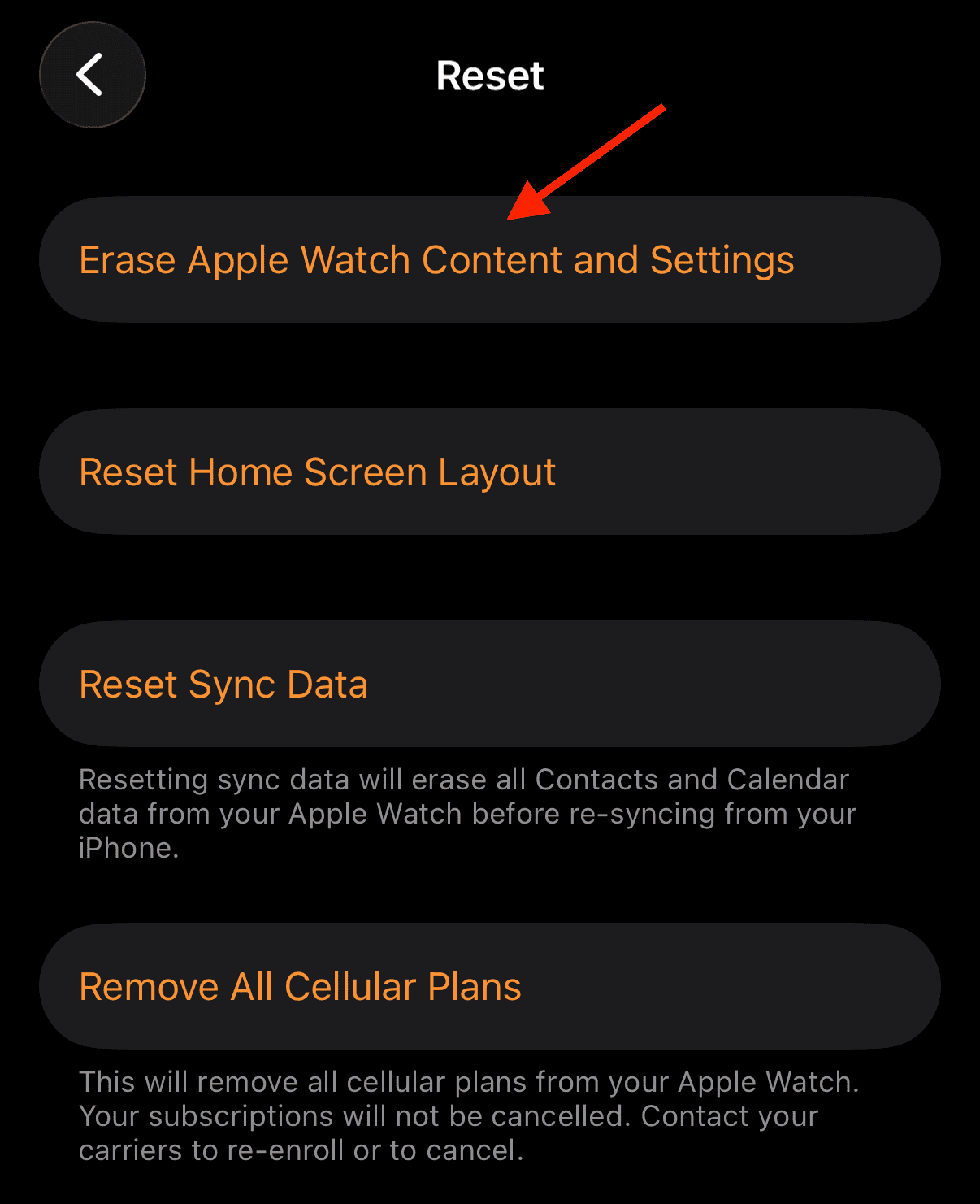
- Confirm your choice and wait for the process to complete.
- When it’s done, set up your watch again and restore it from your most recent backup.


This option is quick, reliable, and keeps most of your settings intact.
2. Reset directly on your Apple Watch
No iPhone? No problem. You can reset your watch right on the device.
- Place your Apple Watch on its charger.
- Press and hold the side button until you see the power button appear in the top-right corner of the screen.
- Press and hold the Digital Crown until you see the option to “Erase all content and settings.”
- Tap “Erase all content and settings.”
- Let the process finish, then pair your watch again with your iPhone.
It’s the simplest way to start over when you’ve forgotten your passcode and your phone isn’t around.
3. Erase your Apple Watch remotely using Find My
If your watch is lost or stolen, or you can’t access it directly, you can wipe it remotely.
- Open the Find My app on your iPhone or iPad (or sign in at iCloud.com).
- Tap Devices and select your Apple Watch.
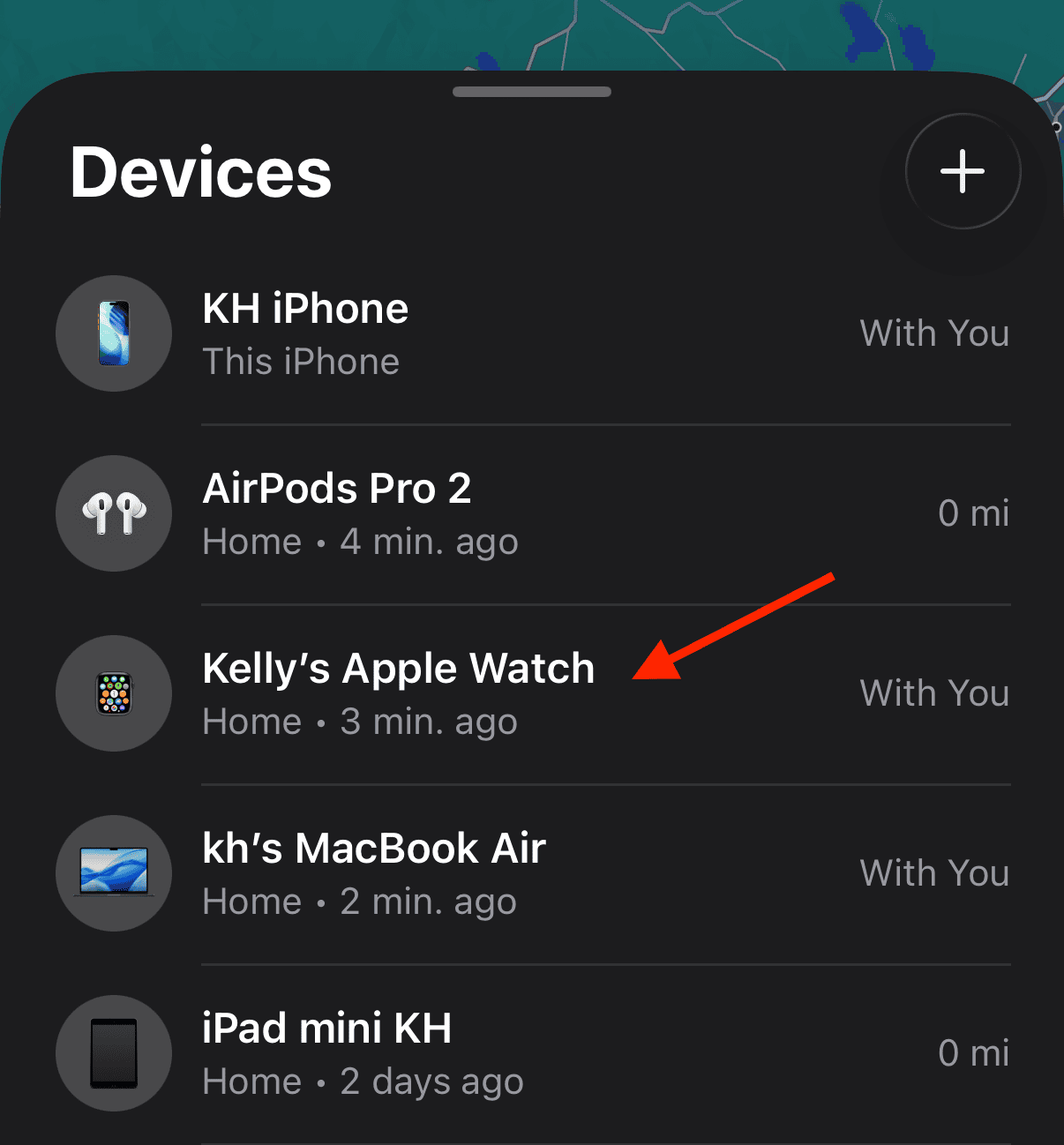
- Choose “Erase.”

- Confirm and wait for the process to complete.
- Once erased, you can set it up again as new or restore from backup.


This option also removes your passcode, keeping your data safe even if someone else finds your watch.
4. Restore your Apple Watch using Recovery Mode
If your watch refuses to reset normally or gets stuck mid-update, Recovery Mode is your best friend.
- Connect your Apple Watch to its charger.
- On your iPhone, make sure Bluetooth and Wi-Fi are turned on.
- Hold down the side button on your Apple Watch until you see the Apple logo.
- Keep holding until the Recovery Mode screen appears.
- Follow the steps on your iPhone to restore your watch’s software.
This feature, introduced with newer watchOS versions, can revive a frozen or unresponsive Apple Watch.
Tips
- Always back up your Apple Watch before performing a reset.
- Keep both your iPhone and Apple Watch updated to the latest software versions.
- Pick a passcode that’s memorable but hard for others to guess.
- If your passcode setup options appear grayed out, it may be a configuration issue—check this troubleshooting guide.
Frequently asked questions
Your watch will lock itself and require a full reset to unlock again.
Yes, but if you have a backup, you can restore your apps and settings easily.
No, but these directions above can walk you through resetting your watch safely.
Summary
- Reset your Apple Watch using your paired iPhone.
- Reset directly from your Apple Watch.
- Erase your Apple Watch remotely using Find My.
- Restore your Apple Watch using Recovery Mode.


Discussion