

Your Apple ID payment method is used for everything from iCloud storage plans and Apple Music subscriptions to App Store purchases. Keeping this information current is essential to avoid service interruptions. Whether a card has expired or you prefer to switch to a different form of payment, here is a complete guide on how to change your iCloud billing details on any device.
Table of contents
The Essential Guide to Managing Apple ID Payments
1. Changing Your Payment Method on iPhone and iPad
The easiest way to update your billing details is directly on your iOS or iPadOS device through the Settings application.1 This process ensures your new card is immediately available for all services linked to your Apple ID, including your iCloud plan. If you are struggling with a transaction, learn about how a simple change can sometimes fix an issue when NFC Apple Pay is not working on iOS.
- Go to Settings.
- Tap your name at the top of the screen.
- Select Payment & Shipping. You may be asked to authenticate with Face ID or Touch ID.
- Tap Add Payment Method and enter the new card details.
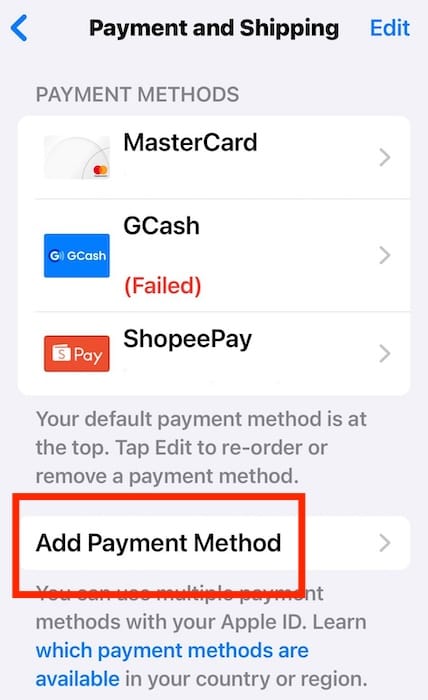
- To make the new method primary, tap Edit, then drag the new method to the top of the list.

2. Updating Your Billing Information on a Mac
If you prefer to manage your account on a desktop, the Mac offers a straightforward path via System Settings or System Preferences.2 This method is convenient for users who handle most of their digital transactions on their computer. Remember that having a payment method on file is necessary, even for downloading free apps on your iPhone.
Don’t miss the best of The Mac Observer
Set us as a preferred source and our Apple reporting ranks higher in your Google Search results and Discover feed — one tap, no account changes.
- Click the Apple menu in the top left corner and choose System Settings (or System Preferences).
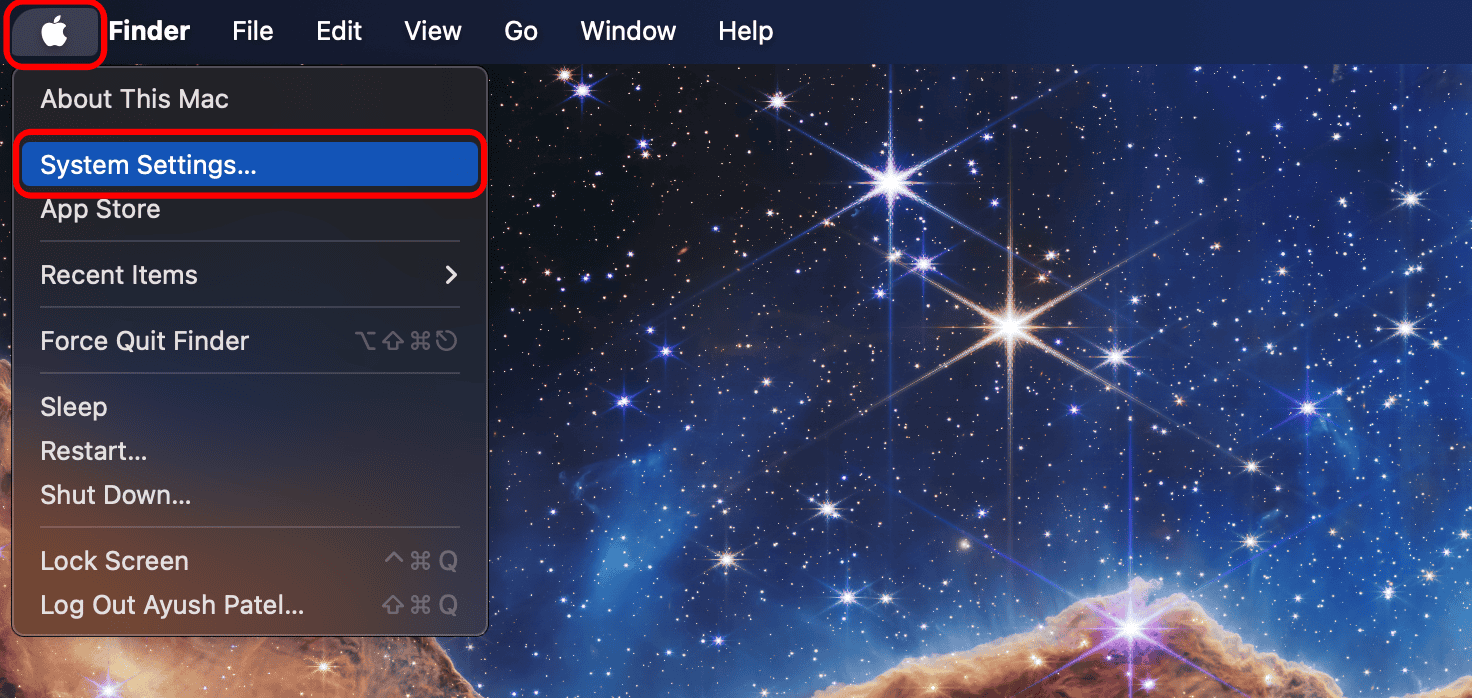
- Click your name at the top of the sidebar.
- Select Payment & Shipping from the options.
- Click the Add Payment button to input a new credit card, debit card, or other accepted method.
- After adding the new method, ensure you move it to the top of the list if you want it as your default for iCloud charges.

3. Managing Payment Via the Apple ID Account Website
For users without immediate access to an Apple device, or those who prefer a web interface, Apple provides a robust account management portal. This solution allows you to access and modify your payment information from any standard web browser. This can be helpful when you are already planning to set up Apple Pay on a new device.
- Navigate to the official Apple ID website.
- Sign in with your Apple ID and password.
- In the sidebar or navigation menu, click on Payment & Shipping.
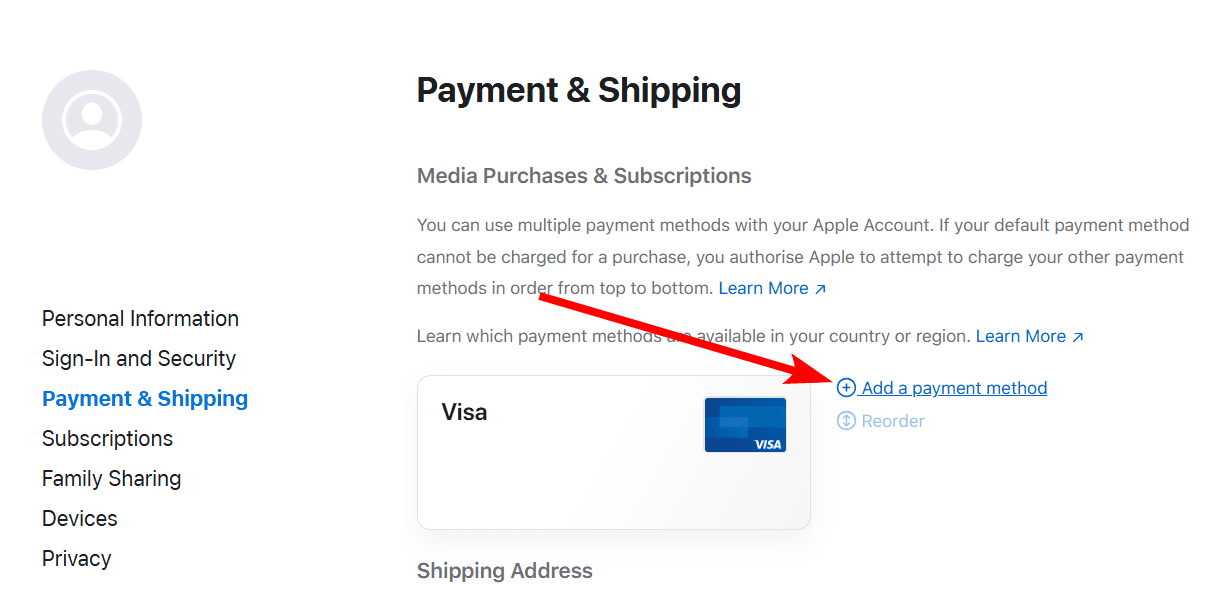
- Click the Add Payment button and enter the required payment details.
- Once added, you can edit or delete existing payment methods from this same section.

4. Reordering Your Saved Payment Methods
When you have multiple payment methods linked to your Apple ID, Apple charges the method at the top of the list first for recurring services like iCloud storage. You may need to change the order to prioritize a different card, perhaps one specifically designated for business expenses. This is a quick and simple maintenance task you can perform on any Apple device.
- Go to the Payment & Shipping section in your device’s Settings or System Settings.
- Tap or click the Edit button.
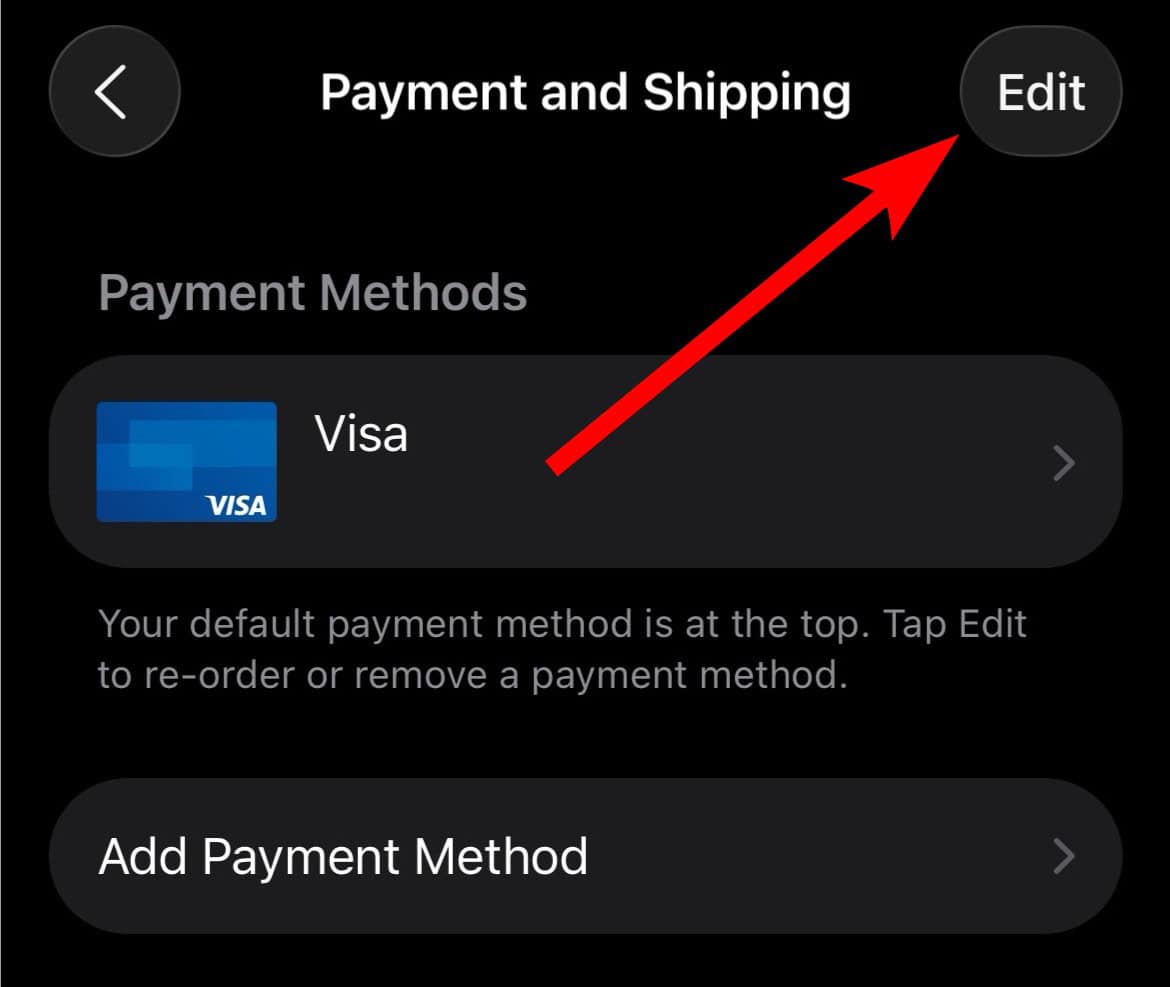
- Use the three line icon next to the payment method you wish to move.
- Drag the method up or down to its desired position in the list.
- Tap or click Done to save the new order.

5. Removing an Old or Expired Payment Card
Removing old or expired cards not only keeps your account tidy but also prevents billing errors. Apple will usually attempt to charge the top method first, but it is best practice to remove any method you no longer intend to use. Note that if you are currently using a Family Sharing plan, the organizer must have at least one valid payment method on file.
- Access the Payment & Shipping section on your device.
- Locate the outdated payment method you wish to remove.
- On an iPhone or iPad, swipe left on the card and tap Remove. On a Mac, click the card and then select Remove Payment Method.
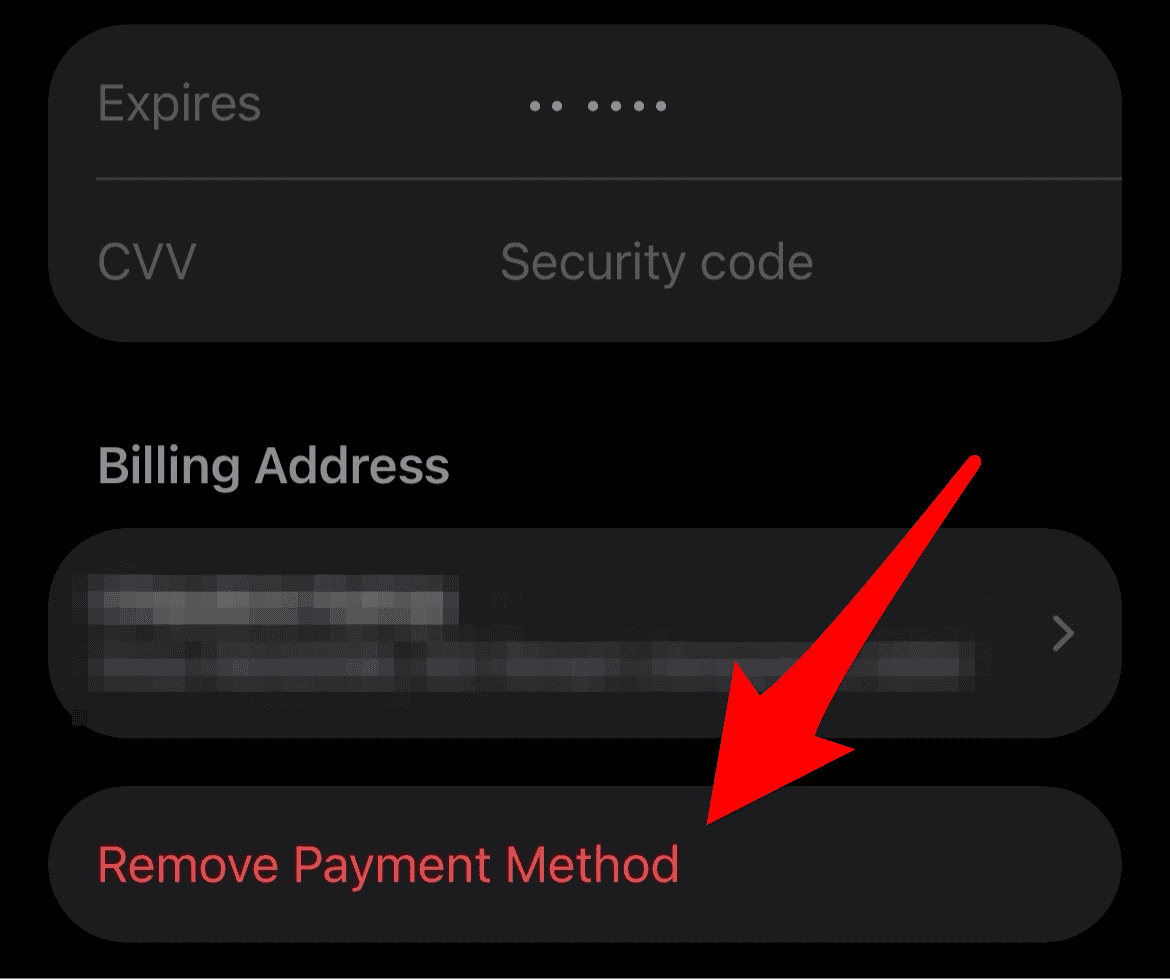
- Confirm the removal when prompted.
- Ensure a new, valid payment method remains on file if you have active subscriptions, including iCloud storage.

FAQ
You cannot use an Apple Gift Card or App Store and iTunes Gift Card to pay for recurring iCloud storage plans. These cards can be used for most other purchases, but the monthly iCloud charge requires a traditional credit or debit card or other accepted payment method.
The most common reasons for a declined card include billing address mismatches, which must perfectly match the address registered with the bank, or a simple lack of funds. Occasionally, your bank may block the first charge attempt for security purposes.
Protecting Your iCloud and Subscription Access
Maintaining accurate payment information for your Apple ID is a critical step in ensuring uninterrupted access to your iCloud data, media, and apps. By following these steps on your iPhone, Mac, or the web, you can quickly update or switch your billing details whenever necessary. This simple action safeguards your subscriptions and prepares you for using Apple’s convenient payment system, which is accepted in a full list of stores that accept Apple Pay worldwide.


Discussion