

The iPhone Zoom feature is a powerful accessibility tool. It magnifies the display for users with vision issues. However, users often activate this feature accidentally. This leaves the iPhone screen stuck zoomed in. This sudden restricted view makes the device almost unusable. Fortunately, this is a software issue. You can usually resolve it quickly with a few simple steps. You will then restore your display to its normal viewing size.
Table of contents
Simple Solutions for a Stuck Zoomed iPhone Display
1. Triple-Tap Gesture to Zoom Out
This is the quickest and most common solution. Your iPhone display is currently stuck on a magnified view. The triple-tap gesture is the default shortcut. It toggles the Zoom accessibility feature on and off. This works regardless of your location in the interface.
- Use three fingers and quickly double-tap the screen.
- If the double-tap fails, try a quick triple-tap with three fingers. See if it deactivates the feature entirely.
- If this succeeds, the screen immediately returns to its standard size.
2. Deactivate Zoom Through Settings
If the three-finger tap does not work, use this method. You can disable the feature directly in the iPhone’s Settings application. Furthermore, you prevent this issue from happening again. This ensures the Zoom function is completely turned off. Thus, it will not activate accidentally later.
Don’t miss the best of The Mac Observer
Set us as a preferred source and our Apple reporting ranks higher in your Google Search results and Discover feed — one tap, no account changes.
- If you can navigate the zoomed screen, use three fingers. Tap and drag to move the viewable area.
- Navigate to Settings > Accessibility > Zoom.
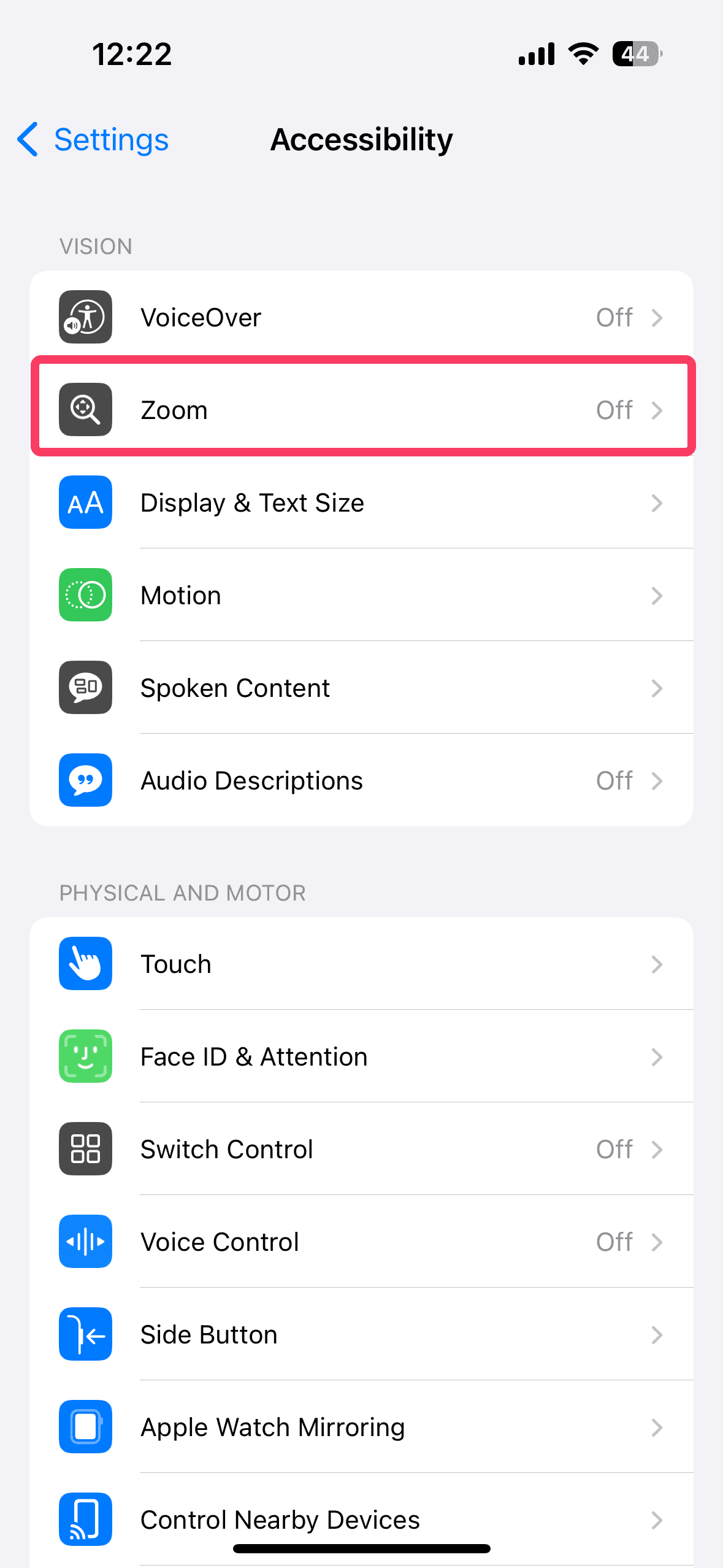
- Toggle the main Zoom switch to the Off position.

- Ensure you disable the Zoom Controller and Follow Focus options. This prevents related issues, too.


3. Force Restart Your iPhone
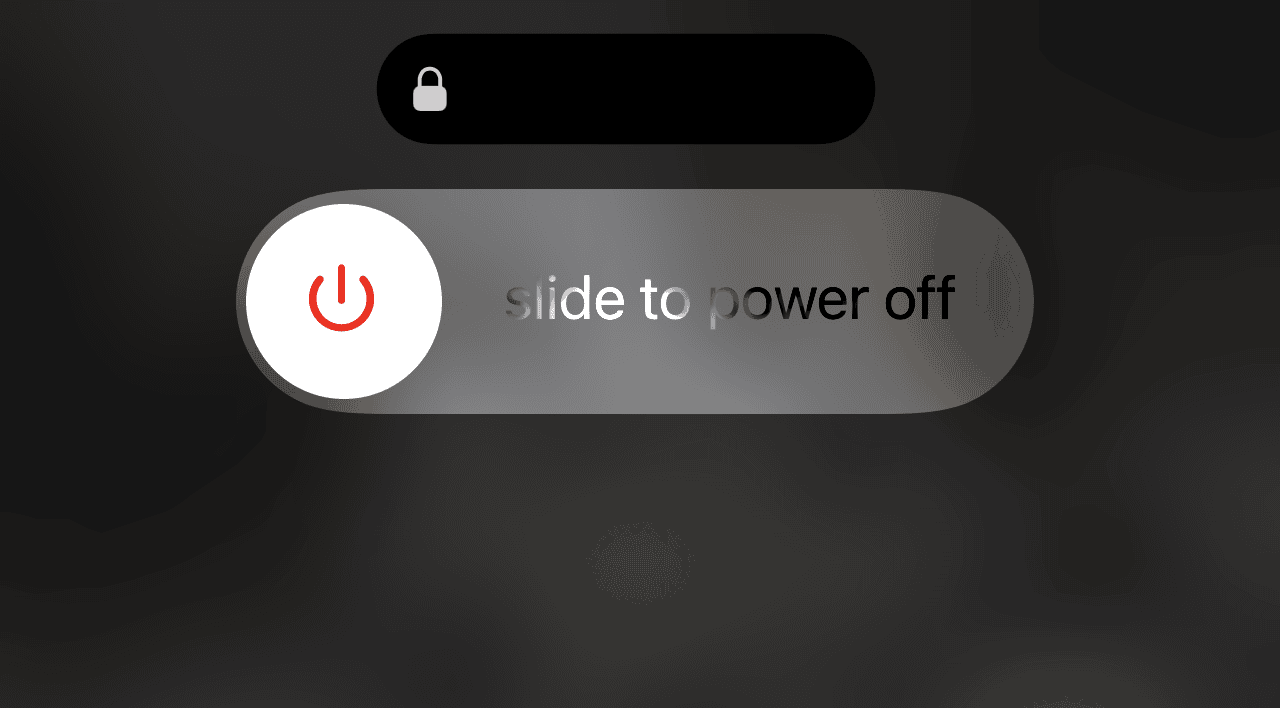
A force restart is a very effective troubleshooting step. It resolves temporary software glitches. This includes when the display locks in a zoomed state. This action forces the operating system to reboot. It clears temporary memory issues without deleting your data. People often recommend this method for unresponsive screen issues. If the entire screen lacks response, refer to this guide on what to do when an iPhone screen is not responding to touch.
- For iPhone 8 and later: Press and quickly release Volume Up. Then press and release Volume Down. Finally, press and hold the Side button until the Apple logo appears.
- For iPhone 7/7 Plus: Press and hold both the Side and Volume Down buttons until the Apple logo appears.
- For iPhone 6s and earlier: Press and hold both the Home and Power buttons until the Apple logo appears.

4. Check for a Software Update
Sometimes a persistent Zoom bug causes display issues. A subsequent iOS release has addressed this known software flaw. Keeping your device up-to-date ensures you have all the latest bug fixes. These stability improvements resolve unexpected behavior like a stuck screen.
- Navigate to Settings, then General. Select Software Update.
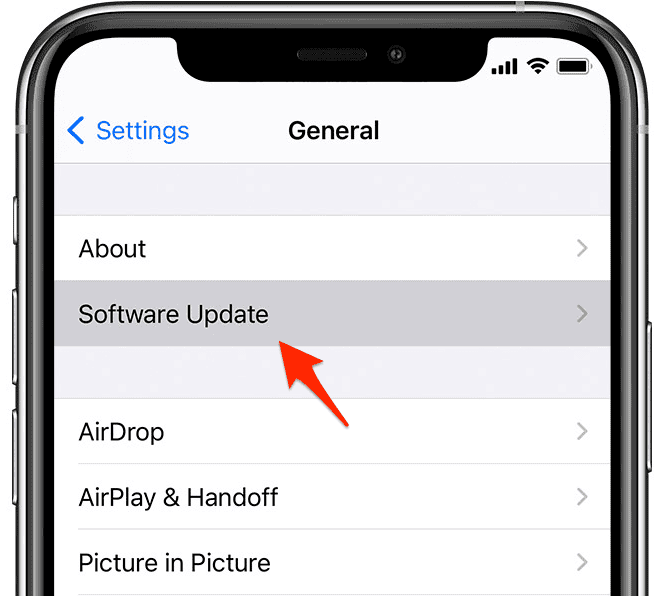
- If an update is available, tap Download and Install. Ensure your iPhone connects to Wi-Fi. Also, confirm it has sufficient battery life. It is crucial to update iOS on your iPhone or iPad regularly for security and stability.

5. Utilize AssistiveTouch or Switch Control
If physical gestures fail, you have other options. If you have trouble reaching the required settings, try AssistiveTouch. This feature provides a software-based workaround. You can use it to access the Settings app. Alternately, you can configure the Zoom feature to integrate with Switch Control. Different models support these features. This includes the very first to the most recent in the full list of every iPhone model from 2007. These tools offer flexibility in device operation.
- Go to Settings > Accessibility > Touch > AssistiveTouch.
- Enable AssistiveTouch.
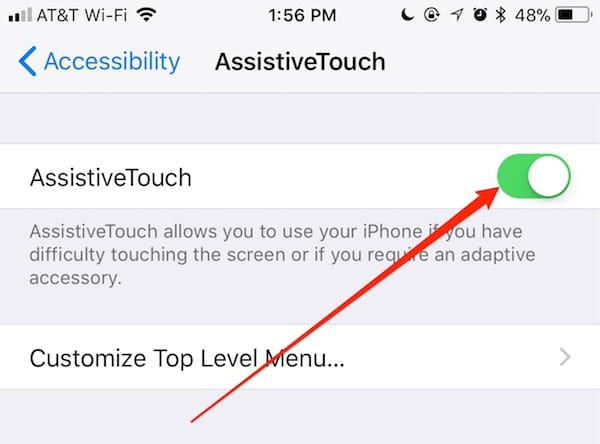
- Use the on-screen AssistiveTouch button. Navigate back to the Accessibility menu.
- Confirm the main Zoom toggle is set to the Off position.

FAQ
Your iPhone’s display does not typically zoom in without a command. The issue is almost always the unintentional activation of the Zoom Accessibility feature. This occurs most commonly when a user accidentally double-taps the screen. They use three fingers to do this. This is the default gesture for activation and deactivation. It also happens if someone accidentally presses a physical button combination. This combination triggers an Accessibility Shortcut.
You can adjust the magnification level while the screen is zoomed. This makes the display more manageable. To do this, use three fingers. Double-tap and hold on the screen. While holding, slide your three fingers up or down the display. Sliding up increases the zoom level. Sliding down decreases it. This makes text and images larger or smaller.
Restoring Normal iPhone Display Function
Resolving a display stuck in a zoomed state is simple. It primarily involves disabling the responsible accessibility feature. You can use the quick three-finger double-tap gesture. Alternatively, use the detailed Accessibility settings menu. Regular software updates are the best preventative measure. Familiarity with the device’s accessibility shortcuts also helps against this common issue. If you are interested in magnification features, Apple also provides a helpful digital iPhone magnifying lens tool.


Discussion